
Gioteck E5SUNI-11-MU
Gioteck EX-05S Universal High Definition Stereo Headset User Manual
Model: EX-05S
1. Proizvod je gotovview
The Gioteck EX-05S High Definition Headset is designed to deliver superior stereo game sound and crystal-clear voice communication. It is compatible with multiple platforms including PS4, PS3, Xbox 360, PC, and Mac. This headset features 40mm high-quality stereo drivers, a noise-isolating microphone, and breathable micro-fibre ear cups for extended comfort.
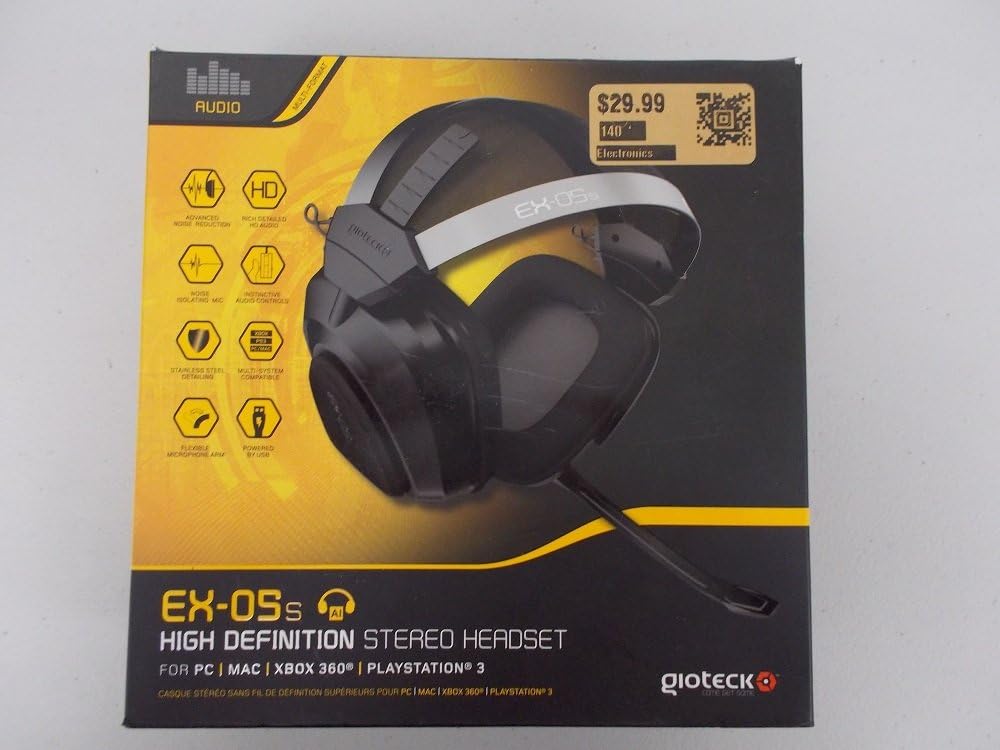
Figure 1.1: Gioteck EX-05S Headset packaging, highlighting key features and compatibility.

Slika 1.2: Bočna strana view of the Gioteck EX-05S Headset, showing the ear cup and microphone arm.
2. Značajke
- 40mm High Quality Stereo Drivers: Delivering rich, detailed audio for an immersive gaming experience.
- Noise Isolating Microphone: Designed to eliminate echo and external noise for clear communication.
- Breathable Micro-Fibre Ear Cups: Ensures comfort during long gaming sessions.
- Napredno smanjenje buke: Minimizes game sound interference from external speakers.
- Flexible and 180-Degree Rotating Microphone Arm: Allows for optimal microphone positioning.
- Instinctive and Accessible Controls: Conveniently located controls for voice and game sound adjustments.
- Stainless Steel Detailing: Provides durability and a premium finish.
- Kompatibilnost s više platformi: Works with PS4, PS3, Xbox 360, PC, and Mac.
3. Sadržaj paketa
Molimo Vas da provjerite da li se u Vašem paketu nalaze sve sljedeće stavke:
- Gioteck EX-05S Universal High Definition Stereo Headset
4. Vodič za postavljanje
4.1 Connecting to Gaming Consoles (PS4, PS3, Xbox 360)
- Locate the 3.5mm audio jack on your gaming controller or console.
- Insert the 3.5mm connector from the EX-05S headset firmly into the audio jack.
- Ensure your console's audio settings are configured to output game audio and chat through the connected headset. Refer to your console's system settings for specific audio output configurations.
4.2 Povezivanje s računalom/Mac računalom
- For PCs with separate audio and microphone jacks, you may need a PC splitter cable (not included) to connect the single 3.5mm headset jack to your computer's audio output and microphone input ports.
- For devices with a combined 3.5mm audio/microphone jack, simply plug the headset's 3.5mm connector directly into the port.
- Adjust your computer's sound settings to select the EX-05S headset as the default playback and recording device.
5. Upute za rad
5.1 Kontrola glasnoće
The EX-05S headset features an inline control box on the cable. Use the volume dial to adjust the overall audio level of your game and chat sound.
5.2 Isključivanje mikrofona
A switch or button on the inline control box allows you to quickly mute or unmute your microphone. Ensure the microphone is unmuted when you wish to communicate.
5.3 Pozicioniranje mikrofona
The flexible microphone arm can be rotated 180 degrees. Position the microphone approximately 1-2 inches from your mouth for optimal voice clarity and to minimize background noise.
6. Održavanje i njega
- Čišćenje: Use a soft, dry cloth to clean the headset. For ear cups, a slightly damp Može se koristiti krpa, ali pazite da vlaga ne uđe u rešetke zvučnika. Nemojte koristiti jake kemikalije ili abrazivna sredstva za čišćenje.
- Skladištenje: Slušalice čuvajte na hladnom i suhom mjestu, dalje od izravne sunčeve svjetlosti i ekstremnih temperatura. Izbjegavajte zapetljavanje kabela.
- Rukovanje: Always grasp the plug when disconnecting the cable, rather than pulling on the cable itself, to prevent damage to the wiring.
- Ear Cups: The breathable micro-fibre ear cups can be gently wiped clean. Avoid excessive pressure or stretching.
7. Rješavanje problema
7.1 Nema zvuka iz slušalica
- Provjerite je li 3.5 mm priključak do kraja umetnut u audio priključak.
- Check the inline volume control on the headset cable and ensure it is turned up.
- Verify your device's (console, PC, Mac) audio output settings are configured to send sound to the headset.
- Testirajte slušalice na drugom uređaju kako biste isključili problem specifičan za taj uređaj.
7.2 Mikrofon ne radi
- Check the microphone mute switch on the inline control box and ensure it is unmuted.
- Verify your device's (console, PC, Mac) microphone input settings are configured to receive input from the headset.
- Ensure the microphone arm is positioned correctly and not obstructed.
- Test the microphone on another device or application to confirm functionality.
7.3 Static or Distorted Audio
- Ensure the connection is secure and free from debris.
- Try adjusting the volume levels on both the headset and the connected device.
- Move away from potential sources of electromagnetic interference (e.g., Wi-Fi routers, cordless phones).
- Testirajte s drugim audio izvorom ili uređajem.
8. Specifikacije
| Značajka | Detalj |
|---|---|
| Naziv modela | E5SUNI-11-MU |
| Tehnologija povezivanja | Ožičeno |
| Uključene komponente | Slušalice |
| Dobni raspon (opis) | Odrasla osoba |
| Materijal | Nehrđajući čelik |
| Specifične namjene proizvoda | Igre |
| Kompatibilni uređaji | Gaming Consoles, Computers |
| Vrsta kontrole | Kontrola glasnoće |
| Značajka kabela | Na uvlačenje |
| Težina artikla | 669 grama (1.47 funte) |
| Metoda kontrole | Glas |
| Vrsta audio upravljačkog programa | Dinamički upravljački program |
| Oblik slušalice | Nad uho |
| Utičnica za slušalice | 3.5 mm Jack |
| Dimenzije proizvoda | 8.46 x 7.87 x 3.94 inča |
9. Jamstvo i podrška
Gioteck products are manufactured to high standards and undergo rigorous testing. For information regarding warranty coverage, technical support, or service, please refer to the official Gioteck webweb-mjesto ili izravno kontaktirajte njihovu korisničku podršku. Sačuvajte dokaz o kupnji za bilo kakve jamstvene zahtjeve.
Za najnovije informacije o podršci posjetite: www.gioteck.com/support
Ask a question about this manual
Ask about setup, troubleshooting, compatibility, parts, safety, or missing instructions. Manuals+ will review the question and use this page’s manual context to help answer it.