
1. Uvod
This manual provides essential instructions for the safe and efficient use of your Epson LQ-310 24-Pin Narrow Carriage Impact Printer. Please read this manual thoroughly before operating the printer and keep it for future reference.
The Epson LQ-310 is a compact and reliable dot matrix printer designed for fast and efficient printing of various documents, including multi-part forms, invoices, and reports. It features versatile connectivity options including USB, Serial, and Parallel ports.
2. Sigurnosne informacije
Observe the following safety precautions to ensure safe operation and to prevent damage to the printer or injury to yourself.
- Uvijek postavljajte pisač na stabilnu, ravnu površinu.
- Do not block or cover the ventilation slots on the printer.
- Koristite samo kabel za napajanje koji je isporučen s pisačem.
- Do not expose the printer to water, moisture, or excessive heat.
- Isključite pisač iz električne utičnice prije čišćenja ili održavanja.
- Čuvati izvan dohvata djece.
3. Sadržaj paketa
Provjerite jesu li svi artikli prisutni u paketu:
- Epson LQ-310 Printer Unit
- Kabel za napajanje
- Uložak s vrpcom
- Korisnički priručnik (ovaj dokument)
- Driver CD (may vary by region)
4. Postavljanje
4.1 Raspakiranje i postavljanje
- Izvadite pisač iz pakiranja.
- Uklonite sve zaštitne trake i materijale za pakiranje.
- Postavite pisač na ravnu, stabilnu površinu s odgovarajućom ventilacijom.
4.2 Spajanje kabela za napajanje
Spojite kabel za napajanje na pisač, a zatim na uzemljenu električnu utičnicu.
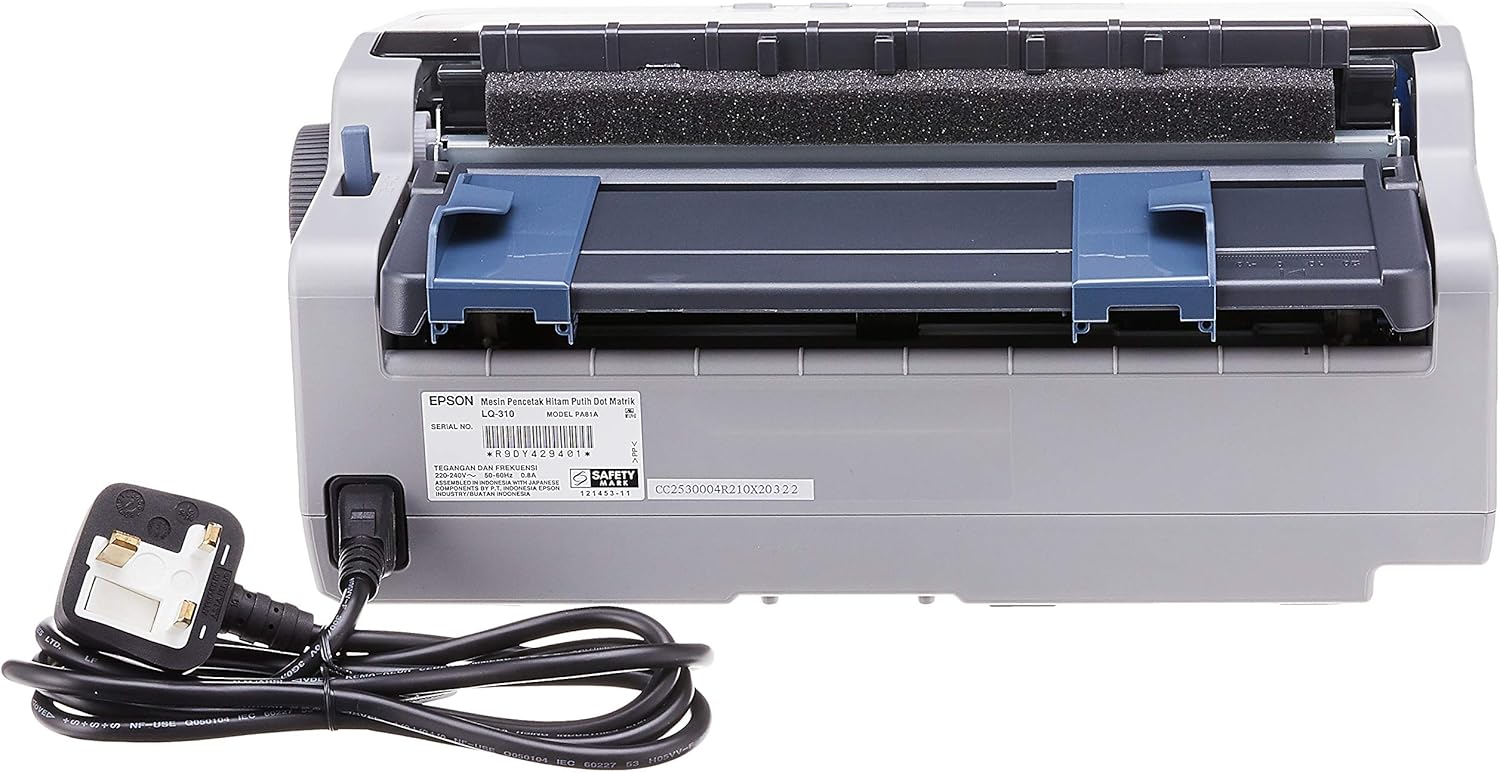
Slika 4.2.1: Stražnji view of the Epson LQ-310 printer, highlighting the power input and various data ports (USB, Serial, Parallel) for connection to a computer.
4.3 Spajanje na računalo
The LQ-310 supports USB, Serial, and Parallel connections. Choose the appropriate cable for your computer and connect it to the corresponding port on the printer.
- USB veza: Use a standard USB A-B cable.
- Serijska veza: Use a serial cable (RS-232C).
- Paralelna veza: Use a parallel cable (Centronics).
4.4 Installing the Ribbon Cartridge
- Provjerite je li pisač isključen.
- Otvorite poklopac pisača.
- Unpack the new ribbon cartridge.
- Align the ribbon cartridge with the guides inside the printer and press down firmly until it clicks into place.
- Turn the ribbon feed knob on the cartridge to ensure the ribbon is taut and not twisted.
- Zatvorite poklopac pisača.

Slika 4.4.1: The ribbon cartridge for the Epson LQ-310 printer, which needs to be installed correctly for printing.
4.5 Umetanje papira
The LQ-310 can handle various paper types, including continuous forms and single sheets.
- For Continuous Forms: Place the forms on the tractor feed mechanism at the rear of the printer. Adjust the tractor guides to match the paper width and engage the pins.
- For Single Sheets: Insert a single sheet into the front paper slot, ensuring it is straight.
4.6 Instalacija upravljačkog programa
After connecting the printer, install the necessary drivers on your computer. You can typically find these on the included CD or download them from the official Epson support webmjesto.
5. Upute za rad
5.1 Kontrolna ploča prekoview
The control panel on the front of the printer allows you to manage basic functions.

Slika 5.1.1: Ispred view of the Epson LQ-310 printer, showing the control panel with buttons for Tear Off, LF/FF, Load/Eject, Paper Out, Pause, Lock, Font, Item, Micro Adjust, and Set.
- Gumb za napajanje: Uključuje ili isključuje pisač.
- Paper Out Indicator: Lights up when the printer is out of paper.
- Gumb za pauzu: Privremeno zaustavlja ispis. Ponovno pritisnite za nastavak.
- Gumb LF/FF (pomicanje retka/pomicanje obrasca): Advances paper by one line or one page.
- Gumb za umetanje/izbacivanje: Loads a single sheet of paper or ejects the current sheet.
- Tear Off Button: Advances continuous paper to the tear-off position.
- Font Button: Selects different fonts.
- Item/Set Buttons: Used for menu navigation and setting options.
5.2 Osnovni ispis
- Provjerite je li pisač uključen i spojen na računalo.
- Load paper according to the instructions in Section 4.5.
- Otvorite dokument koji želite ispisati na računalu.
- Select the Epson LQ-310 as your printer in the print dialog.
- Adjust print settings (e.g., paper size, print quality) as needed.
- Kliknite 'Ispis'.
6. Održavanje
6.1 Ribbon Cartridge Replacement
Replace the ribbon cartridge when print quality deteriorates or the ribbon is visibly worn.
- Isključite pisač i izvucite kabel za napajanje.
- Otvorite poklopac pisača.
- Pažljivo uklonite stari uložak s vrpcom tako da ga podignete.
- Install a new ribbon cartridge as described in Section 4.4.
- Close the printer cover and reconnect the power.
6.2 Čišćenje pisača
Regular cleaning helps maintain printer performance.
- Isključite pisač i izvucite kabel za napajanje.
- Obrišite vanjski dio pisača mekom,amp tkanina. Nemojte koristiti abrazivna sredstva za čišćenje ili otapala.
- Gently clean the print head area with a soft, lint-free cloth if necessary, being careful not to touch the pins.
- Uklonite svu papirnu prašinu ili ostatke s puta papira.
7. Rješavanje problema
This section addresses common issues you might encounter with your LQ-310 printer.
7.1 Printer Does Not Turn On
- Provjerite je li kabel za napajanje sigurno spojen i na pisač i na ispravnu električnu utičnicu.
- Provjerite je li utičnica ispravna tako da u nju priključite drugi uređaj.
7.2 "Paper Out" Indicator is On
- Load paper correctly as described in Section 4.5.
- Ensure the paper sensor is not obstructed.
7.3 No Print Output
- Verify the printer is powered on and connected to the computer.
- Check if the correct printer driver is installed and selected in your application.
- Ensure the ribbon cartridge is installed correctly and has ink.
- Check the printer's status on your computer; clear any pending print jobs.
7.4 Loša kvaliteta ispisa
- The ribbon cartridge may be old or running out of ink. Replace it if necessary.
- Ensure the paper type is suitable for impact printing.
- Clean the print head area if there is visible debris.
8. Specifikacije
| Značajka | Specifikacija |
|---|---|
| Tehnologija tiska | 24-Pin Narrow Carriage Impact Dot Matrix |
| Brzina ispisa | Up to 347 / 416 cps (10 / 12 cpi) |
| Povezivost | 1 Full-Speed USB 2.0, Serial Port, Parallel Port |
| Izlaz za pisač | Colour (Ink Color: Black) |
| Rezolucija | 240 x 170 dpi (Max Print Resolution Black and White: 240 dpi) |
| Težina artikla | 4.1 kilogram |
| Dimenzije proizvoda (D x Š x V) | 27.5 D x 36.2 Š x 15.4 V centimetara |
| Maksimalna veličina medija | Letter/A4 |
| Tiskani mediji | Papir (običan) |
| Naziv modela | LQ 310 |
| Broj modela | LQ-310 |
9. Jamstvo i podrška
The Epson LQ-310 printer comes with a limited warranty. For detailed warranty information, please refer to the warranty card included with your product or visit the official Epson webmjesto.
For technical support, driver downloads, or further assistance, please visit the Epson support website or contact your local Epson customer service center. Have your printer model number (LQ-310) and serial number ready when contacting support.