
1. Uvod
This manual provides essential information for the safe and efficient operation of your Xerox AltaLink C8030 Multifunction Printer. Please read these instructions carefully before using the device and retain them for future reference. This device integrates printing, scanning, copying, and faxing capabilities to support various office tasks.
2. Sigurnosne informacije
Always follow basic safety precautions to reduce the risk of fire, electric shock, and injury. Ensure the device is connected to a grounded power outlet. Do not block ventilation openings. Keep the device away from water and excessive humidity. Refer to the safety labels on the product for specific warnings.
3. Proizvod je gotovview
The Xerox AltaLink C8030 is a color multifunction printer designed for high-volume office environments. It features a 10-inch touchscreen for intuitive navigation and control. Key capabilities include:
- Print Speed: Up to 30 pages per minute (ppm) for both color and monochrome.
- Copy Resolution: 600 x 600 DPI.
- Memory: 8 GB RAM, 1 GB RAM, 250 GB HDD.
- Connectivity: NFC, Wireless, USB.
- Paper Supply: Multiple trays including 2 x 520-sheet trays, a 2,000-sheet high-capacity tandem tray, and a 100-sheet bypass tray.
- Features: Single Pass DADF, Data Security, Job Accounting, PostScript Kit, Network Scanning, Server Fax, iFax, Standard Output Tray, Office Finisher LX.
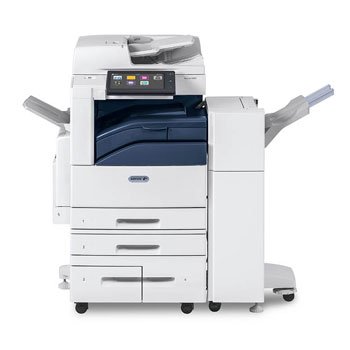
Slika: prednja strana view of the Xerox AltaLink C8030 multifunction printer, showing its various paper trays and the integrated touchscreen control panel.
4. Postavljanje
4.1 Raspakiranje i postavljanje
- Pažljivo izvadite pisač iz pakiranja.
- Postavite pisač na stabilnu, ravnu površinu s odgovarajućom ventilacijom.
- Ensure sufficient space around the printer for maintenance and paper loading.
4.2 Priključak za napajanje
- Spojite kabel za napajanje na pisač, a zatim na uzemljenu električnu utičnicu.
- Pritisnite gumb za uključivanje kako biste uključili uređaj.
4.3 Umetanje papira
- Open the desired paper tray (e.g., Tray 1, Tray 2, or Bypass Tray).
- Podesite vodilice papira tako da odgovaraju veličini papira.
- Umetnite snop papira pazeći da ne prelazi liniju za maksimalno punjenje.
- Čvrsto zatvorite ladicu za papir.
4.4 Mrežna i USB veza
- Mreža: Connect an Ethernet cable to the printer's network port and to your network router/switch. Configure network settings via the touchscreen if necessary.
- Bežični: Access the network settings on the touchscreen, select your Wi-Fi network, and enter the password.
- USB: Connect a USB cable from your computer to the printer's USB port for direct connection.
5. Upute za rad
5.1 Ispis
- S računala ili mobilnog uređaja otvorite dokument koji želite ispisati.
- U izborniku aplikacije odaberite "Ispis".
- Choose the Xerox AltaLink C8030 as your printer.
- Adjust print settings (e.g., number of copies, color/monochrome, paper size) as needed.
- Kliknite 'Ispis'.
5.2 Skeniranje
- Postavite dokument licem prema dolje na staklo skenera ili licem prema gore u automatski uvlakač dokumenata (ADF).
- Na dodirnom zaslonu pisača odaberite funkciju 'Skeniraj'.
- Choose your scan destination (e.g., email, network folder, USB drive).
- Configure scan settings (e.g., resolution, file format, color mode).
- Pritisnite 'Start' za početak skeniranja.
5.3 Kopiranje
- Postavite dokument na staklo skenera ili u ADF.
- On the touchscreen, select the 'Copy' function.
- Enter the desired number of copies.
- Adjust copy settings (e.g., enlargement/reduction, 2-sided, color/monochrome).
- Pritisnite 'Start' za početak kopiranja.
5.4 Faksiranje
- Postavite dokument na staklo skenera ili u ADF.
- On the touchscreen, select the 'Fax' function.
- Unesite broj faksa primatelja.
- Configure fax settings (e.g., resolution, delayed send).
- Press 'Start' to send the fax.
6. Održavanje
6.1 Zamjena tonera
- Otvorite prednji poklopac pisača.
- Identify the empty toner cartridge.
- Grasp the handle and pull the cartridge out.
- Unpack the new toner cartridge and shake it gently.
- Insert the new cartridge until it clicks into place.
- Zatvorite prednji poklopac.
6.2 Čišćenje stakla skenera
- Isključite pisač i izvucite kabel za napajanje.
- Otvorite poklopac skenera.
- Obrišite staklo skenera mekom krpom koja ne ostavlja dlačice dampened with a mild glass cleaner.
- Ensure the glass is dry before closing the cover and restoring power.
7. Rješavanje problema
7.1 Zaglavljivanje papira
- Follow the on-screen instructions to locate and clear the paper jam.
- Open all accessible covers and trays to check for jammed paper.
- Gently pull the paper in the direction of the paper path.
7.2 Problemi s kvalitetom ispisa
- Provjerite razinu tonera i zamijenite patrone ako su niske.
- Izvršite čišćenje ili kalibraciju glave pisača iz izbornika za održavanje pisača.
- Provjerite koristite li odgovarajuće vrste papira za svoj ispis.
7.3 Problemi s povezivanjem
- Verify all cables (Ethernet, USB) are securely connected.
- For wireless connections, check Wi-Fi signal strength and network settings.
- Restart the printer, router, and computer/device.
8. Specifikacije
| Značajka | Specifikacija |
|---|---|
| Marka | Xerox |
| Naziv modela | AltaLink C8030 |
| Tehnologija tiska | Laser |
| Izlaz za pisač | Boja |
| Maksimalna brzina ispisa (monokromatski) | 30 ppm |
| Maksimalna brzina kopiranja (crno-bijelo) | 30 ppm |
| Tehnologija povezivanja | NFC, Wireless |
| Težina artikla | 349 funti |
| Metoda kontrole | Daljinski, dodir |
| Kompatibilni uređaji | PC |
| GTIN / UPC | 095205880151 |
9. Jamstvo i podrška
For warranty information, please refer to the documentation included with your product or visit the official Xerox website. For technical support, driver downloads, or service requests, please contact Xerox customer support through their official channels. Keep your product's serial number and purchase date readily available when contacting support.
Mrežni resursi: Xerox Official Webmjesto