
1. Uvod
This manual provides instructions for the ROCCAT KONE Aimo Gaming Mouse. The KONE Aimo features an Owl-Eye Optical Sensor, customizable RGB AIMO LED illumination, and 23 programmable keys. It is designed for precision and ergonomic comfort during extended use.
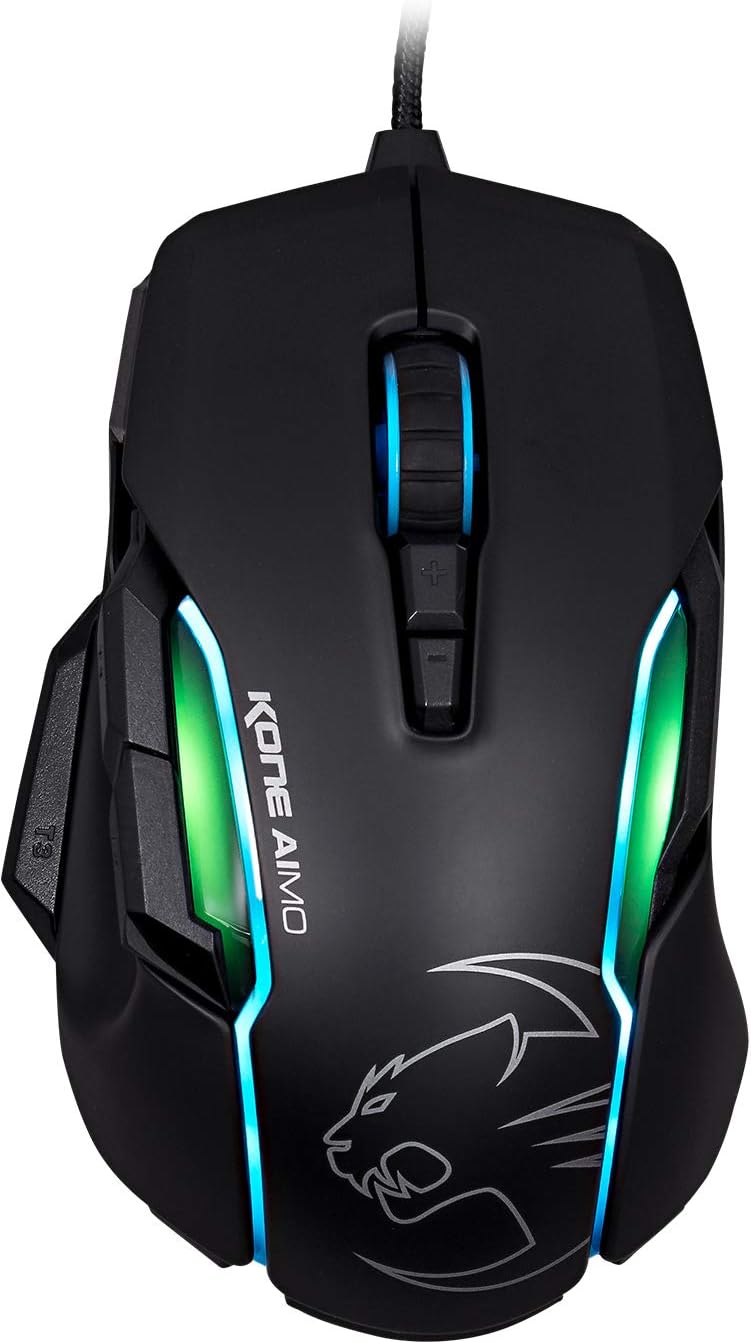
Slika 1: Vrh view of the ROCCAT KONE Aimo Gaming Mouse, showcasing its ergonomic shape and RGB lighting zones.
2. Sadržaj paketa
Provjerite jesu li svi artikli prisutni u paketu:
- KONE AIMO Mouse with Attached Braided USB Cable
- Brzi vodič
- ROCCAT Stickers

Figure 2: Retail packaging of the ROCCAT KONE Aimo Gaming Mouse.
3. Postavljanje
- Spojite miš: Plug the USB cable of the ROCCAT KONE Aimo mouse into an available USB port on your computer.
- Instalacija upravljačkog programa: Your operating system (Windows 7, 8, 8.1, 10) should automatically detect and install the necessary drivers.
- Install ROCCAT Swarm Software: For full customization of DPI settings, button assignments, and AIMO lighting, download and install the ROCCAT Swarm software from the official ROCCAT webweb-mjesto. Ovaj softver vam omogućuje stvaranje i upravljanje profesionalnimfiles.

Figure 3: The ROCCAT KONE Aimo mouse in use on a mouse pad, connected to a computer.
4. Upute za rad
4.1. Funkcije gumba
The KONE Aimo features 23 programmable keys, including a tri-button thumb zone and a 4D tilting Titan wheel. These can be customized via the ROCCAT Swarm software.
- Lijevi/Desni klik: Standardne funkcije miša.
- Scroll Wheel (4D Titan Wheel): Scrolls vertically and can tilt horizontally for additional functions. Also acts as a clickable button.
- DPI Adjustment Buttons: Located above and below the scroll wheel, these buttons allow for on-the-fly DPI sensitivity changes. Settings are configured in the Swarm software.
- Thumb Buttons (T1, T2, T3): Three buttons located on the left side, easily accessible by the thumb. The bottom-most button (T3) is often defaulted to the Easy-Shift[+] function.
- Easy-Shift[+] Button: This exclusive ROCCAT feature doubles the number of programmable functions for other buttons when held down, effectively expanding the total programmable keys.

Slika 4: Detaljno view of the programmable thumb buttons (T1, T2, T3) on the left side of the mouse.
4.2. AIMO Lighting System
The AIMO lighting system provides intelligent, reactive RGB illumination across four independently configurable LED light zones and the glowing mouse wheel. It can synchronize with other compatible ROCCAT devices and is programmable through the ROCCAT Swarm software.

Figure 5: The KONE Aimo mouse displaying its multi-zone RGB AIMO illumination.
4.3. Owl-Eye Optical Sensor
The mouse is equipped with the ROCCAT Owl-Eye Optical Sensor, a modified PixArt 3361 sensor, offering adjustable DPI from 100 to 12,000. This sensor provides precise tracking and responsiveness. A built-in tracking distance control unit monitors the lift-off distance for enhanced accuracy.

Figure 6: The bottom of the mouse, highlighting the Owl-Eye Optical Sensor.
4.4. Ergonomija
The KONE Aimo features refined ergonomics designed for comfort during extended use. Its shape provides a natural fit for the hand, with a dedicated thumb rest area.

Figure 7: A hand gripping the KONE Aimo mouse, illustrating its ergonomic design.
5. Održavanje
- Čišćenje: Za čišćenje površine miša koristite meku, suhu krpu. Za tvrdokornu prljavštinu, laganoamp Može se koristiti krpa, pazeći da vlaga ne uđe u unutarnje komponente.
- Njega senzora: Keep the optical sensor on the underside of the mouse clean and free of dust or debris to ensure optimal tracking performance.
- Uprava za kabele: Izbjegavajte oštre savijanja ili pretjerano povlačenje pletenog USB kabela kako biste spriječili oštećenja.
6. Rješavanje problema
- Miš ne reagira:
- Provjerite je li USB kabel sigurno priključen u ispravan USB priključak.
- Try a different USB port or another computer to rule out port or system issues.
- Ponovno pokrenite računalo.
- Tracking Issues / Inaccurate Movement:
- Očistite optički senzor na dnu miša.
- Pazite da miš koristite na čistoj, prikladnoj podlozi ili površini za miš.
- Check DPI settings in the ROCCAT Swarm software.
- RGB Lighting Not Working / Incorrect:
- Verify that the ROCCAT Swarm software is running and updated.
- Provjerite postavke osvjetljenja unutar Swarm softvera.
- Provjerite da RGB osvjetljenje ne kontrolira konfliktni softver.
- Gumbi ne rade:
- Check button assignments in the ROCCAT Swarm software.
- Ensure the software is not experiencing issues (try restarting it).
7. Specifikacije
| Značajka | Detalj |
|---|---|
| Marka | ROCCAT |
| Broj modela | ROC-11-815-BK |
| Senzor | Owl-Eye Optical Sensor (modified PixArt 3361) |
| Raspon DPI-ja | 100 to 12,000 DPI |
| Programabilni gumbi | 23 (with Easy-Shift[+]) |
| Osvjetljenje | RGBA AIMO LED Illumination (4 independent zones + scroll wheel) |
| Povezivost | USB (žičani) |
| Kompatibilnost operativnog sustava | Windows 7, Windows 8, Windows 8.1, Windows 10 (32-bit and 64-bit versions) |
| Težina artikla | 11.2 unce (približno 317.5 grama) |
| Dimenzije proizvoda (DxŠxV) | 5.12 x 2.95 x 1.57 inča (približno 13 x 7.5 x 4 cm) |
8. Jamstvo i podrška
For warranty information, technical support, and additional resources, please visit the official ROCCAT website or contact ROCCAT customer service. Keep your proof of purchase for warranty claims.
Također možete posjetiti ROCCAT Store on Amazon za više informacija o proizvodu.