
1. Uvod
The ZEBRONICS ZEB-DB250JP is a versatile Bluetooth wireless gamepad designed for an enhanced gaming experience across multiple platforms. It features 17 buttons, dual analog sticks, dual vibration motors, and quad front triggers for precise control. This gamepad is compatible with Android smartphones, tablets, Android TV boxes, Android TVs, and PCs running Windows 98 / 2000 / ME / XP / NT / VISTA / 7 / 8 / 10. It also supports PS3 consoles. The ergonomic design ensures comfortable use, and a phone mount is included for mobile gaming.
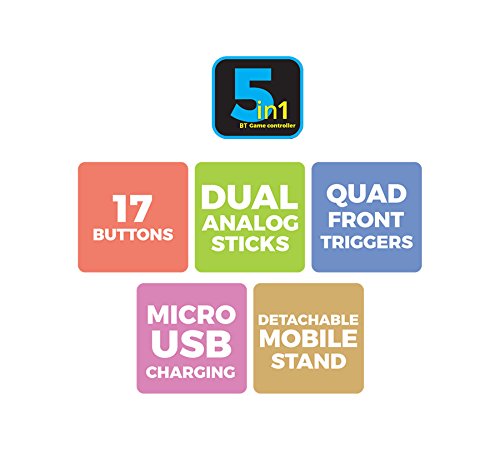
Slika 1: Gotovoview of ZEB-DB250JP key features including 17 buttons, dual analog sticks, quad front triggers, micro USB charging, and a detachable mobile stand.
2. Što je u kutiji
- 1 x ZEB-DB250JP Joypad
- 1 x mikro USB kabel za punjenje
- 1 x Detachable Phone Mount
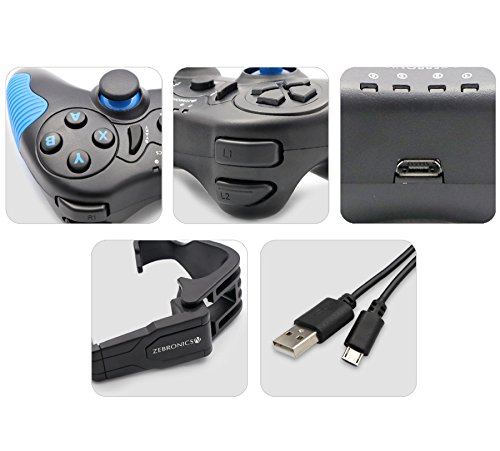
Image 2: A collage showing the ZEB-DB250JP gamepad, its triggers, micro USB port, detachable phone mount, and charging cable.
3. Postavljanje
3.1 Punjenje Gamepad-a
Before initial use, fully charge the gamepad. Connect the provided Micro USB cable to the gamepad's charging port and the other end to a USB power source (e.g., computer USB port, USB wall adapter). The built-in 300mAh battery provides extended playtime.

Slika 3: Vrh view of the ZEB-DB250JP gamepad, highlighting the Micro USB charging port located between the L1/R1 and L2/R2 triggers.
3.2 Bluetooth Pairing (Android Devices & PS3)
- Provjerite je li gamepad napunjen.
- Pritisnite i držite DOM button along with the X button simultaneously until the indicator lights on the gamepad begin to flash, indicating it is in pairing mode.
- On your Android smartphone, tablet, Android TV box, or Android TV, navigate to the Bluetooth settings.
- Tražiti available devices and select "ZEB-DB250JP" (or similar name) from the list.
- Once connected, the indicator light on the gamepad will become solid. The Bluetooth range is approximately 8 meters.
- For PS3, connect the gamepad via USB cable first, then follow the console's instructions for pairing a new controller.
3.3 Veza s računalom
For PC gaming, the ZEB-DB250JP can be connected via the provided USB cable. Simply plug the Micro USB end into the gamepad and the USB-A end into an available USB port on your computer. The gamepad is compatible with Windows 98 / 2000 / ME / XP / NT / VISTA / 7 / 8 / 10 and should be recognized automatically.
3.4 Attaching the Phone Mount
To use the gamepad with your smartphone, attach the included phone mount to the designated slot on the gamepad. Secure your smartphone firmly into the mount.
4. Upute za rad
4.1 Raspored gumba
The ZEB-DB250JP features a standard gamepad layout with 17 buttons, including:
- Dvostruke analogne palice: Za precizno kretanje i kontrolu kamere.
- D-pad: Directional pad for menu navigation and specific game inputs.
- Akcijski gumbi (A, B, X, Y): Za radnje u igri.
- Quad Front Triggers (L1, L2, R1, R2): For additional actions, often used for shooting or accelerating.
- Gumb HOME: For power on/off and system functions.
- SELECT/BACK and START/MENU Buttons: For game menus and options.


Image 4: Left side of the ZEB-DB250JP gamepad showing the D-pad and left analog stick. Image 5: Right side of the ZEB-DB250JP gamepad showing the action buttons (A, B, X, Y) and right analog stick.
4.2 Uključivanje/isključivanje
- Za uključivanje pritisnite DOM dugme.
- Za isključivanje pritisnite i držite tipku DOM button for a few seconds until the gamepad shuts down.
4.3 Igre
Once connected, the gamepad should be recognized by compatible games. Refer to your game's settings for controller configuration and button mapping. The dual vibration motors provide haptic feedback for an immersive gaming experience.
5. Održavanje
- Čišćenje: Za čišćenje kontrolera za igre koristite meku, suhu krpu. Izbjegavajte upotrebu jakih kemikalija ili abrazivnih materijala.
- Skladištenje: Gamepad čuvajte na hladnom i suhom mjestu, dalje od izravne sunčeve svjetlosti i ekstremnih temperatura.
- Njega baterije: Kako biste produžili vijek trajanja baterije, izbjegavajte često potpuno pražnjenje baterije. Redovito punite gamepad, čak i ako se ne koristi dulje vrijeme.
6. Rješavanje problema
- Gamepad se ne povezuje putem Bluetootha:
- Ensure the gamepad is charged.
- Make sure the gamepad is in pairing mode (HOME + X).
- Isključite i uključite Bluetooth na svom uređaju.
- Forget the device from your Bluetooth settings and try pairing again.
- Ensure your device is within the 8-meter Bluetooth range. - Buttons unresponsive or delayed input:
- Provjerite razinu napunjenosti baterije i napunite je ako je niska.
- Ensure there are no obstructions between the gamepad and the connected device.
- For PC, try connecting via USB cable to rule out wireless interference.
- Restart the gamepad and the connected device. - Gamepad se ne puni:
- Verify the Micro USB cable is securely connected to both the gamepad and the power source.
- Try a different Micro USB cable or power adapter.
- Ensure the power source is functional. - Vibracija ne radi:
- Check if the game supports vibration feedback.
- Ensure vibration settings are enabled in the game or device settings.
7. Specifikacije
| Marka | ZEBRONIKA |
| Naziv modela | analogni stick |
| Kompatibilni uređaji | Android, PC, PS3 |
| Vrsta kontrolera | Gamepad |
| Tehnologija povezivanja | Bluetooth (v3.0) |
| Značajke proizvoda | Wireless, Dual Vibration Motors |
| Količina gumba | 17 |
| Vrsta izvora napajanja | Napajanje na baterije |
| Baterija | Built-in 300mAH |
| Bluetooth domet | 8m |
| Težina artikla | 370 gram |
| Dimenzije artikla | 17 x 12 x 6 centimetara |
| Boja | Red (as per product details, though main image shows black/red) |
| Broj modela | DB250JP |
8. Jamstvo i podrška
The ZEBRONICS ZEB-DB250JP Bluetooth Gamepad Joystick comes with a 1 godina jamstva. For any warranty claims or service, please carry the product to an authorized ZEBRONICS Service Center. For a list of service centers, refer to the product information provided at the time of purchase or visit the official ZEBRONICS webmjesto.
For further assistance or technical support, please contact ZEBRONICS customer service.