
1. Uvod
This manual provides essential information for the proper use and maintenance of your Zentality C-710 10-inch Dual SIM Tablet. Please read this guide thoroughly before operating the device to ensure optimal performance and longevity. Keep this manual for future reference.
2. Proizvod je gotovview
The Zentality C-710 is a 10-inch Android tablet designed for communication and multimedia. It features dual SIM card support for cellular connectivity, a Quad-Core processor, 1GB RAM, and 16GB of internal storage. The device includes front and rear cameras, Bluetooth, and a vibrant IPS LCD display.
2.1 Komponente uređaja
Familiarize yourself with the tablet's physical features and controls.

Slika 1: Sprijeda i straga view of the Zentality C-710 Tablet, showing the screen, cameras, and rear casing.
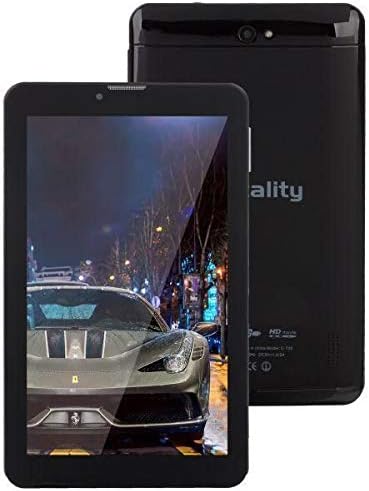
Slika 2: Ispred view of the Zentality C-710 Tablet with the screen displaying an image, highlighting the display area.
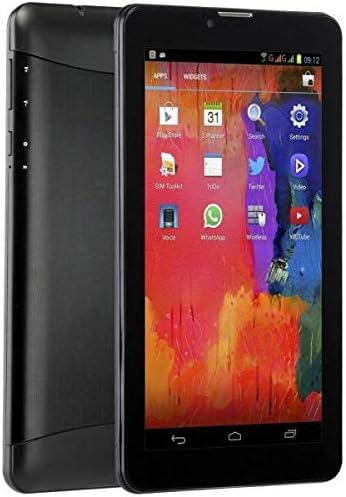
Slika 3: Strana view of the Zentality C-710 Tablet, illustrating the placement of physical buttons and ports.
3. Postavljanje
3.1 Punjenje baterije
Before first use, fully charge the tablet's battery. Connect the provided charger to the tablet's charging port and plug it into a power outlet. The battery indicator on the screen will show charging status. A full charge typically takes several hours.
3.2 Umetanje SIM kartica
The Zentality C-710 supports dual SIM cards for cellular network access. Locate the SIM card slot(s) on the side or back of the tablet. Carefully insert your standard or micro SIM cards into the designated slots, ensuring they are correctly oriented as indicated by the diagram near the slot. Close the tray securely.
3.3 Umetanje MicroSD kartice
To expand storage, insert a microSD card (up to 32GB, not included) into the dedicated slot. Ensure the card is oriented correctly before gently pushing it in until it clicks into place.
3.4 Uključivanje/isključivanje
To power on, press and hold the Power button until the Zentality logo appears. To power off, press and hold the Power button until the power options menu appears, then select 'Power off'.
3.5 Početno postavljanje
Upon first power-on, follow the on-screen prompts to select your language, connect to a Wi-Fi network, set up your Google account, and configure other basic settings.
4. Operativni
4.1 Geste na zaslonu osjetljivom na dodir
Navigirajte tabletom pomoću standardnih gesti na dodirnom zaslonu Androida:
- Dodirnite: Odaberite stavku ili otvorite aplikaciju.
- Pritisni i drži: Pristupite kontekstualnim izbornicima ili premjestite ikone.
- Ukrasti: Pomicanje kroz zaslone ili popise.
- Prstohvat: Povećajte ili smanjite slike i web stranice.
4.2 Povezivanje na Wi-Fi
Idi na Postavke > Mreža i internet > Wi-Fi. Turn Wi-Fi on, then select your desired network from the list and enter the password if required.
4.3 Povezivanje s Bluetooth uređajima
Idi na Postavke > Povezani uređaji > Bluetooth. Turn Bluetooth on, then select 'Pair new device' and choose your device from the list to connect.
4.4 Making Calls (3G)
With an active SIM card, you can make and receive calls. Open the 'Phone' application, dial the number, and press the call button.
4.5 Korištenje kamere
Open the 'Camera' application. Tap the shutter button to take photos. Switch between front and rear cameras using the camera toggle icon. Adjust settings like flash and mode as needed.
4.6 Upravljanje aplikacijama
Download new applications from the Google Play Store. To uninstall an app, tap and hold its icon on the home screen or app drawer, then drag it to the 'Uninstall' option.
5. Održavanje
5.1 Čišćenje tableta
Use a soft, lint-free cloth to clean the screen and body of the tablet. Avoid using harsh chemicals or abrasive materials, which can damage the display or finish. For stubborn smudges, slightly dampOperite krpu vodom ili sredstvom za čišćenje ekrana namijenjenim za elektroniku.
5.2 Njega baterija
To prolong battery life, avoid extreme temperatures. Do not leave the tablet charging for extended periods after it's full. If storing the tablet for a long time, ensure the battery is charged to about 50%.
5.3 Ažuriranja softvera
Redovito provjeravajte i instalirajte ažuriranja sustava kako biste osigurali da vaš tablet ima najnovije značajke, sigurnosne zakrpe i poboljšanja performansi. Idite na Postavke > Sustav > Ažuriranje sustava.
6. Rješavanje problema
6.1 Tablet se ne uključuje
Ensure the battery is sufficiently charged. Connect the charger and wait a few minutes before attempting to power on again. If the issue persists, try a different charger or contact support.
6.2 Problemi s Wi-Fi vezom
Check if Wi-Fi is enabled in settings. Restart your tablet and your Wi-Fi router. Ensure you are entering the correct password. If the problem continues, try forgetting the network and reconnecting.
6.3 Spore performanse
Close unnecessary background applications. Clear cache data from apps in Postavke > Aplikacije i obavijesti > [Naziv aplikacije] > Pohrana i predmemorija > Izbriši predmemoriju. Consider uninstalling unused apps or performing a factory reset as a last resort (back up your data first).
6.4 App Crashes
Ensure the app is updated to its latest version. Clear the app's cache and data (this will reset the app). If the issue persists, uninstall and reinstall the app.
7. Specifikacije
| Značajka | Specifikacija |
|---|---|
| Marka | Zentality |
| Naziv modela | C-710 |
| Veličina zaslona | 10 inča |
| Vrsta zaslona | IPS LCD |
| Operativni sustav | Android |
| Procesor | Četverojezgreni |
| Veličina instalirane RAM memorije | 1 GB |
| Kapacitet pohrane memorije | 16 GB |
| Tehnologija mobilnih mreža | 3G |
| Number of SIM Cards | Dual SIM |
| Vrsta povezanosti | Mobilni telefon, Bluetooth |
| Rezolucija stražnje kamere | 5 megapiksela |
| Ispred Webrezolucija kamere | 1.3 megapiksela |
| Kapacitet baterije | 4000 mAh |
| Boja | Crna |
| Težina artikla | 940 grama |
| Dimenzije paketa | 27.4 x 27 x 3.8 cm |
| Datum prve dostupnosti | 23. srpnja 2019 |
8. Jamstvo i podrška
For warranty information and technical support, please refer to the documentation included with your purchase or visit the official Zentality webstranicu. Sačuvajte dokaz o kupnji za slučaj reklamacije.