
1. Uvod
The j5create JCC153 USB-C to HDMI Adapter Cable provides a direct connection from your USB-C enabled device to an HDMI display. This cable supports high-definition 4K video output at 60Hz, making it suitable for extending your display or mirroring content to a larger screen. It is compliant with HDMI 2.0 specifications and DisplayPort alternate mode over USB-C, ensuring reliable performance without the need for additional software or drivers.
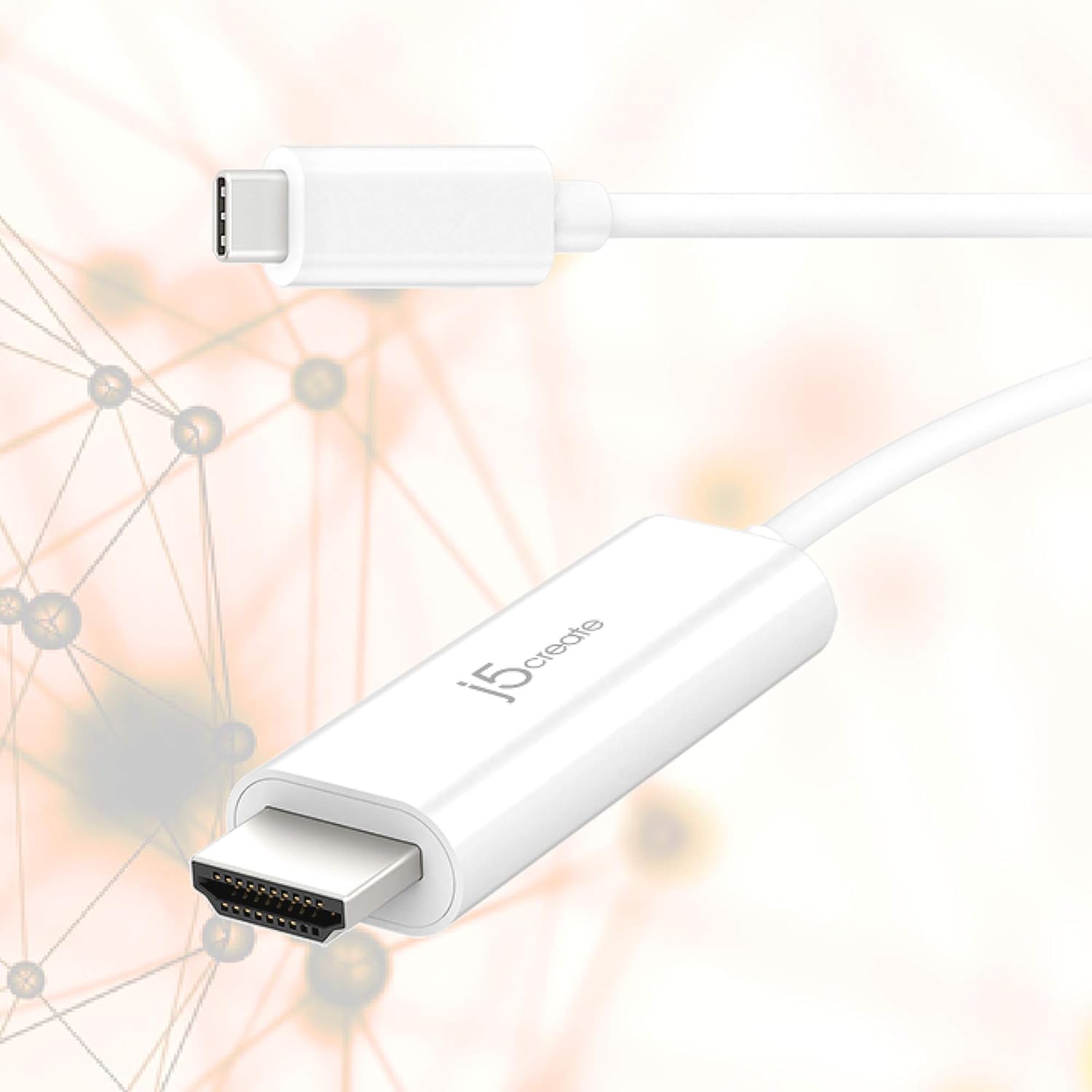
Image 1.1: The j5create JCC153 USB-C to HDMI Adapter Cable, featuring its USB-C connector and HDMI connector.
2. Značajke
- 4K@60Hz video izlaz: Supports high-definition HDMI 4K video at a refresh rate of 60Hz.
- USB-C to HDMI Connectivity: Enables direct connection from a USB-C port to an HDMI display.
- HDMI 2.0 Compliant: Adheres to HDMI 2.0 specifications for optimal video performance.
- DisplayPort Alternate Mode: Utilizes DisplayPort alternate mode over USB-C for video transmission.
- Uključi i igraj: No software or drivers required for installation.
- Univerzalna kompatibilnost: Ideal for devices with a USB-C port that supports DisplayPort Alt Mode, including MacBook, tablets, PCs, and laptops.
- Duljina kabela: 5 feet (154 cm) for flexible setup.

Image 2.1: Visual representation of 4K video resolution capabilities, highlighting the clarity of 4K 2160p compared to standard HD and DVD resolutions.
3. Upute za postavljanje
Follow these steps to connect your device using the j5create JCC153 USB-C to HDMI Adapter Cable:
- Poveži se sa zaslonom: Plug the HDMI connector of the JCC153 cable into an available HDMI input port on your monitor, TV, or projector.
- Povežite se s uređajem: Plug the USB-C connector of the JCC153 cable into the USB-C port on your laptop, tablet, or PC. Ensure your device's USB-C port supports DisplayPort Alternate Mode (Alt Mode) for video output.
- Uključivanje: Turn on your display and your source device.
- Odaberite unos: On your display, select the correct HDMI input source that the cable is connected to.
The display should automatically detect the connection and mirror or extend your device's screen. No additional software installation is required.

Image 3.1: A laptop connected to an external 4K monitor, demonstrating a typical setup using the USB-C to HDMI cable.
4. Upute za rad
Once connected, your device's operating system will typically recognize the external display automatically. You can configure the display settings as follows:
- Windows: Right-click on the desktop, select 'Display settings'. Here you can choose to 'Duplicate these displays' (mirror) or 'Extend these displays'. You can also adjust resolution and orientation.
- MacOS: Go to 'System Preferences' > 'Displays'. You can arrange displays, set resolutions, and choose between 'Mirror Displays' or 'Use as separate display'.
- OS Chrome: Go to 'Settings' > 'Device' > 'Displays'. You can mirror or extend your display and adjust resolution.
For optimal 4K@60Hz performance, ensure both your source device and your display support this resolution and refresh rate.
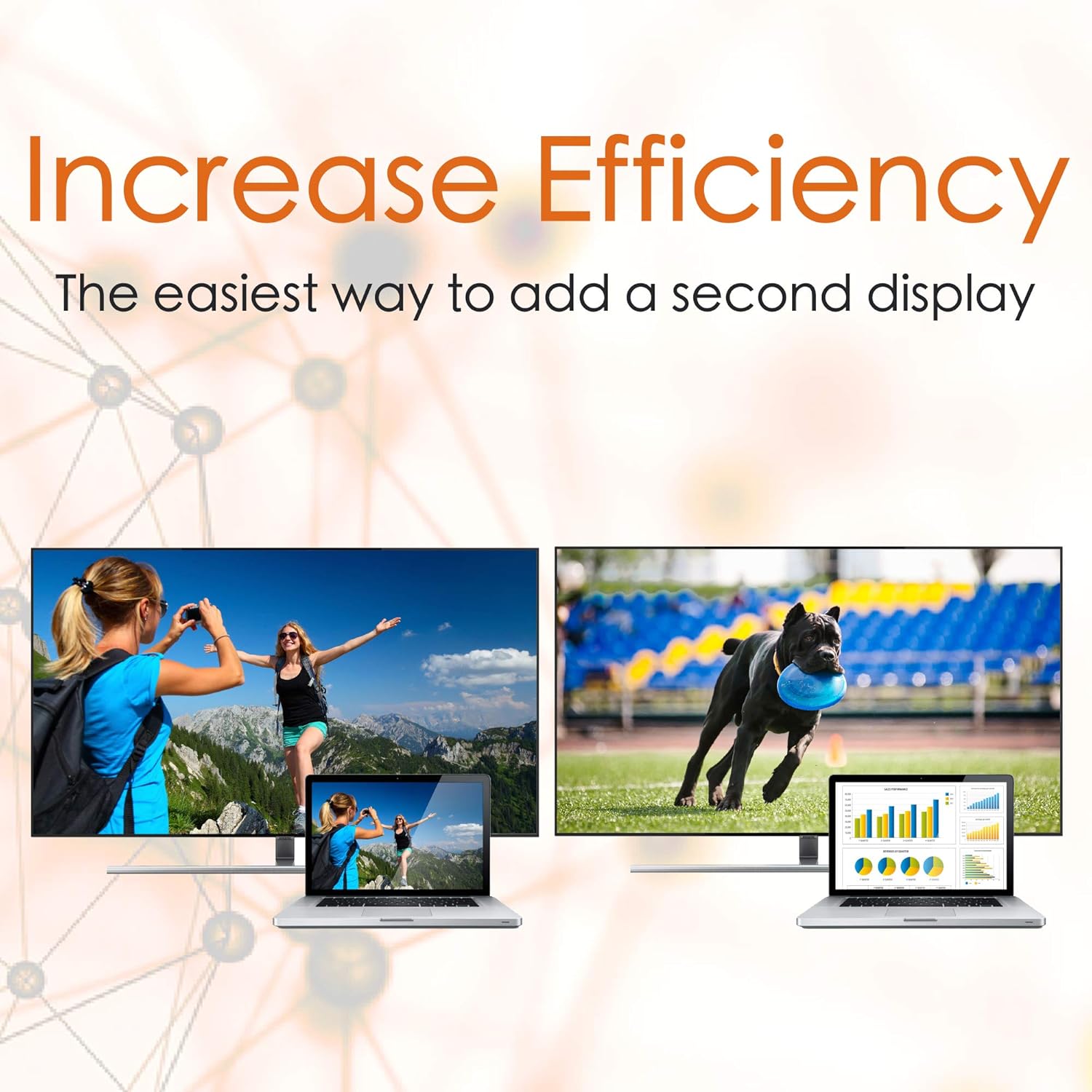
Slika 4.1: Bivšiample of using the adapter to extend a laptop's display to an external monitor, enhancing productivity.
5. Rješavanje problema
If you encounter issues while using the JCC153 adapter cable, refer to the following troubleshooting tips:
- Nema prikaza/signala:
- Ensure both the USB-C and HDMI connectors are securely plugged into their respective ports.
- Verify that your source device's USB-C port supports DisplayPort Alternate Mode (Alt Mode). Not all USB-C ports support video output.
- Check the input source selection on your display (monitor/TV). Make sure it is set to the correct HDMI input.
- Pokušajte spojiti kabel na drugi USB-C priključak na uređaju, ako je dostupan.
- Test the cable with another HDMI display or another USB-C device to isolate the issue.
- Incorrect Resolution or Refresh Rate:
- Ensure both your source device and your display are capable of supporting the desired resolution (e.g., 4K) and refresh rate (e.g., 60Hz).
- Adjust the display settings on your operating system (refer to Section 4: Operating Instructions).
- Some older HDMI displays may not fully support 4K@60Hz. Try a lower resolution or refresh rate if necessary.
- Treperenje ili nestabilan prikaz:
- Pazite da kabel nije savijen ili oštećen.
- Reduce the display resolution or refresh rate to see if the issue persists.
- Check for any available driver updates for your device's graphics card or USB-C controller.
6. Specifikacije
| Broj modela | JCC153 |
| Vrsta konektora | USB Type-C Male to HDMI Male |
| Video rezolucija | Do 4K (3840 x 2160) pri 60Hz |
| Sukladnost s HDMI | HDMI 2.0 |
| USB-C Standard | DisplayPort Alternate Mode (Alt Mode) |
| Duljina kabela | 5 stopa (154 cm) |
| Boja | Bijela |
| Kompatibilni uređaji | Laptops, PCs, Tablets with USB-C port supporting DisplayPort Alt Mode |
| UPC | 847626002106 |

Image 6.1: Product diagram illustrating the cable's connections and key specifications.
7. Jamstvo i podrška
This j5create product comes with a limited warranty. For specific warranty terms and conditions, please refer to the warranty information provided with your purchase or visit the official j5create webmjesto.
For technical support, product inquiries, or further assistance, please visit the j5create official webweb-mjesto ili kontaktirajte njihov odjel za korisničku podršku. Kontaktni podaci obično se nalaze na pakiranju proizvoda ili na službenoj webmjesto.