
MERCUSYS MR50G
Mercusys MR50G AC1900 Dual-Band Wi-Fi 5 Router User Manual
Model: MR50G
Uvod
This manual provides comprehensive instructions for setting up, operating, maintaining, and troubleshooting your Mercusys MR50G AC1900 Dual-Band Wi-Fi 5 Router. The MR50G is designed to deliver high-speed wireless connectivity with AC1900 speeds, Gigabit Ethernet ports, and advanced features like MU-MIMO and Beamforming.

Slika: prednja strana view of the Mercusys MR50G router, illustrating its dual-band capabilities with 5GHz (1300 Mbps) and 2.4GHz (600 Mbps) speeds.
Vodič za postavljanje
1. Sadržaj paketa
Provjerite sadrži li vaš paket sljedeće stavke:
- Mercusys MR50G AC1900 Dual-Band Wi-Fi 5 Router
- Adapter napajanja
- Ethernet kabel
- Quick Installation Guide (User Guide)
2. Fizička veza
Slijedite ove korake za povezivanje vašeg usmjerivača:
- Isključivanje: Isključite napajanje iz modema i rutera (ako je primjenjivo).
- Spajanje modema na ruter: Connect one end of the provided Ethernet cable to the WAN port (usually blue) on your MR50G router and the other end to your modem's Ethernet port.
- Spojite uređaje (nije obavezno): For wired connections, connect your computer or other devices to the LAN ports (yellow) on the MR50G router using Ethernet cables.
- Uključivanje: Connect the power adapter to the router's power port and plug it into a power outlet. Power on your modem, then power on the MR50G router.
- Pričekajte pokazatelje: Wait for the router's LED indicators to stabilize. The Power LED should be solid green.
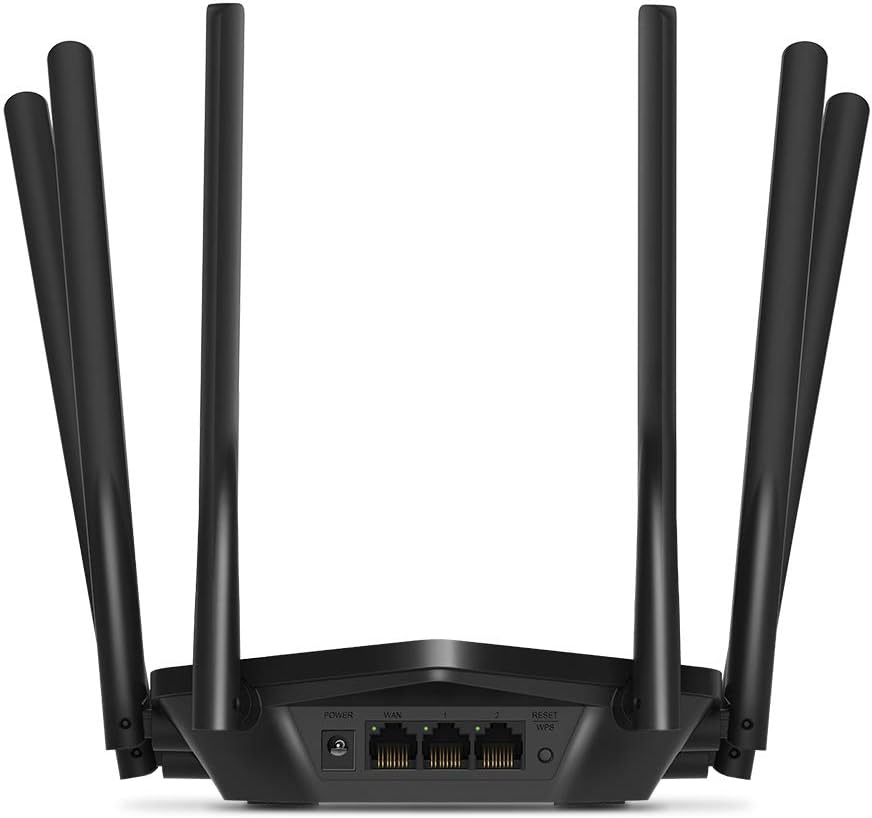
Slika: Stražnja strana view of the Mercusys MR50G router, illustrating the power input, WAN port (blue), and three LAN ports (yellow) for wired connections, along with the Reset/WPS button.
3. Početna konfiguracija
Da biste prvi put konfigurirali svoj usmjerivač:
- Spojite se na Wi-Fi: Connect your computer or mobile device to the router's default Wi-Fi network (SSID and password are typically printed on a label on the bottom of the router).
- Pristup Web sučelje: Otvori a web preglednik i tip
mwlogin.netor192.168.1.1u adresnu traku. - Kreiraj lozinku za prijavu: Follow the on-screen instructions to create a login password for the router's management page.
- Slijedite Brzo postavljanje: The Quick Setup wizard will guide you through basic internet and wireless settings.
Upute za rad
1. Basic Wi-Fi Settings
Nakon prijave u web sučelje:
- Naziv mreže (SSID): Navigate to the Wireless settings to change your Wi-Fi network names (SSIDs) for both 2.4 GHz and 5 GHz bands.
- Lozinka: Set a strong, unique password for your Wi-Fi networks. The MR50G supports WPA3 for enhanced security.
- Vrsta sigurnosti: It is recommended to use WPA2-PSK/WPA3-Personal for optimal security.
2. Rad u dva pojasa
The MR50G operates on two frequency bands:
- 2.4 GHz: Pruža širu pokrivenost i bolji prodor kroz zidove, pogodno za opću upotrebu interneta i starije uređaje.
- 5 GHz: Offers faster speeds and less interference, ideal for bandwidth-intensive activities like 4K streaming and online gaming, but with a shorter range.
You can configure separate SSIDs for each band or use Smart Connect to combine them into a single SSID, allowing the router to automatically assign devices to the optimal band.
3. Način pristupne točke
To use the MR50G as an Access Point (AP) to extend an existing wired network:
- Poveži: Connect an Ethernet cable from your existing router's LAN port to one of the MR50G's LAN ports (not the WAN port).
- Konfigurirati: Log into the MR50G's web interface, navigate to the Operation Mode settings, and select "Access Point Mode". Follow the prompts to complete the setup.
4. Napredne značajke
- MU-MIMO: Multi-User, Multiple-Input, Multiple-Output technology allows the router to communicate with multiple devices simultaneously, improving network efficiency.
- Oblikovanje snopa: Fokusira Wi-Fi signale prema povezanim uređajima, poboljšavajući jačinu i domet signala.
- VPN podrška: The router supports VPN functionality, allowing for secure remote access or connection to VPN services. Refer to the router's web interface for specific VPN client/server configurations.
- Roditeljski nadzor: Upravljajte i ograničite pristup internetu za određene uređaje ili korisnike.
- Mreža gostiju: Stvorite zasebnu Wi-Fi mrežu za goste i tako osigurajte svoju glavnu mrežu.
Održavanje
1. Ažuriranja firmvera
Regularly check for and install firmware updates to ensure optimal performance, security, and access to new features. Firmware updates can typically be found in the router's web interface under System Tools or Advanced settings.
2. Resetiranje usmjerivača
If you encounter persistent issues or forget your login password, you may need to reset the router to its factory default settings:
- With the router powered on, press and hold the Reset/WPS button on the back panel for approximately 5-10 seconds until the LED indicators flash.
- Release the button and wait for the router to restart. All settings will be restored to factory defaults.
3. Optimalno postavljanje
For the best Wi-Fi coverage and performance:
- Place the router in a central location in your home or office.
- Avoid placing it near obstructions like thick walls, metal objects, or large appliances (microwaves, refrigerators) that can interfere with Wi-Fi signals.
- Elevate the router if possible, as Wi-Fi signals tend to spread downwards.

Image: Mercusys MR50G router positioned on a table, demonstrating a typical placement for optimal signal distribution within a living space.
Rješavanje problema
1. Nema pristupa internetu
- Provjerite veze: Provjerite jesu li svi Ethernet kabeli sigurno spojeni na ispravne priključke (WAN na modem, LAN na uređaje).
- Ponovno pokretanje uređaja: Power cycle your modem, then the router, and then your connected devices.
- Provjerite WAN LED: Verify that the WAN LED on the router is lit, indicating a connection to the modem.
- Status pružatelja internetskih usluga: Obratite se svom davatelju internetskih usluga (ISP) kako biste potvrdili da nema prekida u radu.tagu vašem području.
2. Spore brzine Wi-Fi-ja
- Položaj usmjerivača: Ensure the router is placed optimally (refer to "Optimal Placement" section).
- smetnje: Move the router away from other electronic devices that may cause interference.
- Odabir benda: For speed-critical applications, ensure your device is connected to the 5 GHz band.
- Optimizacija kanala: U ruteru web sučelje, pokušajte promijeniti Wi-Fi kanal za oba pojasa, 2.4 GHz i 5 GHz, na manje opterećeni.
- Firmware: Provjerite je li firmware vašeg rutera ažuriran.
3. Ne mogu pristupiti stranici za upravljanje usmjerivačem
- IP adresa: Ensure you are using the correct address (
mwlogin.netor192.168.1.1). - Žičana veza: Try accessing the page from a computer connected directly to the router via an Ethernet cable.
- Očisti predmemoriju preglednika: Očistite svoje web predmemoriju i kolačiće preglednika ili pokušajte s drugim preglednikom.
- Vatrozid/Antivirus: Privremeno onemogućite sve vatrozidove ili antivirusne programe na računalu koji bi mogli blokirati pristup.
- Resetiraj ruter: If all else fails, perform a factory reset (refer to "Resetting the Router" section).
Tehnički podaci
| Model | MR50G (EU) |
| Bežični standardi | IEEE 802.11a/b/g/n/ac |
| Frekvencija | 2.4 GHz i 5 GHz (dvopojasni) |
| Brzina podataka | AC1900 (600 Mbps na 2.4 GHz, 1300 Mbps na 5 GHz) |
| Ethernet priključci | 1x gigabitni WAN priključak, 3x gigabitna LAN priključka |
| Antene | 6x Fixed Omni-Directional Antennas |
| Sigurnost | WPA-PSK / WPA2-PSK / WPA3-Personal |
| Dimenzije (Š x D x V) | 15.72 x 17.56 x 4.5 cm |
| Težina | 450 g |
| Posebne značajke | MU-MIMO, Beamforming, Access Point Mode, VPN Support, Parental Controls, Guest Network |
| Ulazna snaga | 100-240V ~ 50/60Hz |
Jamstvo i podrška
Mercusys products come with a limited warranty. For detailed warranty information, please refer to the warranty card included with your product or visit the official Mercusys webmjesto.
For technical support, firmware updates, and additional resources, please visit the Mercusys support webstranica. Tamo obično možete pronaći kontaktne podatke i često postavljana pitanja.
Official Mercusys Webstranica: www.mercusys.com
Ask a question about this manual
Ask about setup, troubleshooting, compatibility, parts, safety, or missing instructions. Manuals+ will review the question and use this page’s manual context to help answer it.