
1. Uvod
This manual provides essential information for the safe and efficient use of your Amazon Fire HD 10 tablet (2021 release). Please read it thoroughly before operating your device.
Ključne značajke
- Fast and Responsive: Powered by an octa-core processor and 3 GB RAM, offering 50% more RAM than the previous generation.
- Dugotrajna baterija: Up to 12 hours of battery life for reading, browsing, video, and music.
- Živopisan zaslon: 10.1-inch 1080p Full HD display, 10% brighter than the previous generation, with over 2 million pixels.
- Ample Storage: Available with 32 GB or 64 GB internal storage, expandable up to 1 TB with a microSD card (sold separately).
- Kompatibilnost aplikacije: Access to popular apps like Netflix, Facebook, Disney+, Instagram, TikTok, and more via Amazon’s Appstore.
- Alati za produktivnost: Supports apps like Microsoft Office, OneNote, and Dropbox for enhanced productivity.
- Izdržljiv dizajn: Thinner and lighter than the previous generation, with a screen strengthened by aluminosilicate glass.
- Funkcionalnost podijeljenog zaslona: Allows two compatible apps to be open side-by-side for multitasking.
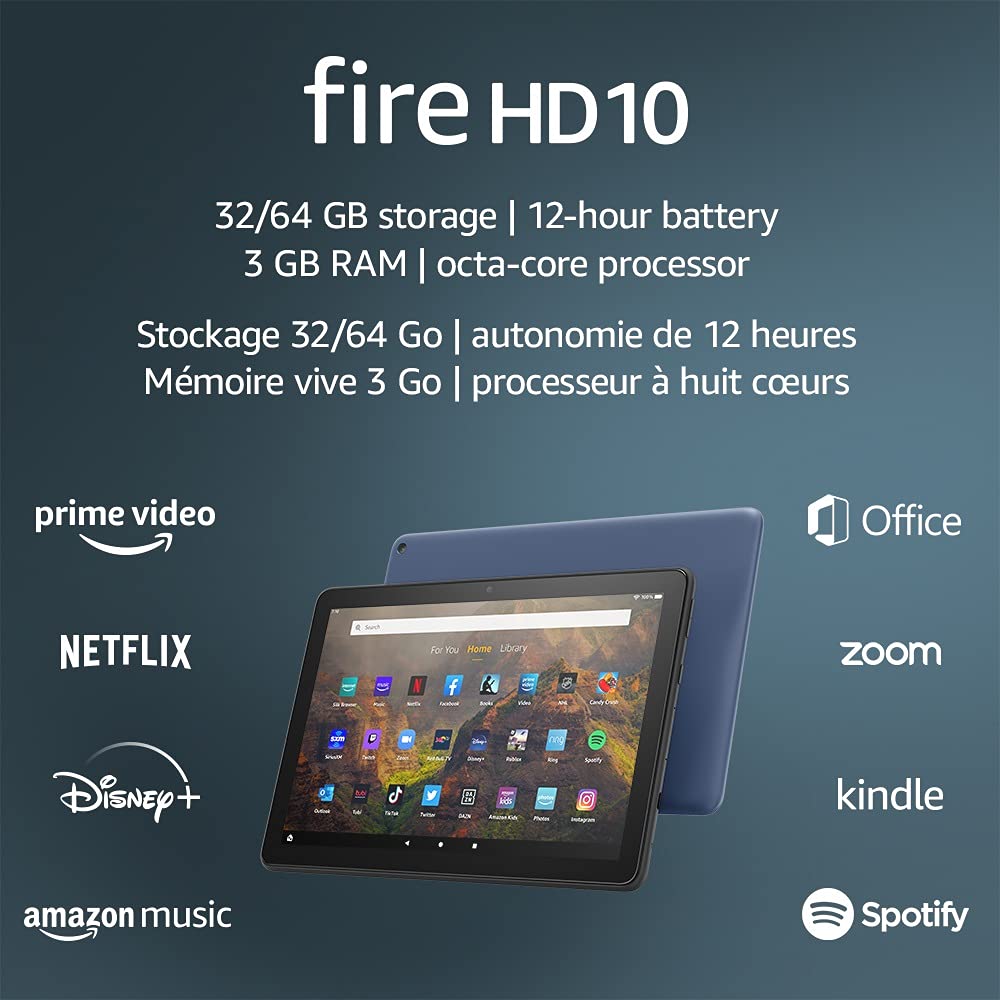
Image 1.1: The Amazon Fire HD 10 tablet highlighting its 32/64 GB storage, 12-hour battery, 3 GB RAM, and octa-core processor, alongside logos of supported applications such as Prime Video, Netflix, Disney+, Amazon Music, Office, Zoom, Kindle, and Spotify.
2. Postavljanje
2.1 Raspakiranje i početna naplata
Upon receiving your Fire HD 10 tablet, carefully remove all components from the packaging. Before first use, it is recommended to fully charge the device.
- Connect the provided USB-C (2.0) cable to the tablet's USB-C port.
- Plug the other end of the USB-C cable into the 9W power adapter.
- Uključite strujni adapter u zidnu utičnicu.
- A full charge from 0% to 100% typically takes approximately 4 hours while the device is in standby mode.
2.2 Uključivanje/isključivanje
- Za uključivanje: Pritisnite i držite gumb za uključivanje/isključivanje koji se nalazi sa strane tableta dok se na zaslonu ne pojavi Amazonov logotip.
- Za isključivanje: Press and hold the power button until a power options menu appears. Select 'Power Off'.
- Ponovo pokrenuti: U izborniku opcija napajanja odaberite 'Ponovno pokretanje'.
2.3 Wi-Fi povezivost
To access online content and services, connect your Fire HD 10 to a Wi-Fi network.
- Na početnom zaslonu prijeđite prstom od vrha prema dolje da biste otvorili ploču Brze postavke.
- Dodirnite ikonu Wi-Fi.
- Odaberite željenu Wi-Fi mrežu s popisa dostupnih mreža.
- If prompted, enter the network password and tap 'Connect'.
- The tablet supports 2.4 GHz and 5.0 GHz networks. Ad-hoc (peer-to-peer) Wi-Fi networks are not supported.
2.4 Postavljanje računa
During the initial setup process, you will be guided to register your Fire HD 10 to an Amazon account. This is necessary to download apps, access Amazon content, and utilize cloud services.
- Follow the on-screen prompts to sign in with an existing Amazon account or create a new one.
- Ensure your account details are accurate for full functionality.
3. Upute za rad
3.1 Navigacija sučeljem
The Fire HD 10 tablet features a touch-sensitive display for interaction.
- Dodirnite: Za odabir stavke otvorite aplikaciju ili aktivirajte gumb.
- Ukrasti: Za pomicanje kroz stranice, popise ili prebacivanje između početnih zaslona.
- Zumiranje štipanjem prstiju: Za zumiranje ili smanjivanje slika, web stranice ili dokumente.
- Dugi pritisak: Za pristup kontekstualnim izbornicima ili premještanje ikona aplikacija.
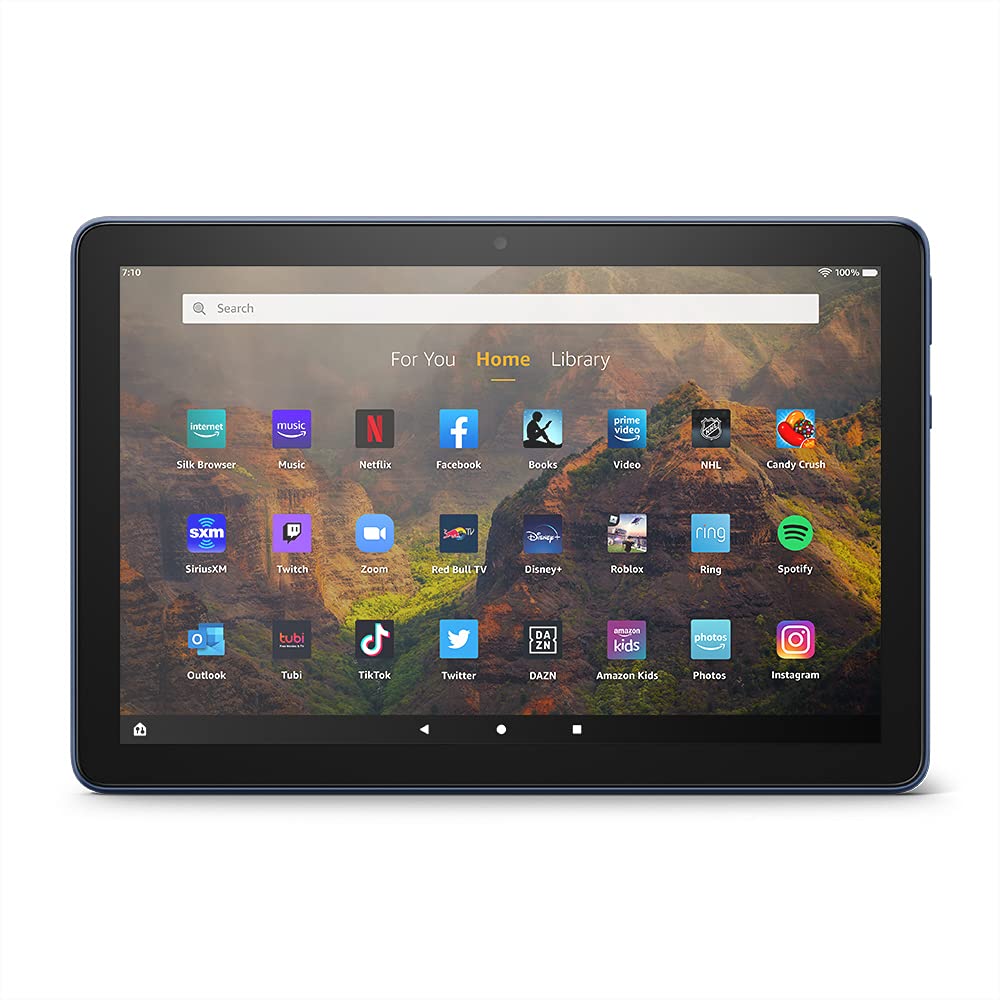
Image 3.1: The Amazon Fire HD 10 tablet's home screen, showcasing a grid of application icons including Silk Browser, Music, Netflix, Facebook, Books, Video, NHL, Candy Crush, SiriusXM, Twitch, Zoom, Red Bull TV, Disney+, Roblox, Ring, Spotify, Outlook, Tubi, TikTok, Twitter, DAZN, Amazon Kids, Photos, and InstagRADNA MEMORIJA.
3.2 Korištenje aplikacija
Applications can be downloaded from the Amazon Appstore. Google Play is not supported.
- Tap an app icon on the Home screen to launch it.
- To find new apps, open the 'Appstore' application.
- Some apps may require a subscription for full access.

Image 3.2: A collage of content available on the Amazon Fire HD 10 tablet, featuring book covers like 'The Silent Patient', Amazon Original series and movies such as 'The Wilds', 'Coming to America', 'The Expanse', 'Dune', 'Hanna', 'One Night in Miami', 'Sound of Metal', 'The Marvelous Mrs. Maisel', 'Upload', and 'The Boys', alongside social media app logos for TikTok, Facebook, and Twitter.
3.3 Split Screen Multitasking
The Fire HD 10 supports split screen functionality, allowing two compatible applications to run side-by-side.
- Otvorite prvu aplikaciju koju želite koristiti.
- Swipe up from the bottom of the screen to reveal the navigation bar.
- Long-press the icon of the first app in the recent apps view.
- Select 'Split Screen' from the options.
- Choose a second compatible app from your recent apps or app drawer to fill the other half of the screen.

Image 3.3: The Amazon Fire HD 10 tablet, shown with an optional Bluetooth keyboard case, demonstrating its split-screen capability. Two applications are open simultaneously: a calendar app on the left and a messaging app on the right, illustrating enhanced productivity.
3.4 Korištenje kamere
The tablet is equipped with a 2 MP front-facing camera and a 5 MP rear-facing camera, both capable of 720p HD video recording.
- Open the 'Camera' app from your Home screen or app drawer.
- Dodirnite gumb okidača za snimanje fotografije.
- Prebacujte se između prednje i stražnje kamere pomoću ikone za prebacivanje kamere.
- Odaberite video način za snimanje videozapisa.
3.5 Audio i Bluetooth
The Fire HD 10 includes dual integrated speakers and a 3.5 mm stereo jack for headphones. It also supports Bluetooth 5.0 LE.
- Connect wired headphones or external speakers via the 3.5 mm jack.
- To pair Bluetooth devices (headphones, speakers, microphones, LE accessories):
- Go to 'Settings' > 'Connected Devices' > 'Bluetooth'.
- Provjerite je li Bluetooth uključen.
- Odaberite svoj uređaj s popisa dostupnih uređaja i slijedite upute za uparivanje.
3.6 Upravljanje pohranom
Your Fire HD 10 comes with either 32 GB or 64 GB of internal storage. You can expand this by up to 1 TB using a microSD card.
- To insert a microSD card: Locate the microSD slot on the side of the tablet, open the cover, and gently insert the card until it clicks into place.
- Manage storage by going to 'Settings' > 'Storage'. Here you can view usage and move compatible apps or media to the microSD card.
4. Održavanje
4.1 Njega baterija
- Avoid exposing the tablet to extreme temperatures, as this can degrade battery performance.
- Za optimalni vijek trajanja baterije, izbjegavajte često potpuno pražnjenje baterije ili dulje držanje na 100% napunjenosti.
- Use only the provided 9W power adapter and USB-C cable for charging.
4.2 Čišćenje uređaja
- Isključite tablet prije čišćenja.
- Zaslon i kućište nježno obrišite mekom krpom koja ne ostavlja dlačice.
- Za tvrdokorne mrlje, lagano dampisperite krpu vodom. Izbjegavajte upotrebu jakih kemikalija, abrazivnih sredstava za čišćenje ili aerosolnih sprejeva.
4.3 Ažuriranja softvera
Amazon periodically releases software updates to improve performance and add new features. Ensure your device is connected to Wi-Fi to receive these updates.
- Updates are typically downloaded and installed automatically.
- You can manually check for updates by going to 'Settings' > 'Device Options' > 'System Updates'.
5. Rješavanje problema
5.1 Uređaj ne reagira
- If the device is frozen or unresponsive, press and hold the power button for approximately 20 seconds to force a restart.
- Ensure the device has sufficient battery charge. Connect it to the charger and try powering it on again.
5.2 Problemi s Wi-Fi vezom
- Verify that Wi-Fi is enabled in Quick Settings or 'Settings' > 'Wireless'.
- Provjerite jeste li unutar dometa svog Wi-Fi rutera.
- Ponovno pokrenite Wi-Fi ruter i modem.
- Forget the network in 'Settings' > 'Wireless' and reconnect, re-entering the password if necessary.
5.3 Aplikacije se ruše ili se ne učitavaju
- Zatvorite i ponovno otvorite aplikaciju.
- Clear the app's cache: Go to 'Settings' > 'Apps & Games' > 'Manage All Applications', select the problematic app, and tap 'Clear Cache'.
- Provjerite je li softver vašeg tableta ažuriran.
- Ako se problem nastavi, razmislite o deinstaliranju i ponovnoj instalaciji aplikacije.
5.4 Kratko trajanje baterije
- Smanjite svjetlinu zaslona.
- Zatvorite nekorištene aplikacije koje rade u pozadini.
- Isključite Wi-Fi ili Bluetooth kada ih ne koristite.
- Ograničite korištenje pozadinskih podataka za aplikacije.
- Check 'Settings' > 'Battery' to identify apps consuming the most power.
6. Specifikacije
| Značajka | Detalj |
|---|---|
| Generacija | 11. generacija, izdanje 2021 |
| Prikaz | Briljantan 10.1-inčni 1080p zaslon (1920 x 1200) s više od 2 milijuna piksela (224 ppi). Zaslon ojačan aluminosilikatnim staklom. |
| Veličina | 247mm x 166mm x 9.2 mm |
| Težina | 465 grama (Stvarna veličina i težina mogu varirati) |
| CPU i RAM | Octa-core 2.0 GHz s 3 GB RAM-a |
| Skladištenje | 32 GB (24.2 GB available) or 64 GB (55.0 GB available) internal storage. Expandable up to 1 TB with microSD card. |
| Trajanje baterije | Up to 12 hours of mixed usage (reading, web, video, music). Varies by settings and usage. |
| Vrijeme punjenja | Approx. 4 hours (0-100%) with provided 9W adapter in standby. |
| WiFi povezivost | Supports 2.4 GHz and 5.0 GHz networks. Does not support ad-hoc networks. |
| luke | USB-C (2.0) for charging, microSD slot for external storage. |
| Audio | 3.5 mm stereo jack, dual integrated speakers, external volume controls. |
| Senzori | Akcelerometar, senzori ambijentalnog svjetla. |
| Specifikacije kamere | 2 MP front-facing, 5 MP rear-facing cameras with 720p HD video recording. |
| Mikrofoni | 2 built-in microphones. |
| Usluge lokacije | Location-based services via WiFi. |
| Dostupne boje | Black, Denim. |
| Bluetooth | Built-in Bluetooth 5.0 LE with A2DP support for stereo headphones, speakers, microphone, and LE accessories. |
6.1 Značajke pristupačnosti
The Fire HD 10 tablet includes various accessibility features to assist users. These can be accessed via 'Settings' > 'Accessibility'.
- GlasView Čitač zaslona: Provides spoken feedback for users who are blind or visually impaired.
- Povećalo zaslona: Omogućuje korisnicima zumiranje i pomicanje po zaslonu.
- Prekidač za pristup: Enables interaction for users with motor impairments via compatible Bluetooth devices.
- Čitanje naglas za Kindle: Alexa može naglas čitati Kindle knjige.
- Postavke zaslona: Includes options for Closed Captioning, Font Size, Display Size, High Contrast Text, Color Inversion, Color Correction, and Convert Stereo to Mono audio. (Note: Captions are not available for all content.)
7. Jamstvo i podrška
7.1 Informacije o jamstvu
Your Amazon Fire HD 10 tablet comes with a 1-year limited warranty and service. Optional 1-year, 2-year, and 3-year extended warranties are available for purchase separately for customers in Canada.
Use of the Fire HD 10 tablet is subject to Amazon's Conditions of Use and associated terms.
7.2 Uključeno u kutiju
The following items are included with your Fire HD 10 tablet:
- Fire HD 10 tablet
- USB-C (2.0) kabel
- 9W strujni adapter
- Kratki vodič za početak
7.3 Daljnja podrška
For additional assistance, please visit the Amazon Device Support website or contact Amazon Customer Service.