
Uvod
This manual provides comprehensive instructions for the Vivitar Podcast and Social Media Microphone MIC918. This high-quality condenser microphone is designed for clear audio capture for various applications, including podcasting, live streaming, gaming, voice-overs, and vocal recording. It features a simple plug-and-play USB connection, integrated volume control, and a stable tripod stand for optimal positioning.
Sigurnosne informacije
- Ne izlažite mikrofon vodi ili prekomjernoj vlazi.
- Izbjegavajte ekstremne temperature ili izravnu sunčevu svjetlost.
- Do not attempt to disassemble or modify the microphone. This will void the warranty.
- Držite mikrofon dalje od jakih magnetskih polja.
- Za čišćenje koristite samo meku, suhu krpu.
Proizvod gotovview
Sadržaj paketa
- Vivitar MIC918 Microphone Unit
- Stativ Stand
- Integrated USB Connection Cable
Microphone Components
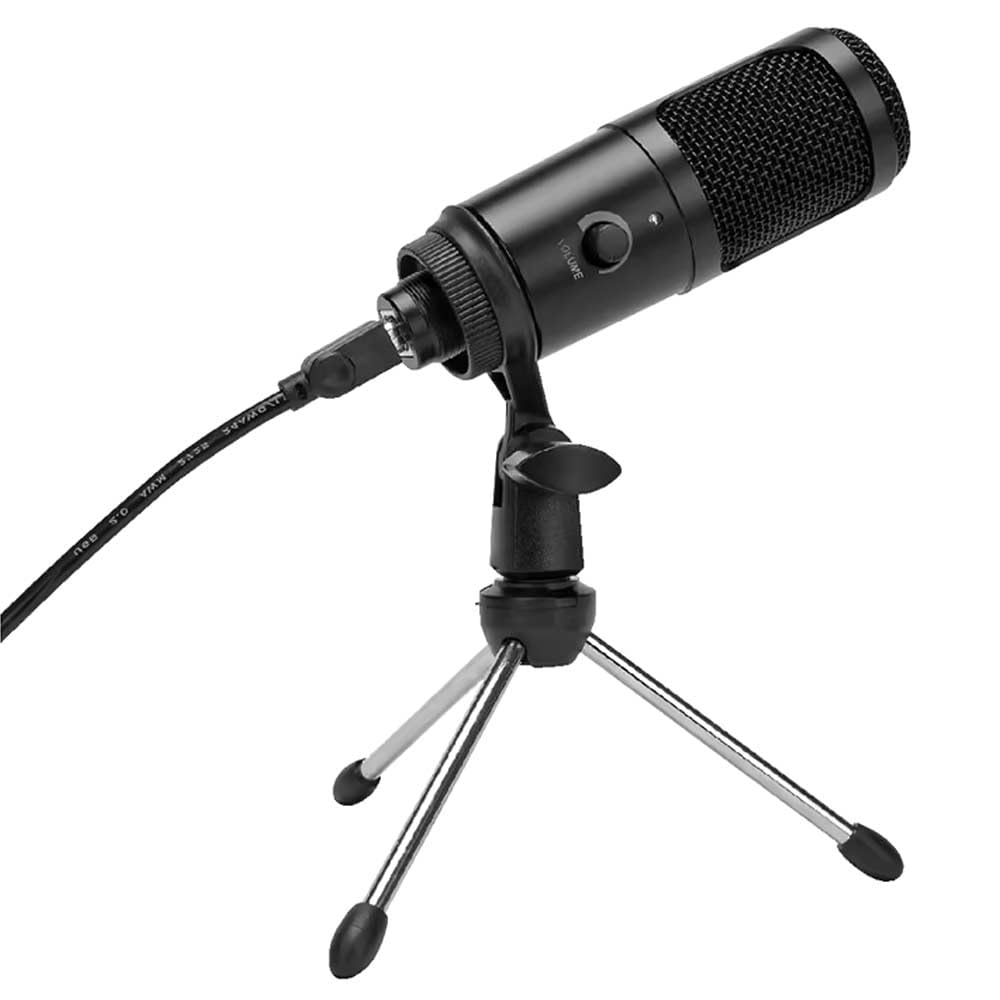
Slika 1: Vivitar MIC918 Microphone unit attached to its tripod stand, showing the integrated USB cable.

Slika 2: Strana view of the Vivitar MIC918 Microphone, highlighting the volume control knob and the Vivitar brand logo.
The microphone unit features a durable metal construction. The front side includes a volume control knob for easy audio level adjustments. The microphone is designed with a unidirectional polar pattern to focus on sound directly in front of it, reducing background noise.
Postavljanje
Spajanje mikrofona
- Sastavite postolje: If not already assembled, unfold the tripod stand and ensure it is stable on a flat surface. Securely attach the microphone unit to the stand's mounting point. The rotating shaft ring allows for angle adjustment.
- Povežite se s uređajem: Plug the integrated USB cable from the microphone into an available USB port on your computer, laptop, or compatible gaming console.
- Plug and Play: The Vivitar MIC918 is a plug-and-play device. Your operating system (Windows, macOS, etc.) should automatically detect and install the necessary drivers. No additional software installation is typically required.
- Odaberite kao ulazni uređaj: After connecting, navigate to your device's sound settings or the audio settings within your recording/streaming software. Select the "Vivitar MIC918" or similar USB audio device as your primary input (microphone) device.
Operativni
Podešavanje glasnoće
The microphone features a built-in volume control knob located on its side (refer to Figure 2). Rotate this knob clockwise to increase the microphone's input sensitivity (volume) and counter-clockwise to decrease it. Adjust this to achieve the desired recording level without distortion.
Postavljanje mikrofona
For optimal audio capture, position the microphone directly in front of the sound source (e.g., your mouth for speaking or singing). The tilting tripod stand allows you to adjust the microphone's angle to best suit your needs. Due to its unidirectional polar pattern, the microphone is most sensitive to sounds coming from the front and less sensitive to sounds from the sides or rear, helping to minimize ambient noise.
Održavanje
- Čišćenje: Use a soft, dry, lint-free cloth to wipe the microphone's exterior. Do not use liquid cleaners, aerosols, or solvents.
- Skladištenje: When not in use, store the microphone in a clean, dry place, away from dust and extreme temperatures.
- Rukovanje: Pažljivo rukujte mikrofonom. Izbjegavajte ispuštanje ili izlaganje jakim udarcima.
Rješavanje problema
| Problem | Mogući uzrok | Otopina |
|---|---|---|
| Nema zvuka iz mikrofona. | Mikrofon nije pravilno spojen. Odabran je pogrešan ulazni uređaj. Glasnoća mikrofona je preniska. | Ensure USB cable is securely plugged into both the microphone and the device. Verify that "Vivitar MIC918" is selected as the input device in your system's sound settings or recording software. Increase the volume using the knob on the microphone and check system input levels. |
| Poor sound quality (e.g., muffled, too quiet, background noise). | Nepravilan položaj mikrofona. Visoka ambijentalna buka. Input level too high or too low. | Position the microphone closer to the sound source and ensure it's facing directly towards it. Snimajte u tišem okruženju. Adjust the microphone's volume knob and system input levels to an optimal range, avoiding clipping or being too faint. |
| Računalo ne prepoznaje mikrofon. | Neispravan USB priključak ili kabel. System driver issue. | Pokušajte spojiti mikrofon na drugi USB priključak na računalu. Restart your computer. If the issue persists, check your operating system's device manager for any driver conflicts or updates. |
Tehnički podaci
| Značajka | Specifikacija |
|---|---|
| Marka | VIVITAR |
| Broj modela | MIC918 |
| Povezivost | USB (uključi i koristi) |
| Vrsta mikrofona | Kondenzator |
| Polarni uzorak | Jednosmjerno |
| Signal-to-Noise Ratio | 78 dB |
| Materijal kućišta | Metal |
| Težina artikla | 0.95 funti (otprilike 0.43 kg) |
| Dimenzije predmeta (D x Š x V) | 8.86 x 5.36 x 2.49 inča (otprilike 22.5 x 13.6 x 6.3 cm) |
| Izvor napajanja | Električni s kabelom (putem USB-a) |
| Kompatibilni uređaji | Computers, Laptops, Gaming Consoles |
Informacije o jamstvu
The Vivitar Podcast and Social Media Microphone MIC918 comes with a 3-Year USA Warranty. For specific terms, conditions, and to register your product, please refer to the official Vivitar webweb-mjesto ili izravno kontaktirajte njihovu korisničku podršku. Sačuvajte dokaz o kupnji za slučaj zahtjeva za jamstvo.
Korisnička podrška
For further assistance, technical support, or inquiries regarding your Vivitar MIC918 microphone, please visit the official Vivitar website or contact their customer service department. Contact information can typically be found on the Vivitar webweb-mjesto u odjeljcima 'Podrška' ili 'Kontaktirajte nas'.