
Macally BTERGOKEY
Macally Wireless Ergonomic Keyboard User Manual
Model: BTERGOKEY
Uvod
Thank you for choosing the Macally Wireless Ergonomic Keyboard. This manual provides detailed instructions for setting up, operating, maintaining, and troubleshooting your new keyboard. Please read this manual thoroughly to ensure optimal performance and longevity of your device.

Figure 1: Macally Wireless Ergonomic Keyboard (Model BTERGOKEY)
Postavljanje
Sadržaj paketa
- Macally Wireless Ergonomic Keyboard
- Kabel za punjenje Micro USB na USB-A
- Korisnički vodič (ovaj dokument)
Punjenje tipkovnice
The keyboard features a built-in 500mAh rechargeable battery. Before initial use, or when the battery is low, charge the keyboard using the included Micro USB to USB-A cable.
- Locate the Micro USB port on the keyboard.
- Connect the Micro USB end of the cable to the keyboard.
- Connect the USB-A end of the cable to a compatible USB power source (e.g., computer USB port, USB wall adapter).
- LED indikator će pokazati status punjenja.

Figure 2: Keyboard connected to charging cable.
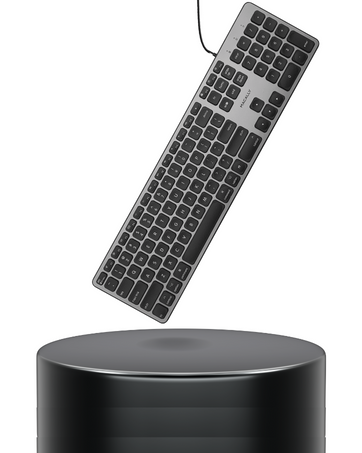
Figure 3: Close-up of the charging port and On/Off switch.
Uparivanje Bluetooth veze
The Macally BTERGOKEY keyboard can pair with up to three Bluetooth devices simultaneously.
- Ensure the keyboard is charged and the On/Off switch is in the "On" position.
- To initiate pairing, press and hold the Fn key, and while holding it, press the Number 1, 2, or 3 key on the number row. Release both keys. This selects the Bluetooth channel.
- Zatim pritisnite i držite Fn again, and while holding it, press the "P" key. Release both keys. The LED light for the selected channel (B1, B2, or B3) will flash rapidly, indicating it is in pairing mode.
- Na Macu, iPadu ili iPhoneu idite na Postavke sustava (Mac) ili postavke (iOS), then navigate to Bluetooth.
- Select "Macally BTERGOKEY" from the list of available devices.
- Follow any on-screen prompts to complete the pairing process. The LED light will stop flashing rapidly once successfully paired.
Figure 4: Bluetooth connectivity with multiple Apple devices.
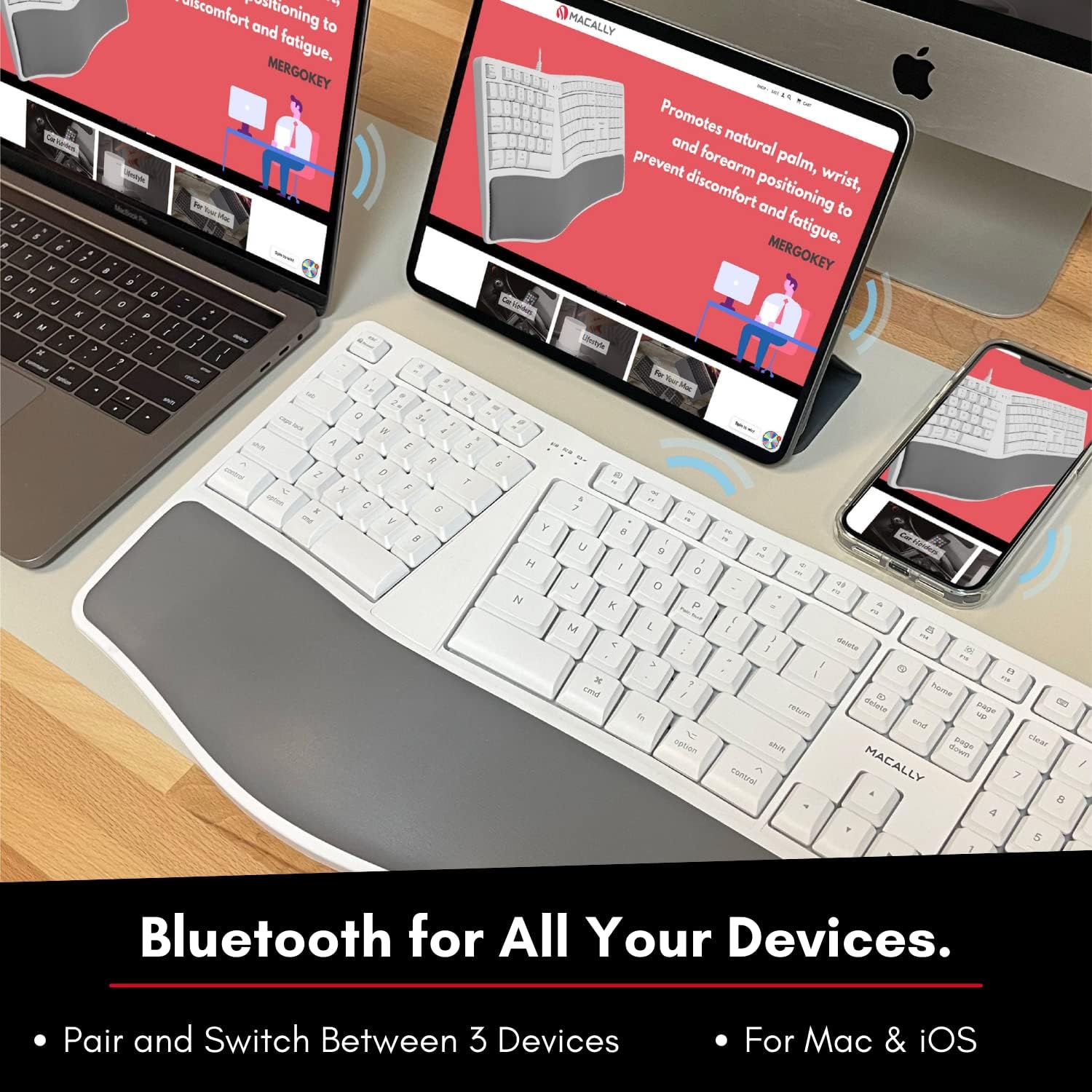
Figure 5: The keyboard supports Bluetooth connection to Mac, iPad, and iPhone.
Upute za rad
Prebacivanje između uparenih uređaja
To quick-switch between your paired Bluetooth devices (B1, B2, or B3), simply press and hold the Fn key and then press the corresponding Number 1, 2, or 3 on the number row. Release both keys. The keyboard will connect to the selected device.
Ergonomic Design and Typing
The Macally BTERGOKEY features a split ergonomic design with keys in two zones and at an angle to promote natural arm and wrist posture. It includes a padded wrist cushion for enhanced comfort.

Figure 6: The keyboard's design promotes neutral arm resting position and sloped comfort.
The keyboard's layout includes two dedicated typing zones and a space bar for each hand, which can help improve typing speed and reduce strain.

Figure 7: The keyboard features two distinct typing zones for improved efficiency.
It may take a few days to adjust to the unique layout of this ergonomic keyboard. Consistent use will help you adapt and experience the full benefits.

Figure 8: Adjustment period for the ergonomic layout.
MacOS Shortcut Keys
The keyboard features a 110-key Mac-specific layout with 21 MacOSX shortcut keys to enhance your productivity. These keys provide quick access to common functions.

Slika 9: Gotovoview of the 21 MacOS shortcut keys.
Održavanje
Čišćenje vaše tipkovnice
To maintain the cleanliness and functionality of your keyboard, follow these guidelines:
- Always turn off the keyboard before cleaning.
- Koristite mekanu krpu koja ne ostavlja dlačice dampoprati vodom ili blagom, neabrazivnom otopinom za čišćenje.
- Izbjegavajte prskanje sredstava za čišćenje izravno na tipkovnicu.
- Ne koristite jake kemikalije, otapala ili abrazivne materijale.
- Regularly remove dust and debris from between the keys using compressed air.
Briga o bateriji
To prolong the life of the rechargeable battery:
- Izbjegavajte često potpuno pražnjenje baterije.
- Charge the keyboard regularly, especially if it will not be used for an extended period.
- Store the keyboard in a cool, dry place when not in use.
Rješavanje problema
Problemi s uparivanjem
- LED light flashing rapidly: This indicates the keyboard is actively searching for a device to pair with. Ensure Bluetooth is enabled on your host device and it is discoverable.
- LED light flashing slowly: This means the keyboard is attempting to reconnect to a previously paired device. Ensure the paired device's Bluetooth is on and within range.
- Keyboard not appearing in Bluetooth list:
- Provjerite je li tipkovnica napunjena i uključena.
- Make sure the keyboard is in pairing mode (LED flashing rapidly).
- Try restarting both the keyboard and your host device.
- Clear existing Bluetooth connections on your host device if you have too many.
Number Pad Not Working
If your number pad is not functioning, and there is no dedicated "Num Lock" key, you may need to adjust a setting in your macOS:
- Idi na Postavke sustava na vašem Macu.
- Kliknite na Pristupačnost.
- Pomaknite se prema dolje i odaberite Kontrola pokazivača.
- Onemogući the "Enable Mouse Keys" option. This setting can sometimes interfere with the number pad's functionality.
Opći problemi s povezivanjem
- Ensure the keyboard is within the effective range of your Bluetooth device (typically up to 33 feet or 10 meters).
- Minimizirajte smetnje od drugih bežičnih uređaja (npr. Wi-Fi usmjerivača, bežičnih telefona).
- If issues persist, try unpairing and re-pairing the keyboard with your device.
Tehnički podaci
| Značajka | Detalj |
|---|---|
| Dimenzije proizvoda | 19 x 9.85 x 1.5 inča |
| Težina artikla | 2.89 funti |
| Broj modela | BTERGOKEY |
| Tehnologija povezivanja | Bluetooth |
| Kompatibilni uređaji | Apple Mac Pro/Mini, Macbook Pro/Air, iMac, iPad, iPhone |
| Broj tipki | 110 |
| Baterija | 500mAh punjiva baterija |
| Posebne značajke | Split Ergonomic Design, Padded Wrist Cushion, Multi-sync Bluetooth, 21 MacOS Shortcut Keys, Adjustable Kickstand |
Jamstvo i podrška
Macally products are designed with quality and reliability in mind. For warranty information and technical support, please visit the official Macally webstranicu ili se obratite njihovoj službi za korisnike.
Webstranica: www.macally.com
Please have your product model number (BTERGOKEY) and purchase information ready when contacting support.
Ask a question about this manual
Ask about setup, troubleshooting, compatibility, parts, safety, or missing instructions. Manuals+ will review the question and use this page’s manual context to help answer it.