
1. Uvod
This manual provides instructions for the setup, operation, and maintenance of your Belkin USB-C 14-Port Triple Display Docking Station. This docking station is designed to expand the connectivity of your USB-C enabled laptop, including Chromebooks and Windows PCs, by providing multiple ports for peripherals, external displays, and power delivery.
The docking station allows you to create an organized workspace with enhanced connectivity, supporting up to three external displays (on compatible Windows hosts) and delivering up to 65W of power to your laptop. It offers data transfers at speeds up to 10 Gbit/s and is certified compatible with Chromebook devices, allowing firmware updates directly from Chrome OS.
2. Proizvod je gotovview
The Belkin USB-C 14-Port Triple Display Docking Station offers a comprehensive set of ports to connect various devices to your laptop.

Slika: Prednja i stražnja strana view of the Belkin USB-C 14-Port Docking Station with all ports clearly labeled and numbered for identification.
Port Layout and Functions:
- 1. Gumb za uključivanje / isključivanje: Turns the docking station on or off.
- 2. USB-C Port (MFDP): Multi-Function DisplayPort for video output.
- 3. Audio Input/Output: 3.5mm jack for headphones or microphone.
- 4. USB-A Port (10 Gbit/s with BC 1.2 and Apple 2.4A Charger): High-speed USB-A port with charging capabilities.
- 5. USB-C Port (1 upstream, 1 downstream) (10 Gbit/s): One port for connecting to the host laptop (upstream) and one for connecting USB-C peripherals (downstream).
- 6. USB-A 2.0 Ports (480 Mbit/s with 5 V/0.5 A): Standard USB-A ports for connecting peripherals.
- 7. USB-A Ports (10 Gbit/s with 5 V/0.9 A): High-speed USB-A ports for data transfer and charging.
- 8. Gigabitni Ethernet priključak: Za žičanu mrežnu povezivost.
- 9. DisplayPort 1.4: Video output ports for external monitors.
- 10. HDMI 2.0: Video output ports for external monitors.
- 11. Ulazna snaga: Connects to the included 135W power adapter.
3. Upute za postavljanje
- Priključite napajanje: Plug the included 135W power adapter into the "Power Input" port (11) on the rear of the docking station and then into a wall outlet.
- Spajanje na glavno prijenosno računalo: Use the provided USB-C to USB-C cable to connect your laptop's USB-C port to the upstream USB-C port (5) on the docking station.
- Spoji zaslone:
- For HDMI displays, connect HDMI cables from your monitors to the HDMI 2.0 ports (10) on the docking station.
- For DisplayPort displays, connect DisplayPort cables from your monitors to the DisplayPort 1.4 ports (9) on the docking station.
- For additional display options, use the USB-C (MFDP) port (2) with a compatible adapter or cable.

Image: A laptop connected to the docking station, which in turn is connected to three external monitors, demonstrating a multi-display setup.
- Povežite periferne uređaje: Plug your USB devices (keyboard, mouse, external hard drives, etc.) into the available USB-A (4, 6, 7) and USB-C (5) ports.
- Poveži mrežu: For a wired internet connection, connect an Ethernet cable from your router or modem to the Gigabit Ethernet port (8).
- Spoji zvuk: If desired, connect headphones or speakers to the 3.5mm audio input/output port (3).
- Uključivanje: Press the power button (1) on the front of the docking station. The indicator light should illuminate.
4. Upute za rad
Opći rad:
- Once connected, your laptop should automatically detect the docking station and connected peripherals.
- For display settings, refer to your operating system's display configuration options (e.g., Windows Display Settings, Chrome OS Display Settings) to extend or duplicate your screen.
- The docking station provides up to 65W of Power Delivery 3.0 to your connected laptop, allowing it to charge while in use.
- Data transfer speeds up to 10 Gbit/s are supported on compatible USB-C and USB-A ports.
Isporuka struje:
The docking station supports Power Delivery 3.0, providing up to 65W of power to your connected USB-C laptop. This allows for efficient charging of your laptop and connected accessories through a single USB-C cable connection to the dock.
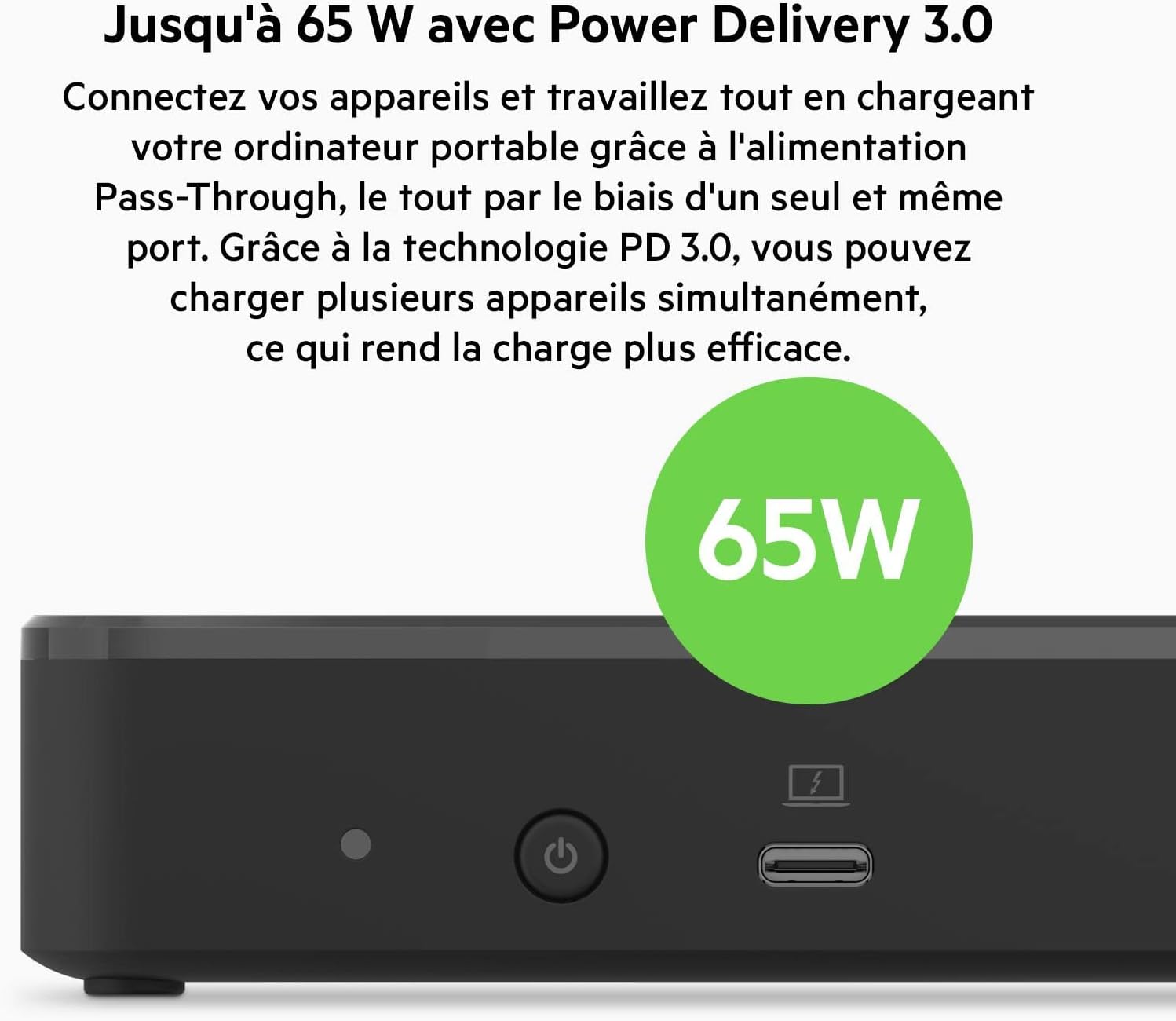
Slika: Krupni plan view of the docking station highlighting the 65W Power Delivery capability, indicated by a green circle with "65W".
5. Konfiguracija zaslona
The docking station supports multiple external displays. The maximum number and resolution of displays depend on your host laptop's capabilities and operating system.
- Windows računala: Connect up to three Full HD displays on select Windows host devices with MST (Multi-Stream Transport) functionality. Up to two 4K displays can be connected.
- Chromebookovi: Supports up to two additional displays via HDMI or DisplayPort. Firmware updates can be installed directly from Chrome OS for optimal connectivity.

Image: A Chromebook connected to the docking station, extending its display across two external monitors, one showing the Chrome OS desktop and the other a video conference.
6. Kompatibilnost
This docking station is certified compatible with Chromebook devices and functions seamlessly with Chrome OS. It also works with a wide range of USB-C compatible Windows PCs, including XPS models.
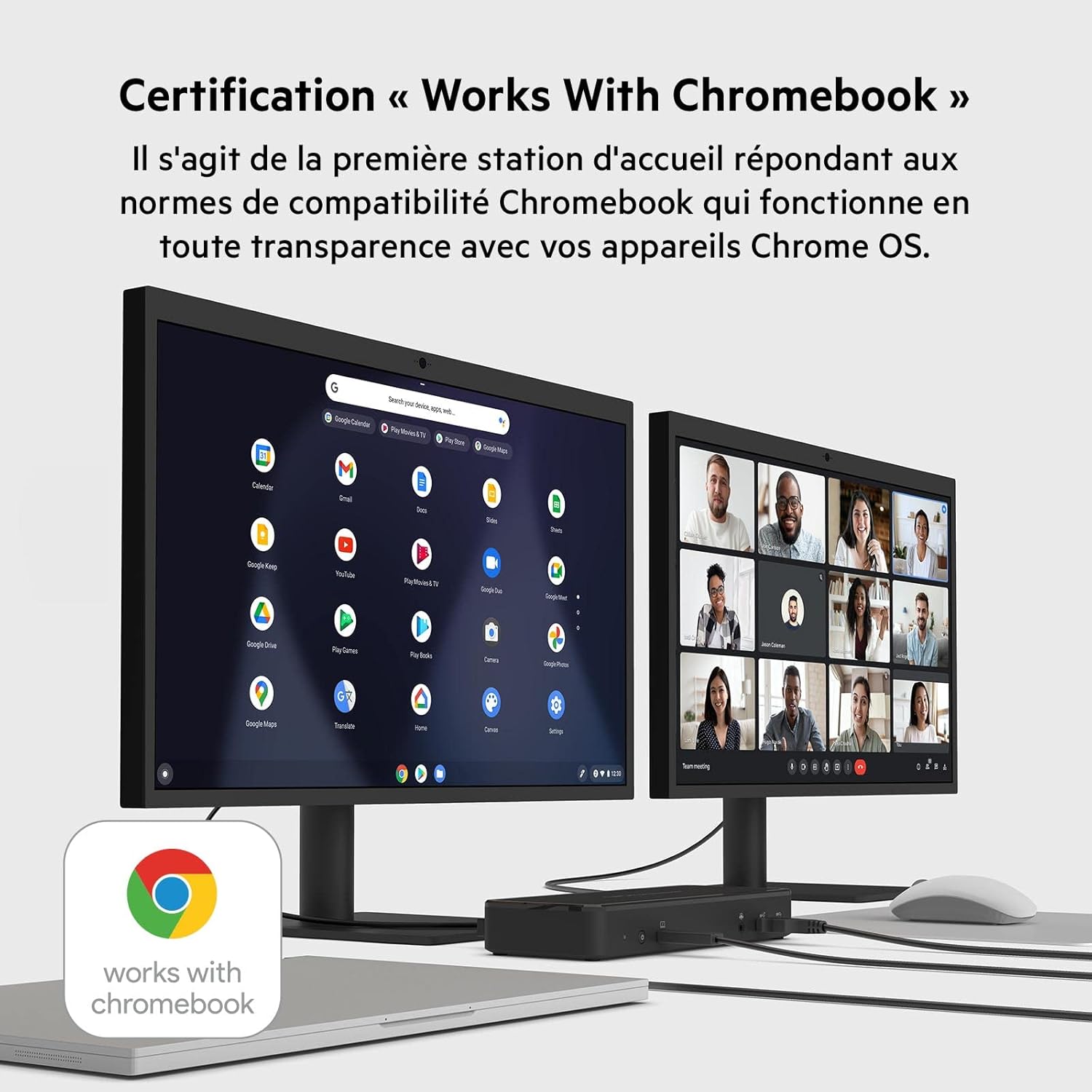
Image: The Belkin docking station prominently displaying the "Works With Chromebook" certification logo, indicating full compatibility with Chrome OS devices.

Image: The docking station placed between an open Chromebook and an open Windows laptop, illustrating its compatibility with both operating systems.
7. Specifikacije
| Značajka | Detalj |
|---|---|
| Broj modela | INC003VFBK |
| Marka | Belkin |
| Boja | Crna |
| Ukupno USB priključaka | 7 (3 x USB-C, 4 x USB-A) |
| Ukupno portova | 14 |
| Video izlazni priključci | 2 x HDMI 2.0, 2 x DisplayPort 1.4, 1 x USB-C (MFDP) |
| Ethernet | 1 x Gigabit Ethernet |
| Audio | 1 x 3.5mm Audio Input/Output |
| Isporuka energije | Up to 65W via USB-C (Power Delivery 3.0) |
| Adapter napajanja | 135 W (uključeno) |
| Brzina prijenosa podataka | Up to 10 Gbit/s (on compatible ports) |
| Kompatibilni uređaji | USB-C enabled PCs (Chromebook, Windows) |
| Dimenzije | 80L x 210l x 29H millimeters |
| Težina | 2.57 lbs (otprilike 1.17 kg) |
8. Rješavanje problema
If you encounter issues with your docking station, please refer to the following common troubleshooting steps:
- Bez napajanja:
- Ensure the 135W power adapter is securely connected to the docking station and a working wall outlet.
- Press the power button on the front of the dock to ensure it is turned on.
- Nema izlaza za prikaz:
- Verify that all display cables (HDMI, DisplayPort, USB-C) are securely connected to both the docking station and your monitors.
- Ensure your monitors are powered on and set to the correct input source.
- Check your laptop's display settings to ensure external displays are detected and configured (extended, duplicated, or primary).
- Pokušajte spajati jedan monitor istovremeno kako biste izolirali problem.
- Provjerite jesu li upravljački programi za grafiku vašeg prijenosnog računala ažurirani.
- Periferni uređaji nisu otkriveni:
- Ensure USB devices are firmly plugged into the correct ports on the docking station.
- Try connecting the device directly to your laptop to confirm it functions independently.
- Ponovno pokrenite prijenosno računalo i priključnu stanicu.
- Prijenosno računalo se ne puni:
- Confirm your laptop supports USB-C Power Delivery and is connected to the upstream USB-C port (5) on the dock.
- Ensure the docking station's power adapter is connected and functioning.
- Povremeno povezivanje:
- Provjerite jesu li svi kabeli visoke kvalitete i sigurno spojeni.
- Avoid placing the docking station near sources of strong electromagnetic interference.
- Update the docking station's firmware if available (especially for Chromebooks, directly from Chrome OS).
9. Održavanje
To ensure the longevity and optimal performance of your Belkin USB-C 14-Port Triple Display Docking Station, follow these maintenance guidelines:
- Čišćenje: Use a soft, dry, lint-free cloth to clean the exterior of the docking station. Do not use liquid cleaners or aerosol sprays.
- Ventilacija: Osigurajte da je priključna stanica postavljena u dobro prozračenom prostoru kako biste spriječili pregrijavanje. Ne blokirajte ventilacijske otvore.
- Uprava za kabele: Keep cables organized and untangled to prevent damage to ports and connectors.
- Skladištenje: Kada se ne koristi dulje vrijeme, priključnu stanicu pohranite na hladnom i suhom mjestu, dalje od izravne sunčeve svjetlosti i ekstremnih temperatura.
- Ažuriranja firmvera: Regularly check for and install any available firmware updates for the docking station, especially for Chromebook users, as these can improve compatibility and performance.
10. Jamstvo i podrška
Informacije o jamstvu:
The Belkin USB-C 14-Port Triple Display Docking Station comes with a manufacturer's warranty of 2 years from the date of purchase. Please retain your proof of purchase for warranty claims.
Korisnička podrška:
For further assistance, technical support, or warranty inquiries, please visit the official Belkin support website or contact their customer service. You can typically find contact information and support resources on the Belkin webstranica:
Please have your product model number (INC003VFBK) and purchase details ready when contacting support.