
Uvod
This instruction manual provides comprehensive guidance for the 8Bitdo Media Remote (White Short Edition), designed for seamless media control on your Xbox One, Xbox Series X, and Xbox Series S consoles. This remote offers dedicated media playback buttons, Xbox system navigation, and motion-activated backlighting for enhanced usability.
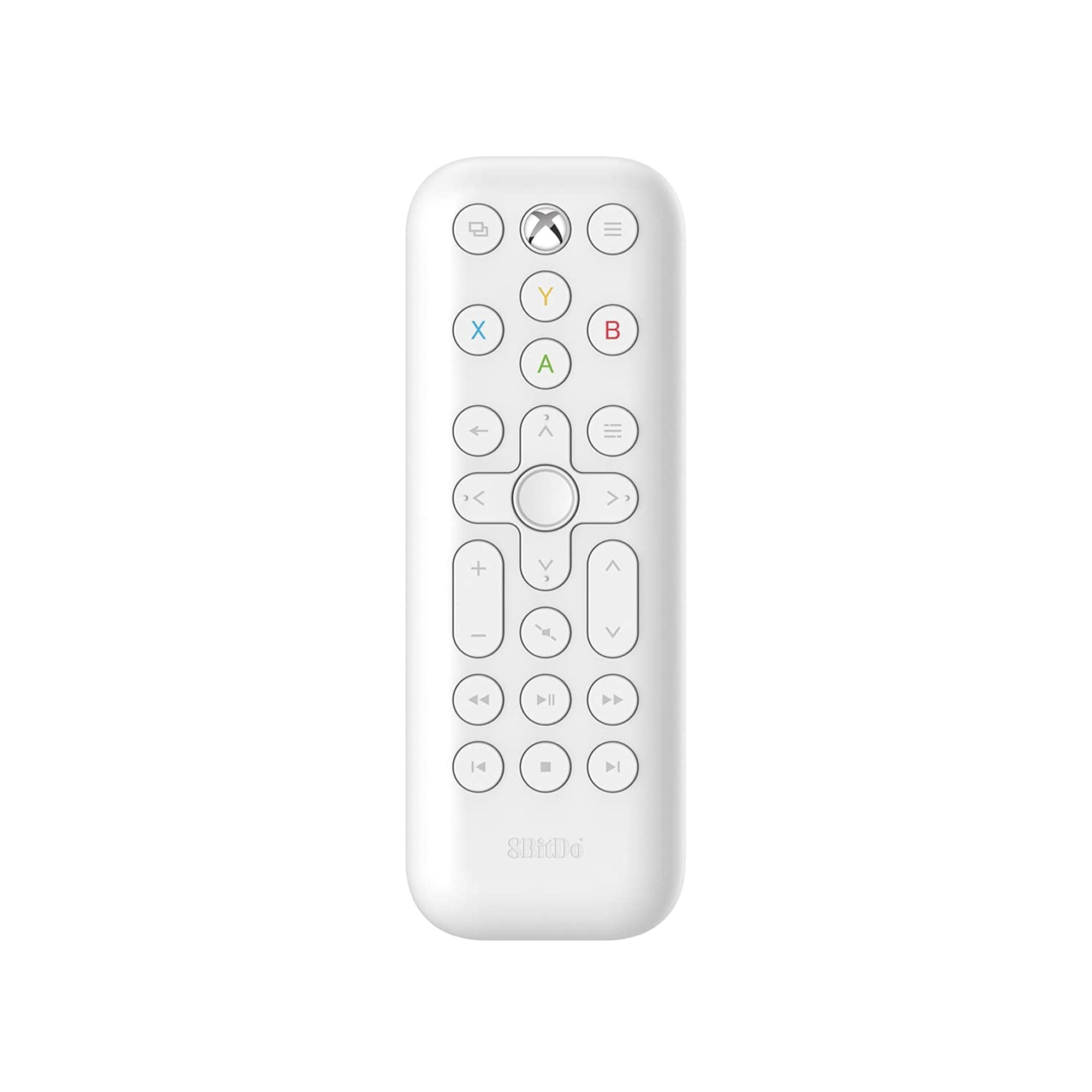
Image: The 8Bitdo Media Remote in White, Short Edition, showcasing its compact design and button layout.
Postavljanje
1. Ugradnja baterije
The 8Bitdo Media Remote requires two AAA batteries for operation. These are typically included with your purchase.
- Pronađite poklopac odjeljka za baterije na stražnjoj strani daljinskog upravljača.
- Pomaknite poklopac prema dolje kako biste otvorili pretinac.
- Umetnite dvije AAA baterije, pazeći na ispravan polaritet (+ i -).
- Vratite poklopac odjeljka za baterije na mjesto dok ne klikne sigurno.

Image: A hand demonstrating how to open the battery compartment and insert AAA batteries into the remote.
2. Početna veza
The 8Bitdo Media Remote uses infrared (IR) technology. No manual pairing is required. Simply ensure a clear line of sight between the remote's IR emitter (located at the top) and your Xbox console's IR receiver.

Image: A user holding the 8Bitdo Media Remote, pointing it towards an Xbox Series S console, illustrating the line-of-sight requirement for infrared communication.
Upute za rad
1. Powering On/Off and Navigation
- Dedicated Home Button: Press the Xbox Home button (located at the top center) to instantly wake your Xbox console.
- Smjerna tipka (D-Pad): Use the circular D-Pad for navigating menus and selecting items.
- Tipke A/B/X/Y: These colored buttons correspond to standard Xbox controller functions for menu selection and interaction.

Image: The 8Bitdo Media Remote being used to wake an Xbox console, highlighting the dedicated Home button functionality.
2. Kontrole reprodukcije medija
The remote features a full suite of media playback buttons:
- Reproduciraj/pauziraj: Pokretanje ili pauziranje reprodukcije medija.
- Premotavanje unaprijed/unazad: Skip forward or backward through content.
- Pojačavanje/stišavanje glasnoće: Adjust the volume of your media.
- Isključi zvuk: Isključite ili uključite zvuk.
3. Motion-Activated Backlight
The buttons on the remote are motion-activated and will illuminate when the remote is picked up or moved, making it easy to use in low-light conditions.
4. OneGuide Button Customization
The OneGuide button (three horizontal lines icon) can be customized to launch a specific application on your Xbox. To configure this:
- On your Xbox, go to postavke.
- Idite do Devices & connections, zatim odaberite Daljinski medij.
- Choose the desired action or app to launch when the OneGuide button is pressed.
5. TV Volume Control (HDMI-CEC)
Your Xbox can control your TV's volume if your TV supports HDMI-CEC (Consumer Electronics Control). To enable this:
- Press the Xbox button on your controller to open the guide.
- Idi na postavke > General > TV & display options.
- Odaberite Kontrola uređaja > HDMI-CEC and enable all options.
- Consult your TV manufacturer's manual for specific HDMI-CEC settings.
Održavanje
1. Zamjena baterije
Replace the AAA batteries when the remote's performance diminishes or the backlight becomes dim. Refer to the 'Battery Installation' steps in the Setup section.
2. Čišćenje
Wipe the remote with a soft, dry cloth. Avoid using harsh chemicals or abrasive materials that could damage the finish or buttons.
Rješavanje problema
- Daljinski ne reagira:
- Provjerite jesu li nove baterije ispravno umetnute.
- Verify a clear line of sight between the remote and your Xbox console. Obstructions can block the infrared signal.
- Confirm your Xbox console is powered on and not in a deep sleep mode that disables IR reception.
- Backlight constantly active:
- The backlight is motion-activated. Any movement will trigger it. This is normal operation.
- If battery life is a concern due to frequent backlighting, consider using rechargeable AAA batteries.
- TV volume control not working:
- Ensure your TV supports HDMI-CEC and that it is enabled in your TV's settings.
- Verify HDMI-CEC settings are correctly configured on your Xbox console (Settings > General > TV & display options > Device control > HDMI-CEC).
Tehnički podaci
| Model | 6922621501848 (White Short Edition) |
| Marka | 8Bitdo |
| Povezivost | Infracrveni (IC) |
| Kompatibilnost | Xbox Series X, Xbox Series S, Xbox One |
| Izvor napajanja | 2 x AAA baterije (uključene) |
| Dimensions (Short Edition) | 134.25 x 48 x 18.8 mm |
| Težina artikla | 2.88 unci |

Image: A visual comparison of the 8Bitdo Media Remote in both short and long editions, detailing their respective dimensions.

Image: An illustration showing the 8Bitdo Media Remote's compatibility with Xbox One, Xbox Series X, and Xbox Series S consoles.
Jamstvo i podrška
8Bitdo is committed to producing high-quality gaming hardware. For specific warranty information, product support, or to access the latest firmware updates, please visit the official 8Bitdo webweb-mjesto ili se izravno obratite njihovoj korisničkoj službi. Sačuvajte dokaz o kupnji za slučaj zahtjeva za jamstvo.
Za dodatne resurse i informacije o proizvodu možete posjetiti 8Bitdo trgovina na Amazonu.
Proizvod gotovview Video
Video: Službenik prekoview of the 8Bitdo Media Remote for Xbox One and Xbox Series X|S, demonstrating its features and functionality.