
Uvod
The HyperGear HyperStream 1080P Webcam provides high-definition video and clear audio for various applications, including online meetings, classes, and streaming. This manual provides instructions for setup, operation, maintenance, and troubleshooting to ensure optimal performance of your webnarančasta.
Sadržaj paketa
Molimo provjerite jesu li svi artikli prisutni u vašem paketu:
- HyperGear HyperStream 1080P Webkamera
- USB kabel
- Ugrađeni mikrofon
Proizvod gotovview
The HyperGear HyperStream 1080P Webcam is designed for ease of use and high-quality performance. Key features include:
- Crystal-Clear 1080P HD Resolution: Delivers sharp and vibrant visuals.
- Built-in Noise Reduction Microphone: Captures clear audio by reducing background sounds.
- Plug & Play USB povezivost: Requires no additional software or drivers for quick setup.
- Wide-Angle 110° Lens: Obuhvata široko polje view, suitable for group interactions.
- Auto-White Balance: Automatically adjusts to various lighting conditions for optimal image quality.
- Podesivi nosač na kopču: Securely attaches to monitors or laptops, and can also be positioned as a standalone unit.
Upute za postavljanje
Follow these steps to set up your HyperGear HyperStream 1080P Webkamera:
- Raspakirajte Webkamera: Pažljivo uklonite webcam and its USB cable from the packaging.

Image: The HyperGear HyperStream 1080P Webcam is designed for instant plug-and-play setup without requiring additional drivers. Simply connect the USB cable to your computer.
- Montirajte Webkamera:
- Na monitoru/prijenosnom računalu: Open the adjustable clip and place it securely on top of your monitor or laptop screen. Adjust the angle to ensure the webKamera je stabilna i okrenuta prema vama.
- Na radnom stolu: Preklopite kopču kako biste formirali stabilno postolje i postavite je webkameru na ravnoj površini, poput vašeg stola.

Slika: The webcam features an adjustable mount that allows it to be clamped onto any screen or display, or positioned as a standalone unit on your desk. It offers 180-degree rotation for flexible positioning.
- Povežite se sa svojim uređajem: Uključite USB kabel iz webcam into an available USB port on your computer (PC, Mac) or Xbox console. The webcam is plug-and-play, so no additional drivers are typically required.
- Provjerite vezu: Your operating system should automatically detect the webcam. You can verify its connection in your device settings or within your preferred video conferencing/streaming application.
Upute za rad
Once connected, the HyperGear HyperStream 1080P WebCam je spreman za korištenje s raznim aplikacijama.
Kompatibilnost sustava
The webcam is compatible with multiple operating systems and platforms:
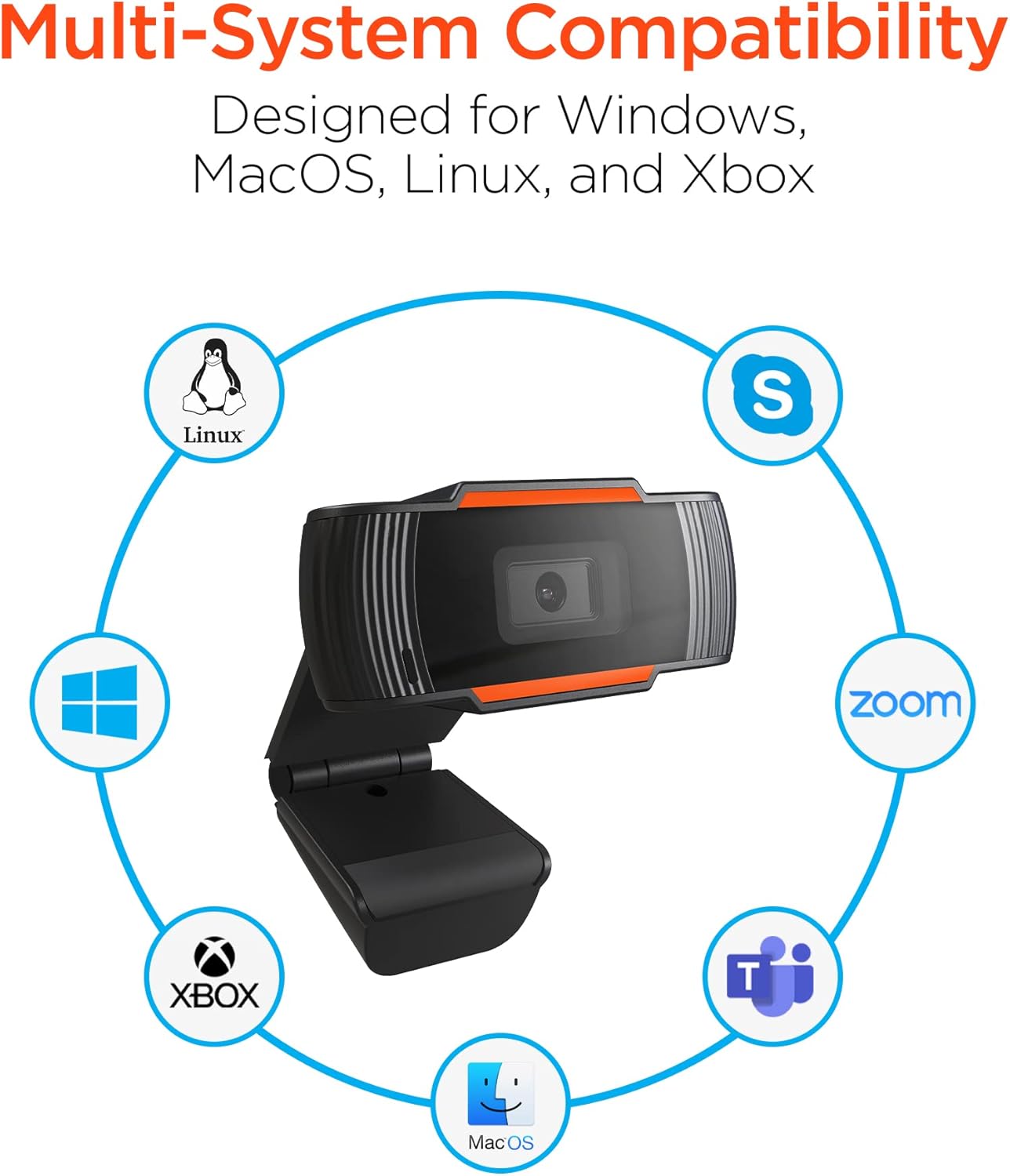
Image: The HyperGear HyperStream 1080P Webcam offers multi-system compatibility, designed for use with Windows, MacOS, Linux, and Xbox, as well as popular communication platforms like Skype, Zoom, and Microsoft Teams.
- Windows
- macOS
- Linux
- Xbox
- Compatible with popular video conferencing software (e.g., Skype, Zoom, Microsoft Teams).
Korištenje Webkamera
- Odaberite Webkamera: In your video conferencing or streaming application, navigate to the video and audio settings. Select "HyperGear HyperStream 1080P Webcam" as your video input device and its integrated microphone as your audio input device.
- Adjust Position and Angle: Osigurajte webcam is positioned to capture your desired view. The 110° wide-angle lens is ideal for capturing multiple participants or a broader background.

Image: The 110° ultra wide-angle lens ensures that your entire team and presentations fit within the frame, making it suitable for group meetings and collaborative environments.
- Benefit from Auto-White Balance and Fixed Focus: The webcam automatically adjusts for optimal lighting and maintains a sharp focus on subjects within its field of view, eliminating the need for manual adjustments.

Slika: The webcam features fixed focus and auto-white balance (AWB) to automatically adjust to various lighting conditions (like daylight or fluorescent), ensuring clear and sharp visuals without manual intervention.
- Utilize Noise Reduction Microphone: The built-in microphone actively reduces ambient noise, ensuring your voice is clear and easily understood during calls.

Image: The integrated noise reduction microphone minimizes unwanted background noise and distortions, ensuring clear audio during your video calls and streams.
Održavanje
Kako biste osigurali dugovječnost i optimalnu izvedbu vašeg webkam, slijedite ove upute za održavanje:
- Čišćenje: Nježno obrišite leću mekom krpom koja ne ostavlja dlačice. Izbjegavajte korištenje jakih kemikalija ili abrazivnih materijala koji bi mogli ogrebati leću ili oštetiti casing.
- Skladištenje: Kad se ne koristi, pohranite webKameru čuvajte na čistom i suhom mjestu, dalje od ekstremnih temperatura i izravne sunčeve svjetlosti.
- Rukovanje: Izbjegavajte ispuštanje webcam or subjecting it to strong impacts, which could damage internal components.
Rješavanje problema
If you encounter issues with your HyperGear HyperStream 1080P Webkamera, pokušajte sljedeće korake za rješavanje problema:
- WebKamera nije otkrivena:
- Provjerite je li USB kabel sigurno priključen u oba webcam and your computer's USB port.
- Pokušajte priključiti webcam u drugi USB priključak.
- Ponovno pokrenite računalo.
- Check your operating system's device manager (Windows) or System Information (macOS) to see if the webkamera je navedena.
- Nema video izlaza:
- Provjerite je li webcam is selected as the video input device in your application's settings.
- Provjerite da trenutno nijedna druga aplikacija ne koristi webcam, jer neki sustavi dopuštaju samo jednoj aplikaciji pristup istodobno.
- Provjerite ima li fizičkih prepreka koje prekrivaju objektiv.
- No Audio Input (Microphone):
- Potvrdite da je webcam's microphone is selected as the audio input device in your application's settings and your system's sound settings.
- Check that the microphone is not muted in your application or system settings.
- Ensure your system's privacy settings allow applications to access the microphone.
- Loša kvaliteta videa:
- Ensure you have adequate lighting in your environment. While the webcam has auto-white balance, sufficient ambient light is crucial for best results.
- Očistite webcam lens if it appears smudged or dirty.
- Check your internet connection speed if streaming or video conferencing, as a slow connection can affect video quality.
Tehnički podaci
| Značajka | Detalj |
|---|---|
| Marka | HyperGear |
| Naziv modela | HyperStream Portable 1080P |
| Rezolucija video snimanja | 1080 p |
| Tehnologija povezivanja | USB |
| Boja | crna |
| Posebna značajka | Podesiva |
| Vrsta kamkordera | Webkamera |
| Operativni sustav | Windows, macOS |
| Vrsta objektiva | Široki kut |
| Vrsta fokusa | Fiksni fokus |
| Omjer slike | 16:9 |
| Vrsta kontrole izloženosti | Automatski |
| Učinkovita video rezolucija | 1920 piksela |
| Kompatibilni uređaji | Osobno računalo |
| Ugrađeni mediji | Microphone, USB Cable |
| Težina artikla | 4.72 unci |
| UPC | 633755155390 |
| ASIN | B09S51KSC4 |
Jamstvo i podrška
For warranty information and customer support, please refer to the documentation included with your purchase or visit the official HyperGear webmjesto.
Također možete posjetiti HyperGear Store on Amazon za više informacija o proizvodu i resurse podrške.