
Uvod
This manual provides essential information for setting up, operating, maintaining, and troubleshooting your CUPEISI 7-inch Android 14 Tablet. Please read this guide thoroughly to ensure proper use and to maximize your tablet's performance and longevity.
Što je u kutiji
Provjerite jesu li svi artikli prisutni nakon raspakiranja:
- CUPEISI 7-inch Android 14 Tablet
- Kabel tipa C
- Korisnički priručnik (ovaj dokument)
Proizvod gotovview
The CUPEISI Q2S tablet features a 7-inch HD IPS display, powered by a 1.6GHz Quad-core processor and running Android 14. It includes 8GB RAM (4GB physical + 4GB virtual) and 32GB internal storage, expandable up to 1TB via microSD card. The tablet is equipped with dual cameras and supports Wi-Fi and Bluetooth connectivity.
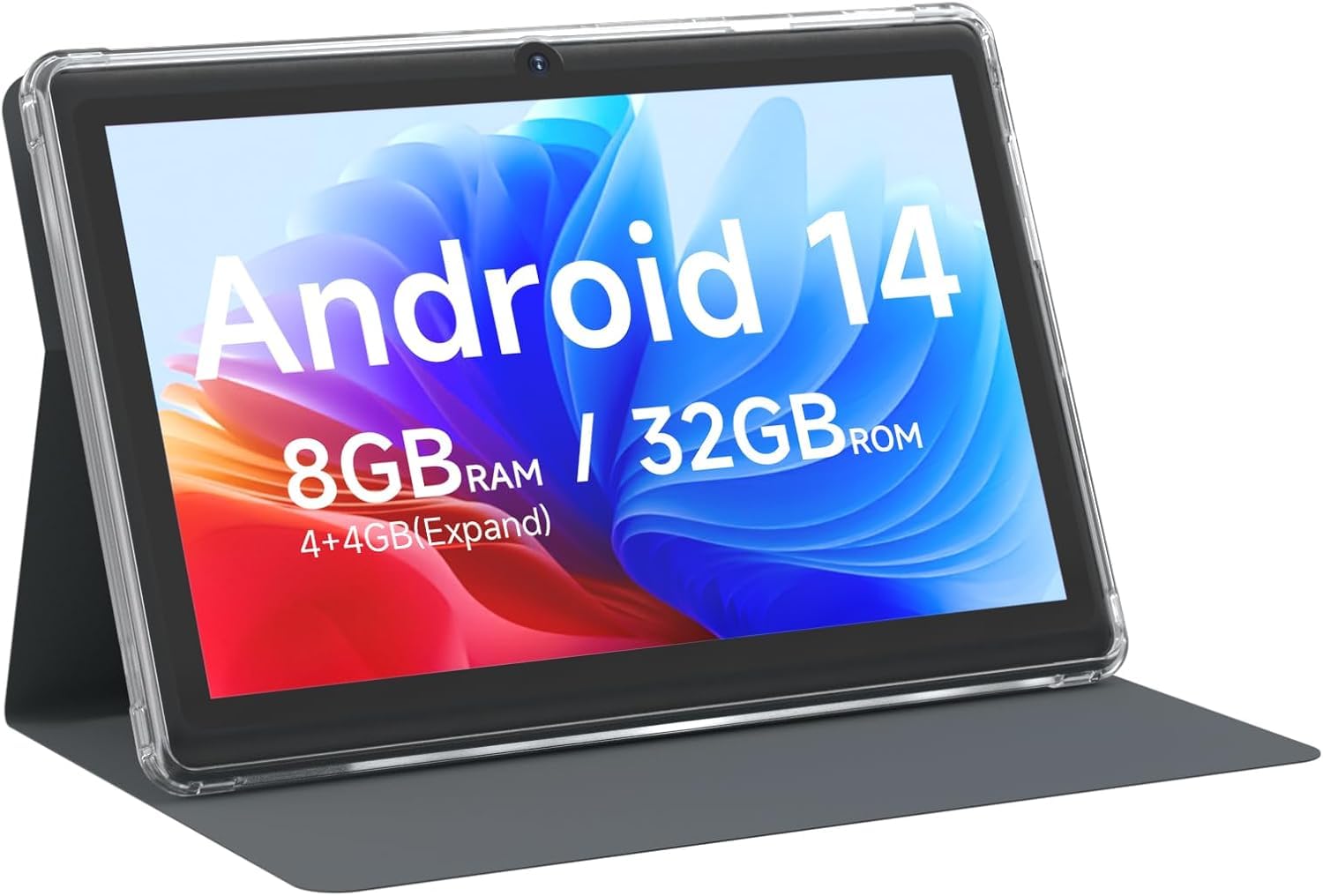
CUPEISI 7-inch Android 14 Tablet, front view.

Nadview of CUPEISI 7-inch Android 14 Tablet features including OS, CPU, RAM, ROM, Screen, Camera, Battery, and WiFi.
Postavljanje
1. Punjenje tableta
Before first use, fully charge the tablet. Connect the provided Type-C cable to the tablet's charging port and the other end to a compatible USB power adapter (not included) or a computer's USB port. The battery indicator on the screen will show charging status.
2. Uključivanje i početno postavljanje
- Pritisnite i držite tipku za uključivanje dok zaslon ne zasvijetli.
- Slijedite upute na zaslonu za odabir jezika, regije i ostalih početnih postavki.
3. Povezivanje na Wi-Fi
- Idi na postavke > Mreža i internet > Wi-Fi.
- Uključi/isključi Wi-Fi On.
- Odaberite željenu Wi-Fi mrežu s popisa.
- Unesite mrežnu lozinku ako se to od vas zatraži, a zatim dodirnite Poveži se.
4. Postavljanje Google računa
A Google account is required to download apps from Google Play Store and access Google services. You can sign in with an existing account or create a new one during the initial setup or later via postavke > Računi.
Upravljanje tabletom
1. Osnovna navigacija i geste
- Dodirnite: Odaberite stavku ili otvorite aplikaciju.
- Ukrasti: Pomicanje kroz zaslone ili popise.
- Prstohvat: Povećajte ili smanjite slike i web stranice.
- Dugi pritisak: Pristupite kontekstualnim izbornicima ili premjestite ikone.
2. Upravljanje aplikacijama

Tablet screen showing various application icons, illustrating the 8GB RAM and 32GB ROM storage capacity.
- Instalirajte aplikacije: Otvorite aplikaciju Trgovina Google Play, potražite željenu aplikaciju i dodirnite Instalirati.
- Deinstaliranje aplikacija: Long-press an app icon on the home screen or app drawer, then drag it to the Deinstaliraj option, or go to postavke > aplikacije > odaberite aplikaciju > Deinstaliraj.
3. Upravljanje pohranom
The tablet has 32GB of internal storage. You can expand this by inserting a microSD card (up to 1TB) into the designated slot. To manage storage, go to postavke > Skladištenje.
4. Korištenje kamere
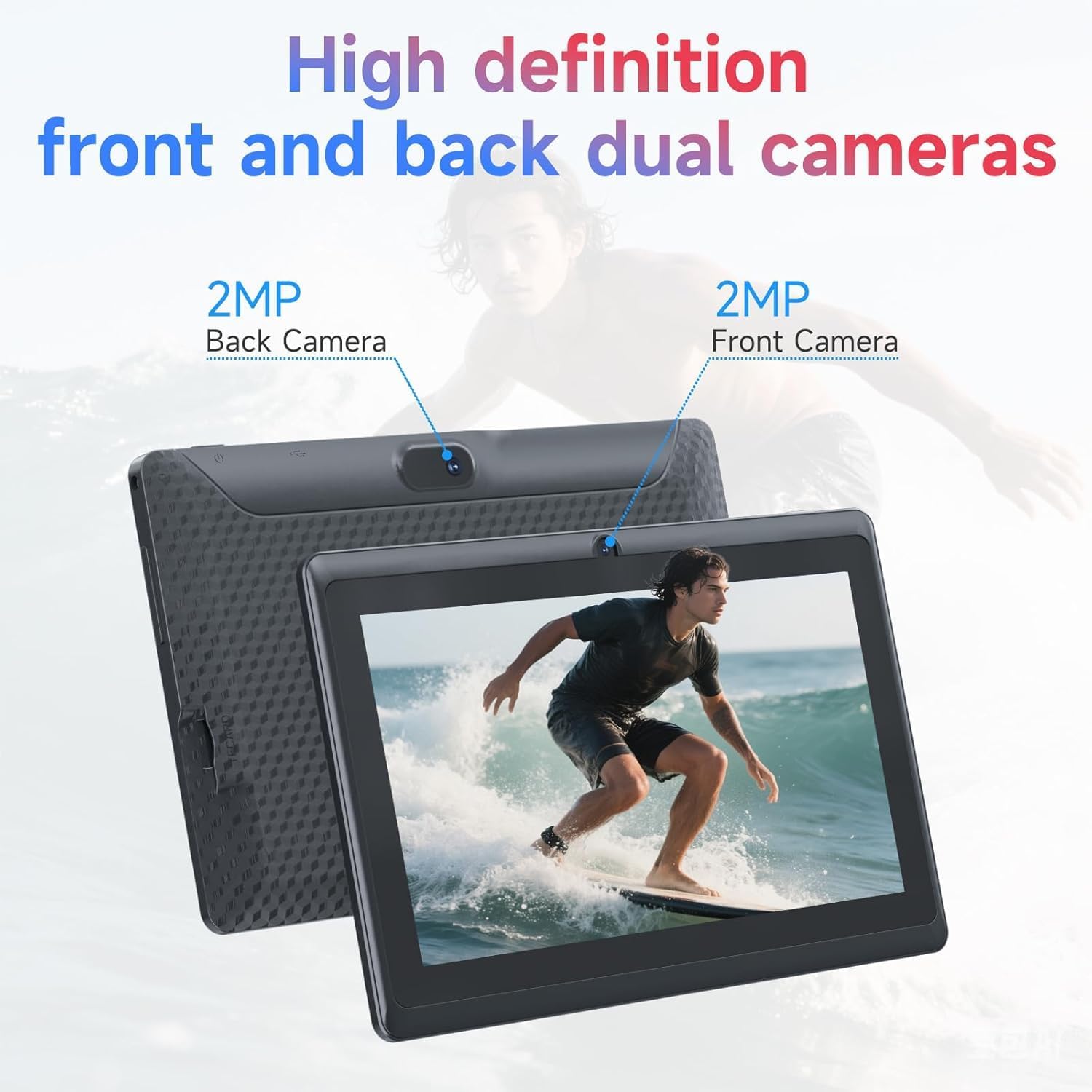
Illustration of the tablet's dual cameras, featuring a 5MP front camera and an 8MP rear camera.
The tablet features a 5MP front camera and an 8MP rear camera. Open the Fotoaparat app to take photos or record videos. Tap the camera icon to switch between front and rear cameras.
5. Connectivity (Bluetooth)
Za povezivanje Bluetooth uređaja:
- Idi na postavke > Povezani uređaji > Bluetooth.
- Uključi/isključi Bluetooth On.
- Odaberite Uparite novi uređaj i odaberite svoj uređaj s popisa.
6. Eye Protection Mode

The 7-inch IPS HD screen of the tablet displaying a colorful image, highlighting its 1024x600 resolution.
The tablet's display is designed to reduce blue light emission for eye comfort. You can enable or adjust eye protection settings in postavke > Prikaz.

A user engaged in a video conference on the tablet, demonstrating its suitability for work and study.
Održavanje
1. Čišćenje i njega
- Za čišćenje zaslona i kućišta tableta koristite meku krpu koja ne ostavlja dlačice.
- Izbjegavajte korištenje jakih kemikalija ili abrazivnih materijala.
- Keep the tablet away from extreme temperatures, direct sunlight, and moisture.

An image depicting the tablet's drop protection feature, showing it withstands impacts.
2. Ažuriranja softvera
Redovito provjeravajte i instalirajte ažuriranja softvera kako biste osigurali optimalne performanse i sigurnost. Idite na postavke > sustav > Ažuriranje sustava.
3. Optimizacija baterije
- To prolong battery life, reduce screen brightness, disable Wi-Fi/Bluetooth when not in use, and close background apps.
- Izbjegavajte često potpuno pražnjenje baterije.
Rješavanje problema
| Izdati | Moguće rješenje |
|---|---|
| Tablet se ne uključuje | Ensure the tablet is charged. Connect to a power source and wait a few minutes before attempting to power on again. |
| Problemi s Wi-Fi vezom | Check if Wi-Fi is enabled in settings. Restart your router and the tablet. Ensure you have entered the correct password. |
| Spora izvedba | Close unnecessary background applications. Clear cache from apps in Settings > Apps. Consider performing a factory reset if issues persist (back up data first). |
| Aplikacije se ruše ili zamrzavaju | Update the app to the latest version. Clear the app's cache and data in Settings > Apps. Reinstall the app. |
Tehnički podaci
| Marka | CUPEISI |
| Broj modela | Q2S |
| Operativni sustav | Android 14 |
| Procesor | 1.6 GHz Quad-core (ARM Cortex) |
| OVAN | 8 GB (4GB fixed + 4GB virtual) |
| Unutarnja pohrana | 32 GB |
| Proširiva pohrana | Do 1 TB putem microSD kartice |
| Veličina zaslona | 7 inča |
| Razlučivost zaslona | 1024 x 600 Pixels IPS HD |
| Prednja kamera | 5 MP |
| Stražnja kamera | 8 MP |
| Kapacitet baterije | 3000 mAh |
| Prosječno trajanje baterije | 6 sata |
| Povezivost | Wi-Fi (802.11g), Bluetooth |
| Sučelje | USB Type-C |
| Dimenzije (D x Š x Debljina) | 7.5 cm x 4.3 cm x 0.3 cm |
| Težina artikla | 0.38 kilogram |
Informacije o jamstvu
The CUPEISI Q2S Tablet comes with a 1-year limited warranty from the date of purchase. This warranty covers manufacturing defects and workmanship under normal use. It does not cover damage caused by misuse, accidents, unauthorized modifications, or external factors. Please retain your proof of purchase for warranty claims.
Korisnička podrška
For further assistance, technical support, or warranty inquiries, please refer to the contact information provided with your product packaging or visit the official CUPEISI website. When contacting support, please have your tablet model number (Q2S) and proof of purchase ready.