
Uvod
This manual provides essential information for the safe and efficient use of your ONN 42-Inch Full HD LED Smart TV, Model 100018254. Please read these instructions thoroughly before operating your television and retain them for future reference.
Što je u kutiji
Prije nego što nastavite s postavljanjem, provjerite jesu li sve komponente prisutne.
- ONN 42-Inch Full HD LED Smart TV
- Daljinski upravljač
- TV stalak (2 komada)
- Vijci za TV stalak
- Kabel za napajanje
- Kratki vodič (nije uključen u ovaj priručnik)

Slika: prednja strana view of the ONN 42-inch Smart TV displaying the Roku TV home screen with various streaming app icons like Netflix, Disney+, Apple TV, Hulu, Peacock, and Roku Channel. The TV is black with slim bezels and two stand feet.
Postavljanje
1. Pričvršćivanje TV stalka
- Pažljivo postavite televizor zaslonom prema dolje na meku, čistu površinu kako biste spriječili oštećenja.
- Poravnajte svaki dio postolja s odgovarajućim otvorima za vijke na dnu televizora.
- Pričvrstite svaki dio postolja priloženim vijcima. Pazite da su čvrsto zategnuti.

Image: A diagram illustrating the dimensions of the ONN 42-inch TV, showing its width as 43 inches and height as 37 inches when placed on its stand.
2. Montaža na zid (opcionalno)
This TV is compatible with VESA standard wall mounts. Refer to your wall mount's instructions for proper installation. Ensure the wall mount can support the weight of the television.

Slika: Stražnja strana view of the ONN 42-inch TV, highlighting the VESA mounting screw holes in a square pattern and various input ports on the side and bottom right.
3. Povezivanje uređaja
Connect your external devices such as cable boxes, gaming consoles, or Blu-ray players to the TV's input ports.
- HDMI: For high-definition audio and video. Use an HDMI cable to connect devices like set-top boxes, game consoles, or streaming sticks.
- USB: Za spajanje USB uređaja za pohranu podataka za reprodukciju medija files.
- Wi-Fi: For internet connectivity to access smart TV features and streaming services.
4. Početno uključivanje i čarobnjak za postavljanje
- Uključite kabel za napajanje u televizor, a zatim u zidnu utičnicu.
- Pritisnite gumb za napajanje na daljinskom upravljaču ili na samom televizoru.
- Follow the on-screen instructions to complete the initial setup, including language selection, network connection (Wi-Fi), channel scanning, and linking to your Roku account (if applicable).
Rukovanje televizorom
1. Daljinsko upravljanjeview
The remote control allows you to navigate the TV's interface and control various functions.
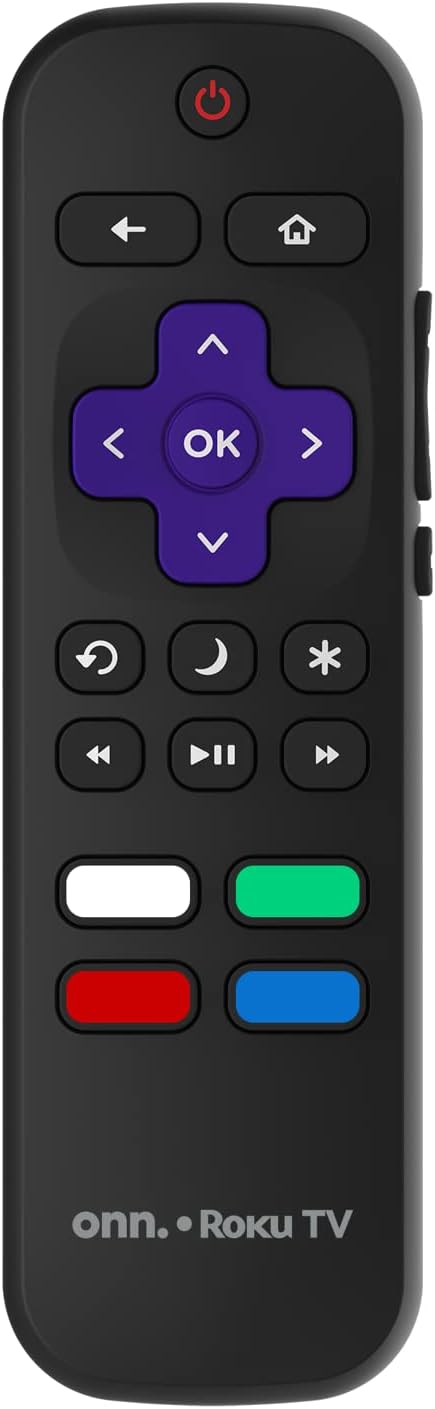
Image: The ONN Roku TV remote control, featuring a power button, directional pad, OK button, home button, back button, volume controls, and dedicated buttons for popular streaming services.
- Gumb za napajanje: Uključuje ili isključuje TV.
- Directional Pad (D-Pad) & OK: Navigacija kroz izbornike i potvrđivanje odabira.
- tipka za početak: Povratak na početni zaslon Roku TV-a.
- Gumb Natrag: Povratak na prethodni zaslon ili izbornik.
- Pojačavanje/stišavanje glasnoće: Podešava glasnoću zvuka.
- Gumb za isključivanje zvuka: Isključuje ili uključuje zvuk.
- Kanal gore/dolje: Mijenja kanale (za antenske/kabelske ulaze).
- Namjenski gumbi za aplikacije: Quick access to popular streaming services like Netflix, Hulu, etc.
2. Značajke pametnog televizora
Your ONN Smart TV provides access to a wide range of streaming content and smart functionalities.
- Usluge strujanja: Access pre-installed apps like Netflix, YouTube, and many more through the Roku Channel Store.
- Glasovno upravljanje: Compatible with Alexa and Google Assistant for hands-free control (requires a separate compatible voice assistant device).
- Automatska ažuriranja softvera: The TV will automatically update its software when connected to the internet, ensuring you have the latest features and security.
3. Odabir ulaza
To switch between connected devices (e.g., cable box, game console), use the Ulazni button on your remote or select the desired input from the Roku TV home screen.
4. Postavke slike i zvuka
Access the TV's settings menu to customize picture and sound preferences. Navigate to Settings > TV picture settings or Postavke > Audio to adjust options like brightness, contrast, color, sound mode, and equalizer settings.
Održavanje
1. Čišćenje zaslona
- Always turn off the TV and unplug it before cleaning.
- Koristite meku krpu koja ne ostavlja dlačice, laganoampvodom ili specijaliziranim sredstvom za čišćenje ekrana.
- Ne prskajte sredstvo za čišćenje izravno na ekran. Prvo ga nanesite na krpu.
- Izbjegavajte korištenje abrazivnih sredstava za čišćenje, alkohola, benzena ili razrjeđivača jer mogu oštetiti zaslon.
2. Ažuriranja softvera
Ensure your TV is connected to the internet to receive automatic software updates. These updates improve performance, add features, and enhance security. You can manually check for updates in the Postavke > Sustav > Ažuriranje sustava Jelovnik.
Rješavanje problema
Ako imate problema s televizorom, pogledajte sljedeća uobičajena rješenja:
Nema snage
- Provjerite je li kabel za napajanje sigurno priključen i u televizor i u zidnu utičnicu.
- Provjerite ispravnost zidne utičnice tako da u nju priključite drugi uređaj.
- Pokušajte pritisnuti gumb za napajanje na samom televizoru, ne samo na daljinskom upravljaču.
Nema slike / Iskrivljena slika
- Provjerite je li odabran ispravan ulazni izvor (npr. HDMI 1, HDMI 2).
- Provjerite sve kabelske spojeve između televizora i vanjskih uređaja.
- Ako je moguće, pokušajte s drugim HDMI kabelom.
- Adjust picture settings (brightness, contrast) in the TV menu.
Nema zvuka / Tihi zvuk
- Check if the TV is muted or if the volume is turned down.
- Ensure external audio devices (soundbars, receivers) are properly connected and powered on.
- Provjerite postavke zvuka u izborniku televizora.
Problemi s mrežnom vezom
- Verify your Wi-Fi router is powered on and functioning.
- Ponovno pokrenite ruter i modem.
- Idi na Postavke > Mreža > Provjeri vezu na vašem televizoru kako biste dijagnosticirali problem.
- Provjerite jeste li unijeli ispravnu lozinku za Wi-Fi.
Tehnički podaci
| Značajka | Detalj |
|---|---|
| Broj modela | 100018254 |
| Veličina zaslona | 42 inča |
| Tehnologija zaslona | LED |
| Rezolucija | 1080p (puni HD) |
| Brzina osvježavanja | 60 Hz |
| Povezivost | USB, Wi-Fi |
| Podržane internetske usluge | Netflix, YouTube (and others via Roku platform) |
| Metoda kontrole | Voice (via Alexa & Google Assistant compatible devices), Remote Control |
| Vrsta montaže | Zidni nosač (kompatibilan s VESA standardom) |
| Boja | Crna |
| UPC | 671227025567 |

Image: Energy Guide label for Television Model 100018254, indicating an estimated yearly energy cost of $11 based on 12 cents per kWh and 5 hours use per day.
Jamstvo i podrška
For warranty information and technical support, please refer to the documentation included with your purchase or visit the official ONN support webmjesto. Čuvajte račun za jamstvene zahtjeve.