
1. Uvod
Thank you for choosing the GenMachine Mini PC. This compact yet powerful computer is designed to deliver exceptional performance for a variety of tasks, including gaming, office productivity, and creative design. Equipped with an AMD Ryzen 7 3750H processor, ample memory, and fast storage, it offers a seamless computing experience. This manual provides essential information for setting up, operating, maintaining, and troubleshooting your new Mini PC.
2. Što je u kutiji
Molimo Vas da prilikom raspakiranja provjerite jesu li svi artikli prisutni i u dobrom stanju.
- 1 x GenMachine Mini PC
- 1 x HDMI kabel
- 1 x strujni adapter
- 1 x Korisnički priručnik (ovaj dokument)
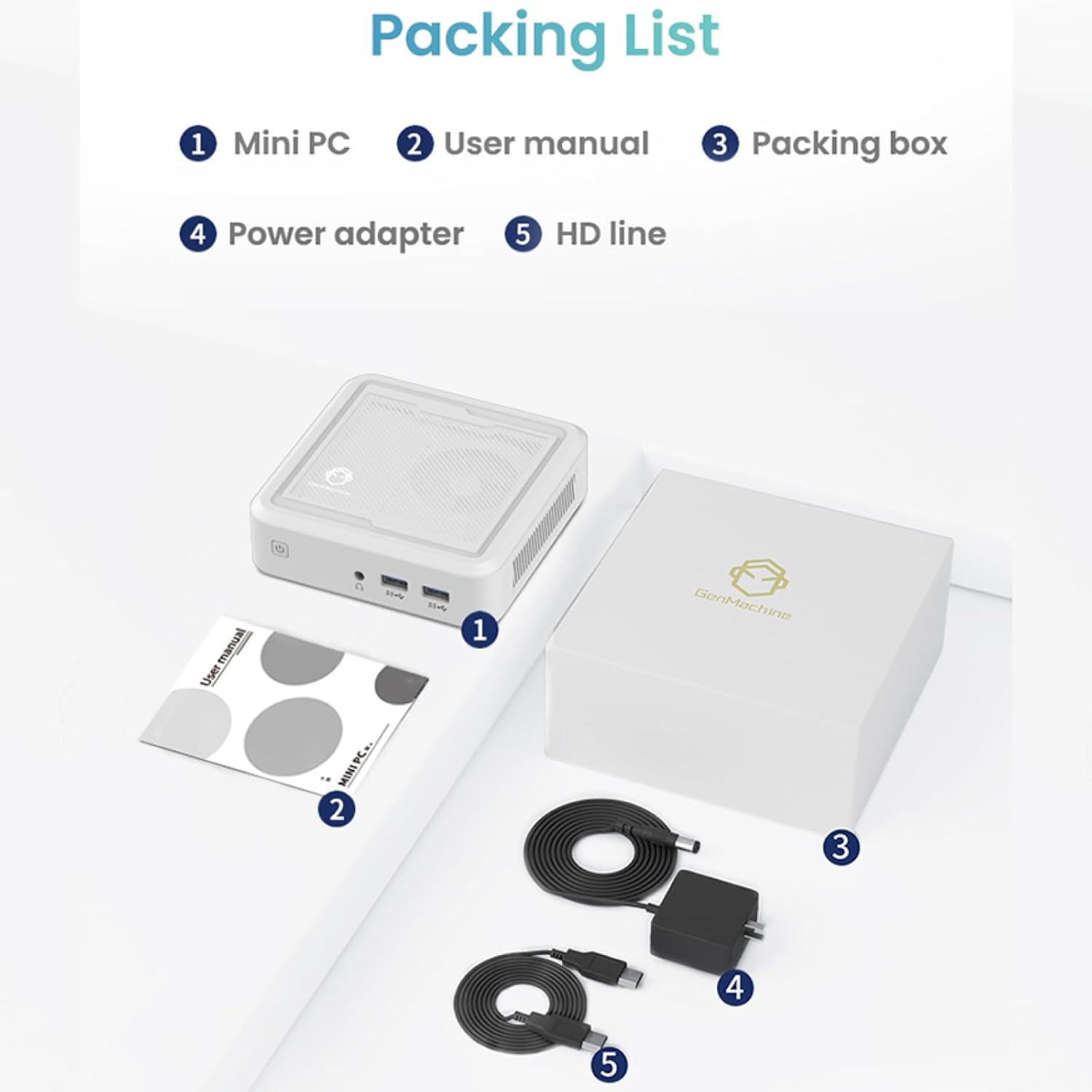
Figure 2.1: Packaging contents of the GenMachine Mini PC.
3. Značajke proizvoda
The GenMachine Mini PC is engineered with features to enhance your computing experience:
- Snažna izvedba: Equipped with an AMD Ryzen 7 3750H processor, delivering speeds up to 4.0GHz with 4 cores and 8 threads for demanding tasks.
- AmpMemorija i pohrana: Features 8GB of DDR4 RAM and a 256GB SSD with M.2 NVMe support for seamless multitasking and quick file pristup.
- Svestrana povezivost: Advanced WiFi 6 and Bluetooth 5.2 capabilities ensure high-speed internet and smooth device pairing.
- Kompaktan dizajn: A sleek, small form factor that fits easily into any workspace or gaming setup.
- Više opcija prikaza: HDMI and DisplayPort outputs support dual 4K displays for expanded productivity and immersive visuals.

Slika 3.1: Prednja strana view of the GenMachine Mini PC.
3.1 Rich Interface for Easy Connection
The Mini PC offers a comprehensive set of ports to meet various connectivity needs:
- USB 3.0 x 4
- HDMI x 1
- DisplayPort (DP) x 1
- LAN (Ethernet) x 1
- 3.5mm Audio Jack x 1
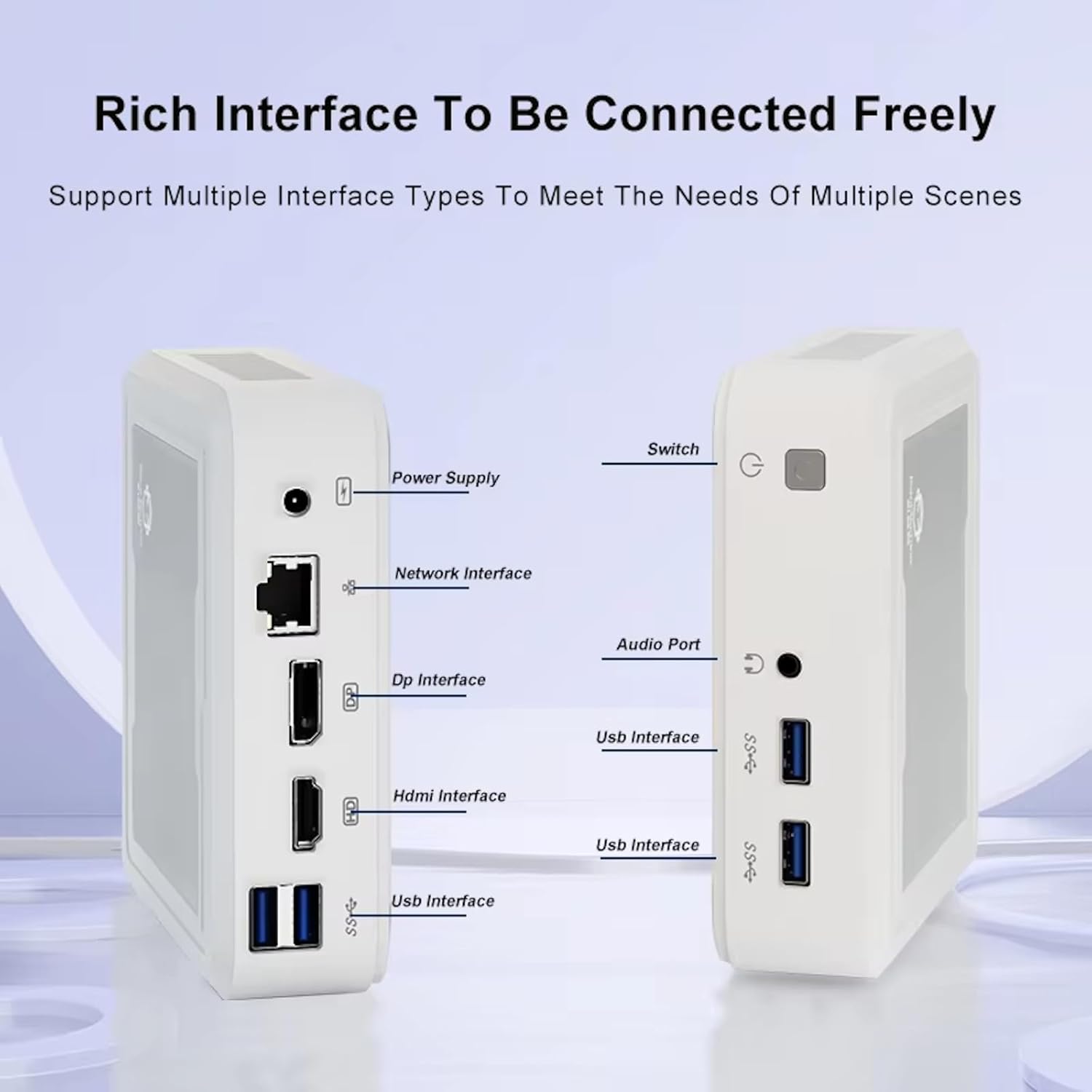
Figure 3.2: Available ports on the GenMachine Mini PC.
3.2 Dual Monitor Support
Enhance your productivity or gaming experience by connecting up to two 4K displays simultaneously using the HDMI and DisplayPort outputs.

Figure 3.3: Dual 4K display setup with the GenMachine Mini PC.
Video 3.1: Demonstration of the GenMachine Mini PC supporting two monitors simultaneously.
3.3 Energy Efficiency and Quiet Operation
Designed for low noise operation, the Mini PC maintains a quiet environment, making it suitable for various settings.

Figure 3.4: Noise level comparison of the GenMachine Mini PC.
3.4 Compact and Durable Design
The Mini PC features an ultra-durable, lightweight metal casing, making it space-saving and robust for any work environment.
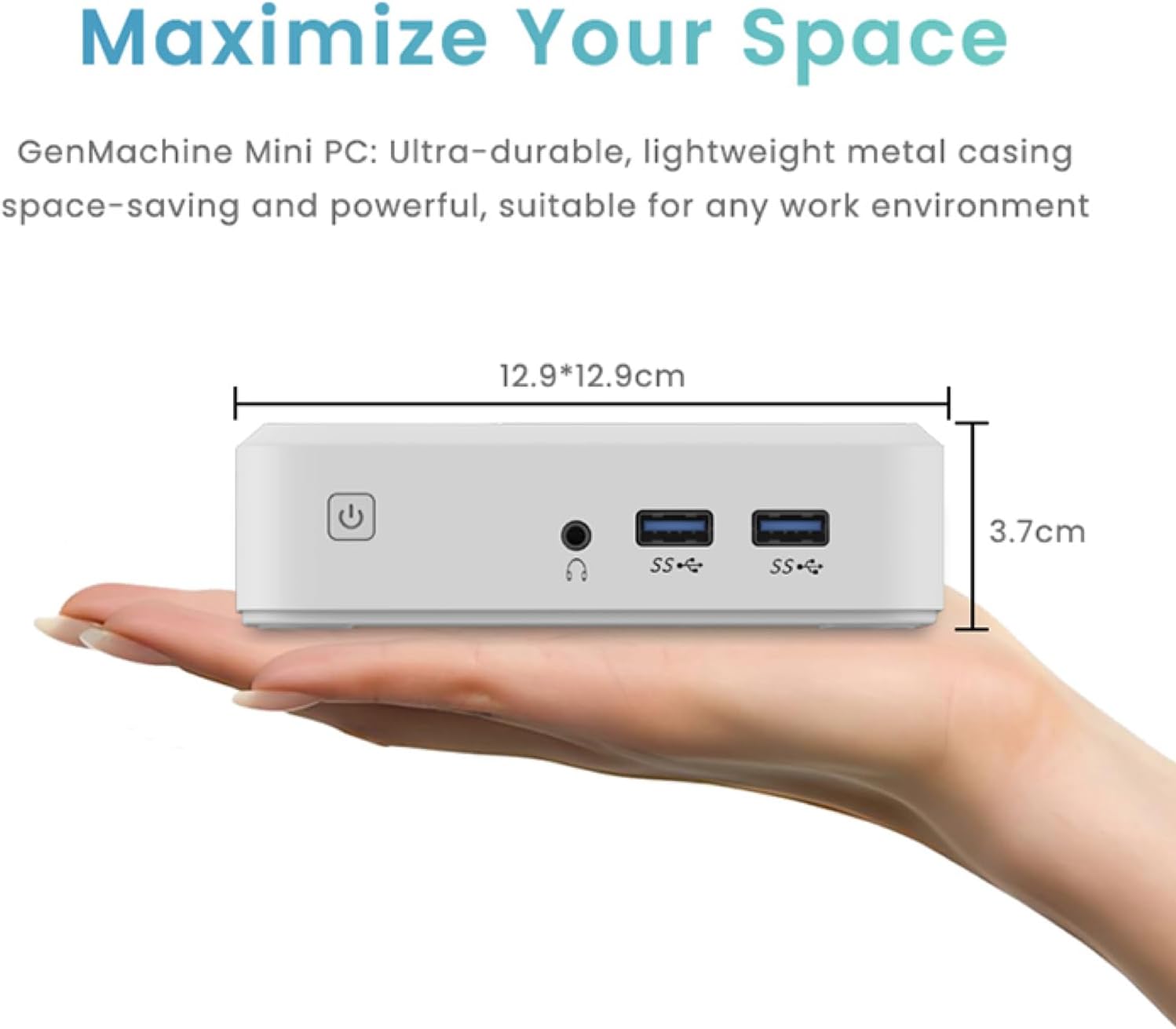
Figure 3.5: Compact size of the GenMachine Mini PC.
Video 3.2: Krajview of the GenMachine Mini PC's features and compact design.
4. Vodič za postavljanje
Follow these steps to set up your GenMachine Mini PC:
- Raspakirajte Mini PC: Pažljivo izvadite sve komponente iz pakiranja.
- Povezivanje s zaslonom: Use the provided HDMI cable to connect the Mini PC to your monitor or TV. If using a DisplayPort monitor, use a compatible DP cable (not included).
- Povežite periferne uređaje: Plug in your keyboard, mouse, and any other USB devices into the available USB 3.0 ports.
- Povezivanje s mrežom (nije obavezno): For a wired internet connection, connect an Ethernet cable to the LAN port. For wireless, ensure your WiFi network is available during initial setup.
- Priključite napajanje: Plug the power adapter into the DC-in port on the Mini PC, then plug the adapter into a power outlet.
- Uključivanje: Press the power button on the front of the Mini PC. The system should boot up.
5. Upute za rad
5.1 Početno pokretanje i postavljanje operativnog sustava
Upon first power-on, the Mini PC will guide you through the operating system setup process. Follow the on-screen prompts to configure language, region, user accounts, and network settings.
5.2 Upravljanje napajanjem
- Uključivanje: Pritisnite jednom tipku za napajanje.
- Zatvoriti: Access the power options through the operating system's start menu and select 'Shut down'.
- Ponovno pokretanje: Access the power options through the operating system's start menu and select 'Restart'.
- Stanje mirovanja: Access the power options through the operating system's start menu and select 'Sleep'.
5.3 Povezivanje s Wi-Fi-jem i Bluetoothom
To connect to a wireless network or Bluetooth device, use the respective settings within your operating system. The Mini PC supports WiFi 6 and Bluetooth 5.2 for fast and reliable connections.
6. Održavanje
Redovito održavanje pomaže u osiguravanju dugovječnosti i optimalnih performansi vašeg Mini PC-a:
- Čišćenje: Use a soft, dry cloth to clean the exterior. For dust in vents, use compressed air. Ensure the device is powered off and unplugged before cleaning.
- Ventilacija: Ensure the Mini PC is placed in a well-ventilated area. Do not block the air vents.
- Ažuriranja softvera: Regularly update your operating system, drivers, and applications to ensure security and performance.
- Sigurnosna kopija podataka: Povremeno napravite sigurnosnu kopiju važnih podataka na vanjski disk ili u oblaku.
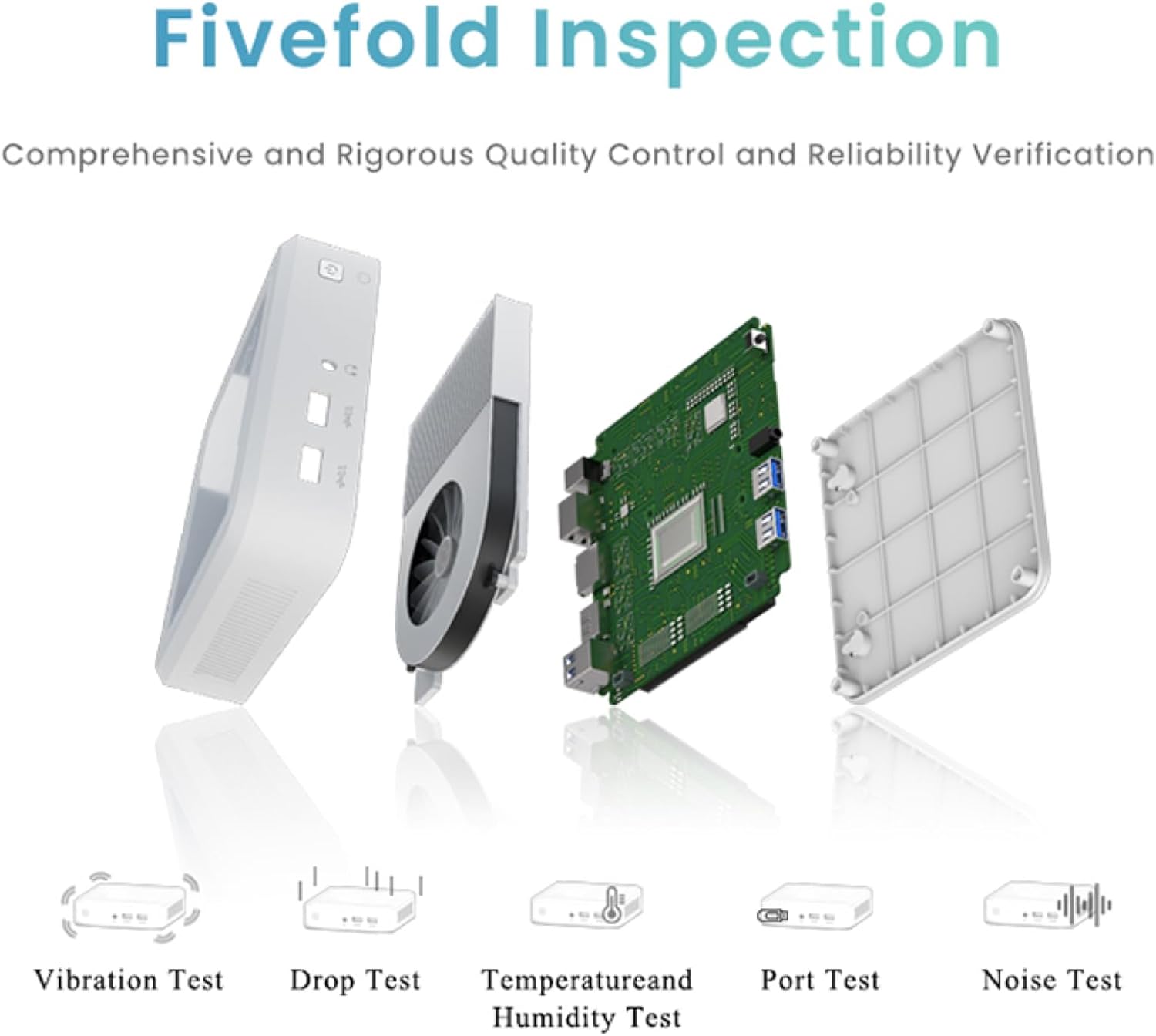
Figure 6.1: GenMachine's Fivefold Inspection process for quality control.
7. Rješavanje problema
If you encounter issues with your Mini PC, refer to the following common problems and solutions:
- Bez napajanja:
- Provjerite je li adapter za napajanje sigurno spojen i na Mini PC i na ispravnu utičnicu.
- Pokušajte s drugom utičnicom.
- Nema zaslona:
- Verify that the HDMI or DisplayPort cable is securely connected to both the Mini PC and the monitor.
- Provjerite je li monitor uključen i postavljen na ispravan ulazni izvor.
- Ako je moguće, pokušajte s drugim kabelom za zaslon ili monitor.
- Sustav se zamrzava ili ne reagira:
- Izvršite hard reset tako da držite gumb za napajanje 5-10 sekundi dok se uređaj ne isključi, a zatim ga ponovno pokrenite.
- Ensure the operating system and drivers are up to date.
- Check for overheating; ensure proper ventilation.
- Run a system diagnostic or memory test if the issue persists.
- Nema internetske veze:
- Za žičane veze provjerite status Ethernet kabela i usmjerivača.
- For Wi-Fi, ensure Wi-Fi is enabled in the operating system and you are connected to the correct network with the correct password.
- Ponovno pokrenite ruter/modem.
8. Specifikacije
| Značajka | Specifikacija |
|---|---|
| Procesor | AMD Ryzen 7 3750H (4 cores, 8 threads, up to 4.0GHz) |
| OVAN | 8 GB DDR4 |
| Skladištenje | 256GB SSD (with M.2 NVMe support) |
| Grafički koprocesor | AMD Radeon Vega 10 grafika |
| Maksimalna razlučivost zaslona | 3840 x 2160 piksela (4K) |
| Bežična vrsta | 802.11ac (WiFi 6), Bluetooth 5.2 |
| USB priključci | 4 x USB 3.0 |
| Video izlazi | HDMI, DisplayPort |
| Operativni sustav | OS (unaprijed instaliran) |
| Težina artikla | 2.1 funti |
| Dimenzije proizvoda | 4.9 x 4.9 x 1.4 inča |
| Boja | Crna |
9. Jamstvo i podrška
For warranty information and technical support, please refer to the warranty card included with your product or visit the official GenMachine webstranicu. Sačuvajte račun kao dokaz o kupnji za slučaj reklamacije.
If you require further assistance, please contact GenMachine customer support through the channels provided on their official webmjesto.