
1. Uvod
This manual provides essential information for setting up, operating, maintaining, and troubleshooting your Beelink SER5 5500U Mini PC. Please read it carefully before using the product to ensure optimal performance and longevity.
The Beelink SER5 5500U is a compact and powerful Mini PC featuring an AMD Ryzen 5 5500U processor, designed for various applications from office work to multimedia entertainment and light gaming. It supports dual 4K display output and offers robust connectivity options.
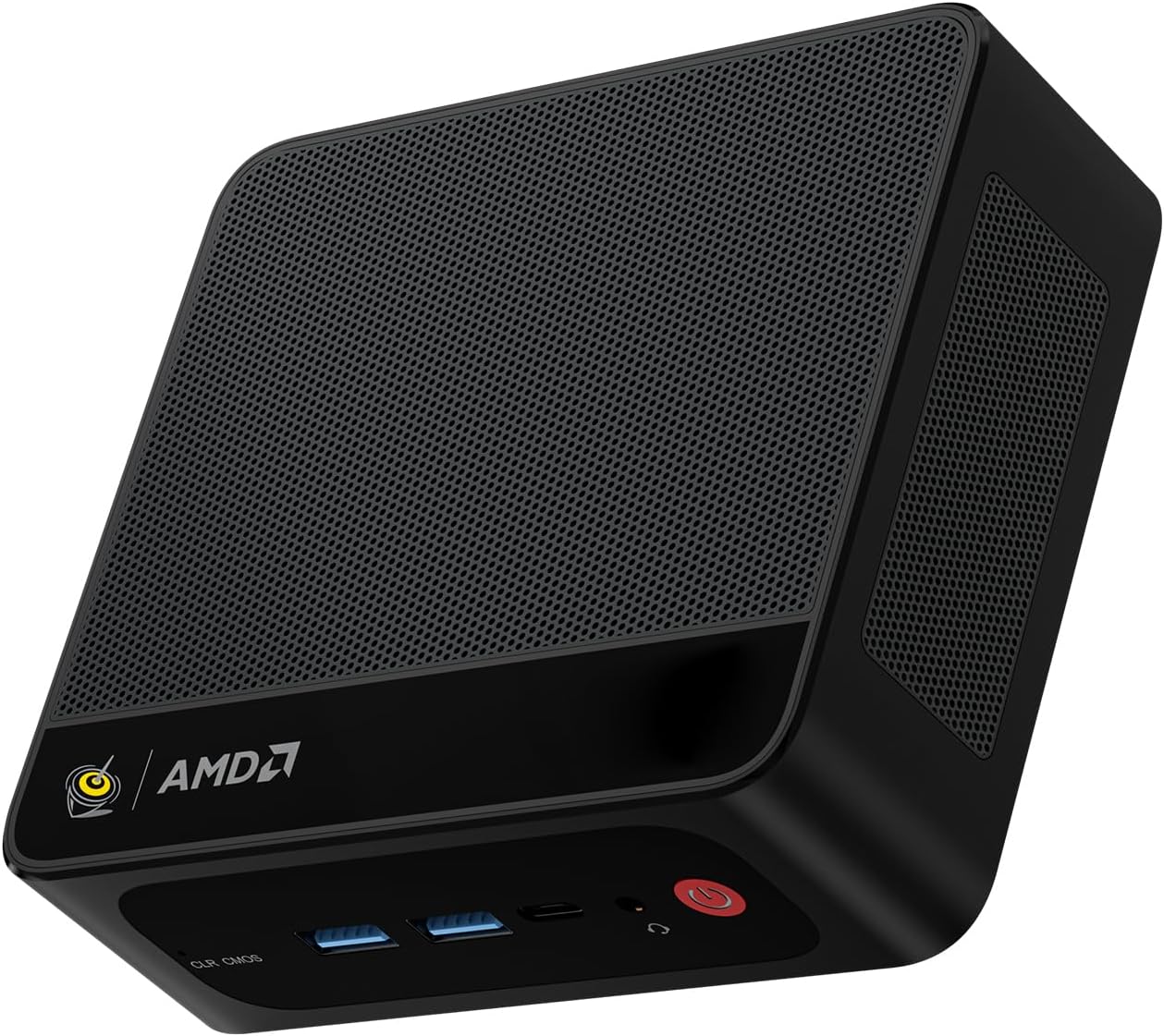
Figure 1: Beelink SER5 5500U Mini PC
2. Sadržaj paketa
Provjerite jesu li svi artikli prisutni u paketu:
- Beelink SER5 5500U mini računalo (x1)
- HDMI Cable (100cm) (x1)
- Power Adapter (19V/3.42A) (x1)
- Wall-Mounted Bracket (x1)
- Korisnički priručnik (ovaj dokument)
3. Upute za postavljanje
3.1 Spajanje perifernih uređaja
- Poveži zaslon: Use the provided HDMI cable to connect your monitor to the HDMI port on the Mini PC. Alternatively, use a DisplayPort cable for DP connection.
- Spojite tipkovnicu i miš: Uključite USB tipkovnicu i miš u dostupne USB priključke.
- Priključite napajanje: Spojite adapter za napajanje na DC-in priključak na Mini PC-ju, a zatim uključite adapter u utičnicu.
- Mrežna veza (nije obavezno): Za žičanu vezu, spojite Ethernet kabel na 2.5G LAN priključak. Za bežičnu vezu provjerite je li vaša WiFi mreža dostupna.

Slika 2: Prednji i stražnji priključci
3.2 Početno pokretanje
Press the power button on the front of the Mini PC. The system will boot up, and you will see the Windows 11 Pro setup screen. Follow the on-screen instructions to complete the initial Windows setup.
4. Upute za rad
4.1 Uključivanje/isključivanje i ponovno pokretanje
- Uključivanje: Pritisnite gumb za napajanje.
- Isključivanje: Click the Start button in Windows, then select Power > Shut down. Alternatively, press and hold the power button for 5 seconds to force a shutdown (not recommended for regular use).
- Ponovno pokretanje: Kliknite gumb Start u sustavu Windows, a zatim odaberite Napajanje > Ponovo pokreni.
4.2 Postavljanje dvostrukog zaslona
The Beelink SER5 5500U supports dual 4K display output via its HDMI and DisplayPort interfaces. Connect two monitors to these ports. Windows will automatically detect the displays. You can configure display settings (extend, duplicate, etc.) via Windows Display Settings.

Figure 3: Dual Display Configuration
4.3 Bežično povezivanje
- Wi-Fi 6: The Mini PC supports Wi-Fi 6 (802.11ax) for high-speed wireless internet. Connect via Windows network settings.
- Bluetooth 5.2: Pair Bluetooth devices such as keyboards, mice, or headphones through Windows Bluetooth settings.
4.4 Proširenje pohrane
The Mini PC includes a 500GB M.2 PCIe NVME 2280 SSD. For additional storage, a 2.5-inch HDD/SSD (not included) can be installed in the dedicated slot. Refer to the internal hardware guide for installation steps.
5. Održavanje
5.1 Čišćenje
Regularly clean the exterior of the Mini PC with a soft, dry cloth. Use compressed air to gently clear dust from the ventilation openings to maintain optimal airflow and cooling performance. Do not use liquid cleaners directly on the device.
5.2 Ažuriranja softvera
Keep your Windows operating system and device drivers updated. Windows Update will handle most OS updates. For graphics drivers (AMD Radeon Graphics), visit the AMD official webstranica za najnovije verzije.
5.3 Sustav hlađenja
The Beelink SER5 5500U features a high-speed cooling fan. Ensure the Mini PC is placed in a well-ventilated area and that the air vents are not obstructed to prevent overheating.

Figure 4: Internal Cooling Fan
6. Rješavanje problema
6.1 Bez napajanja
- Provjerite je li adapter za napajanje sigurno spojen i na Mini PC i na ispravnu utičnicu.
- Provjerite je li utičnica ispravna tako da u nju priključite drugi uređaj.
- Isprobajte drugi adapter za napajanje ako je dostupan i kompatibilan.
6.2 Nema zaslona
- Verify that the HDMI or DisplayPort cable is securely connected to both the Mini PC and the monitor.
- Ensure the monitor is powered on and set to the correct input source (HDMI/DP).
- Ako je moguće, testirajte s drugim monitorom ili kabelom.
- If the issue persists, try resetting the CMOS by pressing the CLR CMOS button (refer to Figure 2 for location).
6.3 Problemi s mrežnom povezivošću
- Žični (LAN): Check the Ethernet cable connection and your router/modem.
- Wireless (Wi-Fi/Bluetooth): Ensure Wi-Fi and Bluetooth are enabled in Windows settings. Restart your router/modem.
- Po potrebi ažurirajte mrežne upravljačke programe.
6.4 Usporavanje sustava
- Zatvorite nepotrebne aplikacije koje rade u pozadini.
- Provjerite i instalirajte sva ažuriranja za Windows koja su na čekanju.
- Ensure the cooling vents are clear of obstructions.
- Pokrenite čišćenje i defragmentaciju diska (za HDD, nije potrebno za SSD).
7. Specifikacije

Figure 5: Product Specification Overview
| Značajka | Detalj |
|---|---|
| Marka | Beelink |
| Model | SER5 5500U |
| Operativni sustav | Windows 11 Pro |
| CPU | AMD Ryzen 5 5500U (6 Cores/12 Threads, 2.1GHz Base, up to 4.0GHz Boost) |
| Grafika | AMD Radeon Graphics (7 Cores, 1800 MHz) |
| OVAN | 16GB DDR4 (Dual Channel, expandable up to 64GB) |
| Skladištenje | 500GB M.2 PCIe NVME 2280 SSD (expandable with 2.5-inch HDD/SSD) |
| Video izlaz | 1x HDMI (4K@60Hz), 1x DisplayPort (4K@60Hz) |
| USB priključci | 3x USB 3.2 Gen2, 1x USB 2.0, 1x Type-C (Data) |
| Mreža | Wi-Fi 6 (802.11ax), Bluetooth 5.2, 2.5G LAN (RJ45) |
| Audio | Audio priključak (HP i MIC) |
| Dimenzije | 12.6 x 11.3 x 4.2 cm |
| Hlađenje | Zračno hlađenje |
| Adapter napajanja | 19V/3.42A |
8. Jamstvo i podrška
8.1 Informacije o jamstvu
Your Beelink SER5 5500U Mini PC comes with a 3-godišnje jamstvo proizvođačaMolimo sačuvajte dokaz o kupnji za potrebe jamstva.
8.2 Product Key Retrieval
If you received your product without a physical product key, you can contact Beelink support to obtain it. Please provide the SN code located on the bottom of your product when contacting support.
8.3 Korisnička podrška
For technical assistance, warranty claims, or any other inquiries, please contact Beelink customer support through the official Beelink store or website. Support is typically available within 24 hours for messages.