
Star Micronics MCL32CBI
Star Micronics mC-Label3 MCL32CBI Priručnik za uporabu izravnog termalnog pisača
Model: MCL32CBI
Uvod
This manual provides essential information for the setup, operation, maintenance, and troubleshooting of your Star Micronics mC-Label3 MCL32CBI Direct Thermal Printer. Please read this manual thoroughly before using the printer to ensure proper and safe operation.
Sadržaj paketa
Provjerite jesu li sve dolje navedene stavke uključene u vaš paket:
- mC-Label3 Multifunctional Printer
- AC adapter
- Kabel za napajanje
- USB Cables (C-C 1.0m and C-A 1.8m)
- LAN kabel (1m)
- Simple Setup Sheet Safety Guide

Slika: prednja strana view of the Star Micronics mC-Label3 printer, showcasinzbog svog kompaktnog dizajna i utora za izlaz naljepnica.
Postavljanje
1. Spajanje pisača
The mC-Label3 MCL32CBI printer offers multiple connectivity options:
- USB-C: Connect the printer directly to your PC, Android, or iOS device using the provided USB-C to USB-C or USB-C to USB-A cables.
- Ethernet (LAN): For network connectivity, connect the printer to your router or network switch using the supplied LAN cable.
- Bluetooth: The MCL32CBI model supports Bluetooth connectivity for iOS and Android devices. Ensure Bluetooth is enabled on your device and pair with the printer.

Slika: Stražnja strana view of the mC-Label3 printer, highlighting the LAN, USB, and power ports for various connection types.
2. Umetanje medija
The printer supports various media types, including linerless labels, die-cut labels, continuous labels, and thermal receipt paper.
- Open the top cover of the printer by lifting the latch.
- Place the media roll into the media compartment, ensuring the leading edge feeds out from the top.
- Pull a small amount of media past the print head and close the top cover securely.
- Ensure the media is properly aligned within the guides.

Slika: Od vrha prema dolje view of the mC-Label3 printer with its cover open, illustrating the internal mechanism for loading thermal paper or label rolls.
Upute za rad
1. Uključivanje/isključivanje
Connect the power cable to the printer and a power outlet. Press the power button located on the front of the printer to turn it on. The status indicator light will illuminate.
2. Ispis naljepnica i računa
The mC-Label3 MCL32CBI printer is designed for efficient label and receipt printing. It supports various applications and cloud services.
- Kompatibilnost softvera: Works seamlessly with PC, Android, and iOS applications.
- Usluge u oblaku: Utilize Star Micronics Cloud Services to design and manage labels.
- One Touch Label: This feature allows storing pre-made receipts and labels for quick and easy printing directly from the printer.
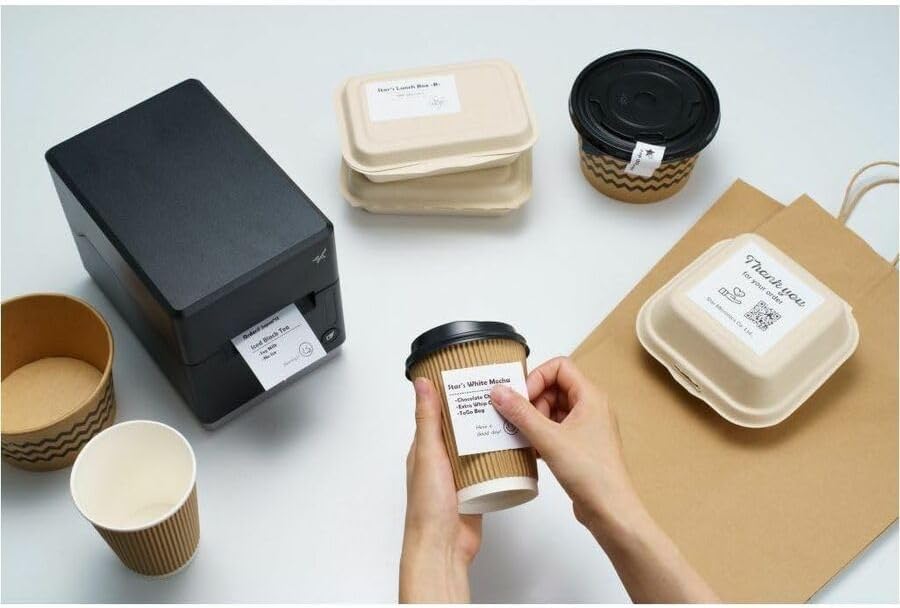
Image: A hand pressing the feed button on the mC-Label3 printer, demonstrating the printing of a 'Thank you' label.

Image: The mC-Label3 printer shown in a practical setting, printing labels for food containers and coffee cups, illustrating its versatility.
Održavanje
1. Čišćenje pisača
Regular cleaning ensures optimal performance and extends the life of your printer.
- Koristite meku krpu koja ne ostavlja dlačice dampnatopljena izopropilnim alkoholom za čišćenje glave pisača.
- Wipe down the exterior of the printer with a soft, dry cloth.
- Izbjegavajte korištenje abrazivnih sredstava za čišćenje ili otapala.
2. Replacing Media
When the media roll is depleted, follow the media loading instructions in the Setup section to replace it.
3. Effortless Repairs
The mC-Label3 is designed for effortless, no-tools-required repairs with minimal upkeep, simplifying any necessary component replacements.
Rješavanje problema
Ovaj odjeljak nudi rješenja za uobičajene probleme s kojima se možete susresti.
| Problem | Mogući uzrok | Otopina |
|---|---|---|
| Pisač se ne uključuje | Kabel za napajanje nije spojen; Problem s utičnicom | Provjerite je li kabel za napajanje sigurno spojen; pokušajte s drugom utičnicom. |
| Nema ispisa | Out of media; Media loaded incorrectly; Driver issue | Load new media; Re-load media correctly; Reinstall printer drivers. |
| Loša kvaliteta ispisa | Dirty print head; Low quality media | Clean the print head; Use recommended thermal media. |
| Problemi s povezivanjem | Incorrect cable connection; Bluetooth not paired; Network configuration | Check USB/Ethernet cables; Re-pair Bluetooth; Verify network settings. |
Tehnički podaci
| Značajka | Detalj |
|---|---|
| Naziv modela | mC-oznaka3 |
| Broj modela artikla | MCL32CBI |
| Tehnologija tiska | Izravna toplinska |
| Izlaz za pisač | Jednobojni |
| Maksimalna brzina crno-bijelog ispisa | 23 ppm |
| Maksimalna crno-bijela rezolucija ispisa | 203 DPI (203 x 203 DPI) |
| Tiskani mediji | Labels (Linerless, Die-Cut, Continuous), Thermal Receipt |
| Tehnologija povezivanja | Bluetooth, Wired (USB, Ethernet) |
| Hardversko sučelje | USB-Ethernet |
| Kompatibilni uređaji | PC, Android, iOS |
| Vrsta kontrolera | iOS, Android |
| Dimenzije proizvoda | 17.0 x 14.2 x 21.1 cm (D x Š x V) |
| Težina artikla | 7.2 funti (3.27 kg) |
| Kapacitet pohrane memorije | 64 MB |
| Boja | Crna |
| Proizvođač | STAR MICRONICS |
| Zemlja podrijetla | Kina |
Informacije o jamstvu
The Star Micronics mC-Label3 MCL32CBI printer comes with a manufacturer's warranty. For specific terms and conditions, please refer to the warranty card included in your package or visit the official Star Micronics webmjesto.
Vrsta jamstva: Proizvođač
podrška
For further assistance, technical support, or to download the latest drivers and firmware, please visit the official Star Micronics support webstranicu ili se obratite njihovoj službi za korisnike.
Star Micronics Official Webstranica: www.starmicronics.com
Veza za podršku: www.starmicronics.com/support
Ask a question about this manual
Ask about setup, troubleshooting, compatibility, parts, safety, or missing instructions. Manuals+ will review the question and use this page’s manual context to help answer it.