
CUPEISI YQ10S MAX
CUPEISI YQ10S MAX Android 15 Tablet User Manual
Model: YQ10S MAX | Brand: CUPEISI
1. Uvod
This manual provides detailed instructions for the setup, operation, maintenance, and troubleshooting of your CUPEISI YQ10S MAX Android 15 Tablet. Please read this manual thoroughly before using your device to ensure proper functionality and to maximize your user experience. Keep this manual for future reference.

Image 1.1: CUPEISI YQ10S MAX Android 15 Tablet with included accessories (keyboard, mouse, stylus, and protective case).
2. Sadržaj paketa
Provjerite jesu li sve dolje navedene stavke prisutne u pakiranju vašeg proizvoda:
- CUPEISI YQ10S MAX Android 15 Tablet
- Bežična tipkovnica
- Bluetooth miš
- Foldable Protective Cover
- Olovka
- Kabel tipa C
- Punjač
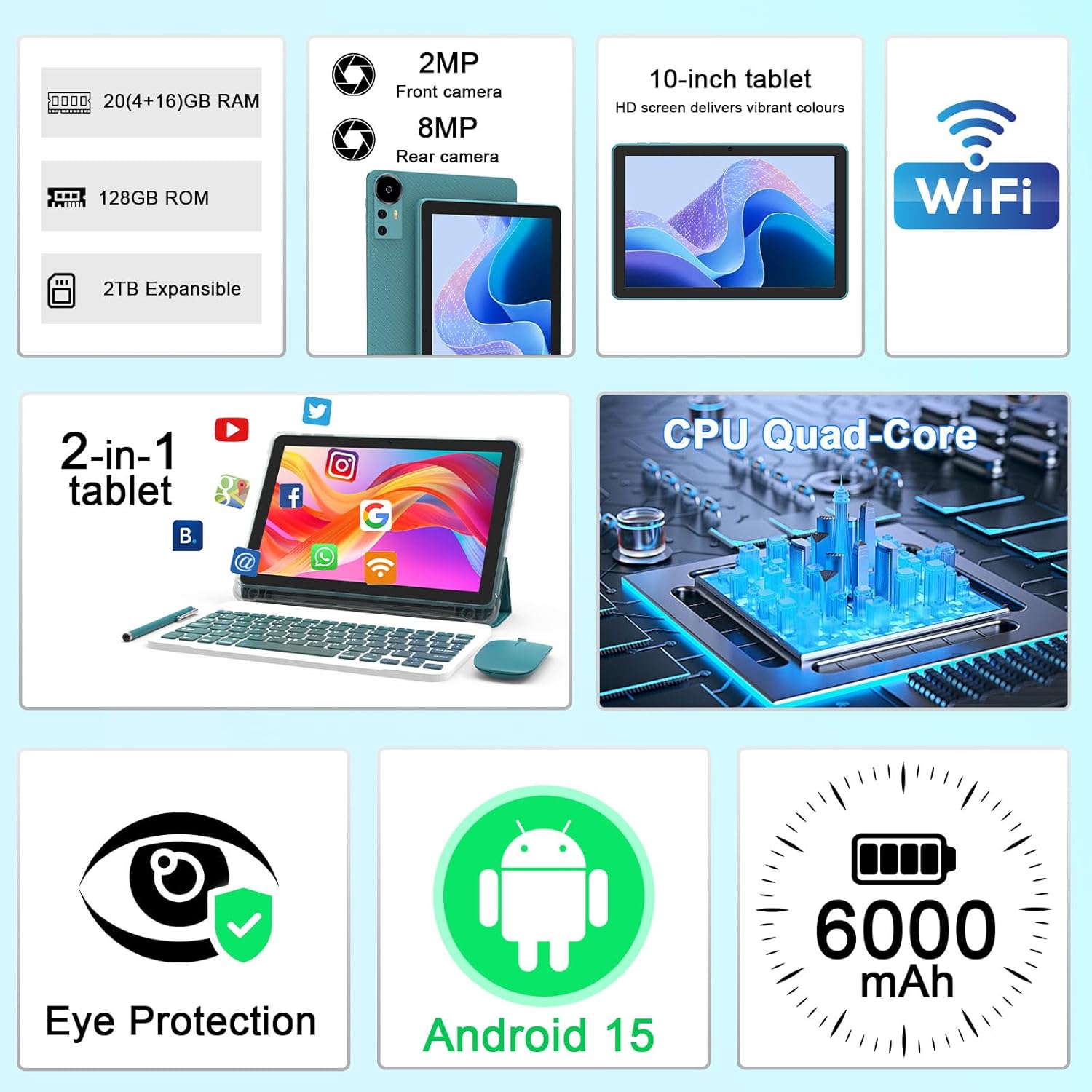
Slika 2.1: Gotovoview of key features and included components.
3. Početno postavljanje
3.1 Uključivanje/isključivanje
- Za uključivanje: Pritisnite i držite gumb za uključivanje/isključivanje koji se nalazi sa strane tableta dok se zaslon ne osvijetli.
- Za isključivanje: Press and hold the power button, then select 'Power off' from the options that appear on the screen.
- Ponovo pokrenuti: Pritisnite i držite gumb za napajanje, a zatim iz ponuđenih opcija odaberite 'Ponovno pokretanje'.
3.2 Punjenje tableta
Before first use, fully charge the tablet. Use the provided Type-C cable and charger.
- Connect the Type-C cable to the tablet's charging port.
- Spojite drugi kraj kabela na strujni adapter.
- Uključite strujni adapter u zidnu utičnicu.
- Ikona baterije na zaslonu će pokazivati status punjenja. Potpuno punjenje obično traje nekoliko sati.

Image 3.1: Battery and charging information.
3.3 Connecting Accessories (Keyboard, Mouse, Stylus)
The tablet supports Bluetooth connectivity for the included keyboard and mouse.
- Omogući Bluetooth: Idi na postavke > Povezani uređaji > Bluetooth i uključite ga.
- Pair Keyboard/Mouse: Put the keyboard or mouse into pairing mode (refer to their individual instructions if needed). Select the device name from the list of available Bluetooth devices on your tablet to pair.
- Olovka: Priložena olovka je obično pasivna i ne zahtijeva uparivanje. Može se koristiti izravno na zaslonu za navigaciju ili crtanje.
3.4 Wi-Fi veza
Connect your tablet to a Wi-Fi network for internet access.
- Idi na postavke > Mreža i internet > Wi-Fi.
- Uključite Wi-Fi. Tablet će skenirati dostupne mreže.
- Odaberite željenu mrežu s popisa.
- Ako se to od vas zatraži, unesite mrežnu lozinku i dodirnite Poveži se.
4. Osnovni rad
4.1 Navigacija Androidom 15
Your tablet runs on Android 15, offering an intuitive user interface. Swipe gestures, tap actions, and the navigation bar (Back, Home, Recents) are standard for interaction. The Google Mobile Services (GMS) certification ensures access to the Google Play Store and other Google applications.

Image 4.1: Android 15 operating system features.
4.2 Postavke zaslona
The 10.1-inch IPS display with 1280x800 resolution provides clear visuals. You can adjust display settings to suit your preferences:
- Svjetlina: Adjust screen brightness from the quick settings panel or in postavke > Prikaz.
- Način čitanja: Enable 'Reading Mode' in display settings to reduce blue light emission, which can enhance comfort during extended reading sessions.
- Veličina fonta: Customize text size for better readability.

Image 4.2: Details of the 10.1-inch HD screen display.
4.3 Upravljanje pohranom
The tablet features 128GB of internal storage and 20GB RAM (4GB physical + 16GB virtual expansion). Storage can be expanded up to 2TB using a microSD card (not included).
- Provjerite pohranu: Idi na postavke > Skladištenje do view korištenje interne i eksterne memorije.
- Umetnite MicroSD karticu: Locate the microSD card slot on the tablet, insert the card gently until it clicks into place.

Image 4.3: Storage and RAM configuration.
4.4 Korištenje kamere
Tablet je opremljen stražnjom kamerom od 8 MP i prednjom kamerom od 2 MP.
- Otvorite aplikaciju Kamera: Dodirnite ikonu Kamere na početnom zaslonu ili u ladici s aplikacijama.
- Promjena kamere: Pomoću ikone prekidača kamere možete prebacivati između prednje i stražnje kamere.
- Snimanje fotografija/videozapisa: Dodirnite gumb okidača za snimanje fotografije ili pokretanje/zaustavljanje snimanja videa.

Image 4.4: Camera specifications and modes.
4.5 Reprodukcija multimedije
The tablet supports Widevine L1, enabling high-definition streaming from platforms like Netflix, Hulu, YouTube, and Prime Video.
- Ensure a stable internet connection for optimal streaming quality.
- Download streaming apps from the Google Play Store.

Image 4.5: Widevine L1 support for multimedia streaming.
4.6 Višezadaćnost
Android 15 enhances multitasking capabilities. Use the 'Recents' button to switch between open applications or utilize split-screen mode for running two apps simultaneously.
- Podijeljeni ekran: From the 'Recents' view, tap the app icon at the top of an app's card and select 'Split screen'. Choose a second app to open alongside it.
- The included keyboard and mouse facilitate a laptop-like experience for productivity tasks.

Image 4.6: Tablet used in 2-in-1 mode with keyboard and mouse.
5. Njega i održavanje
5.1 Čišćenje
- Za čišćenje zaslona i kućišta tableta koristite meku krpu koja ne ostavlja dlačice.
- Izbjegavajte korištenje jakih kemikalija, abrazivnih sredstava za čišćenje ili aerosolnih sprejeva.
- Ensure the tablet is powered off and unplugged before cleaning.
5.2 Njega baterija
- Izbjegavajte izlaganje tableta ekstremnim temperaturama (vrućim ili hladnim).
- Ne ostavljajte tablet potpuno ispražnjen dulje vrijeme.
- Use only the provided charger and cable to prevent damage to the battery.
5.3 Ažuriranja softvera
- Redovito provjeravajte i instalirajte ažuriranja softvera kako biste osigurali optimalne performanse, sigurnost i pristup novim značajkama.
- Idi na postavke > sustav > Ažuriranje sustava kako biste provjerili dostupna ažuriranja.
6. Rješavanje problema
Ako imate problema s tabletom, pogledajte sljedeće uobičajene probleme i rješenja:
6.1 Problemi s napajanjem
- Tablet se ne uključuje: Provjerite je li baterija napunjena. Spojite punjač i pričekajte nekoliko minuta prije nego što ponovno pokušate uključiti uređaj.
- Tablet freezes: Pritisnite i držite gumb za napajanje oko 10-15 sekundi za prisilno ponovno pokretanje.
6.2 Problemi s povezivanjem
- Wi-Fi se ne povezuje: Check if Wi-Fi is enabled in settings. Restart your router and the tablet. Ensure you are entering the correct password.
- Bluetooth uređaj se ne uparuje: Ensure the Bluetooth accessory is in pairing mode and within range. Restart Bluetooth on the tablet and try pairing again.
6.3 Performance Lags
- Spore performanse: Close unused applications running in the background. Clear cache data for frequently used apps. Consider adding a microSD card for additional storage if internal storage is nearly full.
- Rušenje aplikacija: Ensure apps are updated to their latest versions. Clear the app's cache and data (postavke > aplikacije > [Naziv aplikacije] > Skladištenje).
7. Specifikacije proizvoda
| Značajka | Specifikacija |
|---|---|
| Marka | CUPEISI |
| Naziv modela | CP31M (Item model number: YQ10S MAX) |
| Operativni sustav | Android 15 |
| Veličina zaslona | 10.1 inča |
| Razlučivost zaslona | 1280 x 800 piksela (HD) |
| Procesor | 2.0 GHz četverojezgreni procesor |
| OVAN | 20 GB (4 GB fizičke memorije + 16 GB proširenja) |
| Unutarnja pohrana | 128 GB |
| Proširiva pohrana | Up to 2TB with microSD card (not included) |
| Bežična vrsta | 802.11ax (Wi-Fi 6.0, 2.4G/5G) |
| Bluetooth | BT 5.0 |
| Stražnja kamera | 8 MP |
| Prednja kamera | 2 MP |
| Kapacitet baterije | 6000 mAh |
| Prosječno trajanje baterije | 6-8 Hours (usage dependent) |
| Dimenzije (DxŠxV) | 9.7 x 6.5 x 0.3 inča |
| Težina artikla | 0.176 unci |
| Boja | NavyBlue |
8. Jamstvo i podrška
For warranty information, please refer to the warranty card included in your product packaging or contact CUPEISI customer support directly. If you require technical assistance or have questions not covered in this manual, please reach out to our support team through the contact information provided with your purchase.
Ask a question about this manual
Ask about setup, troubleshooting, compatibility, parts, safety, or missing instructions. Manuals+ will review the question and use this page’s manual context to help answer it.