
Goobay 41074
Goobay 41074 USB-C Sync & Charge Cable Instruction Manual
Model: 41074
1. Uvod
This manual provides instructions for the Goobay 41074 USB-C Sync & Charge Cable. This cable is designed for high-speed data transfer, fast charging, and video/audio transmission between compatible USB-C enabled devices.

Image 1.1: The Goobay 41074 USB-C Sync & Charge Cable, featuring a USB-A connector on one end and a USB-C connector on the other. The image also highlights key specifications such as USB-C compatibility, 1-meter length, 60W power delivery, and 20x faster speed than USB 2.0.
2. Značajke proizvoda
- Brzo punjenje: Supports power delivery up to 60 W (20 V / 3 A) for rapid charging of compatible USB-C devices.
- SuperSpeed+ Data Transfer: Achieves data transfer rates up to 10 Gbit/s, which is 20 times faster than USB 2.0.
- USB 3.2 Gen 2 Standard: Utilizes the latest USB 3.2 Gen 2x2 standard for efficient data handling.
- Reversible USB-C Connector: The USB-C plug can be inserted in either orientation.
- Video & Audio Transmission: Capable of transmitting video and audio content to external displays with a USB-C input.
- Svestrana upotreba: Suitable for transferring movies, music, videos, and various files.

Slika 2.1: Detaljan view of the Goobay USB-C cable, highlighting its USB-A and USB-C connectors and indicating its 1-meter length, 60W power delivery, and 10 Gbps data transfer speed.
3. Sadržaj paketa
Paket sadrži sljedeći artikl:
- 1x Goobay 41074 USB-C Sync & Charge Cable (1 meter)
4. Postavljanje
To set up your Goobay 41074 USB-C cable, follow these general steps:
- Identificirajte portove: Locate the appropriate USB-A and USB-C ports on your devices (e.g., computer, charger, smartphone, monitor).
- Povežite uređaje: Insert the USB-A end of the cable into a compatible USB-A port on your host device (e.g., computer, wall charger).
- Connect USB-C Device: Insert the USB-C end of the cable into the USB-C port of your target device (e.g., smartphone, tablet, laptop, monitor). The USB-C connector is reversible, allowing for easy connection in either direction.
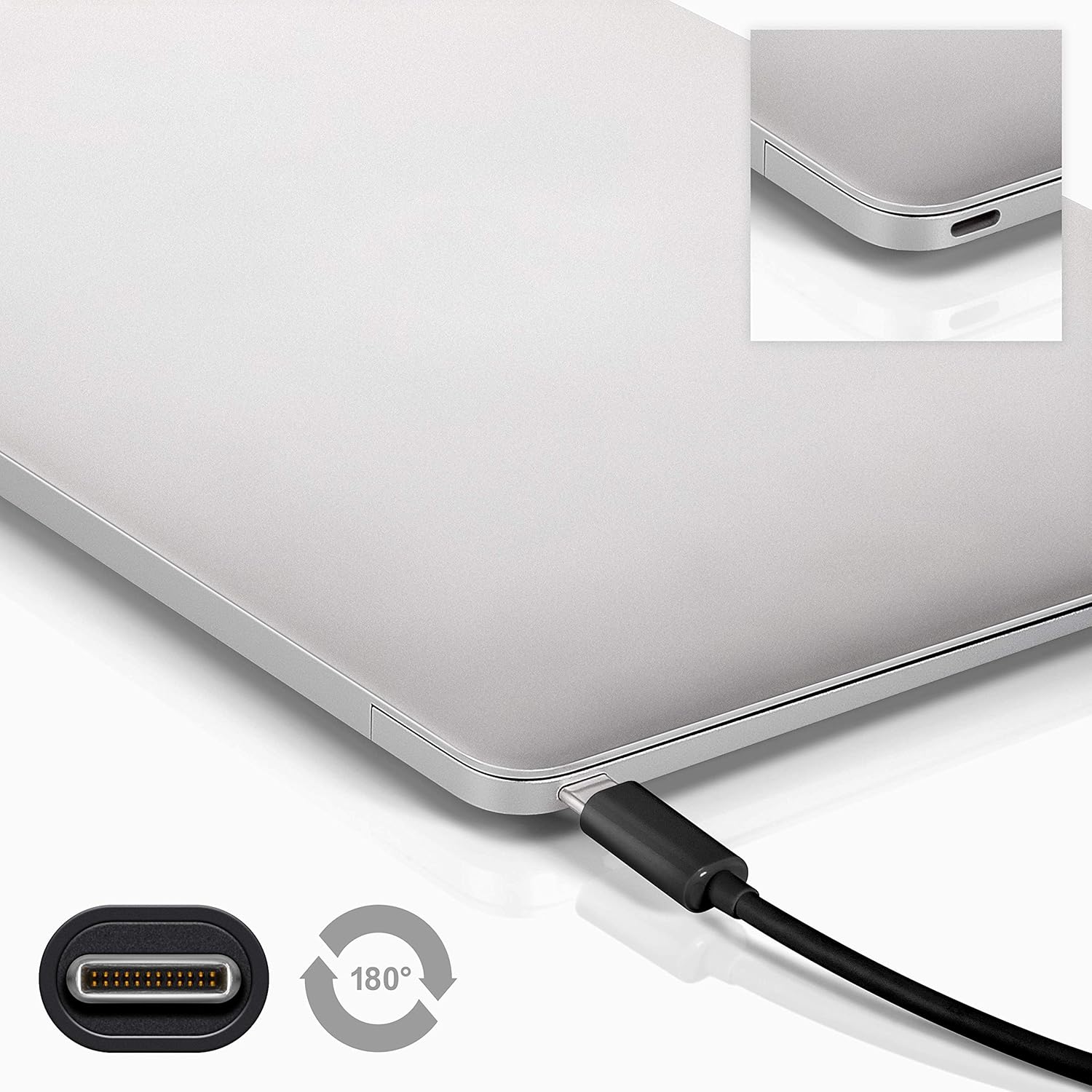
Image 4.1: A Goobay USB-C cable connected to a laptop, demonstrating the reversible nature of the USB-C connector and its ease of use. A close-up of the USB-C port is also shown.
5. Upute za rad
5.1. Uređaji za punjenje
To charge a USB-C enabled device:
- Connect the USB-A end of the cable to a compatible USB wall charger or power adapter.
- Connect the USB-C end of the cable to your USB-C device (e.g., smartphone, tablet, laptop).
- Ensure the power adapter is plugged into a working power outlet. Your device should begin charging.
5.2. Prijenos podataka
To transfer data between a computer and a USB-C device:
- Spojite USB-A kraj kabela na dostupni USB-A priključak na računalu.
- Spojite USB-C kraj kabela na svoj USB-C uređaj.
- Your computer should recognize the connected device. Follow the on-screen prompts on your computer and device to manage data transfer (e.g., select 'File Transfer' mode on your smartphone).

Image 5.1: A Goobay USB-C cable connecting a smartphone to a laptop, illustrating its use for data transfer between devices.
5.3. Video and Audio Output
To transmit video and audio to an external display:
- Connect the USB-A end of the cable to your source device (e.g., laptop with a USB-A port that supports video output via an adapter, or a docking station).
- Connect the USB-C end of the cable to a compatible monitor or television with a USB-C input that supports video.
- Ensure your source device and display are configured correctly for video output.
6. Održavanje
- Skladištenje: Kabel čuvajte na hladnom i suhom mjestu, dalje od izravne sunčeve svjetlosti i ekstremnih temperatura. Izbjegavajte čvrsto namatanje ili savijanje kabela pod oštrim kutovima kako biste spriječili unutarnja oštećenja.
- Čišćenje: Disconnect the cable from all devices and power sources before cleaning. Use a soft, dry, lint-free cloth to gently wipe the cable and connectors. Avoid using liquid cleaners or abrasive materials.
- Rukovanje: Always grasp the connector head when plugging or unplugging the cable. Avoid pulling on the cable itself, as this can damage the internal wires or the connector.
- Inspekcija: Periodically inspect the cable and connectors for any signs of wear, fraying, or damage. If damage is observed, discontinue use and replace the cable.
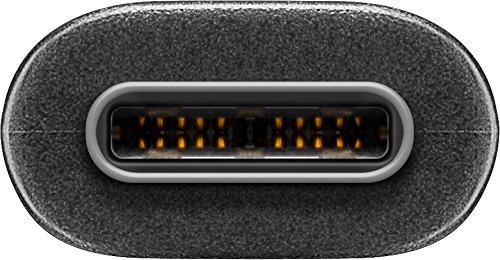
Slika 6.1: Krupni plan view of the USB-C connector, showing its internal pins. Regular inspection of connectors helps ensure proper function and longevity.
7. Rješavanje problema
7.1. Uređaj se ne puni
- Provjerite veze: Provjerite jesu li oba kraja kabela sigurno priključena na uređaj i izvor napajanja.
- Provjerite izvor napajanja: Confirm that the wall outlet or power adapter is functioning correctly. Try another power source if available.
- Kompatibilnost uređaja: Ensure your device supports charging via USB-C and that the power adapter provides sufficient wattage.
- Try Another Cable/Port: If possible, test with a different USB-C cable or a different port on your power source/device to isolate the issue.
7.2. Nema prijenosa podataka
- Provjerite veze: Ensure the cable is firmly connected to both the computer and the USB-C device.
- Postavke uređaja: On your USB-C device (e.g., smartphone), check if it's set to 'File Transfer' or 'MTP' mode after connecting to the computer.
- Računalno prepoznavanje: Verify that your computer's operating system recognizes the connected device. You may need to install specific drivers for your device.
- Funkcionalnost luke: Test the USB-A port on your computer with another known working device/cable.
7.3. No Video/Audio Output
- Kompatibilnost: Ensure both your source device (e.g., laptop) and the external display support video output over USB-C. Not all USB-C ports support this feature.
- Ulaz za prikaz: Select the correct input source on your monitor or television.
- Postavke sustava: Check your computer's display settings to ensure the external monitor is detected and configured correctly (e.g., extended display, duplicate display).
8. Specifikacije
| Značajka | Specifikacija |
|---|---|
| Marka | Goobay |
| Broj modela | 41074 |
| Connector Type 1 | USB Type-A (Male) |
| Connector Type 2 | USB Type-C (muški) |
| Vrsta kabela | USB |
| USB standard | USB 3.2 Gen 2 (SuperSpeed+) |
| Brzina prijenosa podataka | Do 10 Gbit/s |
| Isporuka energije | Up to 60 W (20 V / 3 A) |
| Duljina kabela | 1 metar |
| Boja | Crna |
| Kompatibilni uređaji | Monitors, Televisions, USB-C enabled devices |
| Posebna značajka | Fast Charging, Video & Audio Transmission |
9. Jamstvo i podrška
Za informacije o jamstvu i tehničku podršku, molimo pogledajte dokumentaciju koju ste dobili uz kupnju ili posjetite službenu Goobay stranicu webstranicu. Sačuvajte dokaz o kupnji za slučaj reklamacije.
Ask a question about this manual
Ask about setup, troubleshooting, compatibility, parts, safety, or missing instructions. Manuals+ will review the question and use this page’s manual context to help answer it.