
Ninkear N16 PRO
Ninkear N16 Pro Gaming Laptop User Manual
Model: N16 PRO
Uvod
The Ninkear N16 Pro is a high-performance gaming laptop designed for demanding tasks, including professional work, gaming, and graphic design. It features a 13th Gen Intel Core i7-13620H processor, a 16-inch 2.5K IPS display with a 165Hz refresh rate, 32GB DDR4 RAM, and a 1TB PCIe SSD. This manual provides essential information for setting up, operating, maintaining, and troubleshooting your N16 Pro laptop.
Sadržaj paketa
Prije nego što započnete, provjerite jesu li svi artikli prisutni u paketu:
- 1 x N16 PRO Laptop
- 1 x punjač
- 1 x miš
- 1 x Mousepad
Postavljanje
Početno uključivanje i punjenje
Connect the provided charger to the laptop's charging port (4.8mm/1.7mm) and a power outlet. Allow the laptop to charge for at least 30 minutes before the first use, or until the battery indicator shows sufficient charge.
Povezivanje perifernih uređaja
The N16 Pro offers various ports for connecting external devices:
- USB 2.0: 1 port for standard USB devices.
- USB 3.0: 2 ports for high-speed data transfer.
- HDMI: 1 port for connecting to external displays.
- Tip-C: 1 port (data only).
- 3.5 mm audio utičnica: 1 port for headphones or external speakers.

Slika: Prekoview of the Ninkear N16 Pro's function interfaces, including USB, HDMI, Type-C, and audio ports.
Postavljanje operativnog sustava
The laptop comes pre-installed with Windows 11 Home. Follow the on-screen prompts to complete the initial Windows setup, including language selection, network connection, and user account creation.
Upravljanje prijenosnim računalom
Uključivanje/isključivanje
Press the power button located on the laptop to turn it on. To turn off, click the Start button in Windows, then select Power > Shut down.
Tipkovnica i dodirna podloga
The N16 Pro features a full-size backlit keyboard and a touchpad. A small numeric keypad is attached to the right side of the keyboard.

Slika: Krupni plan view of the Ninkear N16 Pro's full-size backlit keyboard and integrated numeric keypad.
Function Keys (Fn Combinations)
Utilize the Fn key in combination with the F-keys for quick access to various functions:
- Fn + F1: WLAN On/Off
- Fn + F2: Uključivanje/isključivanje zvuka
- Fn + F3: Touchpad On/Off
- Fn + F5: Uključeno/Isključeno Bluetooth
- Fn + F7: Multi-display mode
- Fn + F8: Način rada isključenog zaslona
Značajke zaslona
The 16-inch 2.5K (2560x1600) IPS display offers a 165Hz refresh rate for smooth visuals. It supports 400 Nits brightness, 100% sRGB, and 400 HDR.

Image: The Ninkear N16 Pro's high-resolution display, highlighting its 2.5K resolution and 120Hz refresh rate capabilities.
Povezivost
The laptop supports WiFi 6 (IEEE 802.11ax) for fast and stable wireless connections, with speeds up to 866 Mbps. Bluetooth 5.0 is also integrated for connecting wireless peripherals.

Image: Visual representation of the Ninkear N16 Pro's WiFi 6 capabilities, indicating fast and efficient wireless connectivity.
Otključavanje otiskom prsta
The N16 Pro features fingerprint unlock for secure and fast login. Set up your fingerprint in Windows Settings > Accounts > Sign-in options.

Image: The Ninkear N16 Pro demonstrating fast login capabilities, likely referring to its fingerprint reader or facial recognition feature.
Održavanje
Čišćenje prijenosnog računala
- Za čišćenje zaslona i vanjske površine koristite meku krpu koja ne ostavlja dlačice.
- Za tvrdokorne tragove, dampLagano navlažite krpu vodom ili sredstvom za čišćenje ekrana.
- Izbjegavajte prskanje tekućina izravno na prijenosno računalo.
- Redovito čistite tipkovnicu i dodirnu ploču kako biste spriječili nakupljanje prašine.
Sustav hlađenja
The N16 Pro features powerful dual cooling fans. Ensure the vents are not obstructed to maintain optimal performance and extend the laptop's lifespan. Avoid placing the laptop on soft surfaces that can block airflow.

Slika: Interna view of the Ninkear N16 Pro's 2-in-1 cooling module, illustrating its dual fan design for efficient heat dissipation.
Briga o bateriji
- Kako biste maksimalno produžili vijek trajanja baterije, izbjegavajte često potpuno pražnjenje baterije.
- Prijenosno računalo čuvajte na hladnom i suhom mjestu ako ga ne koristite dulje vrijeme.
- The average battery life is approximately 8 hours.
Proširenje pohrane
The N16 Pro supports dual-channel memory and storage expansion. The maximum memory can be expanded to 64GB RAM, and the SSD can be extended up to 4TB via an M.2 SSD slot.
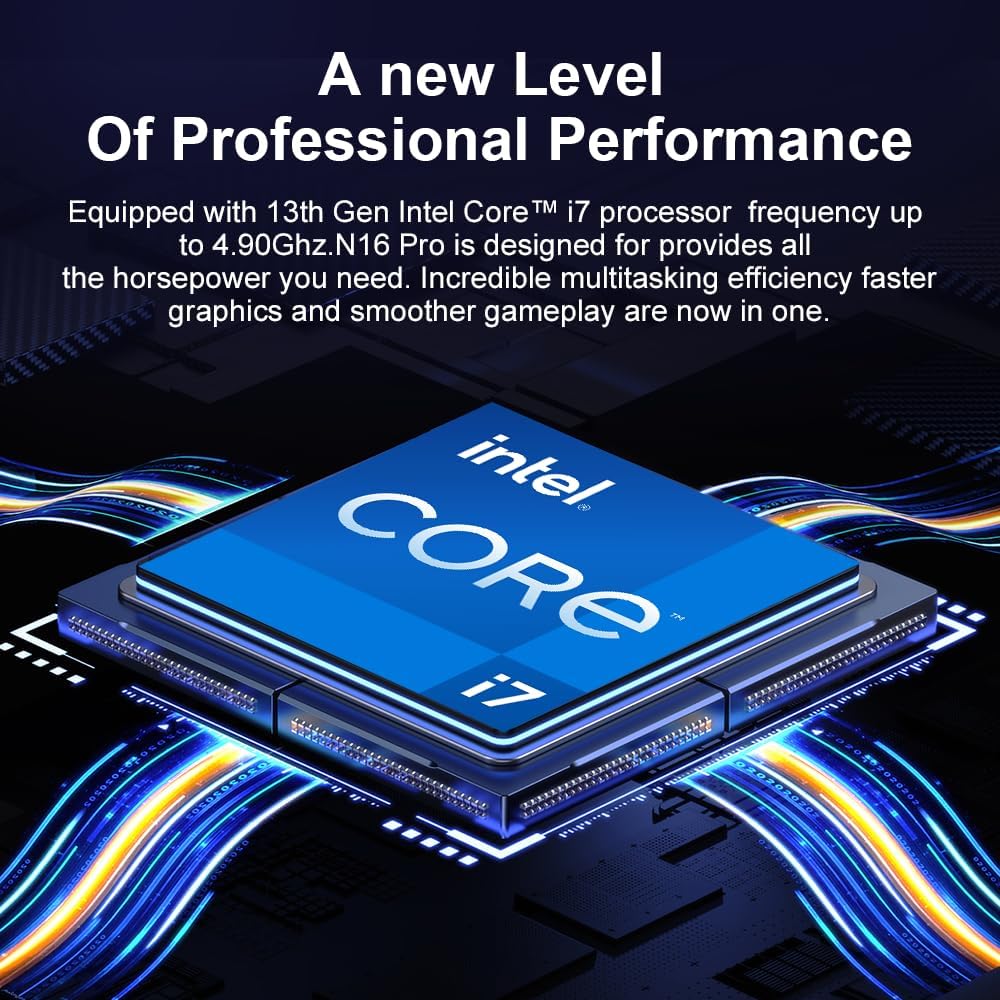
Image: Diagram illustrating the Ninkear N16 Pro's dual-channel DDR4 memory support (up to 64GB) and an extendable M.2 SSD slot (up to 4TB).
Rješavanje problema
Uobičajeni problemi i rješenja
- Laptop se ne uključuje:
Ensure the charger is securely connected and the power outlet is functional. Check if the battery has sufficient charge.
- Nema Wi-Fi veze:
Check if Wi-Fi is enabled (Fn+F1). Restart your router and the laptop. Verify Wi-Fi drivers are up to date in Device Manager.
- Dodirna ploha ne reagira:
Ensure the touchpad is not disabled (Fn+F3). Check Windows settings for touchpad functionality.
- Spore performanse:
Close unnecessary applications. Check for background processes in Task Manager. Ensure cooling vents are clear. Consider updating drivers or performing a system scan for malware.
- Problemi sa zaslonom (nema slike, treperenje):
Ensure the display is not turned off (Fn+F8). Try connecting an external monitor via HDMI to check if the issue is with the laptop's display or graphics output.
Tehnički podaci
| Značajka | Detalj |
|---|---|
| Naziv modela | N16 PRO |
| Procesor | 13th Gen Intel Core i7-13620H (10 Cores, 16 Threads, up to 4.9 GHz) |
| Prikaz | 16-inch IPS, 2560 x 1600 (2.5K), 165Hz Refresh Rate, 400 Nits, 100% sRGB, 400 HDR |
| OVAN | 32GB DDR4 (Dual Channel, expandable up to 64GB) |
| Skladištenje | 1TB PCIe SSD (expandable up to 4TB via M.2 slot) |
| Grafika | Intel UHD grafika (integrirana) |
| Operativni sustav | Windows 11 Home |
| Bežično povezivanje | WiFi 6 (IEEE 802.11ax), Bluetooth 5.0 |
| luke | 1x USB 2.0, 2x USB 3.0, 1x HDMI, 1x Type-C (data only), 1x 3.5mm Audio Jack |
| Baterija | 5000 mAh, approx. 8 hours average battery life |
| Dimenzije | 3.3 x 3.05 x 0.76 cm |
| Težina | 3.18 kilogram |
| Posebne značajke | Backlit Keyboard, Fingerprint Reader, Numeric Keypad, Dual Cooling Fans |
Jamstvo i podrška
The Ninkear N16 Pro laptop includes a Jamstveni servis od 1 godine. For any quality issues or technical assistance, please contact Ninkear customer service. When contacting support, please have your product model (N16 PRO) and purchase details ready.
You can visit the official Ninkear store on Amazon for more information and support resources: Ninkear Amazon Store
Ask a question about this manual
Ask about setup, troubleshooting, compatibility, parts, safety, or missing instructions. Manuals+ will review the question and use this page’s manual context to help answer it.