
Ninkear A15
Ninkear A15 Laptop User Manual
Model: A15
1. Uvod
Welcome to the Ninkear A15 Laptop user manual. This guide provides essential information for setting up, operating, maintaining, and troubleshooting your new Ninkear A15 laptop. Please read this manual thoroughly to ensure proper use and to maximize the performance and longevity of your device.
The Ninkear A15 is a high-performance laptop featuring an AMD Ryzen 5 5500U Hexa-core Processor, 16GB RAM, and a 512GB PCIe SSD, designed for a variety of computing tasks from daily productivity to graphic design and entertainment.
2. Što je u kutiji
Upon opening your Ninkear A15 Laptop package, please verify that all the following items are included:
- A15 laptop x 1
- Miš x 1
- Podloga za miša x 1
- Punjač x 1
3. Proizvod je gotovview
The Ninkear A15 laptop is engineered for efficiency and user comfort. Below are key features and components:
3.1 Ključne značajke
- Snažan procesor: Equipped with an AMD Ryzen 5 5500U processor, AMD Radeon graphics, 6 cores and 12 threads, with a frequency up to 4.0Ghz, suitable for various applications.
- Imerzivni zaslon: Features a 15.6-inch FHD IPS display with 1920x1080 resolution, offering a 90.3% screen-to-body ratio and a 180-degree viewing angle for clear and natural picture quality.
- Produljeno trajanje baterije: A 4350mAh battery provides up to 6 hours of daily use, making it ideal for mobile work. It supports full-function Type-C charging.
- AmpPohrana i memorija: Comes with 16GB DDR4 RAM (3200Mhz) and a 512GB PCIe SSD, ensuring fast performance for professional software and multitasking.
- Dizajn prilagođen korisniku: Includes a full digital backlit keyboard with three adjustable monochrome backlight levels (FN+F9) and a 0.5-second fingerprint unlocking feature for enhanced security and convenience.
3.2 Vizualni overview

Ispred view of the Ninkear A15 Laptop, showcasing njegovim elegantnim dizajnom i zaslonom.

Overview of the Ninkear A15 Laptop highlighting key specifications like 15.6" IPS FHD display, AMD Ryzen 5 5500U processor, 16GB DDR4 RAM, 512GB PCIe SSD, 4350mAh battery, backlit keyboard, and Type-C full function port.

Detaljan view of the AMD Ryzen 5 5500U processor, emphasizing its 6 cores, 12 threads, 7nm process, and 4.0GHz max turbo frequency.
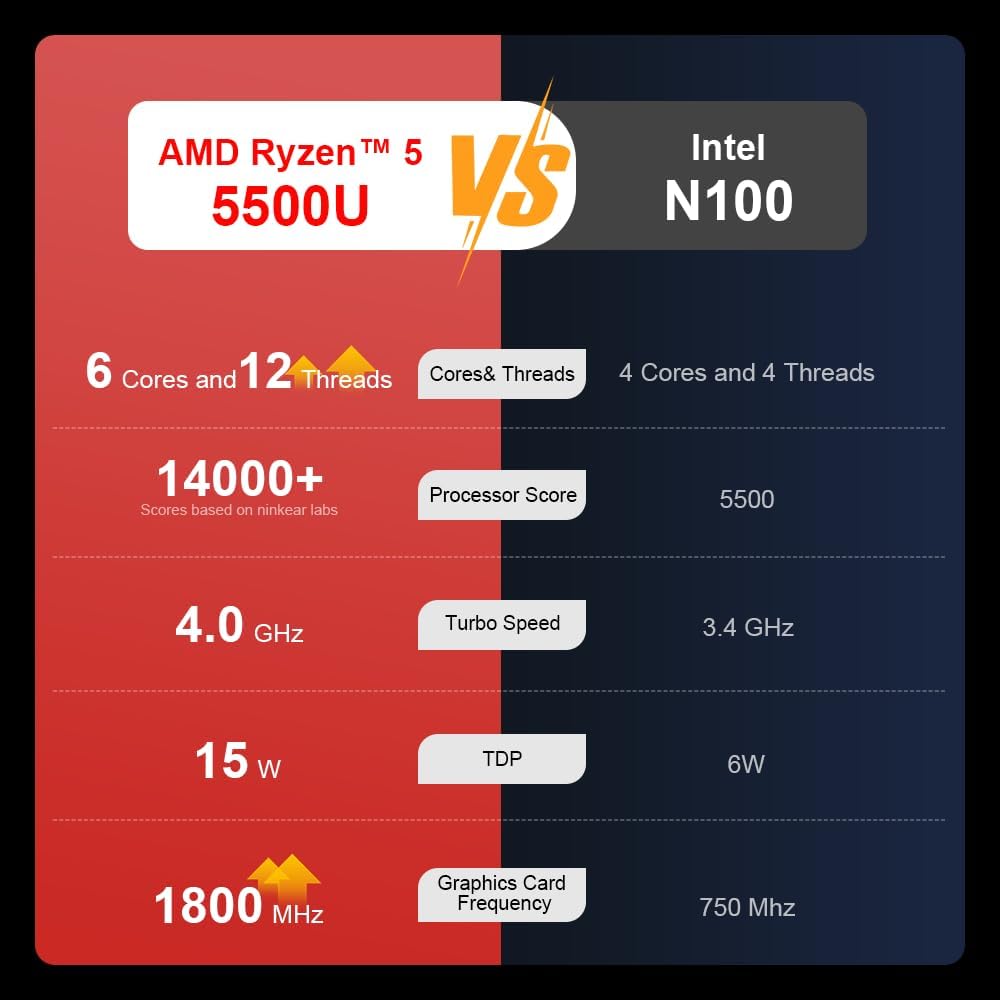
A comparison chart illustrating the performance differences between the AMD Ryzen 5 5500U and Intel N100 processors, including core/thread count, processor score, turbo speed, TDP, and graphics card frequency.

Image showing the 512GB M.2 PCIe SSD and highlighting the 3200MHz DDR4 running frequency, indicating a 20% speed improvement over 2666MHz DDR4.

The 15.6-inch IPS FHD screen of the A15, designed to deliver vibrant and accurate colors while reducing eye strain during long work hours.

Illustration of the A15 laptop's suitability for various 'recreational office' tasks, including graphic design (Ae, Ps, Ai) and gaming/entertainment.

Information about the laptop's 50.5WH high-capacity lithium-ion battery, providing up to 8 hours of local video playback and 72 hours of standby time.

A visual guide to the rich interfaces of the Ninkear A15 Laptop, including USB 3.0, USB 2.0, Headphone Jack, Charging Port, HDMI, and full-function Type-C ports.
3.3 Videozapis proizvoda
Službeni video prikaz proizvodaasing the Ninkear A15 Laptop's features, including its design, display, backlit keyboard, and various ports. This video provides a dynamic overview of the laptop's capabilities and physical attributes.
4. Postavljanje
Follow these steps to set up your Ninkear A15 Laptop for the first time:
- Raspakirajte laptop: Pažljivo izvadite prijenosno računalo i svu dodatnu opremu iz pakiranja.
- Priključite napajanje: Plug the charger into the laptop's charging port (DC-in or Type-C) and then into a power outlet.
- Početno pokretanje: Open the laptop lid and press the power button (integrated with fingerprint sensor). The laptop will power on and begin the initial Windows 11 setup process.
- Postavljanje sustava Windows 11: Follow the on-screen instructions to complete the Windows 11 setup, including selecting your region, language, connecting to Wi-Fi, and creating a user account.
- Postavljanje otiska prsta: During or after Windows setup, you can configure the fingerprint reader for quick and secure login.
5. Upute za rad
This section covers basic operation of your Ninkear A15 Laptop.
5.1 Uključivanje/isključivanje i stanje mirovanja
- Uključivanje: Pritisnite gumb za napajanje.
- Isključivanje: Kliknite gumb Start u sustavu Windows, a zatim odaberite Napajanje > Isključi.
- Stanje mirovanja: Zatvorite poklopac ili kliknite gumb Start, a zatim odaberite Napajanje > Stanje mirovanja.
5.2 Tipkovnica i dodirna podloga
- Tipkovnica s pozadinskim osvjetljenjem: Pritisnite Fn + F9 to cycle through the three levels of monochrome backlight brightness or turn it off.
- Touchpad: Koristite integriranu dodirnu plohu za upravljanje kursorom i geste. Za prilagodbu dodirne plohe pogledajte postavke sustava Windows.
- Numerička tipkovnica: The laptop features a full digital numeric keypad for convenient data entry.
5.3 Spajanje perifernih uređaja
Utilize the various ports for external devices:
- USB priključci: Connect USB devices like external hard drives, mice, or keyboards to the USB 2.0 or USB 3.0 ports.
- HDMI: Connect to external monitors or projectors using the HDMI port.
- Tip-C: The full-function Type-C port supports data transfer, video output, and power delivery.
- Audio priključak: Spojite slušalice ili vanjske zvučnike na 3.5 mm audio priključak.
5.4 Postavke zaslona
Adjust display settings via Windows Settings > System > Display to optimize resolution, scaling, and multiple monitor setups.
6. Održavanje
Proper maintenance ensures the longevity and optimal performance of your Ninkear A15 Laptop.
- Čišćenje: Za čišćenje zaslona i kućišta koristite meku krpu koja ne ostavlja dlačice. Za tvrdokorne mrlje lagano obrišiteampobrišite krpu vodom ili sredstvom za čišćenje zaslona. Izbjegavajte jake kemikalije.
- Ažuriranja softvera: Regularly update Windows and device drivers to ensure system stability, security, and performance.
- Njega baterije: Kako biste produžili vijek trajanja baterije, izbjegavajte često potpuno pražnjenje baterije. Prijenosno računalo čuvajte na hladnom i suhom mjestu kada ga ne koristite dulje vrijeme.
- Ventilacija: Provjerite da ventilacijski otvori prijenosnog računala nisu začepljeni kako biste spriječili pregrijavanje. Prijenosno računalo koristite na tvrdoj, ravnoj površini.
- Sigurnosna kopija podataka: Redovito izrađujte sigurnosne kopije važnih podataka na vanjski disk ili pohranu u oblaku kako biste spriječili gubitak podataka.
7. Rješavanje problema
This section addresses common issues you might encounter with your Ninkear A15 Laptop.
| Problem | Mogući uzrok | Otopina |
|---|---|---|
| Laptop se ne uključuje | Problem s niskom baterijom ili adapterom za napajanje | Ensure the charger is properly connected and the power outlet is working. Allow the laptop to charge for at least 30 minutes before attempting to power on again. |
| Zaslon je prazan ili crn | Display driver issue, external display connected, or sleep mode | Press any key or move the mouse to wake from sleep. Disconnect any external monitors. Try pressing Fn + F7 (or the key with a display icon) to switch display modes. If still blank, force shut down by holding the power button for 10 seconds, then restart. |
| Wi-Fi se ne povezuje | Wi-Fi adapter off, incorrect password, or router issue | Check if Wi-Fi is enabled in Windows settings. Verify the Wi-Fi password. Restart your router and modem. Update Wi-Fi drivers if necessary. |
| Pozadinsko svjetlo tipkovnice ne radi | Backlight turned off or low brightness setting | Pritisnite Fn + F9 repeatedly to adjust brightness or turn on the backlight. |
| Spora izvedba | Too many programs running, low disk space, or outdated drivers | Close unnecessary applications. Free up disk space. Run Windows Update and update drivers. Consider running a virus scan. |
8. Specifikacije
Detailed technical specifications for the Ninkear A15 Laptop:
| Značajka | Specifikacija |
|---|---|
| Marka | Ninkear |
| Naziv modela | A15 |
| Veličina zaslona | 15.6 inča |
| Razlučivost zaslona | 1920 x 1080 piksela (FHD IPS) |
| Procesor | AMD Ryzen 5 5500U (2.1 GHz, 6 Cores, 12 Threads) |
| OVAN | 16 GB DDR4 (3200 MHz) |
| Tvrdi disk | 512 GB PCIe SSD |
| Grafička kartica | Integrirana AMD Radeon grafika |
| Operativni sustav | Windows 11 |
| Boja | Srebro |
| Težina artikla | 5 funti |
| Dimenzije proizvoda | 14 x 9 x 0.15 inča |
| USB 3.0 priključci | 2 |
| Prosječno trajanje baterije | Up to 6-8 hours (daily use) |
| Posebne značajke | Backlit Keyboard, Numeric Keypad, Fingerprint Unlock, Full-function Type-C |
9. Jamstvo i podrška
Ninkear provides a standard warranty for the A15 Laptop. Please refer to the warranty card included in your product packaging for specific terms and conditions, including warranty duration and coverage details.
For technical support, troubleshooting assistance, or warranty claims, please contact Ninkear customer service through the official website or the contact information provided with your purchase. Ensure you have your product model (A15) and purchase details ready when contacting support.
You can also visit the official Ninkear store on Amazon for additional product information and support resources: Ninkear Amazon Store
Ask a question about this manual
Ask about setup, troubleshooting, compatibility, parts, safety, or missing instructions. Manuals+ will review the question and use this page’s manual context to help answer it.