
1. Uvod
This user manual provides comprehensive instructions for the setup, operation, maintenance, and troubleshooting of your Thomson 27-inch QHD Gaming Monitor (Model: M27QG5Y14). This monitor is designed to deliver a superior visual experience with its QHD resolution, 180Hz refresh rate, and IPS panel technology, making it ideal for gaming and multimedia applications.

Slika 1.1: Prednja strana view of the Thomson 27-inch QHD Gaming Monitor, showcasing svojim elegantnim dizajnom i prostorom za prikaz.
2. Sigurnosne informacije
Prije upotrebe monitora pažljivo pročitajte sve sigurnosne upute. Sačuvajte ovaj priručnik za buduću upotrebu.
- Izvor napajanja: Koristite samo adapter za napajanje koji dolazi s monitorom. Provjerite je li utičnica ispravno uzemljena.
- Ventilacija: Ne blokirajte ventilacijske otvore. Osigurajte dovoljno prostora oko monitora za pravilan protok zraka kako biste spriječili pregrijavanje.
- Tekućina i vlaga: Držite monitor dalje od vode, kiše ili prekomjerne vlage. Ne stavljajte predmete napunjene tekućinom na monitor.
- Čišćenje: Disconnect the power cable before cleaning. Use a soft, dry cloth. Do not use liquid cleaners or aerosol cleaners.
- Plasman: Monitor postavite na stabilnu, ravnu površinu. Izbjegavajte postavljanje na izravnu sunčevu svjetlost ili u blizinu izvora topline.
- Rukovanje: Pažljivo rukujte monitorom. Izbjegavajte ispuštanje ili izlaganje jakim udarcima.
- Servisiranje: Ne pokušavajte sami servisirati monitor. Za sve servisne radove obratite se kvalificiranom servisnom osoblju.
3. Sadržaj paketa
Provjerite jesu li svi artikli prisutni u paketu. Ako neki artikli nedostaju ili su oštećeni, obratite se prodavaču.
- Thomson 27-inch QHD Gaming Monitor
- Stalak za monitor (baza i vrat)
- Adapter za napajanje i kabel za napajanje
- HDMI kabel
- DisplayPort (DP) Cable (may vary by region)
- USB-B na USB-A kabel (za funkcionalnost USB čvorišta)
- Korisnički priručnik (ovaj dokument)
- Vijci za montažu postolja
4. Postavljanje
4.1. Sastavljanje postolja monitora
- Pažljivo izvadite monitor iz ambalaže i položite ga ekranom prema dolje na meku, čistu površinu kako biste spriječili ogrebotine.
- Pričvrstite vrat stalka na ploču monitora pomoću priloženih vijaka.
- Attach the stand base to the stand neck and secure it with the designated screw.
- Once assembled, carefully lift the monitor and place it on a stable desk or table.

Image 4.1: Monitor dimensions and stand assembly overview. The monitor measures approximately 61 cm wide, 54 cm high (with stand), and 24 cm deep (with stand).
4.2. Spajanje monitora
Connect the necessary cables to the monitor's input ports. Refer to the image below for port locations.
- Priključak za napajanje: Connect the power adapter to the "DC IN" port on the monitor, then plug the power cable into a power outlet.
- Video ulaz:
- Connect an HDMI cable from your computer's graphics card to an "HDMI 2.1" port on the monitor.
- Alternatively, connect a DisplayPort (DP) cable from your computer's graphics card to a "DP 1.2" port on the monitor.
- USB čvorište: To enable the monitor's USB 3.0 ports, connect a USB-B cable from the "USB 3.0 B" port on the monitor to a USB-A port on your computer.
- Audio izlaz: Connect headphones or external speakers to the "Earphone Plug" (3.5mm audio jack) for audio output.

Image 4.2: Rear panel of the monitor displaying the various input and output ports for connectivity.
4.3. Ergonomske prilagodbe
Stalak za monitor omogućuje razna podešavanja za optimizaciju vašeg viewudobnost:
- Nagib: Adjust the screen's vertical angle (up or down).
- Zakretanje: Rotate the screen horizontally (left or right).
- Stožer: Zakrenite zaslon za 90 stupnjeva za portretni način rada viewing.
- Podešavanje visine: Podignite ili spustite monitor na željenu razinu očiju.
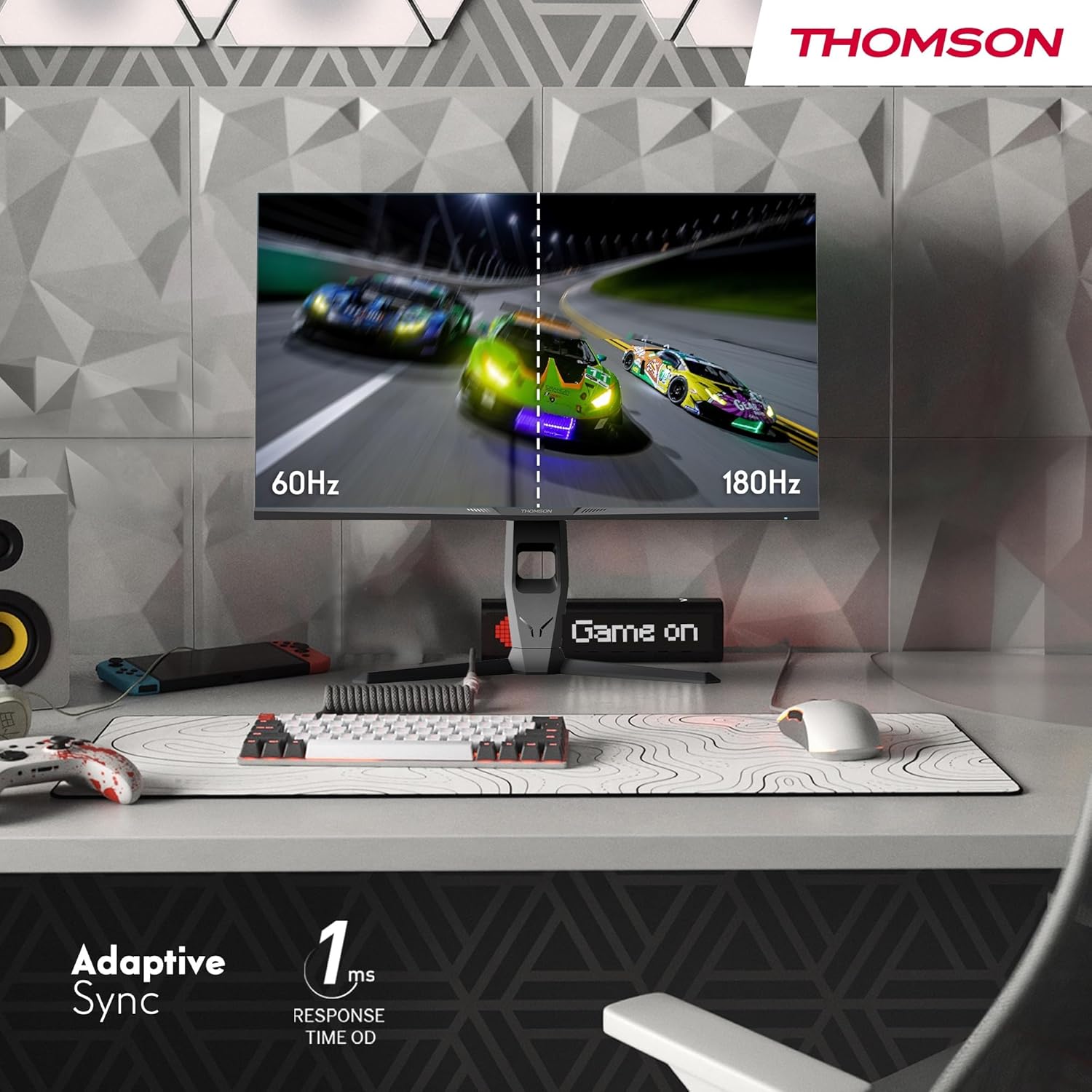
Image 4.3: Demonstrations of the monitor's ergonomic capabilities, including tilt, swivel, and pivot for optimal viewing kutova.
4.4. VESA montaža
The monitor is compatible with VESA 100x100mm mounting standards. To mount the monitor on a wall or an alternative stand, remove the original stand and attach the VESA-compatible mount (sold separately) using appropriate screws.
5. Upute za rad
5.1. Uključivanje/isključivanje
Press the power button, usually located on the back or bottom of the monitor, to turn it on or off. The power indicator light will illuminate when the monitor is on.
5.2. Izbornik s prikazom na zaslonu (OSD).
The OSD menu allows you to adjust various monitor settings. Use the joystick or buttons (location may vary) on the monitor to navigate the menu.
- Postavke slike: Adjust brightness, contrast, sharpness, color temperature, and gamma.
- Postavke boja: Fine-tune RGB levels, saturation, and hue.
- Odabir ulaza: Ručno prebacivanje između HDMI i DisplayPort ulaza.
- Audio: Podesite glasnoću za ugrađene zvučnike ili izlaz za slušalice.
- OSD postavke: Promijenite jezik OSD-a, transparentnost i vrijeme čekanja.
- Postavke igranja: Access features like Adaptive Sync, response time (OD), and crosshair overlays.
5.3. Značajke igranja
- Brzina osvježavanja od 180 Hz: Provides smoother motion and reduced input lag, especially beneficial for fast-paced games. Ensure your graphics card and cable support this refresh rate.
- Vrijeme odziva 1 ms (OD): Minimizes motion blur and ghosting for clear, crisp images during rapid movements.
- Adaptivna sinkronizacija: Synchronizes the monitor's refresh rate with your graphics card's frame rate, eliminating screen tearing and stuttering. Enable this feature in the OSD menu and your graphics card control panel.

Image 5.1: Visual comparison illustrating the difference between 60Hz and 180Hz refresh rates, highlighting the smoother motion provided by the higher refresh rate, alongside the Adaptive Sync feature.
5.4. Značajke za njegu očiju
- Tehnologija protiv treperenja: Reduces screen flickering, which can cause eye strain during prolonged use.
- Način slabog plavog svjetla: Filters out harmful blue light emissions to protect your eyes and reduce fatigue. This mode can be activated through the OSD menu.
- Zaslon protiv odsjaja: The matte screen surface minimizes reflections from ambient light, providing clear visuals without distraction.

Image 5.2: Depiction of the monitor's eye comfort features, including an anti-glare screen and technologies like Anti-Flicker and Low Blue Light for reduced eye strain.
5.5. RGB ambijentalna rasvjeta
The monitor features integrated RGB ambient lighting on the rear. This lighting can be customized via the OSD menu to enhance your gaming environment or match your setup's aesthetics.
6. Održavanje
6.1. Čišćenje monitora
- Zaslon: Nježno obrišite zaslon mekom krpom koja ne ostavlja dlačice. Za tvrdokorne mrlje laganoampen the cloth with water or a specialized screen cleaner (ensure it's safe for LCD/IPS panels) and wipe gently. Never spray liquid directly onto the screen.
- Casing: Za brisanje monitora koristite meku, suhu krpu.asing. Izbjegavajte korištenje abrazivnih sredstava za čišćenje ili otapala.
- Prije čišćenja uvijek isključite kabel za napajanje.
6.2. Skladištenje
Ako monitor skladištite dulje vrijeme, odspojite sve kabele, zapakirajte ga u originalnu ambalažu (ako je dostupna) i pohranite ga na hladnom i suhom mjestu, dalje od izravne sunčeve svjetlosti i ekstremnih temperatura.
7. Rješavanje problema
Ovaj odjeljak obrađuje uobičajene probleme s kojima se možete susresti. Ako se problem nastavi, obratite se korisničkoj podršci.
| Problem | Mogući uzrok | Otopina |
|---|---|---|
| Nema struje | Power cable not connected; Power outlet faulty; Monitor off. | Ensure power cable is securely connected. Test the power outlet. Press the monitor's power button. |
| Nema signala / Prazan ekran | Video cable not connected; Incorrect input selected; Computer not outputting signal. | Check HDMI/DP cable connections. Select the correct input source via OSD. Ensure computer is on and outputting video. |
| Distorted image / Flickering | Incorrect resolution/refresh rate; Faulty cable; Graphics driver issue. | Set display resolution to 2560x1440 and refresh rate to 180Hz. Try a different video cable. Update graphics drivers. |
| Nema zvuka iz zvučnika/slušalica | Volume too low; Audio cable not connected; Incorrect audio output selected on PC. | Increase monitor volume via OSD. Ensure headphones/speakers are connected. Select monitor as audio output device in PC settings. |
8. Specifikacije
Detailed technical specifications for the Thomson M27QG5Y14 monitor.
| Značajka | Specifikacija |
|---|---|
| Marka | Thomson |
| Model | M27QG5Y14 |
| Veličina zaslona | 27 inča |
| Vrsta ploče | IPS |
| Rezolucija | 2560 x 1440 (QHD) |
| Brzina osvježavanja | 180 Hz |
| Vrijeme odziva | 1 Millisecond (OD) / 5 Milliseconds (GtG) |
| Svjetlina | 350 gnjida |
| Omjer kontrasta | 1200:1 |
| Viewing kut | 178 stupnjeva (horizontalno/vertikalno) |
| Raspon boja | 120% sRGB |
| HDR podrška | HDR10 (10-bit) |
| Adaptivna sinkronizacija | Da |
| Povezivost | 2x HDMI 2.1, 1x DisplayPort 1.2, 1x USB 3.0 Type-B (upstream), 3x USB 3.0 Type-A (downstream), 1x Earphone Plug (3.5mm) |
| Ugrađeni zvučnici | Yes (2x2W) |
| Kompatibilnost VESA nosača | 100x100 mm |
| Dimenzije proizvoda (sa stalkom) | 61 x 54 x 24 cm (Š x V x D) |
| Težina (sa postoljem) | 7.3 kg |
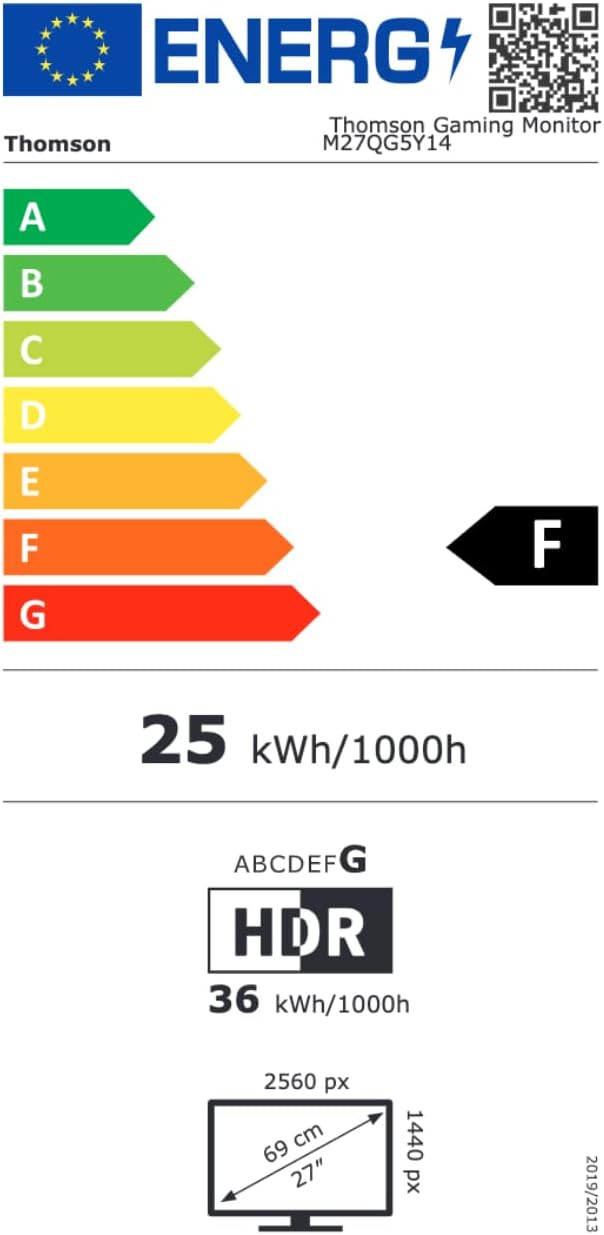
Image 8.1: EU Energy Label for the Thomson M27QG5Y14 monitor. For more details, visit the EPREL baza podataka.
9. Jamstvo i podrška
Thomson products are designed for reliability and performance. This monitor typically comes with a Jamstvo 3 godine od datuma kupnje, pokrivajući nedostatke u proizvodnji. Molimo sačuvajte dokaz o kupnji za potrebe jamstva.
For technical assistance, troubleshooting beyond this manual, or warranty inquiries, please contact Thomson customer support or your local retailer. Refer to the official Thomson website or your product packaging for specific contact details.
You can also visit the official Thomson store on Amazon for more information: Thomson Store.