
KNAON Y50P-BK
KNAON Bluetooth Label Maker Machine Y50P User Manual
Model: Y50P-BK
Uvod
This manual provides comprehensive instructions for the KNAON Y50P Portable Thermal Label Maker. It covers setup, operation, maintenance, and troubleshooting to ensure optimal performance and a seamless labeling experience. The Y50P is designed for versatile use in home, office, small business, and school environments, offering both Bluetooth and USB connectivity for efficient label printing.

Figure 1: KNAON Y50P Label Maker and included label roll.
Što je u kutiji
Upon unboxing your KNAON Y50P Label Maker, please verify that all the following components are included:
- Y50P Label Maker
- Label Tape 1.97' x 1.18' (50mm x 30mm thermal print paper roll)
- Korisnički priručnik (ovaj dokument)
- USB kabel vrste C
Postavljanje
1. Punjenje uređaja
The KNAON Y50P Label Maker is powered by a durable 1200 mAh battery. Before first use, it is recommended to fully charge the device using the provided USB Type-C cable. Connect the Type-C end to the printer and the USB-A end to a compatible power adapter or computer USB port.
2. Umetanje role etiketa
To load the thermal label paper:
- Open the top cover of the label maker.
- Insert the label roll with the printing surface facing upwards, ensuring it aligns correctly with the paper guides.
- Pull a small portion of the label paper out past the print head.
- Čvrsto zatvorite gornji poklopac dok ne klikne na svoje mjesto.

Figure 2: Proper insertion of the label roll into the KNAON Y50P Label Maker.
3. Instalacija i povezivanje aplikacije
The KNAON Y50P requires the 'FlashLabel Pro' application for wireless operation via Bluetooth. For wired connection, drivers are required for macOS and Windows.
3.1. Bluetooth Connection (via 'FlashLabel Pro' App)
For iOS and Android devices:
- Download the 'FlashLabel Pro' app from the Apple App Store or Google Play Store.
- Ensure your label maker is turned on and Bluetooth is enabled on your smartphone or tablet.
- Open the 'FlashLabel Pro' app. The app will guide you through the connection process. Select your Y50P printer from the list of available devices.
- Note: The device cannot be connected directly via your phone's Bluetooth settings; connection must be initiated through the 'FlashLabel Pro' app.
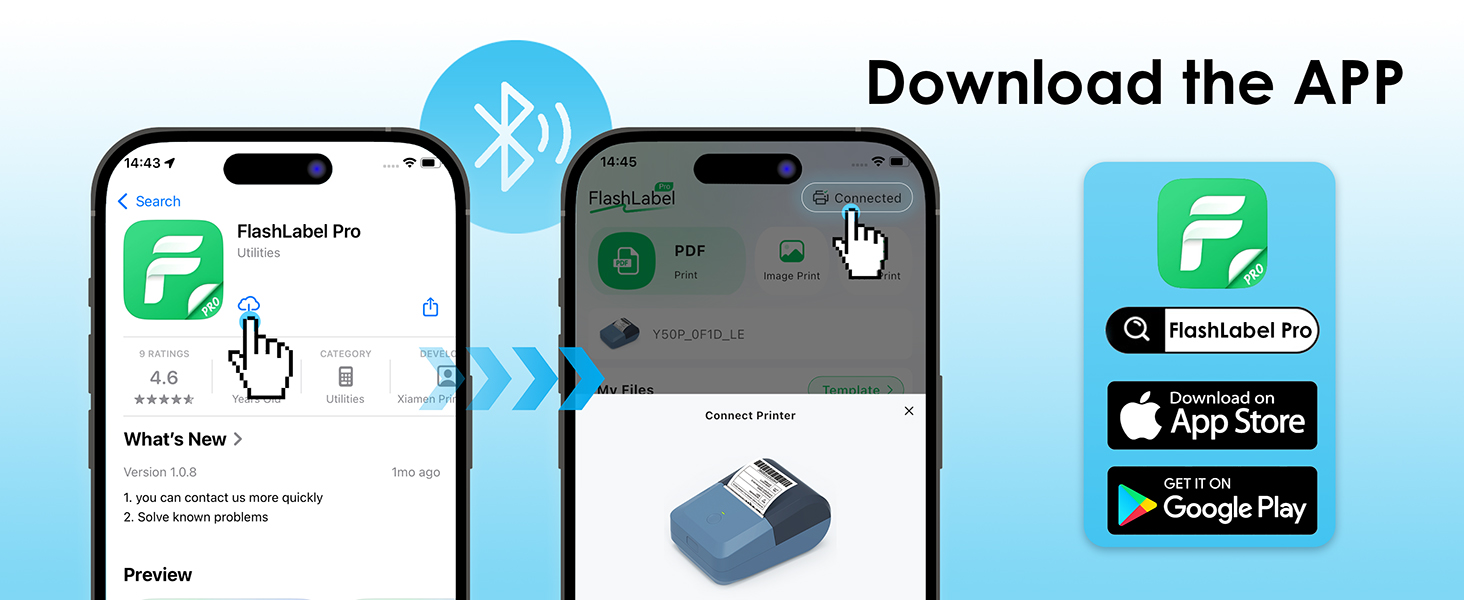
Figure 3: Steps to download and connect the FlashLabel Pro app.

Figure 4: Bluetooth and USB connection options for the label maker.
3.2. USB Cable Connectivity (for macOS and Windows)
For macOS and Windows (7 and above) users:
- Connect the label maker to your computer using the provided USB Type-C cable.
- Drivers must be installed on your operating system for proper functionality. Please refer to the official KNAON website or the support section for driver downloads and installation guides.
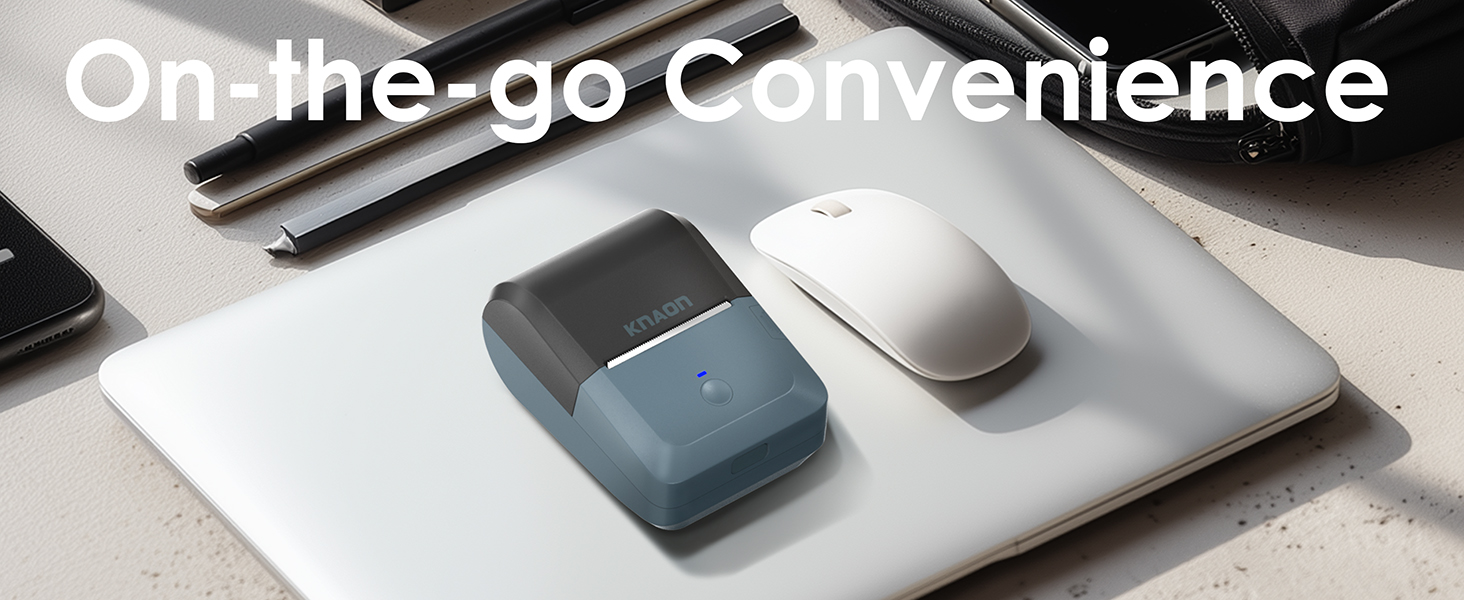
Figure 5: USB cable connection for macOS and Windows.
Upute za rad
1. Designing Labels with 'FlashLabel Pro' App
The 'FlashLabel Pro' app provides extensive customization options for your labels:
- After connecting your printer, tap the "+" icon to create a new label.
- Choose the appropriate label size that matches your loaded label roll (e.g., 50x30mm).
- Utilize the app's features to design your label:
- Access over 3,000 pre-designed templates.
- Select from over 5,000 icons.
- Choose from over 100 fonts.
- Add text, barcodes, QR codes, images, and other elements.
- Double-click on elements to edit their content and properties.
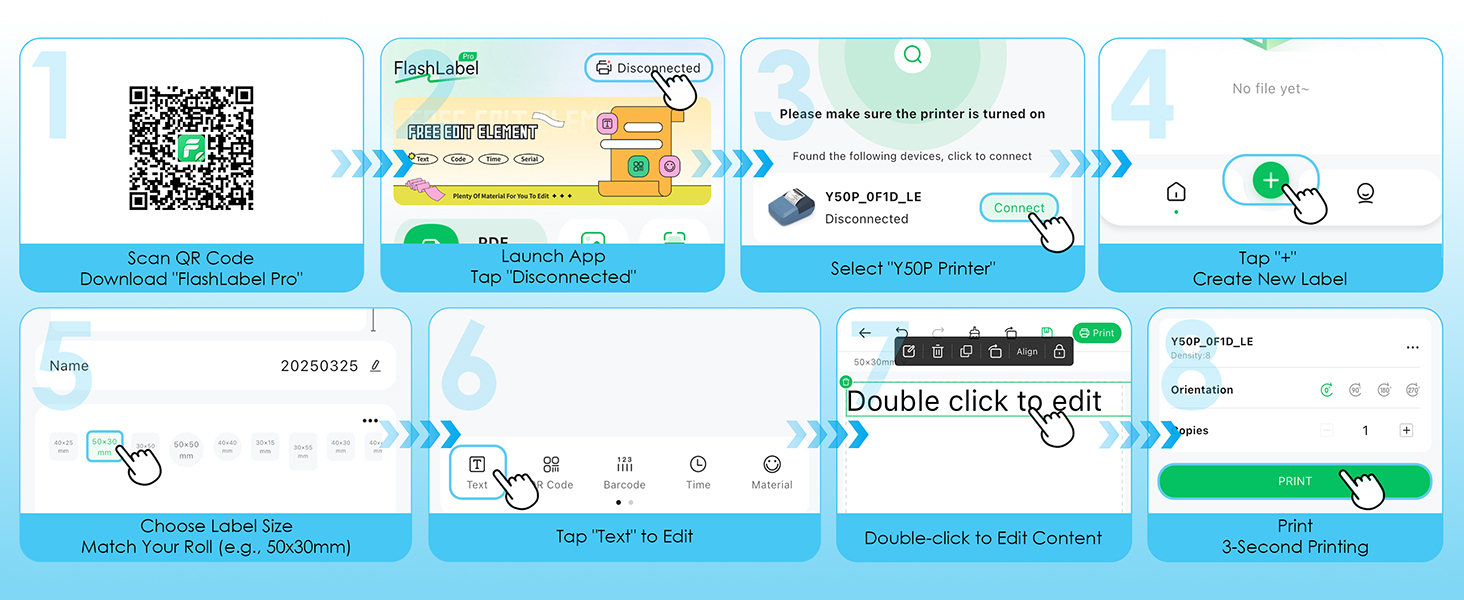
Figure 6: Step-by-step guide for designing and printing labels using the FlashLabel Pro app.
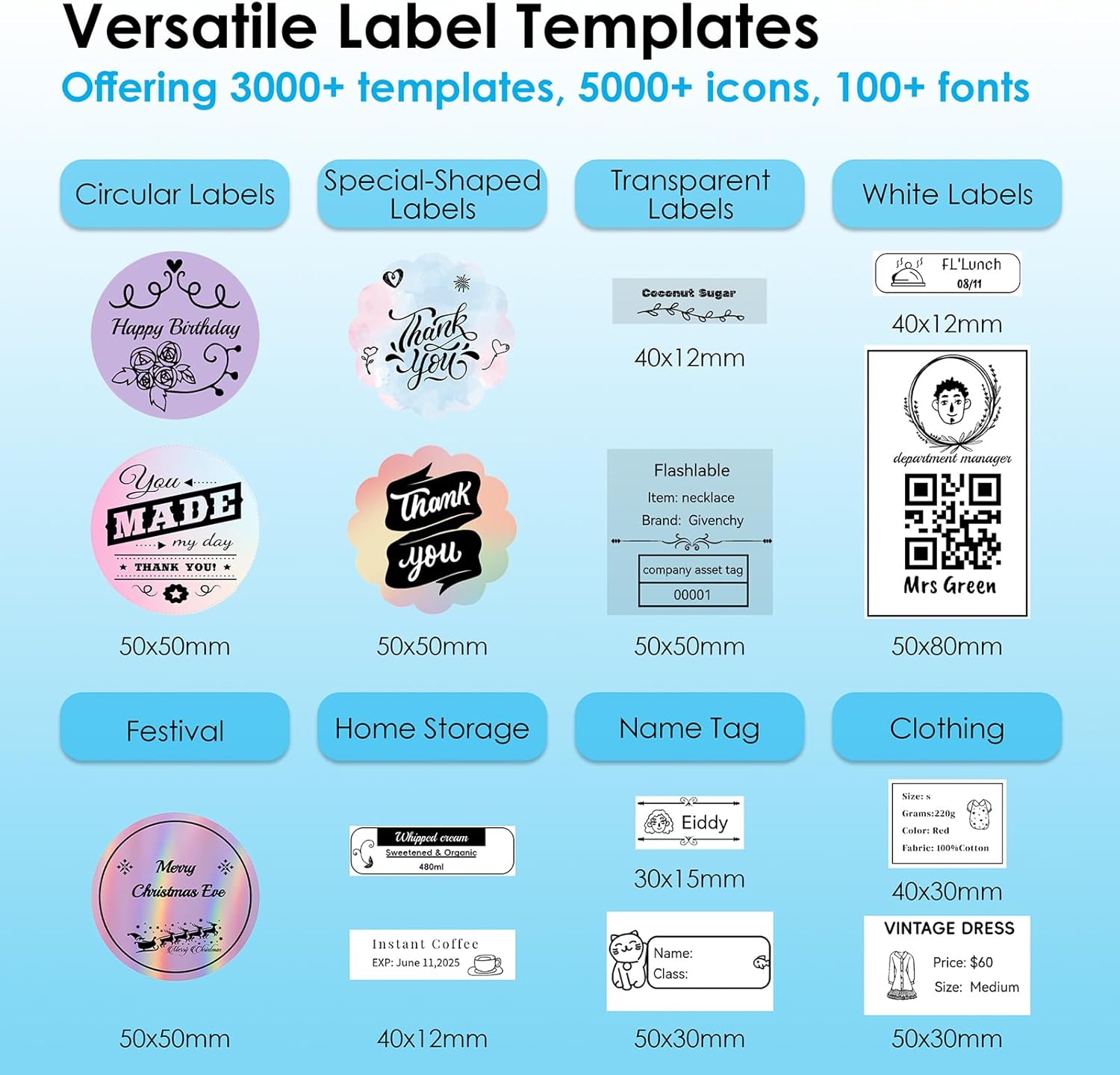
Slika 7: Npramples of versatile label templates available in the app.
2. Printing Your Label
Once your design is complete, tap the "Print" button in the app. The printer will quickly produce your label.

Figure 8: The four-step process from app to print.
3. Supported Label Sizes and Applications
The KNAON Y50P supports various thermal paper sizes, ranging from 0.6 to 2.2 inches (15-58mm) in width. This versatility makes it suitable for a wide range of labeling needs, including:
- Home Storage: Organizing pantry items, containers, and storage bins.
- Ime Tags: Creating personalized name tags for events or personal items.
- Cijena Tags: Generating price labels for retail or small business products.
- Shipping Labels: Printing small shipping or return labels.
- DIY Barcode Labels: Customizing labels with barcodes for inventory.
- Thank-You Labels: Adding a personal touch to packages or gifts.

Figure 9: Versatile applications of the KNAON Y50P Label Maker.

Figure 10: The compact size of the label maker allows for easy portability.
Održavanje
Regular maintenance ensures the longevity and optimal performance of your KNAON Y50P Label Maker.
1. Čišćenje glave za ispis
The thermal print head can accumulate dust or residue over time, affecting print quality. To clean it:
- Turn off the label maker and disconnect it from any power source.
- Open the top cover and carefully locate the print head (the dark strip across which the paper feeds).
- Lagano obrišite glavu za ispis vatom, laganoampened with isopropyl alcohol. Allow it to dry completely before closing the cover and resuming use.
- Avoid touching the print head with bare hands as oils can transfer and affect printing.
2. Briga o bateriji
Da biste produžili trajanje baterije:
- Izbjegavajte često potpuno pražnjenje baterije.
- Uređaj čuvajte na hladnom i suhom mjestu kada se ne koristi dulje vrijeme.
- Redovito punite uređaj, čak i ako ga ne koristite često, kako biste održali zdravlje baterije.
Rješavanje problema
If you encounter issues with your KNAON Y50P Label Maker, refer to the common problems and solutions below.
| Problem | Mogući uzrok | Otopina |
|---|---|---|
| Printer not connecting via Bluetooth. | Incorrect connection method; Bluetooth off; app not recognizing device. | Ensure you are connecting through the 'FlashLabel Pro' app, not directly via phone settings. Verify Bluetooth is enabled on both devices. Restart the app and printer. |
| Poor print quality (faint, streaky, or incomplete print). | Dirty print head; incorrect label roll insertion; low battery. | Clean the print head as described in the Maintenance section. Re-insert the label roll correctly, ensuring the printing surface faces up. Charge the printer fully. |
| Labels are tilted or misaligned. | Label roll not properly aligned with guides. | Open the cover and ensure the label roll is seated firmly and straight within the paper guides. Adjust if necessary. |
| Pisač ne reagira. | Slaba baterija; uređaj se zamrznuo. | Charge the printer. If unresponsive, try resetting by holding the power button for 10 seconds or until it powers off, then restart. |
| Cannot print via USB on computer. | Drivers not installed or outdated. | Ensure the correct drivers for your operating system (macOS/Windows) are installed. Visit the KNAON support webstranica za najnovije upravljačke programe. |
For further assistance, including instructional guides and troubleshooting videos, please visit the official KNAON support resources.
Tehnički podaci
Key technical specifications for the KNAON Y50P Portable Thermal Label Maker:
| Značajka | Detalj |
|---|---|
| Naziv modela | Y50P-BK |
| Dimenzije proizvoda | 4.76"D x 3.35"Š x 2.3"V |
| Težina artikla | 8.6 unci (približno 0.54 lbs) |
| Tehnologija povezivanja | Bluetooth, USB |
| Tehnologija tiska | Toplinski |
| Izlaz za pisač | Jednobojni |
| Maksimalna crno-bijela rezolucija ispisa | 300 dpi |
| Maksimalna brzina kopiranja (crno-bijelo) | 75 ppm |
| Maksimalna veličina medija | 1.97 x 1.18 inča (50 mm x 30 mm) |
| Podržana širina naljepnice | 0.6 - 2.2 inča (15 - 58 mm) |
| Baterija | 1200 mAh litij-ionska (uključena) |
| Uključene komponente | Y50P Label Maker, Label Tape, User Manual, USB Type-C Cable |
Jamstvo i podrška
The KNAON Y50P Portable Thermal Label Maker comes with a limited warranty. For details regarding the warranty period and coverage, please refer to the warranty information provided with your product packaging or contact KNAON customer support.
KNAON is committed to providing a seamless user experience. For additional support, including printer drivers, instructional guides, and troubleshooting videos, please visit the official KNAON website or contact their customer service team. You can also visit the KNAON Store on Amazon za više informacija o proizvodu i resurse podrške.
Ask a question about this manual
Ask about setup, troubleshooting, compatibility, parts, safety, or missing instructions. Manuals+ will review the question and use this page’s manual context to help answer it.