
Uvod
This manual provides essential information for the setup, operation, maintenance, and troubleshooting of your Onn 22 inch 1080P 100 Hz FHD LED Monitor. Please read this guide thoroughly before using the product to ensure optimal performance and safety.
The Onn 22 inch FHD LED Monitor is designed for a variety of applications, offering a vivid 1920x1080 resolution, a 100Hz refresh rate, and a 6.5ms response time for efficient performance. Its slim profile and T-shaped base are ideal for saving desk space.
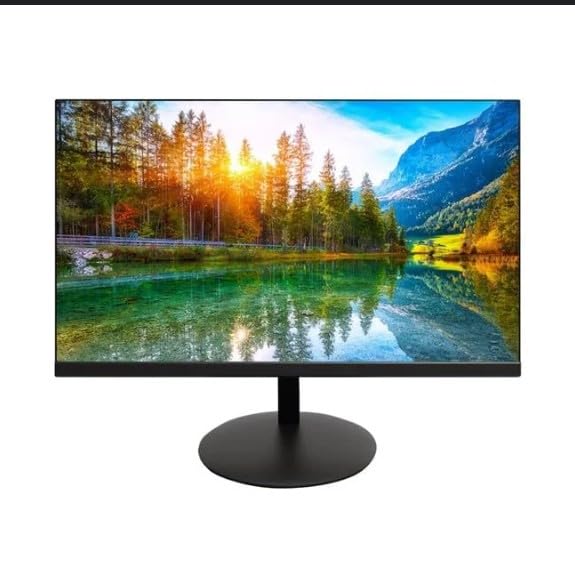
The image shows the Onn 22 inch FHD LED Monitor, highlighting its 100Hz refresh rate and 1080p resolution. The monitor features a slim design and a T-shaped base.
Upute za postavljanje
- Raspakiranje: Carefully remove the monitor and all accessories from the packaging. Ensure all components are present: monitor, T-shaped base, HDMI cable, and power adapter.
- Sastavljanje postolja: Attach the T-shaped base to the monitor. The design is screw-less for easy assembly. Ensure it is securely fastened.
- Povezivanje s uređajem:
The monitor supports both HDMI and VGA inputs. Connect the provided HDMI cable from your computer's HDMI output to the HDMI IN port on the monitor. Alternatively, use a VGA cable for VGA input.

This image displays the rear panel of the Onn monitor, illustrating the available input ports: HDMI IN, VGA IN, and the DC 12V power input. These ports are essential for connecting the monitor to a computer or other devices.
- Priključak za napajanje: Connect the power adapter to the DC 12V input port on the monitor, then plug the adapter into a power outlet.
- Podešavanje monitora: The monitor is capable of swivel, tilt, rotation, and height adjustment. Adjust the screen to your preferred viewkut za ergonomsku udobnost.
- Postavljanje dvostrukog monitora: This monitor is suitable for a fully functioning dual monitor setup. Connect a second monitor using the appropriate cables and configure your operating system's display settings.
Upute za rad
- Uključivanje/isključivanje: Press the power button, usually located on the bottom or back of the monitor, to turn it on or off.
- Odabir unosa: If the monitor does not automatically detect the input source, use the On-Screen Display (OSD) menu buttons to manually select between HDMI and VGA inputs.
- Kretanje OSD izbornikom: Use the physical buttons on the monitor (typically on the back or bottom edge) to navigate the OSD menu. This allows you to adjust settings such as brightness, contrast, color temperature, and input source.
- Rezolucija i brzina osvježavanja: The monitor supports a native resolution of 1920x1080 at a 100Hz refresh rate. Ensure your computer's display settings are configured to these specifications for the best visual experience.
- Adaptivna sinkronizacija: The monitor features Adaptive Sync for gaming, which helps to reduce screen tearing and stuttering. Ensure this feature is enabled in your graphics card settings if supported.
Održavanje
- Čišćenje ekrana: Nježno obrišite zaslon mekom krpom koja ne ostavlja dlačice. Za tvrdokorne mrlje laganoampen the cloth with water or a non-abrasive, monitor-specific cleaning solution. Avoid spraying liquids directly onto the screen.
- Čišćenje C-aasing: Za čišćenje monitora koristite meku, suhu krpu casing. Do not use strong detergents or solvents, as they may damage the finish.
- Ventilacija: Provjerite da ventilacijski otvori monitora nisu blokirani kako biste spriječili pregrijavanje.
- Skladištenje: Kada se monitor ne koristi dulje vrijeme, čuvajte ga na hladnom i suhom mjestu, dalje od izravne sunčeve svjetlosti i ekstremnih temperatura.
Rješavanje problema
- Bez napajanja:
- Provjerite je li kabel za napajanje dobro spojen na monitor i na utičnicu.
- Provjerite radi li utičnica ispravno.
- Nema signala:
- Provjerite je li video kabel (HDMI ili VGA) čvrsto spojen i na monitor i na računalo.
- Odaberite ispravan ulazni izvor pomoću OSD izbornika monitora.
- Provjerite je li računalo uključeno i nije li u stanju mirovanja.
- Treperenje zaslona ili loša kvaliteta slike:
- Provjerite video kabel ima li oštećenja ili labavih spojeva.
- Prilagodite postavke razlučivosti i brzine osvježavanja na računalu kako bi odgovarale specifikacijama monitora (1920x1080, 100Hz).
- Vratite postavke monitora na tvorničke postavke putem OSD izbornika.
- Gumbi ne reagiraju:
- Unplug the monitor from the power outlet, wait for 30 seconds, and then plug it back in.
If problems persist, please refer to the support information provided in the "Support and Warranty" section.
Tehnički podaci
| Marka | Onn |
| Broj modela | 100140681 |
| Naziv modela | OTTO |
| Veličina zaslona | 21.5 inča |
| Vrsta zaslona | LED, LCD |
| Rezolucija | 1920 x 1080 (FHD 1080p) |
| Brzina osvježavanja | 100 Hz |
| Vrijeme odziva | 6.5 milisekundi |
| Hardversko sučelje | hdmi, vga |
| Posebne značajke | Podešavanje visine |
| Viewing kut | 160 stupnja |
| Omjer slike | 16:9 |
| Dimenzije proizvoda | 49.2 x 20 x 37.2 cm; 3.24 kg |
Podrška i jamstvo
For technical support, product inquiries, or warranty information, please visit the official Onn support webstranicu ili se obratite njihovoj službi za korisnike.
- Službena podrška Webstranica: onnsupport.ca
- Jamstvo: Specific warranty details may vary by region and purchase date. Please refer to the documentation included with your product or visit the support webstranicu za najnovije informacije o jamstvu.