
1. Postavljanje i početna upotreba
1.1 Raspakiranje i sadržaj paketa
Carefully unpack your Bnegynng Android 15 Tablet. Verify that all components are present:
- Bnegynng Android 15 Tablet (BNCP10)
- Bluetooth tipkovnica
- Foldable Holster (Case)
- Bežični miš
- Stylus olovka
- Kabel za punjenje tipa C
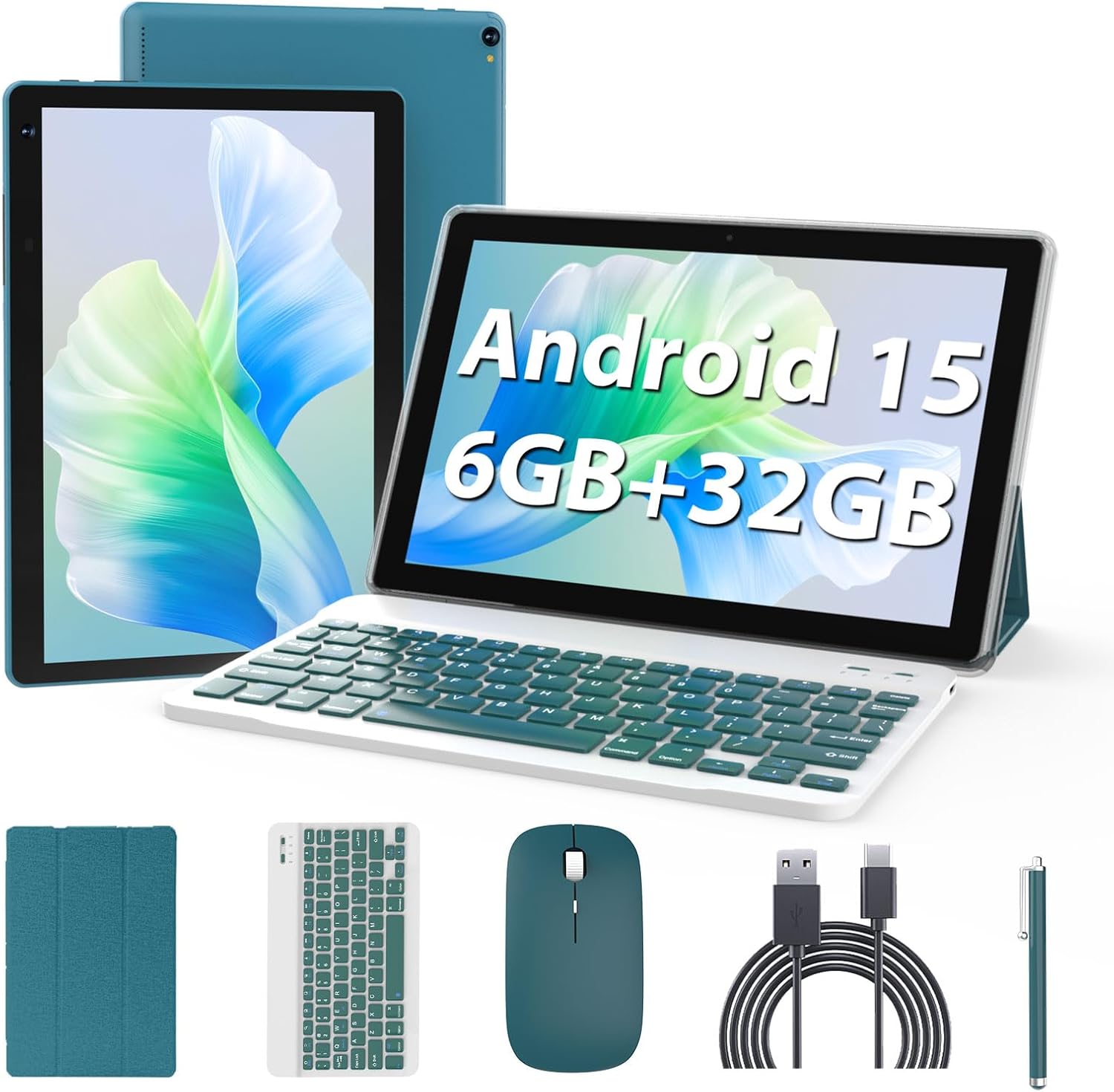
Image 1.1: The Bnegynng Android 15 Tablet with its full suite of accessories, including the keyboard, mouse, stylus, and case.
1.2 Početno punjenje
Before first use, fully charge the tablet. Connect the provided Type-C charging cable to the tablet's charging port and plug the other end into a compatible USB power adapter (not included). The battery indicator on the screen will show charging status.
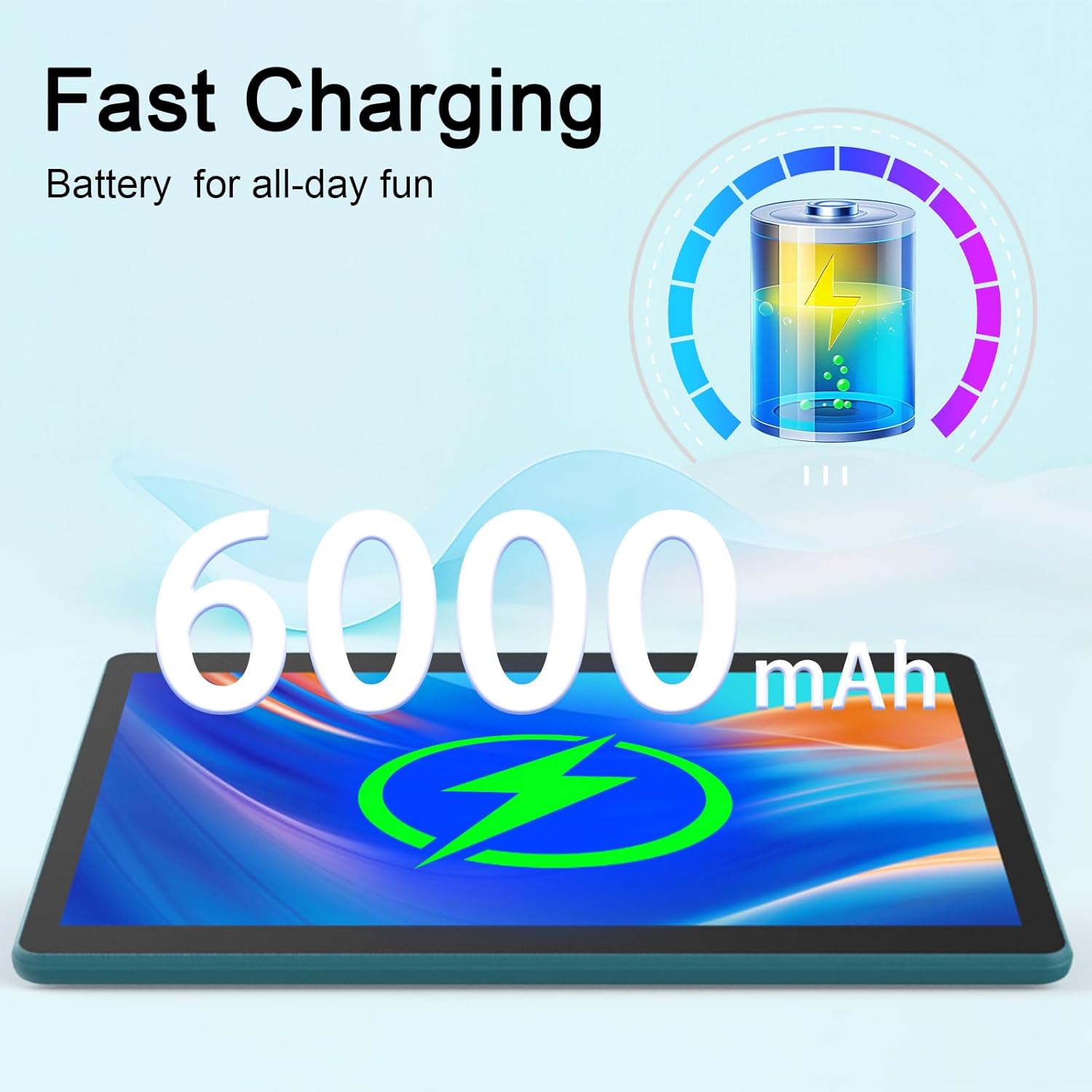
Image 1.2: The tablet features a 6000mAh battery, providing extended usage time.
1.3 Uključivanje/isključivanje
- Za uključivanje: Press and hold the Power button located on the side of the tablet until the Bnegynng logo appears.
- Za isključivanje: Pritisnite i držite gumb za uključivanje/isključivanje, a zatim odaberite "Isključi" iz opcija koje se pojavljuju na zaslonu.
- Ponovo pokrenuti: Pritisnite i držite gumb za napajanje, a zatim iz ponuđenih opcija odaberite 'Ponovno pokretanje'.
1.4 Početno postavljanje Androida 15
Prilikom prvog uključivanja, tablet će vas voditi kroz postupak početnog postavljanja. Slijedite upute na zaslonu za:
- Odaberite svoj jezik.
- Povežite se s Wi-Fi mrežom.
- Prijavite se sa svojim Google računom ili stvorite novi. Ovo je ključno za pristup Trgovini Google Play i drugim Googleovim uslugama.
- Postavite zaključavanje zaslona (PIN, uzorak ili lozinka).
1.5 Spajanje dodatne opreme
The tablet comes with a Bluetooth keyboard, mouse, and stylus for enhanced productivity.
- Bluetooth tipkovnica/miš: Turn on the keyboard/mouse. Go to Postavke > Povezani uređaji > Bluetooth on your tablet. Enable Bluetooth and search for available devices. Select the keyboard/mouse from the list and follow any pairing instructions.
- Olovka: The stylus is generally passive and does not require Bluetooth pairing. Simply use it directly on the screen.

Image 1.3: The tablet running Android 15, ready for use with Google Play Store access and privacy features.
2. Upravljanje tabletom
2.1 Osnovna navigacija
The Bnegynng tablet uses a touch-based interface. Common gestures include:
- Dodirnite: Za odabir stavke ili otvaranje aplikacije.
- Ukrasti: Za pomicanje kroz stranice ili popise.
- Zumiranje štipanjem prstiju: Za zumiranje ili smanjivanje slika i web stranice.
- Dugi pritisak: Za pristup kontekstualnim izbornicima ili premještanje ikona aplikacija.
2.2 Using the Keyboard, Mouse, and Stylus
Once connected, these accessories enhance your interaction with the tablet:
- Tipkovnica: Use for typing documents, emails, and navigating with keyboard shortcuts.
- Miš: Provides precise cursor control, similar to a laptop.
- Olovka: Ideal for drawing, note-taking, and precise selections on the screen.

Image 2.1: A user interacting with the tablet using the external keyboard and mouse for productivity tasks.
2.3 Instaliranje i upravljanje aplikacijama
Your tablet is Google GMS certified, allowing full access to the Google Play Store.
- Instalirajte aplikacije: Open the 'Play Store' app, search for desired applications, and tap 'Install'.
- Deinstaliranje aplikacija: Long-press an app icon on the home screen or app drawer, then drag it to 'Uninstall', or go to Settings > Apps > See all apps, select the app, and tap 'Uninstall'.

Image 2.2: The tablet supports a wide range of applications for study and entertainment.
2.4 Upravljanje pohranom
The tablet comes with 32GB of internal storage (ROM) and supports expansion up to 1TB via a microSD card (not included).
- Umetnite MicroSD karticu: Locate the card slot on the side of the tablet and gently insert the microSD card until it clicks into place.
- Upravljanje pohranom: Idi na Postavke > Pohrana do view korištenje i upravljanje pohranom files.
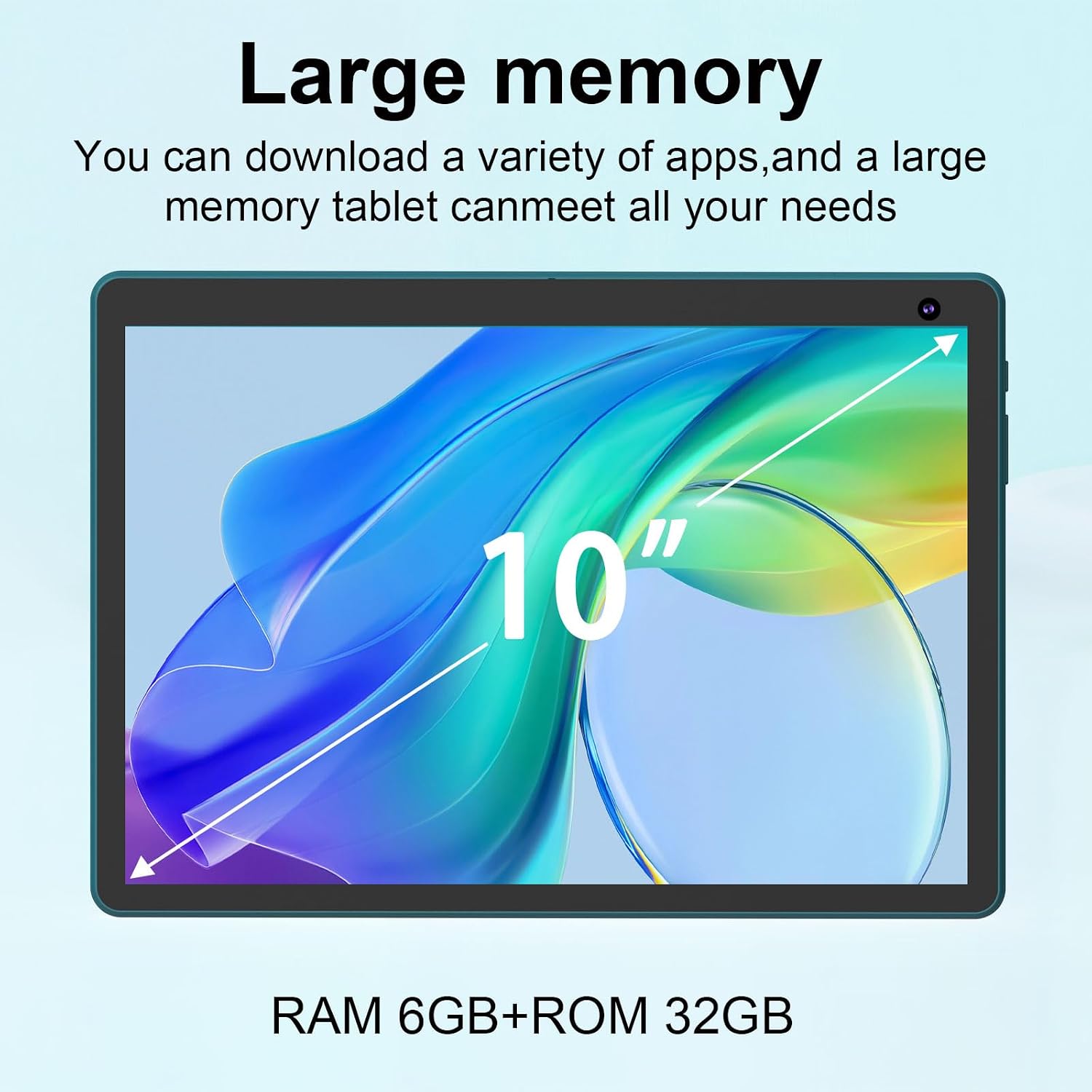
Image 2.3: The tablet offers 6GB RAM and 32GB ROM, expandable for extensive storage needs.
2.5 Korištenje kamere
Tablet ima prednju kameru od 2 MP i stražnju kameru od 8 MP.
- Open the 'Camera' app to take photos or record videos.
- Prebacujte se između prednje i stražnje kamere pomoću ikone na zaslonu.
2.6 Konzumacija medija
With a 10.1-inch HD IPS display (1280x800 resolution) and Widevine L1 certification, the tablet is suitable for viewing high-definition content.
- Use pre-installed media players or download others from the Play Store.
- Widevine L1 ensures secure playback of high-definition content from streaming services.

Image 2.4: Enjoy music and media on the tablet, enhanced by the optional keyboard and mouse.
3. Održavanje
3.1 Cleaning the Tablet and Accessories
- Za čišćenje zaslona i kućišta tableta koristite meku krpu koja ne ostavlja dlačice.
- Za tvrdokorne mrlje, lagano dampOperite krpu vodom ili otopinom za čišćenje zaslona. Izbjegavajte jake kemikalije.
- Clean the keyboard and mouse with a dry, soft cloth. Use compressed air to remove debris from keyboard crevices.
3.2 Ažuriranja softvera
Redovito provjeravajte i instalirajte ažuriranja sustava kako biste osigurali optimalne performanse, sigurnost i pristup novim značajkama.
- Idi na Postavke > Sustav > Ažuriranje sustava kako biste provjerili dostupna ažuriranja.
- Prije početka ažuriranja provjerite je li tablet spojen na Wi-Fi i ima li dovoljno napunjene baterije.
3.3 Optimizacija pohrane
To maintain performance, periodically manage your tablet's storage.
- Izbrišite nepotrebne aplikacije, fotografije i videozapise.
- Izbriši podatke predmemorije za aplikacije u Postavke > Aplikacije > [Naziv aplikacije] > Pohrana i predmemorija.
- Premjesti veliko files to an external microSD card.
3.4 Njega baterija
Kako biste produžili vijek trajanja baterije:
- Izbjegavajte ekstremne temperature.
- Ne ostavljajte tablet potpuno napunjen ili potpuno ispražnjen dulje vrijeme.
- Koristite isporučeni kabel za punjenje.
4. Rješavanje problema
4.1 Uobičajeni problemi i rješenja
| Izdati | Moguće rješenje |
|---|---|
| Tablet se ne uključuje | Ensure the battery is charged. Connect to charger for at least 30 minutes. Try holding the power button for 10-15 seconds. |
| Spore performanse / Zaostajanje | Close unused apps. Clear app caches. Restart the tablet. Check for system updates. Free up storage space. |
| Problemi s Wi-Fi vezom | Restart the tablet and your Wi-Fi router. Forget and reconnect to the Wi-Fi network. Ensure you are within range. |
| Bluetooth accessories not connecting | Ensure accessories are charged and in pairing mode. Turn Bluetooth off and on again on the tablet. Forget and re-pair the device. |
| Baterija se brzo prazni | Reduce screen brightness. Close background apps. Disable Wi-Fi/Bluetooth when not in use. Check for apps consuming excessive power in battery settings. |
4.2 Vraćanje na tvorničke postavke
Ako se problemi stalno javljaju, vraćanje na tvorničke postavke može riješiti mnoge probleme povezane sa softverom. Upozorenje: Ovim će se izbrisati svi podaci na vašem tabletu. Prije nastavka napravite sigurnosnu kopiju važnih podataka.
- Idi na Postavke > Sustav > Opcije resetiranja > Izbriši sve podatke (vraćanje na tvorničke postavke).
- Potvrdite svoju odluku i slijedite upute na zaslonu.
5. Specifikacije
| Značajka | Detalj |
|---|---|
| Broj modela | BNCP10 |
| Operativni sustav | Android 15 |
| Procesor | Četverojezgreni procesor |
| OVAN | 6GB (2GB + 4GB virtual memory) |
| Interna pohrana (ROM) | 32 GB |
| Proširiva pohrana | Do 1 TB putem MicroSD kartice |
| Veličina zaslona | 10.1 inča |
| Razlučivost zaslona | 1280 x 800 piksela (HD IPS) |
| Fotoaparati | Prednja: 2MP, Stražnja: 8MP |
| Kapacitet baterije | 6000 mAh |
| Prosječno trajanje baterije | Do 8 sati |
| Bežično povezivanje | Wi-Fi (802.11b/g/n), Bluetooth |
| Dimenzije (DxŠxV) | 10 x 7 x 1 inča |
| Težina | 2.72 funti |
| Certifikati | Google GMS, Widevine L1 |
6. Jamstvo i podrška
6.1 Jamstvo za proizvod
Please refer to the warranty card included with your product packaging for specific warranty terms and conditions. Typically, Bnegynng products come with a limited manufacturer's warranty covering defects in materials and workmanship under normal use.
6.2 Korisnička podrška
For technical assistance, troubleshooting beyond this manual, or warranty claims, please contact Bnegynng customer support through the retailer where the product was purchased or visit the official Bnegynng webstranica za kontakt podatke.
When contacting support, please have your product model number (BNCP10) and purchase information readily available.