
TABWEE T80
TABWEE T80 10-inch Android Tablet User Manual
Model: T80
1. Uvod
Thank you for choosing the TABWEE T80 10-inch Android Tablet. This manual provides essential information for setting up, operating, and maintaining your device. Please read it thoroughly before use to ensure optimal performance and safety.
The TABWEE T80 is a versatile Wi-Fi tablet featuring the latest Android 15 operating system with integrated AI capabilities. It boasts a vibrant 10.5-inch Incell IPS display, ample storage with 12GB RAM and 64GB ROM (expandable up to 2TB), and a long-lasting 6000mAh battery. With GMS certification, dual-band Wi-Fi, Bluetooth 5.0, and GPS, it is designed for both productivity and entertainment.
2. Sigurnosne informacije
- Ne izlažite uređaj ekstremnim temperaturama, izravnoj sunčevoj svjetlosti ili visokoj vlažnosti.
- Izbjegavajte ispuštanje ili izlaganje tableta jakim udarcima.
- Koristite samo isporučeni punjač i pribor.
- Ne pokušavajte sami rastaviti ili popraviti uređaj. Obratite se korisničkoj podršci za pomoć.
- Keep the tablet away from children and pets to prevent damage or injury.
3. Sadržaj paketa
Molimo provjerite paket za sljedeće stavke:
- TABWEE T80 Tablet
- AC adapter
- USB kabel vrste C
- korisnički priručnik
4. Proizvod je gotovview
Familiarize yourself with the components of your TABWEE T80 tablet.

Slika 4.1: Prednja i stražnja strana view of the TABWEE T80 tablet, highlighting its sleek design and rear camera module.
Fizičke komponente:
- 10.5-inch Incell IPS Display: High-definition screen for vivid visuals.
- Prednja kamera (2MP): Nalazi se na gornjem okviru za videopozive i selfije.
- Stražnja kamera (5MP): Located on the back for capturing photos and videos.
- Gumb za napajanje: On the side, used to turn the tablet on/off or wake/sleep the screen.
- Gumbi za glasnoću: On the side, to adjust audio volume.
- USB Type-C priključak: Za punjenje i prijenos podataka.
- 3.5 mm utičnica za slušalice: Za spajanje žičnih slušalica ili vanjskih zvučnika.
- Utor za microSD karticu: Za proširenje pohrane do 2 TB.
- Dvostruki zvučnici: Located on the bottom edge for enhanced audio experience.
5. Postavljanje
5.1 Početno punjenje
Before first use, fully charge your tablet. Connect the USB Type-C cable to the tablet's charging port and the AC adapter to a power outlet. The battery indicator on the screen will show charging status.
5.2 Uključivanje/isključivanje
- Za uključivanje: Press and hold the Power button until the TABWEE logo appears.
- Za isključivanje: Pritisnite i držite gumb za napajanje dok se ne pojavi izbornik s opcijama napajanja, a zatim odaberite "Isključi".
- Za spavanje/buđenje: Kratko pritisnite tipku za napajanje.
5.3 Wi-Fi veza
Za spajanje na internet:
- Idi na postavke > Mreža i internet > Wi-Fi.
- Uključite Wi-Fi. Tablet će skenirati dostupne mreže.
- Odaberite željenu mrežu s popisa.
- Unesite lozinku ako se to od vas zatraži, a zatim dodirnite Poveži se.
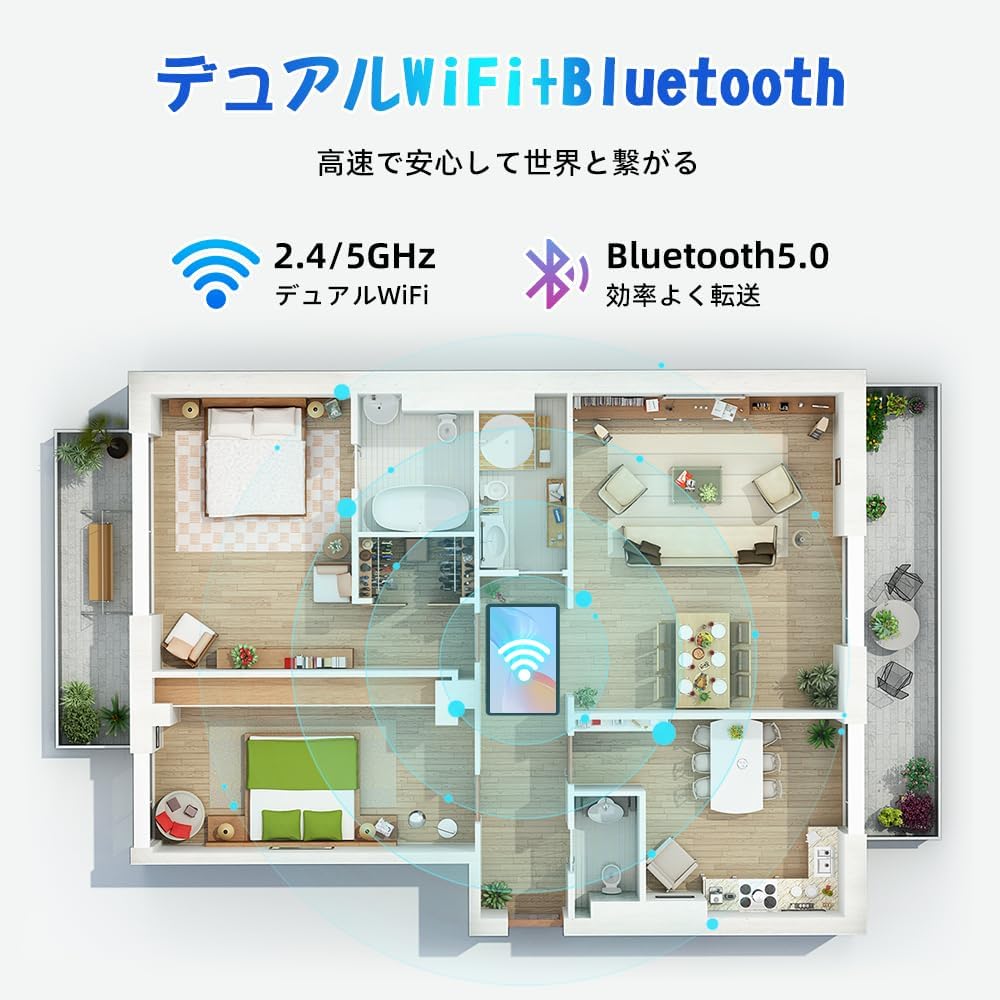
Figure 5.1: Diagram illustrating the tablet's dual-band 2.4G/5G Wi-Fi and Bluetooth 5.0 connectivity, ensuring fast and reliable connections throughout your home or office.
5.4 Postavljanje Google računa
As a GMS certified device, you can access Google Play Store and other Google services. During initial setup, you will be prompted to sign in with your Google account or create a new one. This is essential for downloading apps and syncing data.
5.5 Instalacija MicroSD kartice
To expand storage up to 2TB:
- Locate the MicroSD card slot on the side of the tablet.
- Umetnite MicroSD karticu u utor sa zlatnim kontaktima okrenutim prema dolje dok ne klikne na mjesto.
- You may be prompted to format the card for use with the tablet.

Figure 5.2: Visual representation of the tablet's 12GB RAM and 64GB ROM, with support for up to 2TB MicroSD card expansion, allowing for vast storage of photos, videos, and music.
6. Upute za rad
6.1 Značajke Androida 15
Your tablet runs on Android 15, offering an intuitive and enhanced user experience with improved security, customization, and AI capabilities.

Slika 6.1: Gotovoview of Android 15 features, including enhanced security and privacy, expanded customization options, improved AI functions, and new gesture controls for a smoother operation.
6.2 Prikaz i ViewNačini rada
The 10.5-inch Incell IPS display provides vibrant colors and wide viewing angles. Optimize your viewing experience and reduce eye strain with various display modes:

Figure 6.2: The 10.5-inch Incell IPS display offers a 1280x800 resolution and a 16:10 aspect ratio for a wide and efficient viewiskustvo.

Figure 6.3: The tablet supports 1080P Full HD content, providing an immersive visual experience for movies and dramas from platforms like YouTube, Prime Video, Hulu, and HBO.

Slika 6.4: Vizualni primjeramples of different screen modes: Night mode for reduced blue light, Dark mode for eye comfort in low light, and Reader mode for a black-and-white paper-like display.
- Noćni način rada: Reduces blue light emissions for comfortable viewing in low light conditions. Access via Quick Settings or Display settings.
- Tamni način rada: Changes the system UI and supported apps to a dark theme, reducing eye strain and saving battery on OLED screens. Access via Display settings.
- Način čitanja: Optimizes the display for reading, often by converting to grayscale and adjusting contrast. Access via Display settings or specific reading apps.
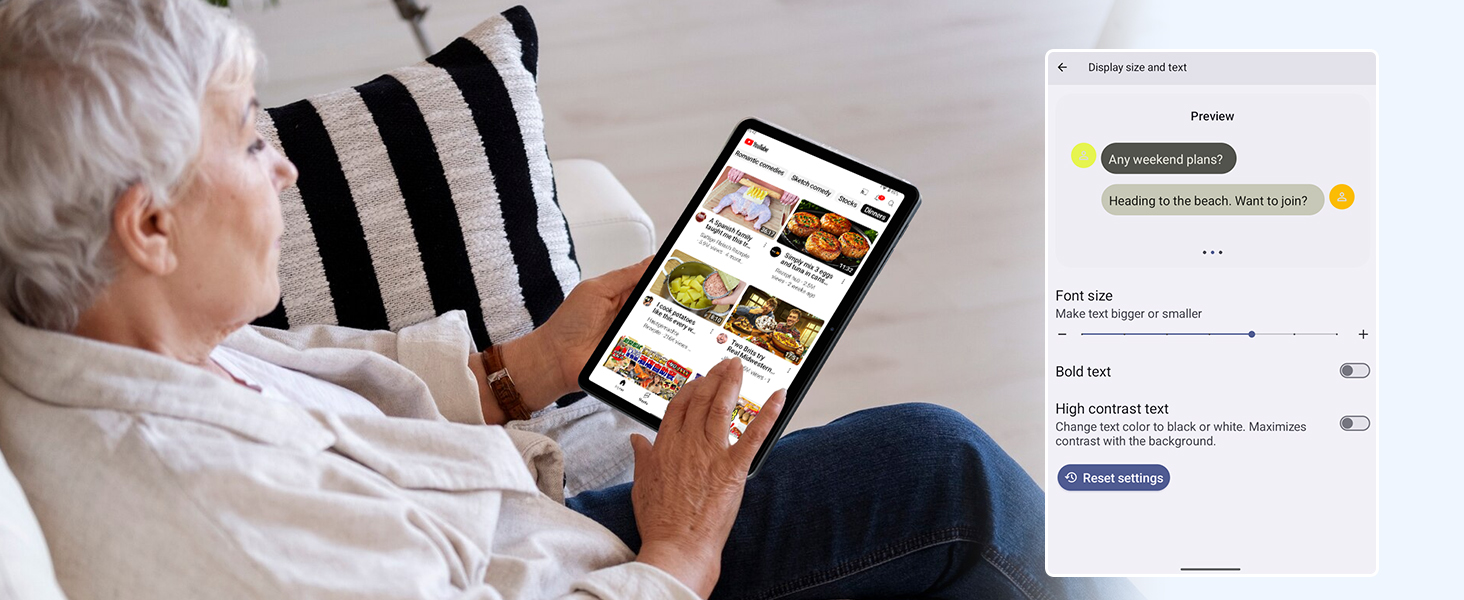
Figure 6.5: Screenshot showing display settings for adjusting text size and bold text, allowing users to customize readability.
6.3 Izvedba
The TABWEE T80 is powered by a Unisoc T310 processor, ensuring smooth operation for daily tasks and multimedia consumption.
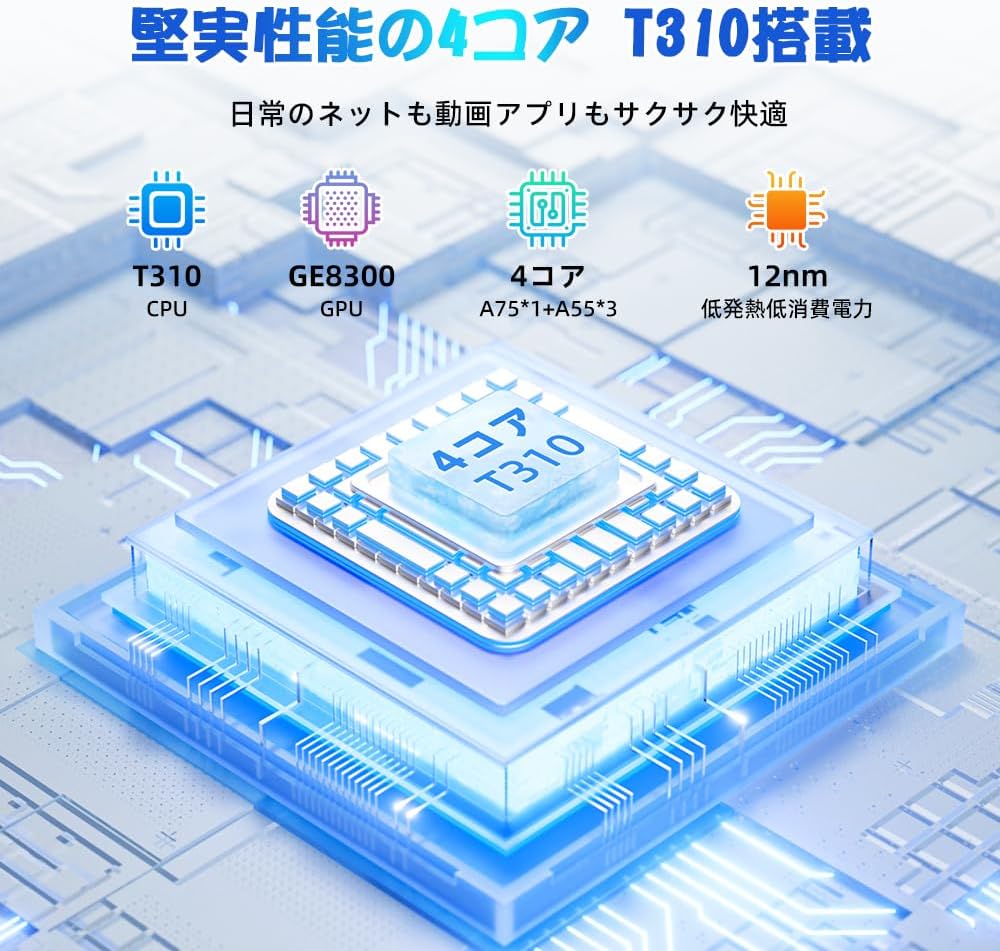
Figure 6.6: Diagram illustrating the T310 quad-core CPU architecture, featuring A75 and A55 cores, designed for efficient performance and low power consumption.

Figure 6.7: Comparison showing the Unisoc T310 processor's improved speed (up to 2.0 GHz) and lower power consumption compared to previous generation products.
6.4 Multitasking i podijeljeni ekran
For enhanced productivity, the tablet supports split-screen mode, allowing you to run two applications side-by-side.

Figure 6.8: Demonstration of the split-screen feature, allowing users to comfortably multitask by viewing two applications simultaneously, such as reading an e-book while checking messages.
- To activate split screen: Open an app, then swipe up slightly from the bottom and hold to reveal recent apps. Drag one app to the top or bottom of the screen, then select another app for the remaining space.
6.5 Značajke umjetne inteligencije (Gemini umjetna inteligencija)
Leverage the power of Gemini AI for enhanced productivity and convenience.

Figure 6.9: Visuals demonstrating Gemini AI 2.0 capabilities, including AI text-to-image generation, AI voice response, AI smart control, AI real-time conversation, and AI full-screen smart assistance.
Gemini AI can assist with real-time translation, smart text suggestions, and optimizing performance based on your usage habits. Explore AI-enhanced multi-tasking for learning, office work, and entertainment.
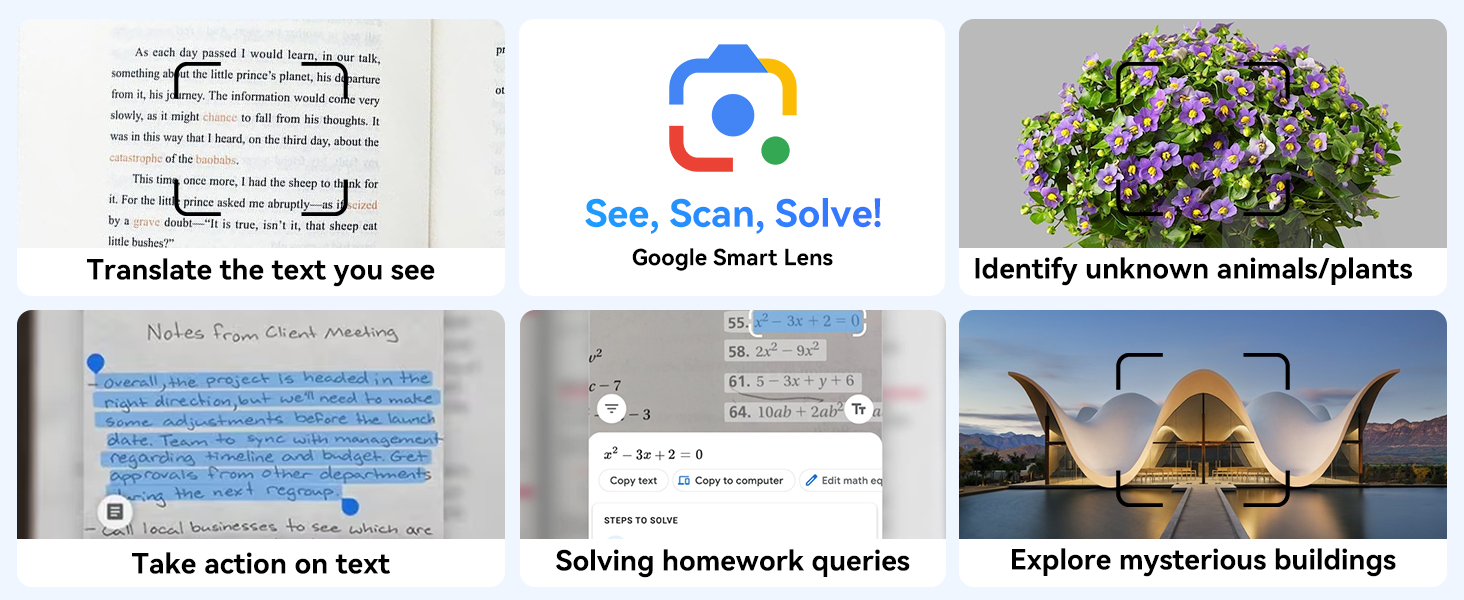
Slika 6.10: Npramples of Google Smart Lens functions: translating text, identifying unknown objects/plants, taking action on text, solving homework queries, and exploring mysterious buildings.
6.6 Parental Controls (Kids Mode)
The tablet includes parental control features to ensure a safe environment for children.

Figure 6.11: Icons representing parental control features: usage time limits, break time settings, app usage restrictions, and content restrictions, all designed to protect children.
You can set time limits, restrict app access, and filter content. Navigate to postavke > Digitalno blagostanje i roditeljski nadzor to configure these features.
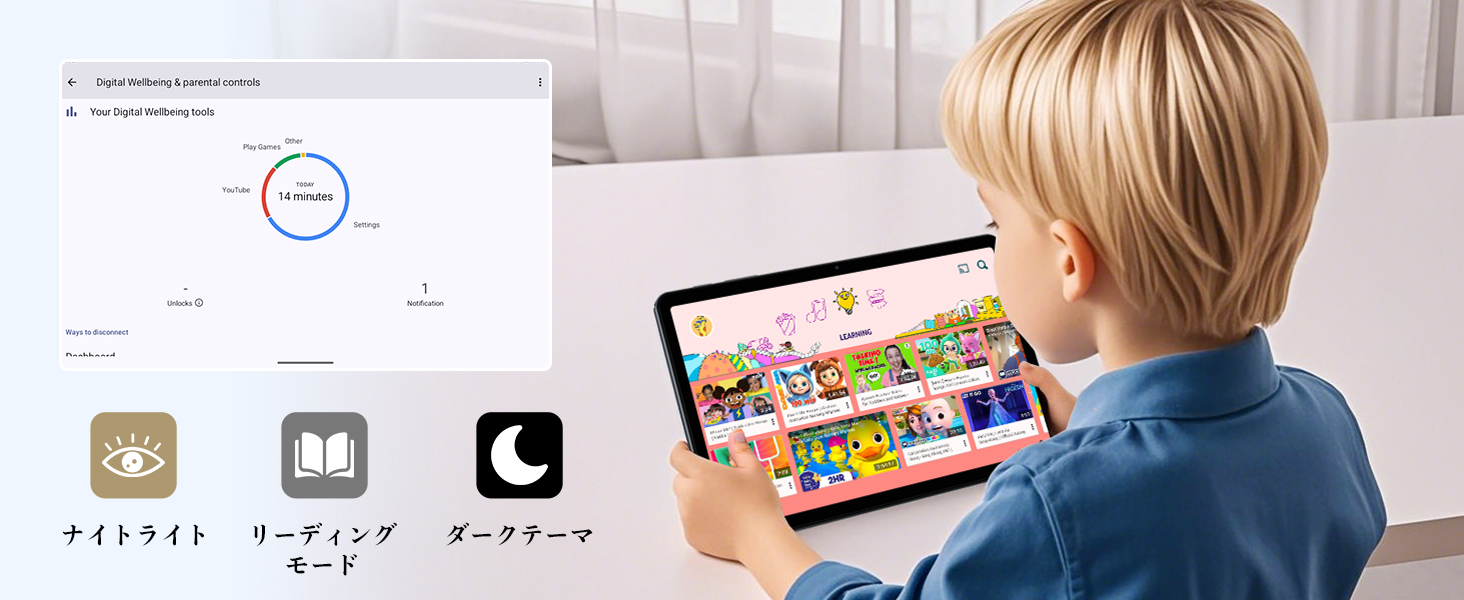
Figure 6.12: Screenshot of the Digital Wellbeing and parental controls interface, showing usage statistics and options for managing screen time and app access for children.
6.7 Bežična projekcija
Mirror your tablet's screen to a compatible TV or monitor wirelessly.
- Ensure your TV/monitor supports wireless display (e.g., Miracast, Chromecast built-in).
- Na tabletu idite na postavke > Povezani uređaji > Postavke veze > Cast.
- Select your display device from the list to begin mirroring.
6.8 Korištenje kamere
Tablet je opremljen prednjom kamerom od 2 MP i stražnjom kamerom od 5 MP.

Figure 6.13: Illustration of the tablet's 2-megapixel front camera and 5-megapixel rear camera, capable of autofocus for clear photos and video calls.
Open the Camera app to take photos or record videos. Tap the shutter button to capture an image or the record button to start/stop video recording. You can switch between front and rear cameras using the camera switch icon.
6.9 Audio
The tablet features dual speakers for an immersive audio experience and a 3.5mm headphone jack for private listening.

Figure 6.14: Diagram showing the location of the two powerful speakers on the TABWEE T80, providing a deep and immersive audio experience.
Adjust volume using the physical volume buttons on the side of the tablet or through the on-screen volume slider.
6.10 GPS navigacija
The integrated GPS system allows for accurate location tracking and navigation. Use pre-installed map applications or download your preferred navigation app from the Google Play Store.
7. Održavanje
7.1 Čišćenje
Use a soft, lint-free cloth to clean the screen and body of the tablet. Do not use abrasive cleaners or solvents, as they may damage the surface.
7.2 Ažuriranja softvera
Regularly check for system updates to ensure your tablet has the latest features and security patches. Go to postavke > sustav > Ažuriranje sustava.
7.3 Njega baterija
Kako biste produžili vijek trajanja baterije:
- Izbjegavajte često potpuno pražnjenje baterije.
- Ne ostavljajte tablet da se puni dulje vrijeme nakon što se potpuno napuni.
- Tabletu čuvajte na hladnom i suhom mjestu kada se ne koristi dulje vrijeme.

Figure 7.1: Battery life estimates for the 6000mAh battery: 5 hours of web browsing, 4 hours of video playback, 4 hours of gaming, 21 hours of music, and 648 hours of standby time, supported by AI power-saving algorithms.
8. Rješavanje problema
| Problem | Mogući uzrok | Otopina |
|---|---|---|
| Tablet se ne uključuje. | Slaba baterija; pad sustava. | Punite tablet najmanje 30 minuta. Pritisnite i držite gumb za uključivanje/isključivanje 10-15 sekundi za prisilno ponovno pokretanje. |
| Ne mogu se spojiti na Wi-Fi. | Netočna lozinka; problem s usmjerivačem; izvan dometa. | Provjerite lozinku za Wi-Fi. Ponovno pokrenite usmjerivač. Približite se Wi-Fi usmjerivaču. |
| Aplikacije su spore ili se ruše. | Previše pokrenutih aplikacija; malo prostora za pohranu. | Close background apps. Clear app cache. Free up storage space. |
| Zaslon ne reagira. | Privremeni softverski kvar. | Prisilno ponovno pokrenite tablet držanjem tipke za uključivanje/isključivanje. |
9. Specifikacije
| Značajka | Detalj |
|---|---|
| Marka | TABWEE |
| Naziv modela | T80 Tablet Tabwee |
| Operativni sustav | Android 15 (GMS certificiran) |
| Veličina zaslona | 10.5 inches Incell IPS |
| Razlučivost zaslona | 1280x800 piksela |
| Robna marka proizvođača | Unisoc |
| Brzina procesora | 2 GHz |
| GPU Brand | ARM Mali-G57 |
| OVAN | 12GB (4GB+8GB expansion) |
| Unutarnja pohrana | 64 GB |
| Proširiva pohrana | Do 2 TB putem MicroSD kartice |
| Kapacitet baterije | 6000mAh litij-ionski polimer |
| Prednja kamera | 2 MP |
| Stražnja kamera | 5 MP |
| Povezivost | 2.4G/5G Wi-Fi (802.11ac), Bluetooth 5.0, GPS |
| luke | USB Type-C, 3.5 mm priključak za slušalice |
| Dimenzije | 32.79 x 19.9 x 4.1 cm |
| Težina | 910 g |
10. Jamstvo i podrška
Your TABWEE T80 tablet comes with a 2-godišnje jamstvo proizvođača.
If you encounter any issues with your product, please contact us via email. We strive to respond promptly to ensure your satisfaction.
Kako kontaktirati podršku:
- Through your Amazon account: Go to Povijest narudžbi > Select the relevant order > Click Kontaktirajte prodavača.
- Through the product page: On the product page, click on the seller's name (TABWEE Official Store) below the "Add to Cart" button, then click "Ask a question" on the top right.
Support hours: 9:00 AM - 6:00 PM (excluding holidays). We will reply as soon as possible.

Figure 10.1: Image representing customer support availability for assistance.
Povezani dokumenti - T80
 |
TABWEE T50 Android Tablet: User Manual & Warranty Comprehensive user manual and warranty information for the TABWEE T50 Android Tablet. Learn about setup, features, safety guidelines, maintenance, and warranty activation for your device. |
 |
TABWEE T20 korisnički priručnik i jamstveni list Korisnički priručnik i informacije o jamstvu za tablet TABWEE T20, uključujući postavljanje, sigurnosne smjernice, održavanje i usklađenost s propisima. |
 |
T80 Tablet User Manual and Warranty Guide Comprehensive user manual and warranty guide for the T80 tablet. Includes setup instructions, safety guidelines, maintenance tips, and regulatory compliance information. |
 |
TABWEE T80 korisnički priručnik i informacije o jamstvu Sveobuhvatni korisnički priručnik i detalji jamstva za tablet TABWEE T80, koji obuhvaćaju aktivaciju, značajke, sigurnost, održavanje i usklađenost s propisima. |
 |
TABWEE eCalendar P15 Benutzerhandbuch: Einrichtung, Funktionen und Sicherheit Umfassendes Benutzerhandbuch für das TABWEE eCalendar P15, ein 15,6-Zoll-WLAN-Digitalkalender-Tablet. Erfahren Sie mehr über Sicherheitsvorkehrungen, Bildschirmreinigung, Einführung in Funktionen und greifen Sie auf Tutorial-Videos für Einrichtung und Nutzung zu. |
 |
Handheld Terminal (PDA) Quick Guide This quick guide provides essential information for operating the Handheld Terminal (PDA), including device overview, installation procedures, charging, scanning, NFC, firmware updates, and troubleshooting FAQs. |
Ask a question about this manual
Ask about setup, troubleshooting, compatibility, parts, safety, or missing instructions. Manuals+ will review the question and use this page’s manual context to help answer it.