
NIMO Nimo N156
NIMO 15.6" FHD Business Laptop User Manual
Model: Nimo N156
Uvod
This user manual provides comprehensive instructions for setting up, operating, maintaining, and troubleshooting your NIMO 15.6" FHD Business Laptop. Please read this manual carefully before using your device to ensure optimal performance and longevity. Keep this manual for future reference.
Što je u kutiji
Provjerite jesu li svi artikli prisutni u paketu:
- 1 x Nimo N156 Laptop
- 1 x Type-C 100W PD Fast Charger
- 1 x Korisnički priručnik (ovaj dokument)
- Windows 11 Home (unaprijed instaliran)
- 2 Years Warranty, 90 Days Return information
Proizvod gotovview
Familiarize yourself with the key components of your NIMO laptop.

Slika 1: Ispred view of the NIMO 15.6 inch FHD Business Laptop, showcasing its full HD IPS display, Intel Core i5 processor, fingerprint reader, Type-C PD charger port, and backlit keyboard.

Slika 2: Close-up of the NIMO laptop's backlit full keyboard, highlighting the integrated webcam shield, fingerprint sensor, and numeric keypad for enhanced productivity and security.

Slika 3: Diagram illustrating the multiple ports on the NIMO laptop, including Micro SD slot, USB 2.0, USB 3.0, Headphone Jack, Kensington lock, Type-C (multifunction), Type-C (PD Charger Only), HDMI, and Charge LED.
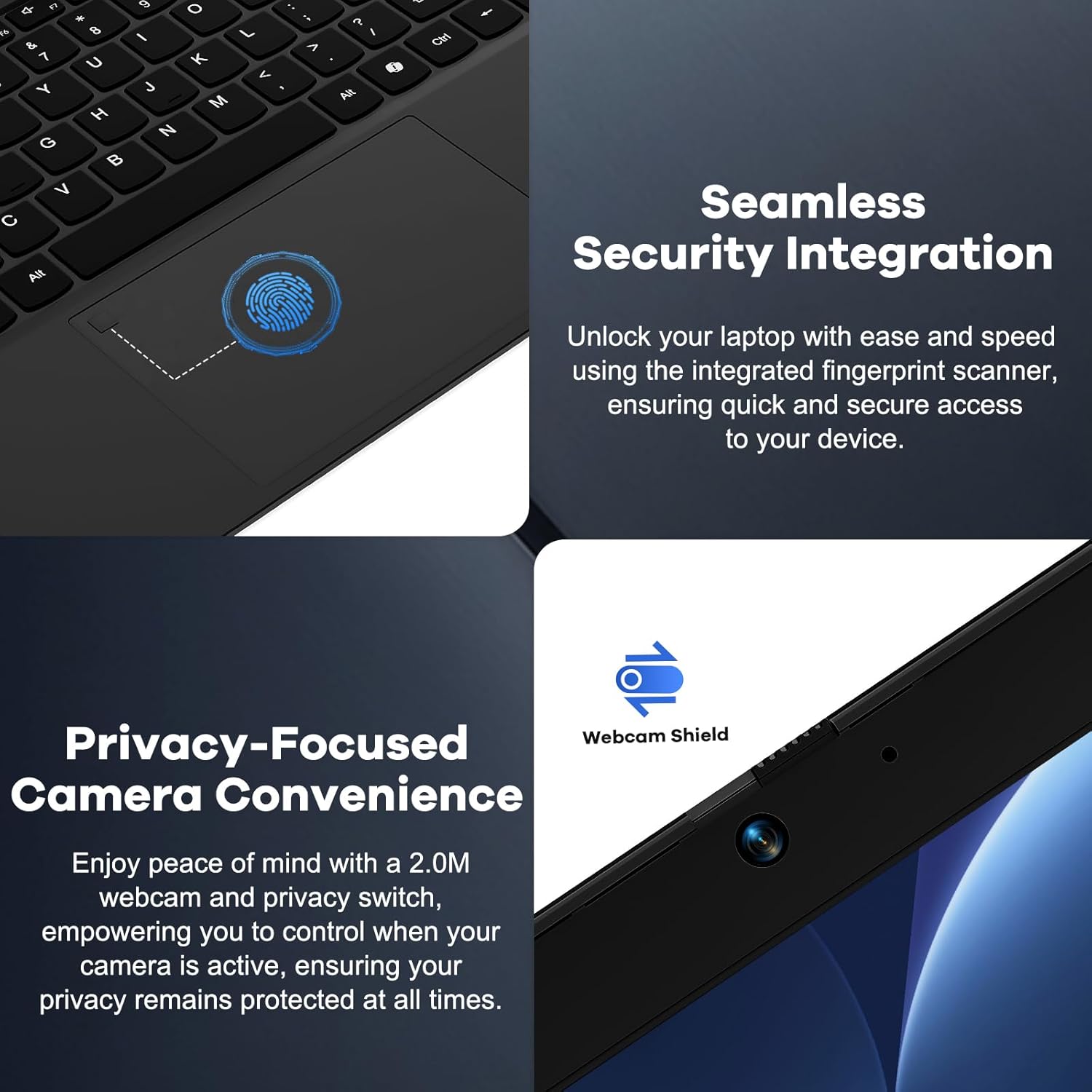
Slika 4: Details on the seamless security integration with the fingerprint sensor for quick login and the privacy-focused camera convenience with a built-in webcam shield.

Slika 5: The compact 100W GaN Type-C PD Fast Charger included with the NIMO laptop, capable of charging to 50% in 15 minutes and compatible with various devices.
Postavljanje
1. Početno uključivanje
- Raspakirati: Pažljivo izvadite prijenosno računalo i svu dodatnu opremu iz pakiranja.
- Priključite napajanje: Plug the 100W GaN Type-C PD Fast Charger into a power outlet and connect the USB-C cable to the laptop's Type-C charging port. The Charge LED will illuminate.
- Prvo pokretanje: Open the laptop lid. The system may power on automatically or you may need to press the power button (located on the top right of the keyboard).
- Postavljanje sustava Windows: Slijedite upute na zaslonu da biste dovršili postupak postavljanja sustava Windows 11 Home. To uključuje odabir regije, jezika, povezivanje s Wi-Fi mrežom i stvaranje korisničkog računa.
2. Povezivanje perifernih uređaja
Your NIMO laptop offers various ports for connecting external devices:
- USB uređaji: Spojite USB flash pogone, vanjske tvrde diskove, miševe ili tipkovnice na USB 2.0 ili USB 3.0 priključke.
- Vanjski zaslon: Za spajanje vanjskog monitora ili projektora koristite HDMI priključak.
- Audio: Plug headphones or external speakers into the 3.5mm Headphone Jack.
- Memorijske kartice: Insert a Micro SD card into the Micro SD slot for additional storage.
Upute za rad
1. Osnovni rad
- Uključivanje/isključivanje: Press the power button to turn the laptop on. To shut down, click the Start button in Windows, then Power > Shut down.
- Stanje mirovanja: Close the lid or click the Start button, then Power > Sleep to put the laptop into sleep mode.
- Fingerprint Login: Utilize the integrated fingerprint sensor for quick and secure login to Windows. Register your fingerprints through Windows Settings > Accounts > Sign-in options.
- Tipkovnica s pozadinskim osvjetljenjem: The keyboard features backlighting for low-light conditions. Use the dedicated function key (Fn + F key combination, typically F3 or F4) to toggle or adjust the backlight brightness.
- WebPrivatnost kamere: The laptop includes a physical webcam shield. Slide the switch next to the webkameru za pokrivanje ili otkrivanje objektiva kamere radi privatnosti.
2. Windows 11 Features
Your laptop comes with Windows 11 Home pre-installed. Explore its features for enhanced productivity and entertainment:
- Prilagođavanje rasporeda: Easily organize open windows on your screen.
- Widgeti: Access personalized information at a glance.
- Microsoftova trgovina: Preuzmite i instalirajte aplikacije.
- Sigurnost: Windows Defender provides built-in antivirus and firewall protection.
Održavanje
- Čišćenje: Use a soft, lint-free cloth to clean the screen and chassis. For stubborn smudges, slightly dampOperite krpu vodom ili otopinom za čišćenje zaslona. Izbjegavajte jake kemikalije.
- Njega baterije: Kako biste produžili vijek trajanja baterije, izbjegavajte često potpuno pražnjenje baterije. Preporučuje se održavanje napunjenosti baterije između 20% i 80% kad god je to moguće. Prijenosno računalo pohranite na hladnom i suhom mjestu ako se ne koristi dulje vrijeme.
- Ažuriranja softvera: Redovito provjeravajte i instalirajte ažuriranja za Windows i upravljačke programe kako biste osigurali stabilnost i sigurnost sustava. Idite na Postavke sustava Windows > Windows Update.
- Upravljanje pohranom: Povremeno čistite nepotrebno files and applications to free up storage space and improve performance.
Rješavanje problema
| Problem | Mogući uzrok | Otopina |
|---|---|---|
| Laptop se ne uključuje. | Problem s slabo napunjenom baterijom ili adapterom za napajanje. | Ensure the charger is properly connected and the power outlet is working. Allow the laptop to charge for at least 30 minutes before attempting to power on again. |
| Zaslon je prazan ili treperi. | Incorrect display settings or driver issue. | Pokušajte spojiti vanjski monitor kako biste provjerili je li problem u zaslonu prijenosnog računala. Ažurirajte upravljačke programe za grafičku karticu. Ponovno pokrenite prijenosno računalo. |
| Problemi s Wi-Fi vezom. | Incorrect network settings or driver issue. | Ensure Wi-Fi is enabled. Restart your router and laptop. Update Wi-Fi drivers. Forget and reconnect to the network. |
| Pozadinsko osvjetljenje tipkovnice ne radi. | Backlight feature is off or driver issue. | Press the Fn + F key combination (e.g., F3 or F4) to toggle the backlight. Check keyboard settings in Windows. |
If the problem persists, please refer to the Warranty and Support section for assistance.
Tehnički podaci
| Značajka | Detalj |
|---|---|
| Marka | NIMO |
| Naziv modela | Nimo N156 |
| Veličina zaslona | 15.6 inča |
| Razlučivost zaslona | 1920 x 1080 piksela (FHD IPS) |
| Procesor | Intel Core i5-12450H (8 Cores, up to 4.4 GHz) |
| OVAN | 8 GB DDR4 (Upgradable) |
| Tvrdi disk | 256 GB PCIe SSD (Upgradable) |
| Grafički koprocesor | Integrirana Intel Graphics |
| Operativni sustav | Windows 11 Home |
| Bežična vrsta | 802.11a/b/g/n/ac (WiFi 6) |
| Bluetooth | BT5.2 |
| luke | 1x USB 2.0, 3x USB 3.0, Type-C (PD Charger Only), Type-C (Multifunction), HDMI, Headphone Jack, Micro SD Slot |
| Adapter napajanja | 100W GaN Type-C PD Fast Charger |
| Prosječno trajanje baterije | 5 Hours (54Wh Smart Battery for up to 9 Hours Standby) |
| Težina artikla | 3.8 funti |
| Dimenzije proizvoda | 14.07 x 8.98 x 0.76 inča |
| Posebne značajke | Backlit Keyboard, Fingerprint Reader, HD Audio, Memory Card Slot, Numeric Keypad, Webcam Shield |
Jamstvo i podrška
NIMO stands behind the quality of its products. Your NIMO laptop comes with the following:
- 2-godišnje jamstvo: A 2-Year Warranty from NIMO Direct Inc. covers manufacturing defects and hardware failures.
- 90-dnevni povrat bez problema: Iskoristite 90-dnevnu politiku povrata za svoj mir.
- 24/7 Dedicated Support: For any issues or inquiries, dedicated support is available to provide instant resolution.
For warranty claims or technical assistance, please contact NIMO customer support through the contact information provided on the official NIMO webstranicu ili vašu dokumentaciju o kupnji.
Video: Overview of the NIMO laptop, highlighting its features, performance, and the comprehensive 90-day return policy and 2-year warranty, demonstrating NIMO's commitment to customer satisfaction.
Ask a question about this manual
Ask about setup, troubleshooting, compatibility, parts, safety, or missing instructions. Manuals+ will review the question and use this page’s manual context to help answer it.