
Alienware Alienware Aurora R16 Desktop
Korisnički priručnik za stolno računalo Alienware Aurora R16 za igranje
Model: Alienware Aurora R16 Desktop
1. Uvod
This manual provides essential information for setting up, operating, maintaining, and troubleshooting your Alienware Aurora R16 Gaming Desktop. Please read this manual thoroughly before using your system to ensure optimal performance and longevity.

Figure 1.1: Alienware Aurora R16 Gaming Desktop with included keyboard and mouse.
The Alienware Aurora R16 features the new Legend 3 design, focusing on minimalism and functionality while optimizing for any desktop gaming setup.

Figure 1.2: The Alienware Aurora R16's Legend 3 design emphasizes a minimalist and functional aesthetic.
2. Što je u kutiji
Provjerite jesu li sve komponente prisutne u pakiranju:
- Alienware Aurora R16 igraće stolno računalo
- Kabel za napajanje
- Tipkovnica
- Miš
- Dokumentacija (Kratki vodič, Sigurnosne informacije)
If any items are missing or damaged, contact Alienware support immediately.
3. Početno postavljanje
Follow these steps to set up your Alienware Aurora R16 Desktop:
- Raspakirajte sustav: Carefully remove the desktop from its packaging.
- Povežite periferne uređaje:
- Connect your monitor(s) to the appropriate display ports (DisplayPort, HDMI) on the graphics card.
- Connect the keyboard and mouse to available USB ports.
- Spojite sve ostale periferne uređaje poput zvučnika, slušalica ili vanjskih pogona.

Figure 3.1: Rear I/O ports for connecting display, USB devices, and audio.

Figure 3.2: Front I/O ports including USB 3.2 Gen 1, USB 3.2 Gen 2 Type-C, and headphone/line out.
- Spojite na napajanje: Plug the power cable into the power supply unit on the back of the desktop, then plug the other end into a wall outlet or surge protector.
- Uključivanje: Press the power button located on the front of the desktop. The system will boot up and guide you through the Windows 11 Pro initial setup.
4. Upravljanje radnom površinom
4.1 Prvo pokretanje i postavljanje sustava Windows
Upon first power-on, the system will guide you through the Windows 11 Pro setup process. Follow the on-screen instructions to configure your region, language, network settings, and user account.
4.2 Alienwareov komandni centar
The Alienware Command Center software allows you to customize your system's performance profiles, monitor thermals, and manage lighting effects. This software is pre-installed and can be accessed from the Windows Start Menu.

Figure 4.1: Alienware Command Center interface for system customization.
4.3 Performanse i igranje
Your Alienware Aurora R16 is equipped with a 14th Gen Intel Core i9-14900KF processor and NVIDIA GeForce RTX 4080 SUPER graphics, designed for high-performance gaming and demanding applications. Ensure your graphics drivers are up to date for optimal performance.

Figure 4.2: The Alienware Aurora R16 is designed for immersive gaming experiences.

Slika 4.3: Example of a complete gaming setup featuring the Alienware Aurora R16.
5. Održavanje
5.1 Čišćenje
Regular cleaning helps maintain system performance and longevity:
- Za brisanje vanjske strane radne površine koristite meku krpu koja ne ostavlja dlačice.
- Za nakupljanje prašine u ventilacijskim otvorima upotrijebite komprimirani zrak. Prije čišćenja provjerite je li sustav isključen iz struje i iskopčan iz struje.
- Izbjegavajte korištenje tekućih sredstava za čišćenje izravno na komponentama.
5.2 Protok zraka i hlađenje
The Aurora R16 features an optimized airflow design and a 240mm liquid CPU cooler to ensure efficient thermal management. Ensure the desktop is placed in a well-ventilated area and that air vents are not obstructed.

Figure 5.1: Optimized internal design for efficient airflow and cable management.
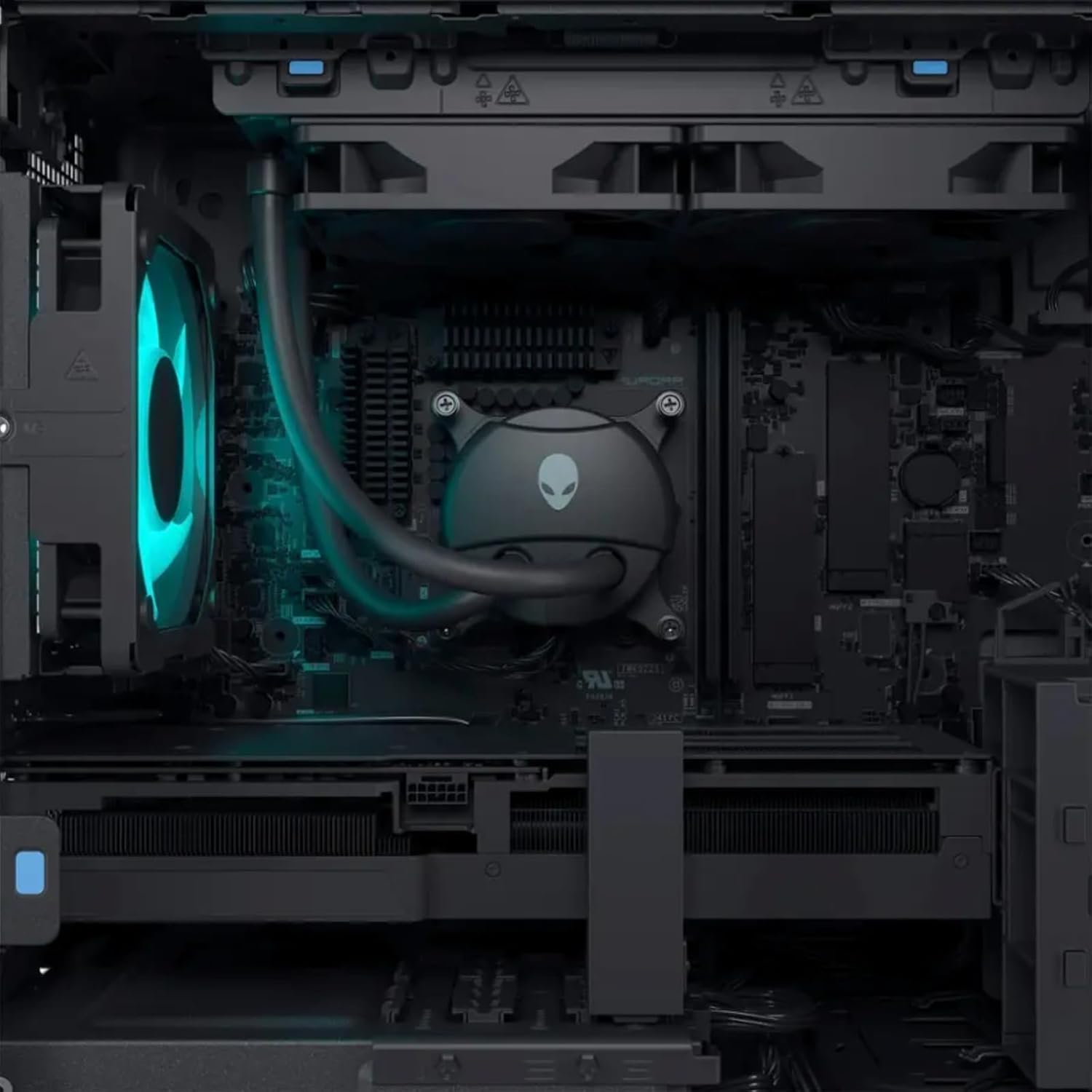
Slika 5.2: Interno view highlighting the liquid CPU cooling system and other components.

Slika 5.3: Od vrha prema dolje view of the internal layout, showing components and fan.

Figure 5.4: Angled internal view, providing a clearer look at the internal structure.
6. Rješavanje problema
This section provides solutions to common issues. For more complex problems, refer to the Alienware support webstranicu ili kontaktirajte tehničku podršku.
| Problem | Moguće rješenje |
|---|---|
| Sustav se ne uključuje. |
|
| Nema prikaza na monitoru. |
|
| System is running slow or freezing. |
|
| Periferni uređaj (tipkovnica/miš) ne reagira. |
|
7. Specifikacije
Detailed technical specifications for the Alienware Aurora R16 Gaming Desktop:
| komponenta | Specifikacija |
|---|---|
| Procesor | 14th Gen Intel Core i9-14900KF (24 Cores, 32 Threads, up to 6 GHz) |
| Grafička kartica | NVIDIA GeForce RTX 4080 SUPER 16GB GDDR6X |
| OVAN | Up to 64GB DDR5 RAM (5600MHz) |
| Skladištenje | Up to 8TB SSD + 2TB HDD |
| Operativni sustav | Windows 11 Pro |
| Bežično povezivanje | Wi-Fi 6E (802.11ax), Bluetooth |
| CPU Cooling System | Liquid Cooling (240mm) |
| GPU Cooling System | Zračno hlađenje |
| Prikaz portova | 4 x DisplayPort 1.4, 1 x Mini DisplayPort (Total 5 DisplayPort Outputs) |
| USB priključci | 3 x USB-C 3.2, 5 x USB-A 3.2, 4 x USB-A 2.0 (Total 12 USB Ports) |
| Dimenzije (VxŠxD) | 7.76 x 18.05 x 16.5 inča |
| Težina | 33.89 funti |
8. Jamstvo i podrška
8.1 Informacije o jamstvu
Your Alienware Aurora R16 Gaming Desktop comes with a standard manufacturer's warranty. For detailed terms and conditions, including warranty duration and coverage, please refer to the warranty documentation included with your product or visit the official Alienware support webmjesto.
8.2 Tehnička podrška
For technical assistance, driver downloads, or further troubleshooting, please visit the official Alienware support website or contact their customer service. Have your product's serial number ready when contacting support.
Podrška za Alienware Webstranica: support.dell.com/alienware
Ask a question about this manual
Ask about setup, troubleshooting, compatibility, parts, safety, or missing instructions. Manuals+ will review the question and use this page’s manual context to help answer it.