
1. Uvod
This user manual provides detailed instructions for the Bemi Cognita Tab 6+ E-Reader. Please read this manual carefully before using your device to ensure proper operation and to maximize your reading experience. Keep this manual for future reference.
1.1 Sadržaj paketa
- Bemi Cognita Tab 6+ E-Reader
- USB kabel za punjenje
Provjerite jesu li svi predmeti prisutni i u dobrom stanju prilikom raspakiranja.
2. Uređaj prekoview
Familiarize yourself with the physical components of your Bemi Cognita Tab 6+ E-Reader.

Slika 2.1: Ispred view of the Bemi Cognita Tab 6+ E-Reader. The device features a 6-inch E-Ink display with the Bemi logo and model name visible. The screen is designed to mimic paper for a comfortable reading experience.

Slika 2.2: Sprijeda i straga view of the Bemi Cognita Tab 6+ E-Reader. This image highlights the device's thin design and the textured back cover, which provides a secure grip.

Slika 2.3: Strana view of the Bemi Cognita Tab 6+ E-Reader, illustrating the location of the power button and a small LED indicator. This button is used for turning the device on/off and waking it from sleep.
2.1 Ključne komponente:
- 6-inch E-Ink Touchscreen: Glare-free display for comfortable reading.
- Gumb za napajanje: Located on the side for turning the device on/off and sleep/wake.
- USB-C priključak: Za punjenje i prijenos podataka.
- Utor za microSD karticu: Expandable storage up to 256GB.
- Bočne tipke za upravljanje: For page turning and navigation.
- SMARTlight: Adjustable front light for reading in various conditions.
3. Postavljanje
3.1 Početno punjenje
Before first use, fully charge your Bemi Cognita Tab 6+ E-Reader. Connect the provided USB cable to the device's USB-C port and the other end to a compatible USB power adapter (not included) or a computer's USB port.
- Potpuno punjenje obično traje otprilike 2-3 sata.
- Indikatorska lampica punjenja prikazat će status punjenja.
3.2 Uključivanje/isključivanje
- Za uključivanje: Press and hold the Power button (refer to Figure 2.3) for a few seconds until the screen activates.
- Za isključivanje: Press and hold the Power button until a power-off menu appears, then select "Power Off".
- Za spavanje/buđenje: Briefly press the Power button to put the device into sleep mode or wake it up.
3.3 Wi-Fi veza
Connecting to Wi-Fi allows you to download books, transfer files, and access online services.
- Na početnom zaslonu dodirnite postavke ikona.
- Odaberite Wi-Fi.
- Toggle the Wi-Fi switch to On.
- The device will scan for available networks. Select your desired network from the list.
- Unesite lozinku ako se to od vas zatraži, a zatim dodirnite Poveži se.
3.4 Početna konfiguracija
Upon first power-on, you may be guided through initial setup steps, including language selection and time zone settings. Follow the on-screen prompts.
4. Upute za rad
4.1 Navigacija sučeljem
The Bemi Cognita Tab 6+ features a touch-sensitive E-Ink screen and physical side buttons for navigation.
- Pokreti dodirom: Tap to select, swipe to scroll, pinch to zoom (where supported).
- Bočni gumbi: Use the physical buttons on the side to turn pages forward or backward during reading.
- G-senzor: The device automatically rotates the screen orientation based on how you hold it, accommodating both right and left-handed users.
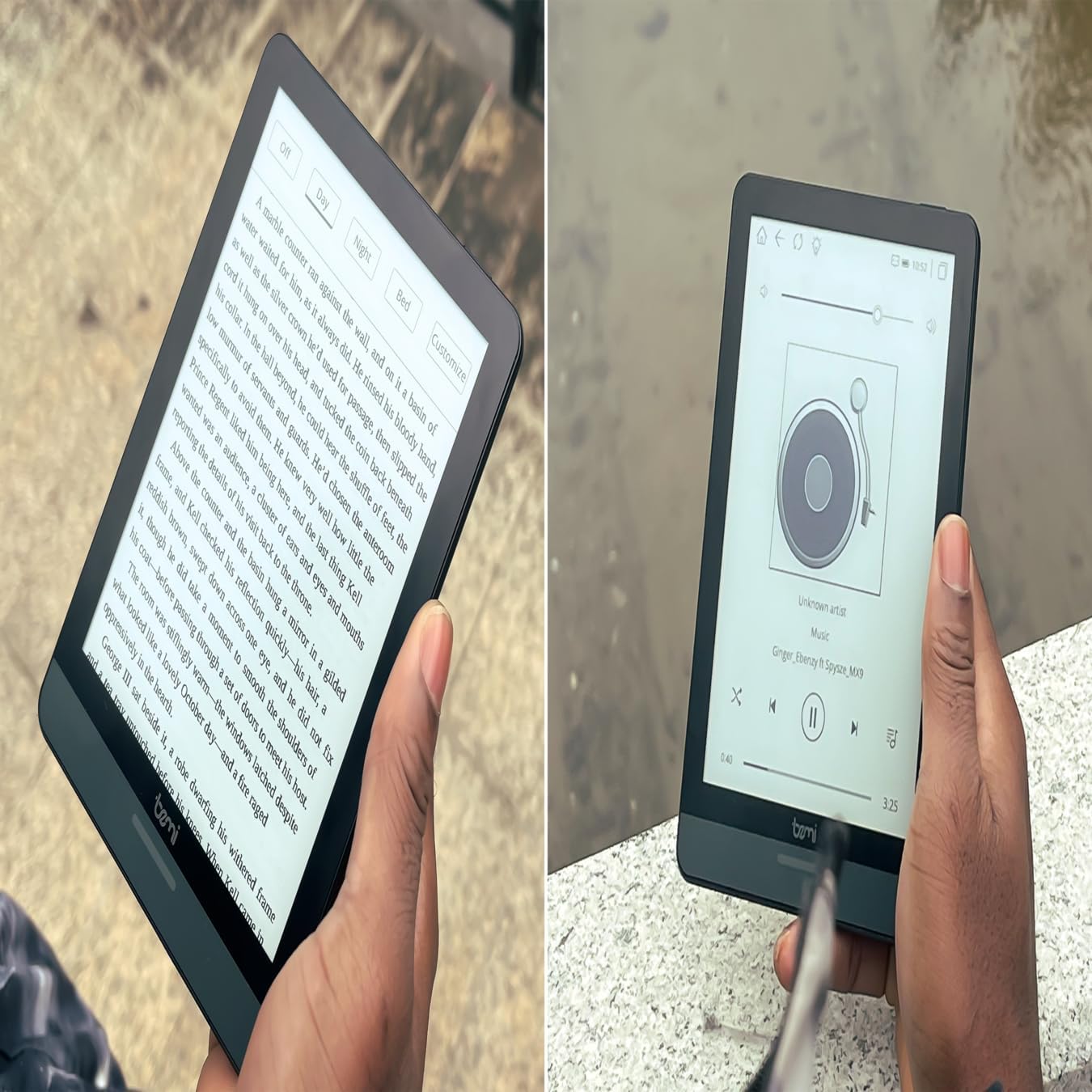
Slika 4.1: User holding the Bemi Cognita Tab 6+ E-Reader while reading. The image shows the clear text display on the E-Ink screen, highlighting the device's readability.
4.2 Čitanje knjiga
To open and read a book:
- From the home screen, tap on the Knjižnica or knjige ikona.
- Browse your collection or use the search function to find a book.
- Tap on the book cover to open it.
- Use the touch screen or side buttons to turn pages.
4.3 Adjusting SMARTlight
The SMARTlight feature allows you to adjust both the brightness and color temperature of the screen's front light.
- During reading, tap the center of the screen to bring up the reading menu.
- Potražite Svjetlo or SMARTlight ikona.
- Adjust the sliders for brightness (intensity) and color temperature (warm to cool) to your preference.
4.4 Prijenos Files
You can transfer e-books and other supported files to your device via Wi-Fi or USB cable.
- Putem Wi-Fi mreže: If your device supports cloud services or direct Wi-Fi transfer, follow the specific application instructions.
- Putem USB kabela:
- Connect your E-Reader to a computer using the provided USB cable.
- The device will appear as a removable storage drive on your computer.
- Povucite i ispustite željeni files (e.g., EPUB, PDF, MOBI) into the appropriate folders on the E-Reader (e.g., "Books" folder).
- Prije odspajanja kabela, sigurno isključite uređaj iz računala.
4.5 Using MicroSD Card
To expand storage, insert a microSD card (up to 256GB) into the designated slot.
- Pažljivo umetnite microSD karticu sa zlatnim kontaktima okrenutim prema dolje dok ne klikne na mjesto.
- Za uklanjanje, lagano gurnite karticu prema unutra dok ne izađe.
- Files on the microSD card will be accessible through the device's file manager or library.
5. Održavanje
5.1 Čišćenje uređaja
- Zaslon i kućište uređaja nježno obrišite mekom krpom koja ne ostavlja dlačice.
- Za tvrdokorne mrlje, lagano dampOperite krpu vodom ili sredstvom za čišćenje ekrana posebno namijenjenim za elektroniku.
- Izbjegavajte korištenje jakih kemikalija, abrazivnih materijala ili prekomjerne vlage.
5.2 Njega baterija
- Kako biste produžili vijek trajanja baterije, izbjegavajte često potpuno pražnjenje baterije.
- Uređaj čuvajte na hladnom i suhom mjestu kada se ne koristi dulje vrijeme.
- Charge the device regularly, even if not used, to prevent deep discharge.
5.3 Skladištenje
When not in use, store your E-Reader in a protective case to prevent scratches and damage to the screen.
6. Rješavanje problema
If you encounter issues with your Bemi Cognita Tab 6+, refer to the following common solutions:
| Problem | Otopina |
|---|---|
| Uređaj se ne uključuje. | Ensure the battery is charged. Connect the device to a power source for at least 30 minutes. If it still doesn't turn on, try a hard reset by holding the power button for 10-15 seconds. |
| Zaslon je zamrznut ili ne reagira. | Perform a soft reset by holding the power button for 5-7 seconds until the device restarts. If the issue persists, try a hard reset. |
| Ne mogu se spojiti na Wi-Fi. | Check if Wi-Fi is enabled in settings. Verify the Wi-Fi password. Restart your E-Reader and your Wi-Fi router. Ensure you are within range of the Wi-Fi signal. |
| Books are not appearing in the library. | Osigurajte files are in a supported format (e.g., EPUB, PDF). If transferred via USB, ensure they are in the correct folder. Try refreshing the library or restarting the device. |
| Baterija se brzo prazni. | Reduce screen brightness. Turn off Wi-Fi and Bluetooth when not in use. Close background applications. Ensure the device is not constantly searching for networks. |
7. Specifikacije
| Značajka | Detalj |
|---|---|
| Naziv modela | Bemi Cognita Tab 6+ |
| Veličina zaslona | 6 Inches (E-Ink Carta, 1024x758, 212 ppi) |
| Interna memorija | 32 GB |
| Proširiva pohrana | Utor za MicroSD karticu, do 256 GB |
| Povezivost | Wi-Fi, Bluetooth |
| Operativni sustav | Android 8.1 |
| Unos ljudskog sučelja | Touchscreen, Side Control Buttons |
| Posebne značajke | Adjustable SMARTlight, G-Sensor for auto-rotation, Glare-Free & Eye-Friendly E-Ink Display |
| Dimenzije (približno) | 7 mm debljine |
| Uključene komponente | USB kabel |
8. Jamstvo i podrška
8.1 Informacije o jamstvu
Your Bemi Cognita Tab 6+ E-Reader comes with a standard manufacturer's warranty. Please refer to the warranty card included in your product packaging or visit the official Bemi webstranicu za detaljne uvjete i odredbe u vezi s jamstvenim pokrićem i trajanjem.
Za prošireno pokriće mogu biti dostupni dodatni planovi zaštite. Za detalje se obratite svom prodavaču.
8.2 Korisnička podrška
For technical assistance, troubleshooting beyond this manual, or warranty claims, please contact Bemi customer support:
- Webstranica: www.bemi-electronics.com
- Email: Refer to the Bemi webstranica za kontaktni e-mail.
- Telefon: Refer to the Bemi webstranica za kontaktne brojeve telefona.
When contacting support, please have your device model (Cognita Tab 6+) and purchase information ready.