
1. Uvod
The TABWEE 10.1 Inch WiFi Digital Calendar, Model P10, is an interactive touchscreen display designed to streamline family organization. It integrates calendars, task management, meal planning, and digital photo frame capabilities into a single device. This manual provides detailed instructions to help you set up and utilize all features of your new digital calendar.

Slika 1.1: The TABWEE Digital Calendar in use, showcasing its calendar interface and mobile app synchronization.
2. Sigurnosne informacije
- Pazite da je uređaj postavljen na stabilnu, ravnu površinu kako biste spriječili slučajne padove.
- Koristite samo priloženi adapter za napajanje. Korištenje neovlaštenih adaptera može oštetiti uređaj i poništiti jamstvo.
- Držite uređaj dalje od vode, vlage i ekstremnih temperatura.
- Do not attempt to open or repair the device yourself. Refer to qualified service personnel for any maintenance or repair needs.
- Keep out of reach of small children to prevent accidental ingestion of small parts or damage to the device.
3. Sadržaj paketa
Provjerite jesu li svi artikli prisutni u paketu:
- TABWEE 10.1 Inch WiFi Digital Calendar (Model P10)
- Adapter napajanja
- Korisnički priručnik (ovaj dokument)
4. Proizvod je gotovview
Familiarize yourself with the physical components of your TABWEE Digital Calendar.

Slika 4.1: Technical details and component layout of the TABWEE Digital Calendar.
- Gumb za uključivanje/isključivanje: Nalazi se sa strane za uključivanje ili isključivanje uređaja.
- Gumbi za pojačavanje / smanjivanje glasnoće: Adjust the device's audio output.
- Senzor svjetla: Automatski podešava svjetlinu zaslona na temelju ambijentalnog osvjetljenja.
- Stalak za podršku: Integrated stand for desk placement.
5. Postavljanje
5.1 Početno uključivanje
- Connect the provided power adapter to the device's power port.
- Plug the adapter into a standard electrical outlet. The device will automatically power on.
- Slijedite upute na zaslonu za odabir jezika i regije.
5.2 Mrežna veza
- On the initial setup screen, select your Wi-Fi network from the list.
- Enter your Wi-Fi password and tap 'Connect'.
- Ensure the device is connected to a stable internet connection for full functionality.
5.3 Instalacija aplikacije i stvaranje računa
To fully utilize the calendar's features, download and set up the companion 'eCalendar' app on your smartphone (iOS or Android).

Slika 5.1: Steps for downloading and creating an account on the eCalendar app.
- Scan the QR code displayed on the calendar screen or search for 'eCalendar' in your device's app store (Google Play Store for Android, Apple App Store for iOS).
- Preuzmite i instalirajte aplikaciju.
- Open the eCalendar app and follow the prompts to create a new account or log in if you already have one.
- Slažem se s korisničkim ugovorom i pravilima o privatnosti.
5.4 Device Linking
Link your TABWEE Digital Calendar to your eCalendar app account.

Slika 5.2: Linking the calendar device to the eCalendar app and setting up your unique calendar email.
- In the eCalendar app, select the option to 'Add Device' or 'Activate a new eCalendar Frame'.
- Follow the on-screen instructions to pair your device. This may involve scanning a QR code displayed on the calendar or entering a pairing code.
- Once linked, you can set up your unique calendar email address within the app.
6. Operacija
6.1 Osnovna navigacija
The TABWEE Digital Calendar features a responsive touchscreen. Navigate through menus and features by tapping, swiping, and pinching as you would on a tablet device.
6.2 Calendar Management
The core function of your device is calendar management, allowing for seamless synchronization and event organization.
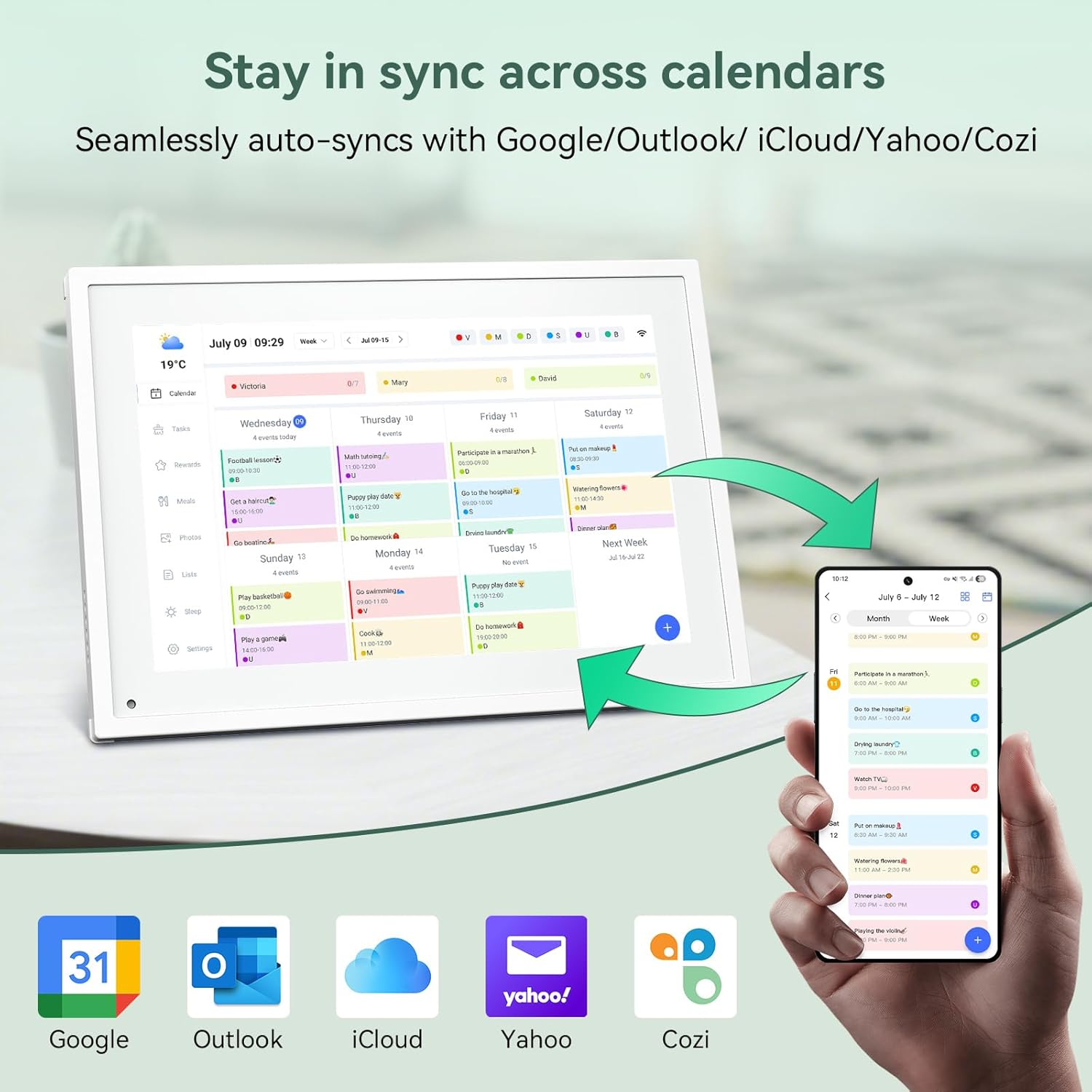
Slika 6.1: Seamless synchronization of the digital calendar with various external calendar services.
- Syncing External Calendars: Within the eCalendar app settings, you can link your Google, Apple, Outlook, Yahoo, or Cozi calendars. Events from these linked accounts will automatically appear on your TABWEE Digital Calendar.
- Adding/Editing Events: Tap on a date or time slot on the calendar display or use the eCalendar app to add new events. You can specify event details, set reminders, and assign participants.
- Prilagođeno Views: Switch between day, week, or month views directly on the device or through the app.
6.3 Task Management (Chore Chart)
Organize tasks and chores for family members with a built-in reward system.
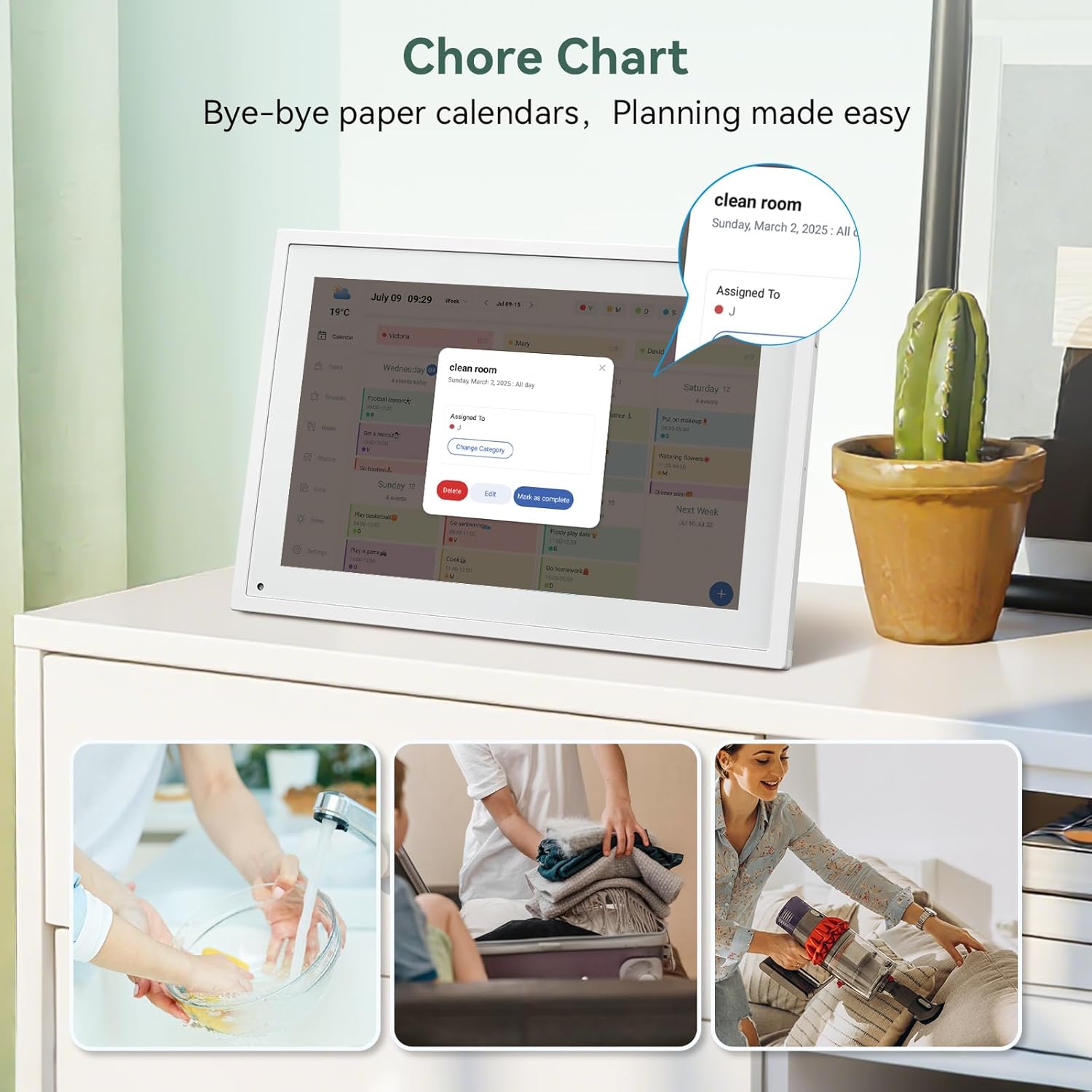
Slika 6.2: Managing tasks and chores on the digital calendar interface.
- Creating Tasks: Use the 'Tasks' section on the device or app to create new tasks. Assign them to specific individuals, set due dates, and configure recurring tasks.
- Tracking Progress: Users can mark tasks as complete. The system tracks completion and can be configured to award points.
- Sustav nagrađivanja: Set up a star-point reward system within the app. Points earned from completed tasks can be redeemed for custom rewards, encouraging participation.

Slika 6.3: The task manager and rewards interface, designed for engaging users.
6.4 Meal Planning
Plan your meals directly on the device or through the app.

Slika 6.4: Visual meal planning interface on the digital calendar.
- Create Meal Plans: Access the 'Meals' section to plan breakfasts, lunches, dinners, and snacks for the week.
- Prilagođeni recepti: Upload and store your favorite recipes.
- Grocery Lists: Generate grocery lists based on your meal plans.
6.5 Funkcionalnost digitalnog okvira za fotografije
The device can also function as a digital photo frame.

Slika 6.5: The digital calendar switching between calendar and photo frame modes, in both landscape and portrait orientations.
- Prebacivanje načina rada: Navigate to the 'Photos' section on the device or app to activate the digital photo frame mode.
- Prijenos fotografija: Upload your favorite memories directly from your smartphone via the eCalendar app.
- Orijentacija: The device supports both landscape and portrait orientations, automatically adjusting the display.
6.6 Ostale značajke
The TABWEE Digital Calendar includes additional smart features to enhance usability.
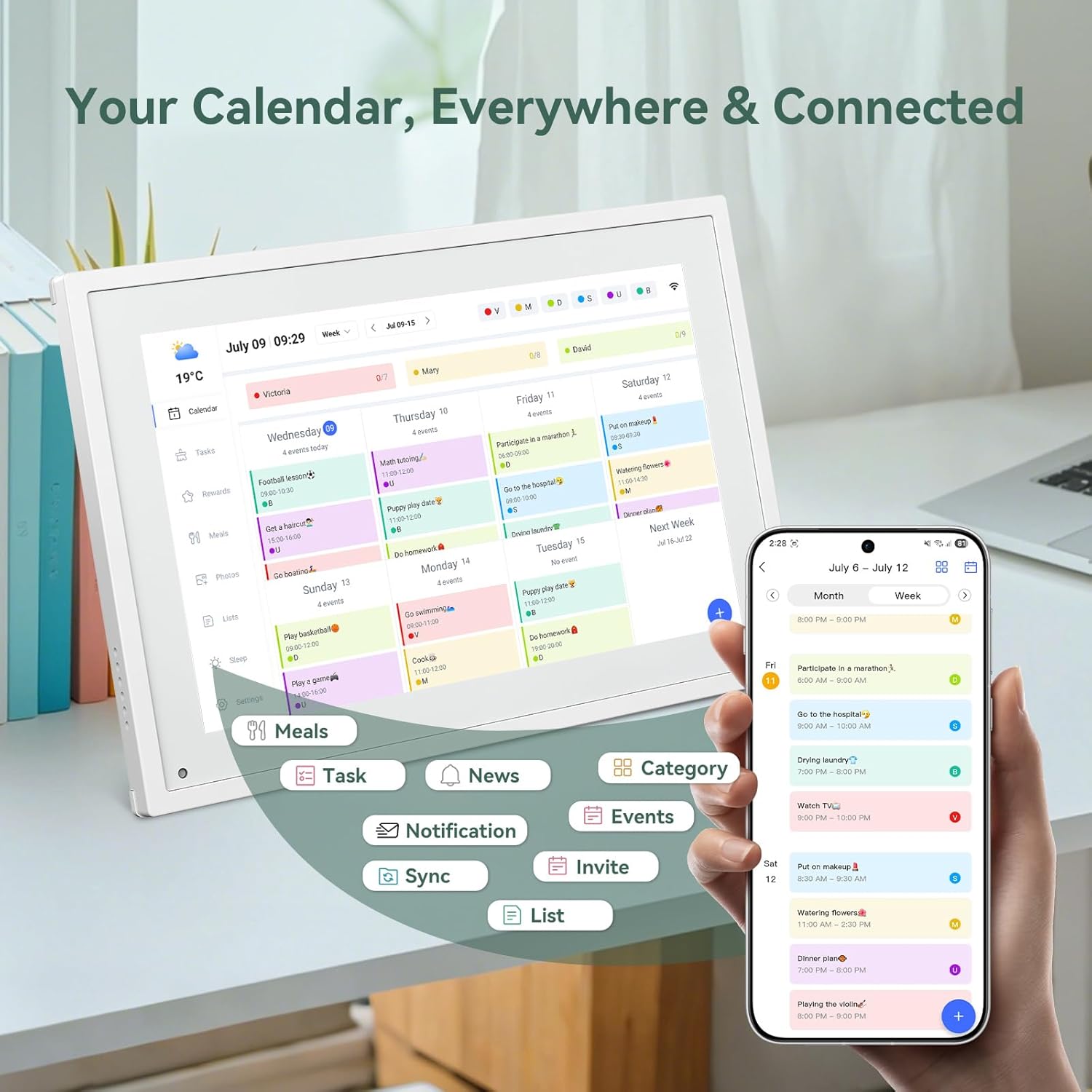
Slika 6.6: Nadview of smart features and app connectivity.
- Live Weather Forecasts: Prikazuje trenutne vremenske uvjete i prognoze.
- Automatsko osvjetljenje: The built-in light sensor automatically adjusts screen brightness for optimal viewing.
- Stanje mirovanja: Configure scheduled times for the device to enter a low-power sleep mode.
- Custom Lists: Create and manage various lists (e.g., shopping lists, packing lists).
- Kodiranje boja: Assign different colors to events or tasks for easy visual identification.
7. Održavanje
7.1 Čišćenje uređaja
- Nježno obrišite zaslon mekom krpom koja ne ostavlja dlačice. Za tvrdokorne mrlje, laganoampobrišite krpu vodom ili otopinom za čišćenje zaslona.
- Izbjegavajte korištenje jakih kemikalija, abrazivnih materijala ili aerosolnih sprejeva izravno na uređaju.
- Prije čišćenja provjerite je li uređaj isključen i izvučen iz struje.
7.2 Ažuriranja softvera
The device may receive periodic software updates to improve performance and add new features. Ensure your device is connected to Wi-Fi to receive these updates. You will typically be notified on-screen when an update is available.
8. Rješavanje problema
| Problem | Mogući uzrok | Otopina |
|---|---|---|
| Uređaj se ne uključuje. | Adapter za napajanje nije spojen ili je neispravan. | Provjerite je li adapter za napajanje sigurno spojen na uređaj i ispravnu utičnicu. |
| Ne mogu se spojiti na Wi-Fi. | Netočna lozinka, izvan dometa ili problem s mrežom. | Verify Wi-Fi password. Move the device closer to the router. Restart your router. |
| Calendar events are not syncing. | App not linked, external calendar not connected, or internet issue. | Check app-device linking. Ensure external calendars are correctly linked in the eCalendar app. Verify internet connection. |
| Zaslon ne reagira. | Privremeni softverski kvar. | Restart the device by holding the power button until it turns off, then power it back on. |
9. Specifikacije
| Značajka | Detalj |
|---|---|
| Broj modela | P10 |
| Veličina zaslona | 10.1 inča |
| Vrsta zaslona | Zaslon osjetljiv na dodir |
| Povezivost | WiFi |
| Dimenzije proizvoda | 10.51 x 0.91 x 7.32 inča (26.7 x 2.3 x 18.6 cm) |
| Težina artikla | 2.58 funti (1.17 kg) |
| Vrsta montaže | Desk Mount (not wall-mountable) |
| Izvor napajanja | Plug-in (no internal battery) |
| Boja | Bijela |
10. Jamstvo i podrška
The TABWEE Digital Calendar comes with a standard manufacturer's warranty. For specific warranty terms and conditions, please refer to the warranty card included in your product packaging or visit the official TABWEE webmjesto.
For technical support, troubleshooting assistance, or any inquiries regarding your product, please contact TABWEE customer service through their official webweb-mjesto ili kontaktne podatke navedene u dokumentaciji proizvoda.


