
CRUA CR340AU
CRUA 34-inch Ultrawide Gaming Monitor User Manual
Model: CR340AU
1. Sigurnosne informacije
Prije upotrebe ovog monitora pažljivo pročitajte sve upute. Sačuvajte ovaj priručnik za buduću upotrebu.
- Ne izlažite monitor kiši ili vlazi kako biste spriječili požar ili strujni udar.
- Ne otvarajte monitor casing. Unutra nema dijelova koje korisnik može sam servisirati. Za sve servisne radove obratite se kvalificiranom osoblju.
- Monitor postavite na stabilnu, ravnu površinu kako biste spriječili njegov pad.
- Osigurajte pravilnu ventilaciju oko monitora. Ne blokirajte ventilacijske otvore.
- Koristite samo adapter za napajanje koji dolazi s monitorom.
- Isključite utikač iz utičnice ako se monitor neće koristiti dulje vrijeme.
2. Sadržaj paketa
Provjerite jesu li svi artikli prisutni u vašem paketu:
- CRUA 34-inch Ultrawide Gaming Monitor
- Stalak za monitor (baza i vrat)
- Strujni adapter i kabel
- HDMI kabel
- DisplayPort (DP) kabel
- korisnički priručnik
- Vijci za montažu stalka
3. Postavljanje
3.1 Sastavljanje postolja
- Pažljivo izvadite monitor iz ambalaže, držeći ga zaštićenim na mekoj površini.
- Attach the stand neck to the monitor's rear panel using the provided screws.
- Connect the stand base to the stand neck and secure it with the designated screw.
- Sastavljeni monitor postavite na stabilnu površinu.
The monitor stand allows for tilt adjustment to find your optimal viewing kut.
3.2 Montaža na zid (opcionalno)
This monitor supports VESA wall mounting (75x75mm). To wall mount:
- Remove the stand from the monitor if it is already attached.
- Attach a compatible VESA 75x75mm wall mount bracket (not included) to the monitor's rear panel using appropriate screws.
- Za sigurnu montažu slijedite upute koje ste dobili uz zidni nosač.

Slika: Stražnja strana view of the monitor highlighting the 75x75mm wall mount area and various input ports.
3.3 Povezivanje s uređajem
Connect your computer or gaming console to the monitor using one of the available ports:
- DisplayPort (DP 1.4): For optimal performance, especially for high refresh rates and FreeSync.
- HDMI (HDMI 1.4 x2): Compatible with most devices.
Connect the power adapter to the monitor's DC input and then plug it into a power outlet.
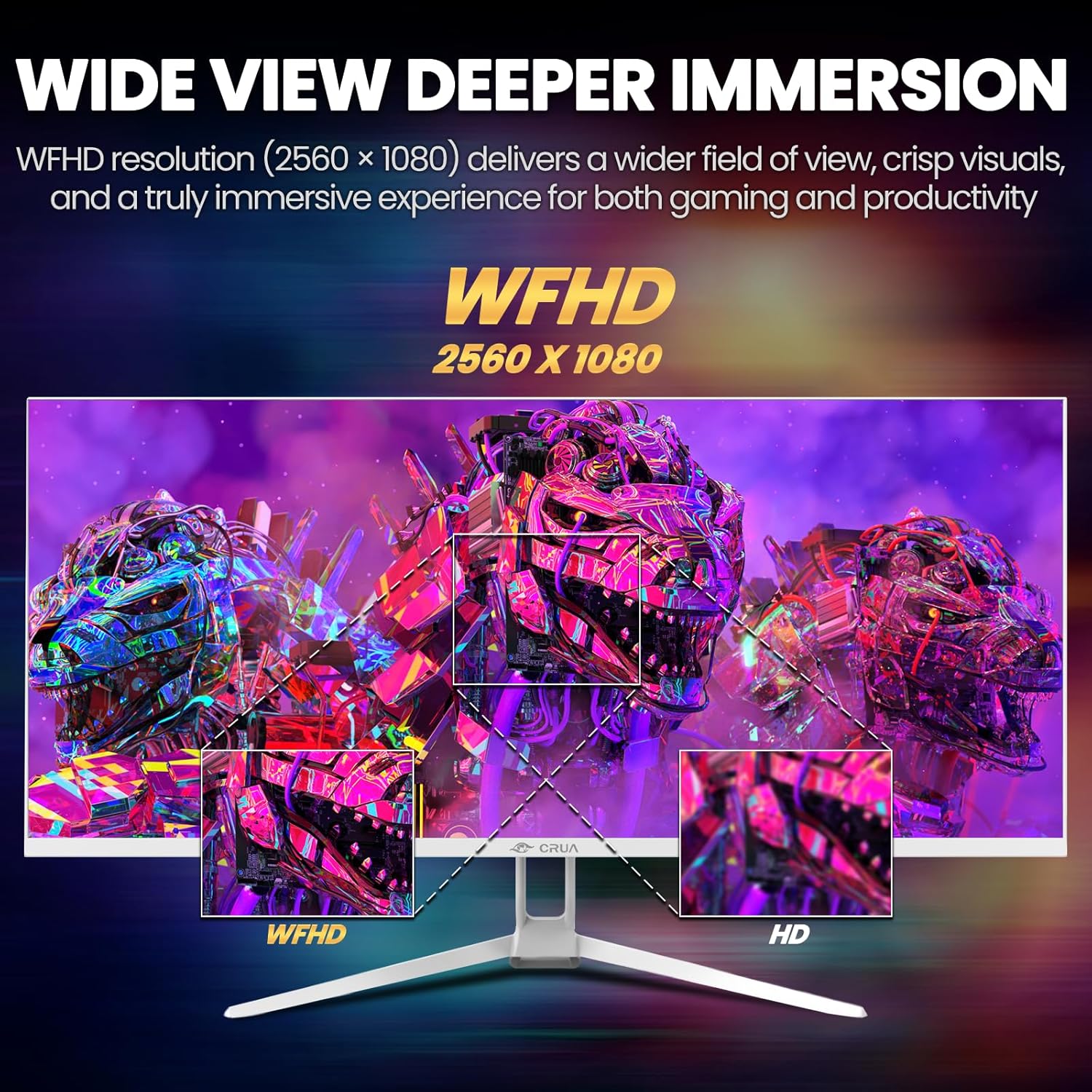
Image: A detailed diagram illustrating the monitor's connectivity options, including two HDMI 1.4 ports, one DisplayPort 1.4, an audio output, a USB charging port, and the DC power input.
4. Upute za rad
4.1 Uključivanje/isključivanje
Press the power button, typically located on the bottom or rear of the monitor, to turn it on or off. The power indicator light will illuminate when the monitor is on.
4.2 Izbornik na zaslonu (OSD)
The OSD menu allows you to adjust various monitor settings. Access it by pressing the OSD menu button (often a joystick-like button or a set of dedicated buttons) on the monitor.
- Navigacija: Use the OSD buttons or joystick to navigate through the menu options.
- Izbor: Pritisnite gumb za odabir za ulazak u podizbornik ili potvrdu postavke.
- Izlaz: Use the exit button to go back or close the OSD menu.
4.3 Postavke slike
Prilagodite vizualne parametre za optimalno viewing:
- Svjetlina: Kontrolira ukupnu svjetlinu zaslona.
- Kontrast: Podešava razliku između svijetlih i tamnih područja.
- Temperatura boje: Selects preset color modes (e.g., Warm, Cool, User).
- Filter plavog svjetla: Reduces blue light emission to minimize eye strain during prolonged use.
- Omjer slike: Set to 21:9 for ultrawide content or other options as needed.

Image: The CRUA ultrawide monitor showcasing its 21:9 aspect ratio, demonstrating how it provides more horizontal screen space compared to a standard 16:9 display.
4.4 Audio postavke
The monitor includes built-in speakers. Adjust volume through the OSD menu or your connected device. An external audio output port is also available for headphones or external speakers.
4.5 AMD FreeSync
To enable AMD FreeSync for tear-free gaming, ensure your graphics card supports FreeSync and that it is enabled in your graphics card's control panel. Then, activate FreeSync within the monitor's OSD menu.

Image: A visual comparison demonstrating the effect of AMD FreeSync, showing a torn image when FreeSync is off and a smooth image when FreeSync is on, highlighting the 120Hz refresh rate.
5. Održavanje
5.1 Čišćenje zaslona
- Isključite monitor i izvucite kabel za napajanje.
- Lagano koristite meku krpu koja ne ostavlja dlačice dampvodom ili specijaliziranim sredstvom za čišćenje ekrana.
- Wipe the screen gently. Do not press hard or use abrasive cleaners.
5.2 Opća briga
- Držite monitor dalje od izravne sunčeve svjetlosti, izvora topline i prekomjerne prašine.
- Izbjegavajte stavljanje teških predmeta na monitor ili njegove kabele.
- Do not spray cleaning liquids directly onto the monitor.
6. Rješavanje problema
Ako naiđete na probleme s monitorom, pogledajte sljedeće uobičajene probleme i rješenja:
| Problem | Moguće rješenje |
|---|---|
| Nema slike na ekranu | Ensure power cable is securely connected and the monitor is turned on. Check video cable (HDMI/DP) connections to both monitor and computer. Select the correct input source via the OSD menu. |
| Image is flickering or unstable | Check video cable connections. Ensure your graphics card drivers are up to date. If using FreeSync, try disabling it temporarily to see if the issue persists. Adjust refresh rate in your computer's display settings. |
| Nema zvuka iz ugrađenih zvučnika | Increase volume via the OSD menu and your computer's sound settings. Ensure the correct audio output device is selected on your computer. Check if the audio cable (if used) is properly connected. |
| Boje izgledaju netočno | Reset picture settings to factory defaults via the OSD menu. Adjust color temperature and individual RGB values if available. |
If the problem persists after trying these solutions, please contact CRUA customer support.
7. Specifikacije
Key technical specifications for the CRUA 34-inch Ultrawide Gaming Monitor (Model CR340AU):
| Značajka | Specifikacija |
|---|---|
| Veličina zaslona | 34 inča |
| Vrsta ploče | IPS |
| Rezolucija | 2560 x 1080 (WFHD) |
| Omjer slike | 21:9 |
| Brzina osvježavanja | 120 Hz |
| Vrijeme odziva | (Not specified in provided data, typical for IPS is 1-5ms GTG) |
| Svjetlina | 350 cd/m² |
| Raspon boja | 120% sRGB |
| Dubina boje | 8-bit (16.7 Million Colors) |
| Viewing kutova | 178° (vodoravno/vertikalno) |
| Adaptivna sinkronizacija | AMD FreeSync |
| Povezivost | 2x HDMI 1.4, 1x DisplayPort 1.4, Audio Out, USB Charging, DC Power Input |
| Ugrađeni zvučnici | Da |
| Zidni nosač | VESA 75x75 mm |
| Dimenzije proizvoda | 9.4 x 24.13 x 17.47 inča |
| Težina artikla | 14.92 funti |
8. Jamstvo i podrška
CRUA provides high-quality computer monitors and customer service. For any questions or support needs regarding your CRUA 34-inch Ultrawide Gaming Monitor, please contact CRUA customer support.
Refer to your purchase documentation or the official CRUA webstranicu za specifične uvjete jamstva i kontaktne podatke.