
1. Uvod
This manual provides essential information for the installation, operation, and maintenance of your Hikvision IDS-7208HQHI-M1/XT 8-Channel 5MP Turbo HD DVR. Please read this manual thoroughly before using the product to ensure correct and safe operation. Keep this manual for future reference.
The Hikvision IDS-7208HQHI-M1/XT is an advanced 8-channel Digital Video Recorder designed for high-definition surveillance systems. It supports various video input formats, including Turbo HD, AHD, CVI, CVBS, and IP cameras, offering versatile compatibility. Key features include 5MP recording capability, H.265+ video compression for efficient storage, AcuSense technology for intelligent motion detection, and remote access via the Hik-Connect app.
2. Sadržaj paketa
Verify that all items are present and in good condition upon unpacking. If any items are missing or damaged, contact your supplier immediately.
- DVR main unit
- Adapter napajanja
- USB miš
3. Značajke proizvoda
The Hikvision IDS-7208HQHI-M1/XT DVR offers a range of features designed for effective surveillance:
- 8-Channel DVR with 5MP HD Support: Supports multiple analog HD camera formats and up to 8 channels of real-time video monitoring and recording.
- Two-Way Audio Support: Enables audio communication through compatible cameras.
- Built-In AcuSense Technology: Smart analysis minimizes false alarms by focusing on human and vehicle-based motion detection.
- Remote Access via Hik-Connect App: View live video, playback recordings, and receive alerts anytime on your smartphone.
- Efficient Storage with H.265+ Compression: Saves bandwidth and hard disk space while maintaining clear video quality.
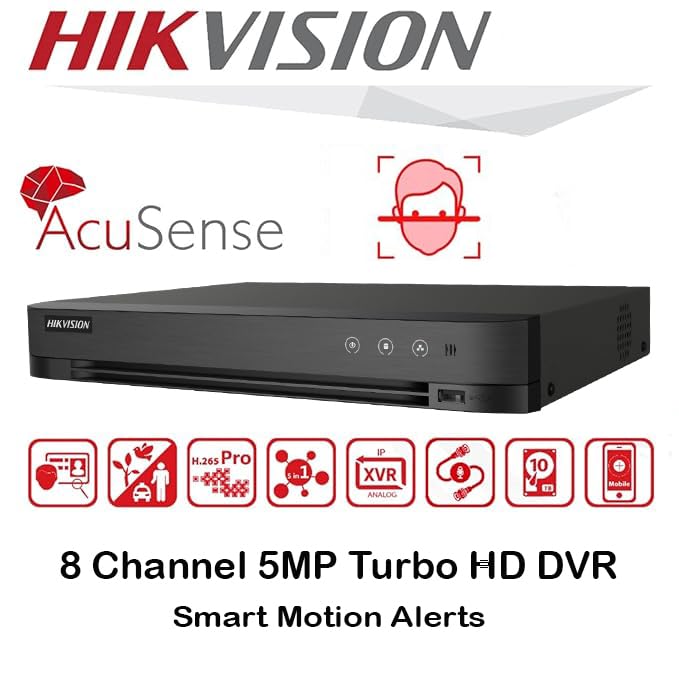
Slika: Prekoview of key features including AcuSense, H.265+ compression, and 5MP resolution support.
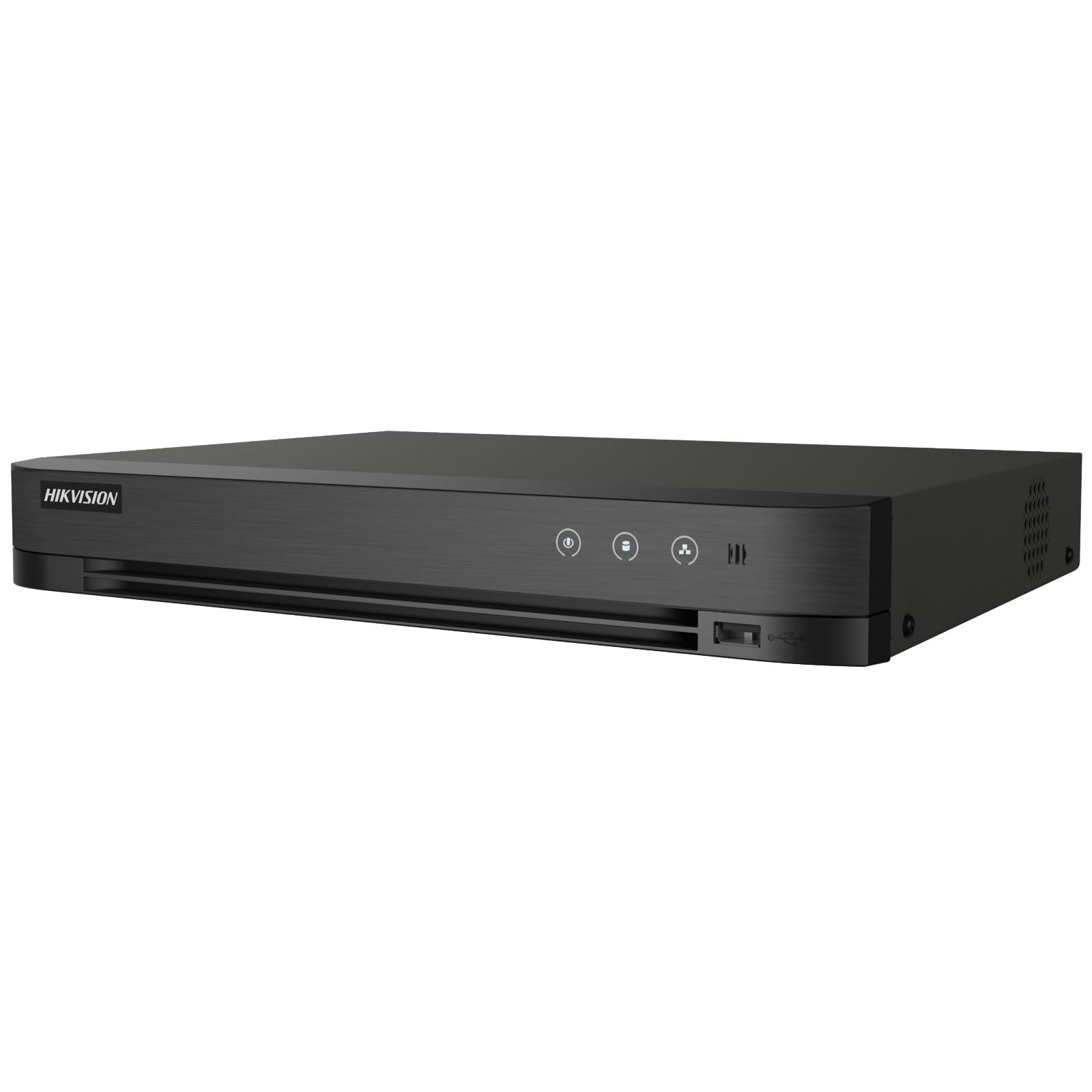
Image: The Hikvision Turbo HD DVR highlighting its support for two-way audio cameras, enabling interactive communication.
4. Fizičko sučelje
Familiarize yourself with the ports and indicators on the DVR unit. The following diagram illustrates the rear panel of the Hikvision IDS-7208HQHI-M1/XT DVR:

Image: Rear panel connections of the DVR, showing video inputs, audio ports, network, and power.
- Video ulaz (BNC): Connect analog HD cameras (Turbo HD, AHD, CVI, CVBS).
- Video Out (BNC): Connect to a monitor for local display.
- Audio ulaz (RCA): Connect external audio input devices.
- HDMI izlaz: Connect to an HDMI-compatible monitor or TV for high-definition video output.
- VGA izlaz: Connect to a VGA-compatible monitor.
- Audio izlaz (RCA): Connect to external audio output devices.
- USB priključci: Connect a USB mouse, USB flash drive for backup, or external storage.
- LAN priključak (RJ45): Connect to your network for remote access and IP camera integration.
- RS-485: For PTZ camera control (if supported).
- 12V DC ulaz napajanja: Spojite isporučeni strujni adapter.
- Uzemljeni terminal: Za uzemljenje uređaja.
5. Postavljanje
Follow these steps for initial setup of your DVR system:
5.1 Hard Drive Installation (if not pre-installed)
- Odvijte i uklonite gornji poklopac DVR-a.
- Spojite SATA podatkovni kabel i kabel za napajanje na tvrdi disk.
- Pričvrstite tvrdi disk na kućište DVR-a pomoću priloženih vijaka.
- Vratite gornji poklopac i pričvrstite ga vijcima.
5.2 Spajanje perifernih uređaja
- Connect your cameras to the Videozapis (BNC) ports.
- Spojite monitor na HDMI or VGA izlazni priključak.
- Connect the USB mouse to a USB priključak.
- Connect the DVR to your network router using an Ethernet cable plugged into the LAN priključak.
- Spojite adapter za napajanje na 12V DC ulaz za napajanje and then plug it into a power outlet.
5.3 Početna konfiguracija
- Upon first boot, the DVR will guide you through a setup wizard.
- Set a strong password for the administrator account.
- Konfigurirajte mrežne postavke (DHCP je obično dovoljan za većinu kućnih mreža).
- Initialize the hard drive if prompted. This will format the drive for recording.
- Adjust date, time, and other system preferences as needed.
6. Operativni
Once the DVR is set up, you can begin monitoring and recording.
6.1 Uživo View
After logging in, the DVR will display the live view from connected cameras on the monitor. You can switch between single-camera view i mreža s više kamera view using the on-screen controls or mouse.
6.2 Snimanje
The DVR is typically configured to record continuously or based on motion detection. You can adjust recording schedules and settings through the DVR's menu system (Configuration > Record > Schedule).
6.3 Reprodukcija
Za ponovnoview snimljeno footage, idite do Reprodukcija menu. Select the date, time, and camera channel to view recordings. Use the playback controls (play, pause, fast forward, rewind) to navigate through the footage.
6.4 Remote Access (Hik-Connect App)
The Hik-Connect app allows you to access your DVR remotely from a smartphone or tablet.
- Download the Hik-Connect app from your device's app store.
- Create a Hik-Connect account and log in.
- Add your DVR by scanning the QR code on the DVR's label or by manually entering its serial number.
- Follow the in-app instructions to complete the device addition.
- Nakon što ga dodate, možete view live feeds, play back recordings, and receive push notifications for events.

Image: Illustration of the Hik-Connect mobile application interface, demonstrating remote access to live video and recordings.
7. Održavanje
Redovito održavanje osigurava optimalne performanse i dugotrajnost vašeg DVR sustava.
- Clean the DVR: Periodically clean the exterior of the DVR with a soft, dry cloth. Ensure ventilation openings are free from dust to prevent overheating.
- Ažuriranja firmvera: Check the official Hikvision webstranica za ažuriranja firmvera. Ažuriranje firmvera može poboljšati performanse, dodati značajke i ispraviti pogreške. Pažljivo slijedite upute za ažuriranje.
- Stanje tvrdog diska: Monitor the health of your hard drive through the DVR's system menu (Upravljanje HDD-om). Replace the hard drive if it shows signs of failure.
- Sigurnosna kopija važnih stvaritage: Regularly back up critical video footagna vanjski USB pogon ili mrežnu pohranu.
- Sigurnost lozinke: Change your DVR and Hik-Connect passwords periodically to maintain security.
8. Rješavanje problema
Ovaj odjeljak obrađuje uobičajene probleme s kojima se možete susresti.
8.1 Nema video izlaza na monitoru
- Check if the monitor is powered on and correctly connected to the DVR's HDMI or VGA port.
- Provjerite je li na monitoru odabran ispravan ulazni izvor.
- Pokušajte se spojiti na drugi monitor ili upotrijebiti drugi kabel.
8.2 Kamere se ne prikazuju
- Verify that cameras are powered on and properly connected to the DVR's BNC inputs.
- Check camera power supplies.
- Ensure the camera type (TVI, AHD, CVI, CVBS) is compatible with the DVR and configured correctly in the DVR settings.
8.3 Remote Access Not Working
- Ensure the DVR is connected to the internet via the LAN port.
- Check network settings on the DVR (Konfiguracija > Mreža).
- Verify that the Hik-Connect service is enabled on the DVR.
- Provjerite ima li vaš pametni telefon aktivnu internetsku vezu.
- Re-add the device to the Hik-Connect app if necessary.
8.4 Nema snimanja
- Check if a hard drive is installed and properly initialized (Configuration > HDD).
- Verify recording schedules are set correctly (Configuration > Record > Schedule).
- Provjerite ima li dovoljno slobodnog prostora na tvrdom disku.
9. Specifikacije
Detailed technical specifications for the Hikvision IDS-7208HQHI-M1/XT DVR:
| Značajka | Specifikacija |
|---|---|
| Broj modela | IDS-7208HQHI-M1/XT |
| Video ulaz | 8-Channel (Turbo HD/AHD/CVI/CVBS/IP) |
| Video kompresija | H.265 + / H.265 / H.264 + / H.264 |
| Rezolucija snimanja | Do 5 MP |
| Video izlaz | HDMI, VGA, BNC |
| Audio ulaz/izlaz | 2-Way Audio Support |
| Mrežno sučelje | 1 RJ45 10M/100M Ethernet Interface |
| USB sučelje | 2 x USB 2.0 |
| Podrška za tvrdi disk | 1 SATA interface (up to 10 TB capacity per HDD) |
| Napajanje | 12V DC |
| Dimenzije (D x Š x V) | 19.7 x 19.2 x 4.1 cm |
| Težina | 1.5 kg |
| Proizvođač | HIKVISION, Prama Hikvision India Pvt. Ltd. |
10. Jamstvo i podrška
For warranty information and technical support, please refer to the warranty card included with your product or visit the official Hikvision webstranicu. Sačuvajte račun kao dokaz o kupnji za slučaj reklamacije.
For further assistance, contact Hikvision customer support or your authorized dealer.