
1. Uvod
This manual provides essential information for setting up, operating, and maintaining your Acer Nitro V 15 ANV15-52 Gaming Laptop. Please read this guide thoroughly to ensure proper use and to maximize the performance and longevity of your device.
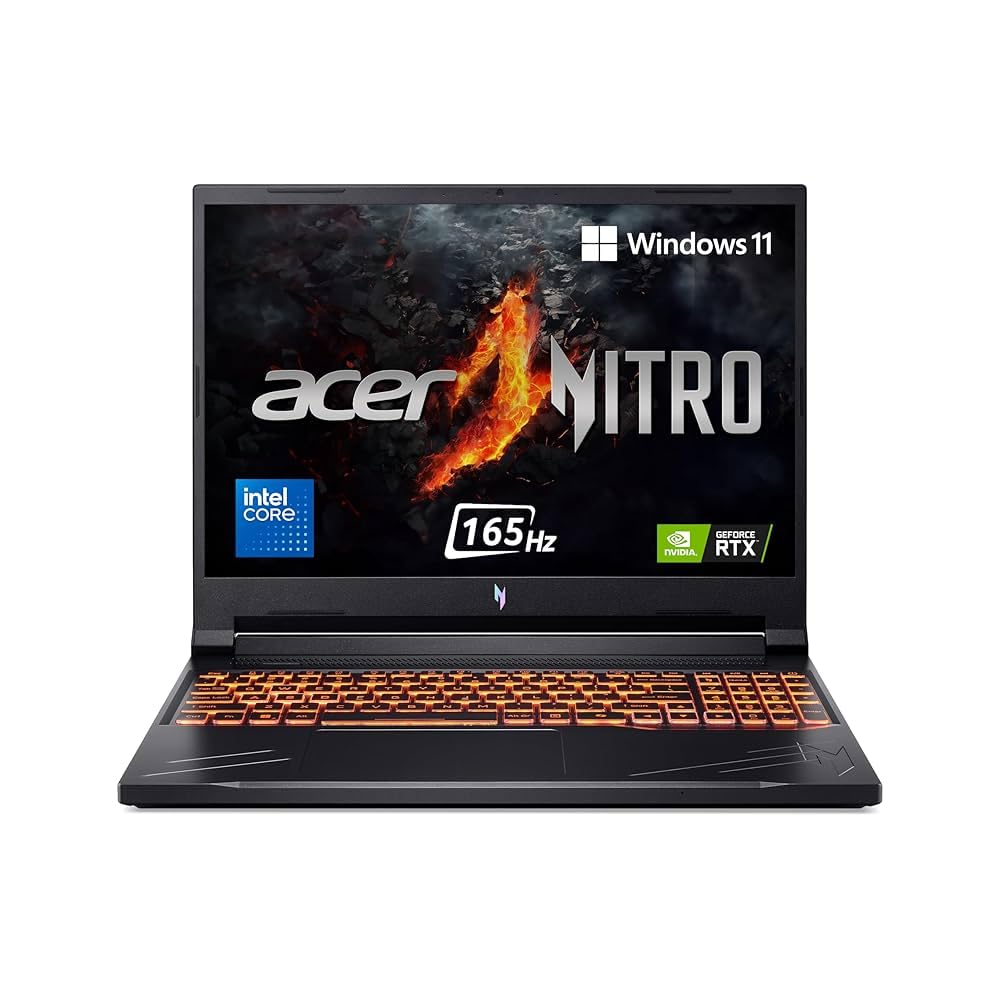
Image: Acer Nitro V 15 ANV15-52 Gaming Laptop, showcasinnjegov dizajn.
2. Sadržaj paketa
Provjerite jesu li sve dolje navedene stavke prisutne u pakiranju vašeg proizvoda:
- Acer Nitro V 15 ANV15-52 Gaming Laptop
- Strujni adapter i strujni kabel
- Kratki vodič (ako je uključen)
- Jamstveni list (ako je uključen)
Note: The product specifications indicate "Monitor" as part of box contents. This typically refers to the laptop itself, as it contains an integrated display.
3. Proizvod je gotovview
Familiarize yourself with the main components and ports of your Acer Nitro V 15 laptop.
3.1. Prednja strana View
The front of the laptop features the 15.6-inch Full HD IPS display and the integrated webkamera na gornjem središnjem dijelu okvira zaslona.
Slika: prednja strana view of the Acer Nitro V 15 laptop, showing the display and webcam. (Image not available in provided data)
3.2. Lijeva strana View
The left side typically houses various ports for connectivity:
- USB priključci tipa A
- USB Type-C priključak
- Ethernet (RJ-45) port for wired network connection
- Audio priključak (kombinacija za slušalice/mikrofon)
Slika: Lijeva strana view of the Acer Nitro V 15 laptop, highlighting the ports. (Image not available in provided data)
3.3. Desna strana View
The right side may include additional ports:
- Additional USB Type-A ports
- Kensington lock slot for security
Slika: Desna strana view of the Acer Nitro V 15 laptop, highlighting the ports. (Image not available in provided data)
3.4. Stražnji View
The rear of the laptop often features the power input and potentially an HDMI port for external displays, along with ventilation grilles.
Slika: Stražnja strana view of the Acer Nitro V 15 laptop, showing power input and ventilation. (Image not available in provided data)
3.5. Tipkovnica i dodirna podloga
The laptop features a gaming keyboard and a precision touchpad. Specific keyboard features like backlighting and dedicated gaming keys may be present.
Image: Close-up of the Acer Nitro V 15 keyboard and touchpad. (Image not available in provided data)
4. Postavljanje
4.1. Početno uključivanje
- Priključite napajanje: Plug the power adapter into the laptop's power input port, then connect the power cord to an electrical outlet.
- Otvoreni poklopac: Pažljivo otvorite poklopac prijenosnog računala.
- Uključivanje: Pritisnite gumb za napajanje, koji se obično nalazi iznad tipkovnice ili sa strane.
- Početno postavljanje: Slijedite upute na zaslonu da biste dovršili postavljanje sustava Windows 11 Home, uključujući jezik, regiju, mrežnu vezu i stvaranje korisničkog računa.
4.2. Povezivanje perifernih uređaja
You can connect external devices such as a mouse, keyboard, or external monitor to the available USB and HDMI ports.
- USB uređaji: Insert USB devices into any available USB Type-A or Type-C ports.
- Vanjski zaslon: Connect an HDMI cable from your external monitor to the laptop's HDMI port (if available). Press Tipka Windows + P za konfiguriranje postavki prikaza.
- Audio uređaji: Uključite slušalice ili vanjske zvučnike u audio priključak.
5. Upravljanje prijenosnim računalom
5.1. Korištenje tipkovnice i dodirne podloge
- Tipkovnica: The integrated keyboard is designed for gaming and general use. Familiarize yourself with function keys (Fn) combined with F-keys for brightness, volume, and other controls.
- Touchpad: Use the touchpad for cursor control. It supports multi-touch gestures for scrolling, zooming, and switching applications. Refer to Windows settings for touchpad customization.
5.2. Mrežna povezanost
- Wi-Fi: Za povezivanje s bežičnom mrežom kliknite ikonu Wi-Fi na programskoj traci, odaberite željenu mrežu i unesite lozinku ako je potrebno.
- Ethernet: Za žičanu vezu, priključite Ethernet kabel u RJ-45 priključak.
- Bluetooth: Enable Bluetooth in Windows settings to pair with Bluetooth devices like headphones or game controllers.
5.3. Performanse u igrama
Your Acer Nitro V 15 is equipped with an Intel Core 5 210H processor and NVIDIA GeForce RTX 4050 graphics for optimal gaming performance.
- Graphics Settings: Ensure your graphics drivers are up to date for the best gaming experience. Adjust in-game settings to balance visual quality and frame rate.
- Hlađenje: The laptop features an advanced cooling system. Ensure ventilation grilles are not obstructed during intensive gaming sessions.
- Načini napajanja: Utilize Windows power settings or Acer's proprietary software (if installed) to switch between performance and power-saving modes.
6. Održavanje
6.1. Čišćenje
- Zaslon: Lagano koristite meku krpu koja ne ostavlja dlačice dampvodom ili sredstvom za čišćenje zaslona. Ne prskajte tekućinu izravno na zaslon.
- Tipkovnica i kućište: Use a soft cloth to wipe surfaces. A can of compressed air can remove dust from between keys and ventilation grilles.
- Priključci: Provjerite jesu li priključci bez prašine i ostataka.
6.2. Briga o bateriji
- Punjenje: For optimal battery life, avoid constantly keeping the laptop at 100% charge or letting it fully discharge frequently.
- Skladištenje: If storing the laptop for an extended period, charge the battery to approximately 50-60% before turning it off.
- Temperatura: Avoid exposing the laptop to extreme temperatures, which can degrade battery performance.
6.3. Ažuriranja softvera
Regularly update your operating system, drivers (especially graphics drivers), and applications to ensure security, stability, and optimal performance.
7. Rješavanje problema
7.1. No Power / Won't Turn On
- Provjerite je li adapter za napajanje sigurno spojen i na prijenosno računalo i na ispravnu električnu utičnicu.
- Pokušajte s drugom utičnicom.
- Ako je baterija potpuno prazna, punjenje prijenosnog računala može potrajati nekoliko minuta prije nego što se ono može uključiti.
7.2. Problemi s prikazom
- Prazan zaslon: Ensure the laptop is powered on. Try adjusting screen brightness using function keys. If an external monitor is connected, disconnect it.
- Vanjski monitor nije otkriven: Check the HDMI cable connection. Press Tipka Windows + P za cikličko prebacivanje između načina prikaza.
7.3. Wi-Fi / Network Problems
- Provjerite je li Wi-Fi omogućen u postavkama sustava Windows.
- Ponovno pokrenite ruter i modem.
- Zaboravite mrežu i ponovno se povežite.
- Ažurirajte mrežne upravljačke programe.
7.4. Pregrijavanje
- Ensure ventilation grilles are clear and unobstructed.
- Use the laptop on a hard, flat surface, not on soft furnishings that can block airflow.
- Consider using a laptop cooling pad during intensive tasks.
8. Specifikacije
The following table outlines the key technical specifications of the Acer Nitro V 15 ANV15-52 Gaming Laptop:
| Značajka | Specifikacija |
|---|---|
| Marka | Acer |
| Naziv modela | Nitro V 15 |
| Broj modela | ANV15-52 |
| Veličina zaslona | 15.6 inča |
| Vrsta zaslona | IPS, Full HD (1920 x 1080), LED-backlit TFT LCD |
| Brzina osvježavanja | 165 Hz |
| Procesor | Intel Core 5 210H (14th Gen), 2.2 GHz |
| Grafička kartica | NVIDIA GeForce RTX 4050 with 8 GB GDDR7 Dedicated Graphics RAM |
| RAM memorija | 16 GB DDR4 (Upgradable to 32 GB) |
| Skladištenje | 512 GB SSD, PCIe Gen4 NVMe (Upgradable Upto 1*1 TB SSD) |
| Operativni sustav | Windows 11 Home |
| Povezivost | Wi-Fi, Bluetooth |
| Težina artikla | 2.1 KG (2100 Grams) |
| Vrsta baterije | Lithium Ion, 57 Watt Hours |
| Boja | Crna opsidijan |
9. Jamstvo i podrška
9.1. Informacije o jamstvu
Your Acer Nitro V 15 ANV15-52 Gaming Laptop comes with a 1 godine jamstva proizvođača. Please refer to the warranty card included in your package for detailed terms and conditions. Keep your proof of purchase for warranty claims.
9.2. Korisnička podrška
For technical assistance, service, or further inquiries, please contact Acer customer support. You can find contact information on the official Acer website or in the documentation provided with your laptop.
Podaci za kontakt proizvođača: Compal Electronics Pvt Ltd, No.D01, Zone D, Air Port Section of LiangLu CunTan Free Trade Port Area, YuBei District, Chongqing, China
Kontaktni podaci uvoznika: ACER INDIA PRIVATE LIMITED Embassy Heights, 6. kat, Magrath Road br. 13, pored bolnice HOSMAT, Bangalore, INDIJA – 560025
10. Videozapisi proizvoda
U navedenim podacima nisu bili dostupni službeni videozapisi proizvoda prodavatelja za ugradnju u ovaj priručnik.