
1. Proizvod je gotovview
The SVITOO 10-inch Android Tablet is designed for versatile use, offering a balance of performance and features for both adults and children. It operates on Android 15 (Go Edition), providing a secure and customizable user experience. Key features include a 10.1-inch HD IPS display, 20GB RAM (3GB + 17GB virtual), 64GB internal storage expandable up to 1TB via microSD, dual cameras (8MP rear, 2MP front), a 6000mAh battery, dual speakers, and support for WiFi 6 and Bluetooth 5.
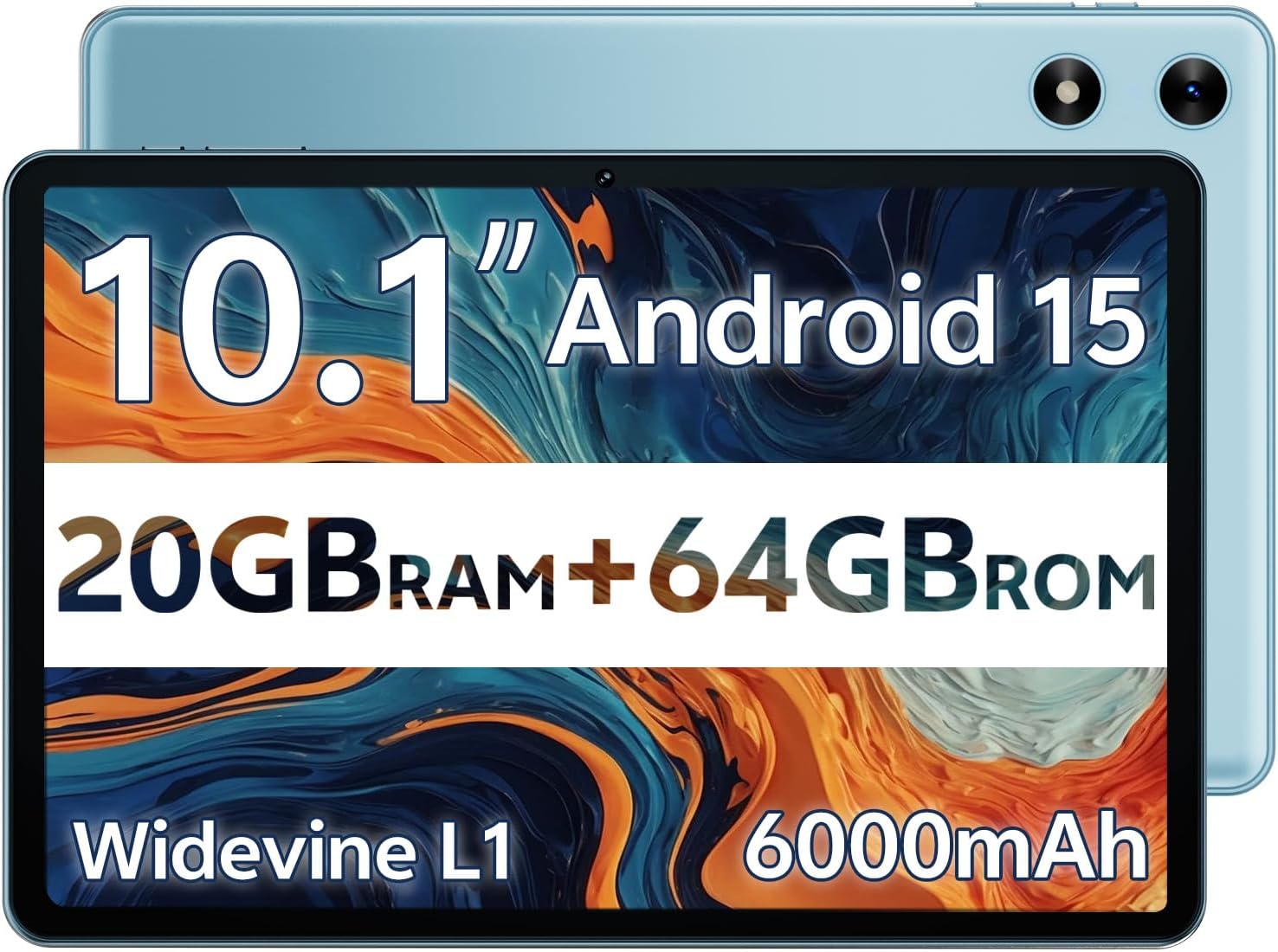
Image 1.1: The SVITOO 10-inch Android Tablet, showcasing its design and included protective case.
2. Početno postavljanje
2.1. Raspakiranje i početna naplata
Upon unboxing, ensure all components are present: the tablet, charging cable, foldable protective cover, and user manual. It is recommended to fully charge the tablet before its first use to optimize battery performance.

Image 2.1: Contents of the product box, including the tablet, charging cable, and protective cover.
2.2. Uključivanje/isključivanje
- Za uključivanje: Press and hold the power button located on the side of the tablet until the SVITOO logo appears on the screen.
- Za isključivanje: Pritisnite i držite gumb za uključivanje/isključivanje, a zatim odaberite 'Isključi' iz opcija koje se pojavljuju na zaslonu.
- Ponovo pokrenuti: Pritisnite i držite gumb za napajanje, a zatim iz ponuđenih opcija odaberite 'Ponovno pokretanje'.
2.3. Povezivanje na Wi-Fi
Idite do Postavke > Mreža i internet > Wi-Fi. Turn on Wi-Fi, select your desired network, and enter the password if prompted. The tablet supports dual-band Wi-Fi (2.4GHz/5GHz) for stable connections.
2.4. Postavljanje Google računa
During the initial setup, you will be prompted to sign in with your Google account. This is necessary to access the Google Play Store, download apps, and synchronize data. If you do not have a Google account, you can create one during this step.
2.5. Instalacija MicroSD kartice
The tablet supports storage expansion up to 1TB using a microSD card (sold separately). Locate the microSD card slot on the side of the tablet, gently insert the card until it clicks into place. Ensure the tablet is powered off before inserting or removing the card.
2.6. Protective Case and Screen Protector
The tablet comes with a foldable protective cover. This case features a magnetic bracket that automatically wakes the tablet when opened and puts it to sleep when closed. A screen protector is pre-installed for immediate use.
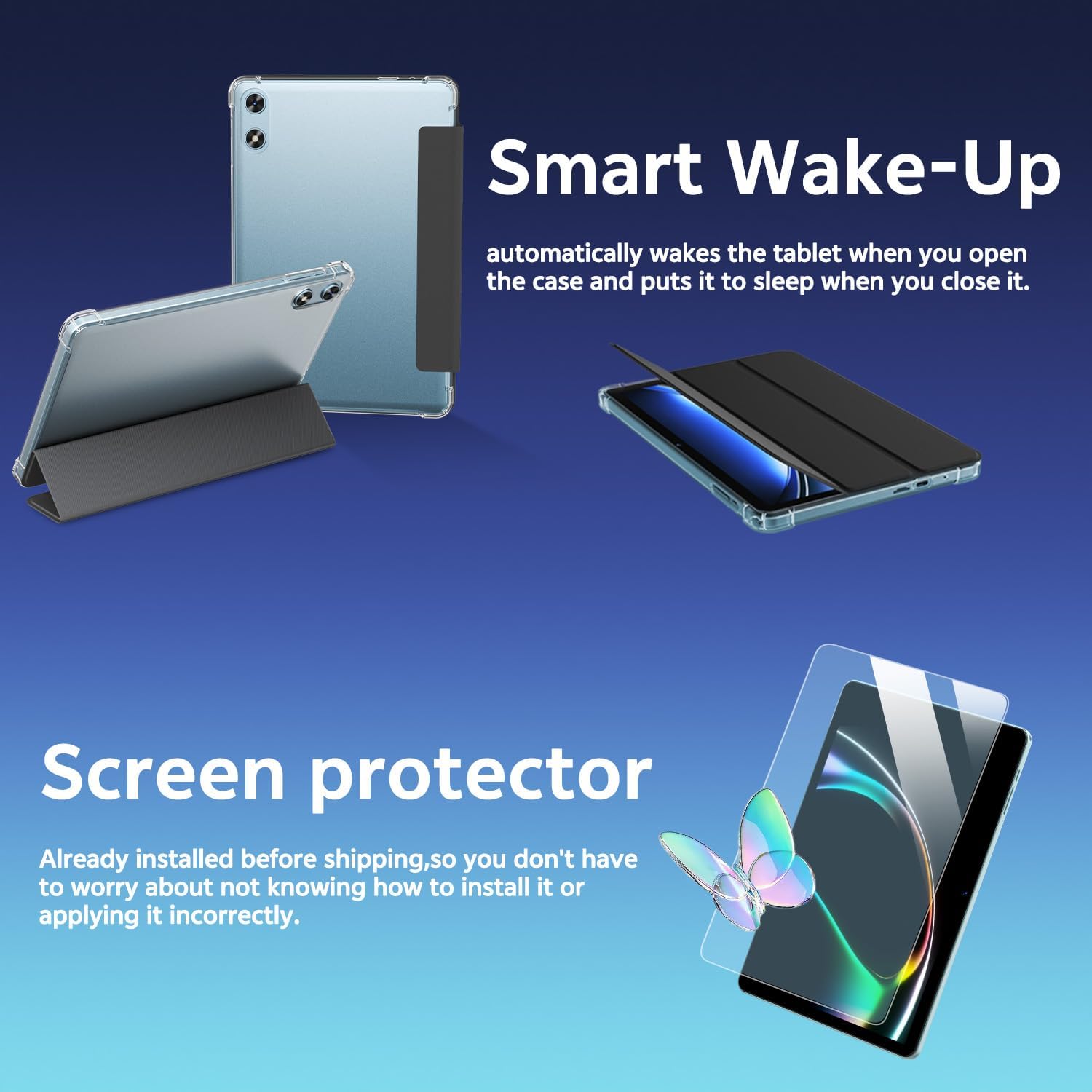
Image 2.2: The tablet with its smart protective case, demonstrating the automatic wake-up function.
3. Upute za rad
3.1. Osnovna navigacija
The tablet features a responsive touchscreen for navigation. Swipe left or right to access different home screens, tap icons to open applications, and use gestures for various functions within apps.
3.2. Korištenje kamera
The tablet is equipped with an 8MP rear camera and a 2MP front camera. Open the Camera app to take photos or record videos. You can switch between front and rear cameras within the app interface.

Image 3.1: A user capturing an image using the tablet's rear camera.
3.3. Bluetooth uparivanje
To connect Bluetooth devices (e.g., headphones, speakers), go to Postavke > Povezani uređaji > Postavke veze > Bluetooth. Turn on Bluetooth, and select your device from the list to pair.
3.4. Wireless Screen Casting
You can cast your tablet's screen to a compatible smart TV on the same Wi-Fi network. Access this feature through the quick settings panel or in Settings > Connected devices > Connection preferences > Cast.

Video 3.1: Demonstrates wireless screen casting from the tablet to a smart TV.
3.5. Roditeljski nadzor
The tablet supports parental control settings via Google Family Link. This allows you to manage device usage, app access, and ensure a safe digital environment for children. Access these settings through your Google account or the Family Link app.
3.6. Eye-Care Night Mode
Activate Eye-Care Night Mode in Postavke > Zaslon to reduce blue light emission, providing a more comfortable reading and viewing experience in low-light conditions.
3.7. Widevine L1 certifikacija
The tablet is Widevine L1 certified, enabling high-definition (HD) streaming on platforms like Netflix, Disney+, and Hulu, ensuring a premium viewiskustvo.
3.8. Dvostruki zvučnici
Enjoy enhanced audio quality with the tablet's dual speakers, providing a richer and more immersive sound experience for media consumption.
4. Održavanje
4.1. Punjenje
Charge the tablet using the provided USB-C cable and a compatible power adapter. The USB-C port allows for fast charging. A full charge ensures up to 12 hours of average use.

Image 4.1: The tablet connected to a USB-C charger, indicating its charging status.
4.2. Čišćenje zaslona
Koristite meku krpu koja ne ostavlja dlačice, laganoampened with water or a screen-cleaning solution, to clean the display. Avoid harsh chemicals or abrasive materials.
4.3. Ažuriranja softvera
Povremeno provjeravajte ažuriranja sustava u Postavke > Sustav > Ažuriranje sustava to ensure your tablet has the latest features and security patches.
4.4. Upravljanje pohranom
To manage internal storage and installed apps, go to Postavke > Pohrana. You can clear app caches or uninstall unused applications to free up space. Utilize the microSD card slot for additional storage of media files.
5. Rješavanje problema
5.1. Tablet Freezing or Apps Crashing
- Uzrok: This tablet runs on Android Go Edition, a lightweight system. Running multiple heavy applications simultaneously, especially video monitoring apps, can cause performance issues.
- Otopina:
- Zatvorite aplikacije u pozadini.
- Ensure Google Play Services are updated.
- Provjerite stabilnu Wi-Fi vezu.
- If freezing persists, restart the tablet.
- Obriši predmemoriju aplikacije (Postavke > Aplikacije).
- As a last resort, perform a factory reset (Settings > System > Reset) after backing up data.
5.2. Problemi s Wi-Fi povezivošću
- Provjerite je li vaš Wi-Fi ruter uključen i ispravno radi.
- Check if the tablet is within range of the Wi-Fi signal.
- Ponovno pokrenite i tablet i Wi-Fi usmjerivač.
- Zaboravite mrežu i ponovno se povežite.
5.3. Brzo pražnjenje baterije
- Smanjite svjetlinu zaslona.
- Zatvorite nekorištene aplikacije koje rade u pozadini.
- Isključite Wi-Fi ili Bluetooth kada ih ne koristite.
- Provjerite potrošnju baterije u Postavke > Baterija identificirati aplikacije koje troše puno energije.
6. Specifikacije proizvoda
| Značajka | Detalj |
|---|---|
| Marka | SVITOO |
| Naziv modela | SVITOO Tab 10 GMS Certified 1027C |
| Operativni sustav | Android 15 (izdanje Go) |
| Veličina zaslona | 10.1 inča |
| Razlučivost zaslona | 1280 x 800 piksela (HD IPS) |
| RAM memorija | 20 GB (3 GB + 17 GB virtualno) |
| Kapacitet pohrane | 64 GB (proširivo do 1 TB putem microSD kartice) |
| Procesor | Penta-Core Allwinner A333 (1.8 GHz) |
| Stražnja kamera | 8 MP |
| Prednja kamera | 2 MP |
| Kapacitet baterije | 6000 mAh (Up to 12 hours average life) |
| Povezivost | Dual-Band Wi-Fi (2.4G+5G), Bluetooth 5 |
| luke | USB Type-C, 3.5mm Headphone Jack, MicroSD Slot |
| Posebne značajke | Widevine L1 Certified, Dual Speakers, Eye-Care Night Mode, Parental Controls, Wireless Screen Casting |
| Dimenzije | 9.7"D x 6.4"Š x 0.4"D |
7. Jamstvo i podrška
7.1. Manufacturer Protection
The SVITOO tablet comes with a 1-Year Limited Manufacturer Protection. This warranty covers manufacturing defects but does not cover damage caused by human error, natural disasters, or other force majeure events.
7.2. Kako kontaktirati podršku
If you encounter issues or require assistance beyond basic troubleshooting, you can contact SVITOO support through Amazon:
- Through Your Order: Log in to Amazon, go to "Your Orders", find the item, and click "Contact Seller".
- Through the Product Page: On the product page, click the seller's name, then click "Contact Seller".
For issues outside the Amazon return window, please contact SVITOO directly through Amazon messages for product support.