
1. Postavljanje
This section guides you through the initial setup of your CHUWI CoreBook X laptop.
1.1 Raspakiranje i početno uključivanje
- Pažljivo izvadite prijenosno računalo i svu dodatnu opremu iz pakiranja.
- Connect the provided USB-C power adapter to the laptop's USB-C port (PD Charging/USB 2.0) and then to a power outlet.
- Open the laptop lid. The laptop may power on automatically or you may need to press the power button located on the keyboard.
- Slijedite upute na zaslonu da biste dovršili početno postavljanje sustava Windows 11 Pro, uključujući odabir jezika, mrežnu vezu i stvaranje korisničkog računa.
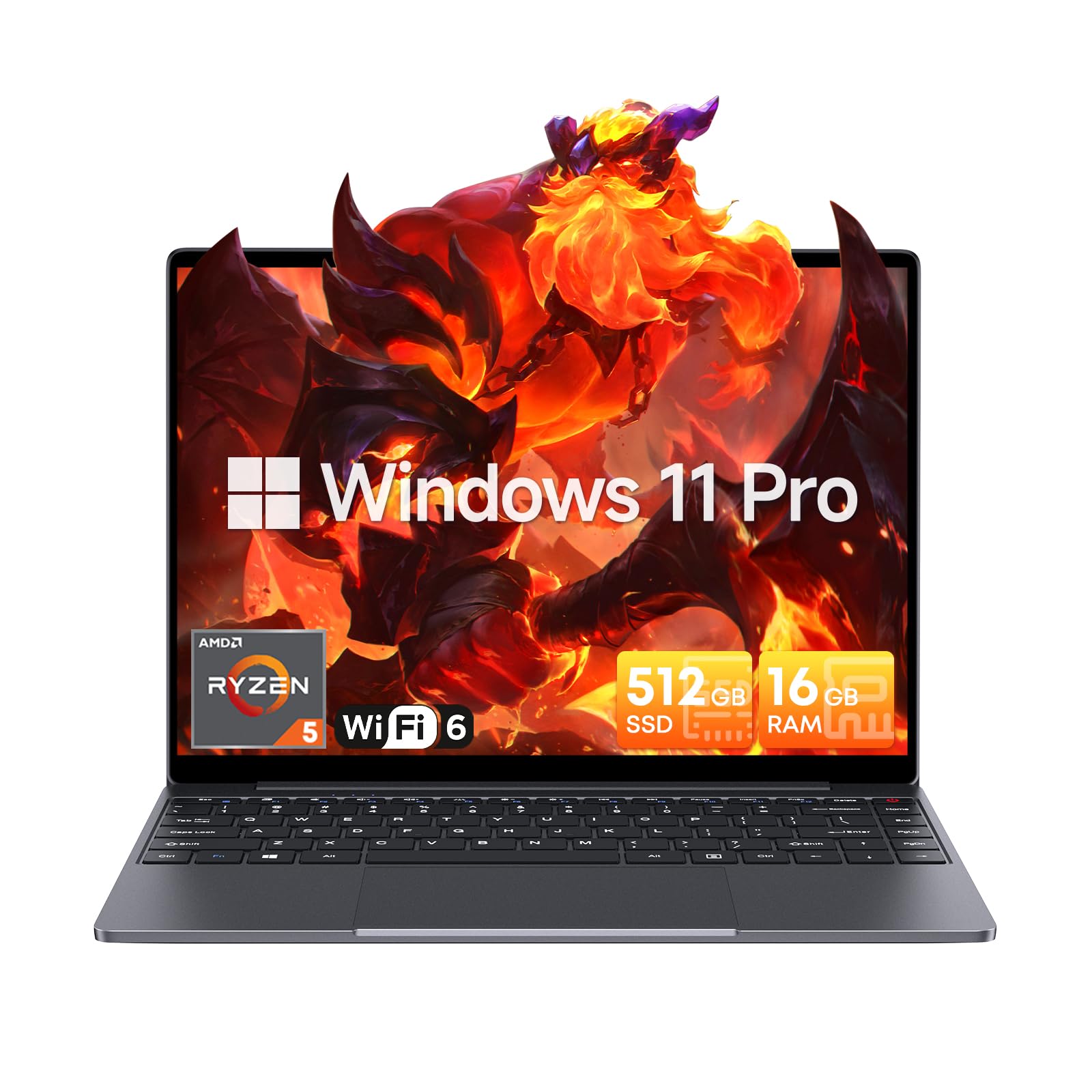
Image: The CHUWI CoreBook X laptop open on a desk, ready for use.
1.2 Spajanje perifernih uređaja
- USB uređaji: Connect USB mice, keyboards, or external storage devices to the available USB 3.0 ports.
- Vanjski zaslon: Use the HDMI 1.4 port or the full-featured USB Type-C port to connect an external monitor.
- Audio uređaji: Spojite slušalice ili vanjske zvučnike na 3.5 mm audio priključak.
- TF kartica: Insert a TF card into the TF card slot for additional storage.

Slika: Detaljna view of the laptop's ports, including TF Card Slot, 3.5mm Headphone Jack, USB 3.0 Port, Lock Slot, USB Type-C (PD Charging/USB 2.0), HDMI 1.4, and Full-featured USB Type-C Port.
1.3 Network and Bluetooth Connection
- Wi-Fi 6: Za povezivanje s bežičnom mrežom kliknite ikonu Wi-Fi na programskoj traci, odaberite svoju mrežu i unesite lozinku.
- Bluetooth 5.2: To pair Bluetooth devices, go to Windows Settings > Bluetooth & devices, turn on Bluetooth, and select your device to pair.
2. Operativni
This section covers the basic operation of your CHUWI CoreBook X laptop.
2.1 Upravljanje napajanjem
- Uključivanje: Pritisnite gumb za napajanje.
- Stanje mirovanja: Zatvorite poklopac ili odaberite "Spavanje" iz izbornika Start.
- Zatvoriti: U izborniku Start odaberite "Isključi".
- Ponovno pokretanje: U izborniku Start odaberite "Ponovno pokretanje".
2.2 Tipkovnica i dodirna podloga
- The laptop features a full-sized backlit keyboard with white illumination. Use the function keys (Fn) in combination with other keys for shortcuts like adjusting brightness, volume, or toggling the backlight.
- The large touchpad supports multi-touch gestures for navigation. Refer to Windows settings for customizing touchpad gestures.

Slika: Krupni plan view of the laptop's backlit keyboard and large touchpad, highlighting its navigation features.
2.3 Zaslon i zvuk
- The 14-inch IPS display offers a 2160*1440 resolution. Adjust display settings (brightness, resolution, scaling) through Windows Display Settings.
- The laptop is equipped with stereo speakers. Volume can be controlled via the keyboard function keys or the Windows sound settings.
- An HD webcam is integrated for video conferencing.

Image: The laptop's 14-inch 2K IPS display showcasing vibrant colors and a comparison of 3:2 and 16:9 aspect ratios.
2.4 Video prekoview
Video: An official product video demonstrating various features and usage scenarios of the CHUWI CoreBook X laptop, including its performance, display, and connectivity options.
3. Održavanje
Pravilno održavanje osigurava dugotrajnost i optimalne performanse vašeg prijenosnog računala.
3.1 Čišćenje
- Use a soft, lint-free cloth to clean the screen. For stubborn marks, dampLagano navlažite krpu vodom ili sredstvom za čišćenje ekrana.
- Wipe the chassis and keyboard with a soft, dry cloth. Avoid using harsh chemicals or abrasive materials.
- Periodically use compressed air to clear dust from the vents to maintain efficient cooling.
3.2 Njega baterija
- Avoid fully discharging the battery frequently. Charge the laptop when the battery level is low.
- Prijenosno računalo čuvajte na hladnom i suhom mjestu ako se ne koristi dulje vrijeme, s baterijom napunjenom na oko 50-70%.
- Use only the original or certified compatible USB-C PD charger.
3.3 Nadogradnje pohrane i memorije
The laptop supports RAM and SSD upgrades.
- The 16GB DDR4 RAM can be expanded up to 64GB via 2 SODIMM slots.
- The 512GB PCIe SSD can be expanded up to 2TB using the M.2 2280 PCIe slot.
- A convenient detachable bottom cover allows for easier access to upgrade components without removing the entire back panel.

Image: The underside of the laptop with the detachable cover removed, revealing the dual-channel SO-DIMM slot for RAM upgrades.
4. Rješavanje problema
Ovaj odjeljak nudi rješenja za uobičajene probleme s kojima se možete susresti.
4.1 Uobičajeni problemi i rješenja
- Laptop se ne uključuje:
- Provjerite je li adapter za napajanje sigurno spojen i na prijenosno računalo i na ispravnu utičnicu.
- Provjerite je li utičnica funkcionalna.
- Pokušajte držati gumb za napajanje 10-15 sekundi za hard reset.
- Problemi sa zaslonom (nema slike, treperenje):
- Podesite svjetlinu zaslona pomoću funkcijskih tipki.
- Ako je spojen vanjski monitor, pokušajte ga odspojiti.
- Ponovno pokrenite prijenosno računalo.
- Problemi s Wi-Fi ili Bluetooth povezivošću:
- Provjerite je li Wi-Fi/Bluetooth omogućen u postavkama sustava Windows.
- Ponovno pokrenite usmjerivač/modem zbog problema s Wi-Fi mrežom.
- Remove and re-pair Bluetooth devices.
- Update network and Bluetooth drivers through Device Manager.
- Spore performanse:
- Zatvorite nepotrebne aplikacije koje rade u pozadini.
- Provjerite ažuriranja za Windows i upravljačke programe.
- Osigurajte dovoljno slobodnog prostora na SSD-u.
- Pokrenite skeniranje zlonamjernog softvera.
Ako naiđete na probleme koji nisu ovdje obuhvaćeni ili vam je potrebna dodatna pomoć, pogledajte odjeljak Podrška.
5. Specifikacije
Detailed technical specifications for the CHUWI CoreBook X laptop.

Image: An illustration of the AMD Ryzen 5 processor, highlighting its core count, threads, and clock speed.
| Značajka | Specifikacija |
|---|---|
| Naziv modela | Corebook X |
| Procesor | AMD Ryzen 5 (6 Cores, 12 Threads, up to 4.3 GHz) |
| Grafika | AMD Radeon Graphics (1800MHz, Max 2GB Memory) |
| OVAN | 16GB DDR4 (Expandable up to 64GB via 2 SODIMM slots) |
| Skladištenje | 512GB PCIe SSD (Expandable up to 2TB via M.2 2280 PCIe slot) |
| Prikaz | 14-inch IPS, 2160*1440 Resolution, 100% sRGB Color Gamut |
| Operativni sustav | Windows 11 Pro |
| Povezivost | Wi-Fi 6 (802.11ax), Bluetooth 5.2 |
| luke | USB Type-C (PD Charging/USB 2.0), USB 3.0, HDMI 1.4, Full-featured USB Type-C, 3.5mm Audio Jack, TF Card Slot, Lock Slot |
| Baterija | 46.2Wh Lithium-Ion Battery, 65W USB-C PD Fast Charging |
| Tipkovnica | Full-sized Backlit Keyboard with White Illumination |
| Touchpad | Large Touchpad, Multi-touch |
| Webkamera | HD Webkamera |
| Dimenzije | 12.2"L x 9"W x 0.67"Th (17mm thin) |
| Težina | 2.2 funti (1.4 kg) |
6. Jamstvo
The CHUWI CoreBook X laptop comes with a 1-godišnje jamstvo proizvođača.
This warranty covers defects in materials and workmanship under normal use. It does not cover damage caused by accidents, misuse, unauthorized repairs, or modifications. Please retain your proof of purchase for warranty claims.
7. Podrška
For technical assistance, warranty claims, or further inquiries, please contact CHUWI customer support.
- Podrška proizvođača: Posjetite službeni CHUWI webstranica za resurse podrške, često postavljana pitanja i kontakt informacije.
- Podrška prodavača: If purchased through a retailer, you may also contact the seller for assistance.