
1. Uvod
This manual provides essential information for the proper setup, operation, and maintenance of your MESWAO 15.6-inch Android 14 Tablet (Model MES-B3). Please read this manual thoroughly before using the device to ensure optimal performance and longevity. Keep this manual for future reference.
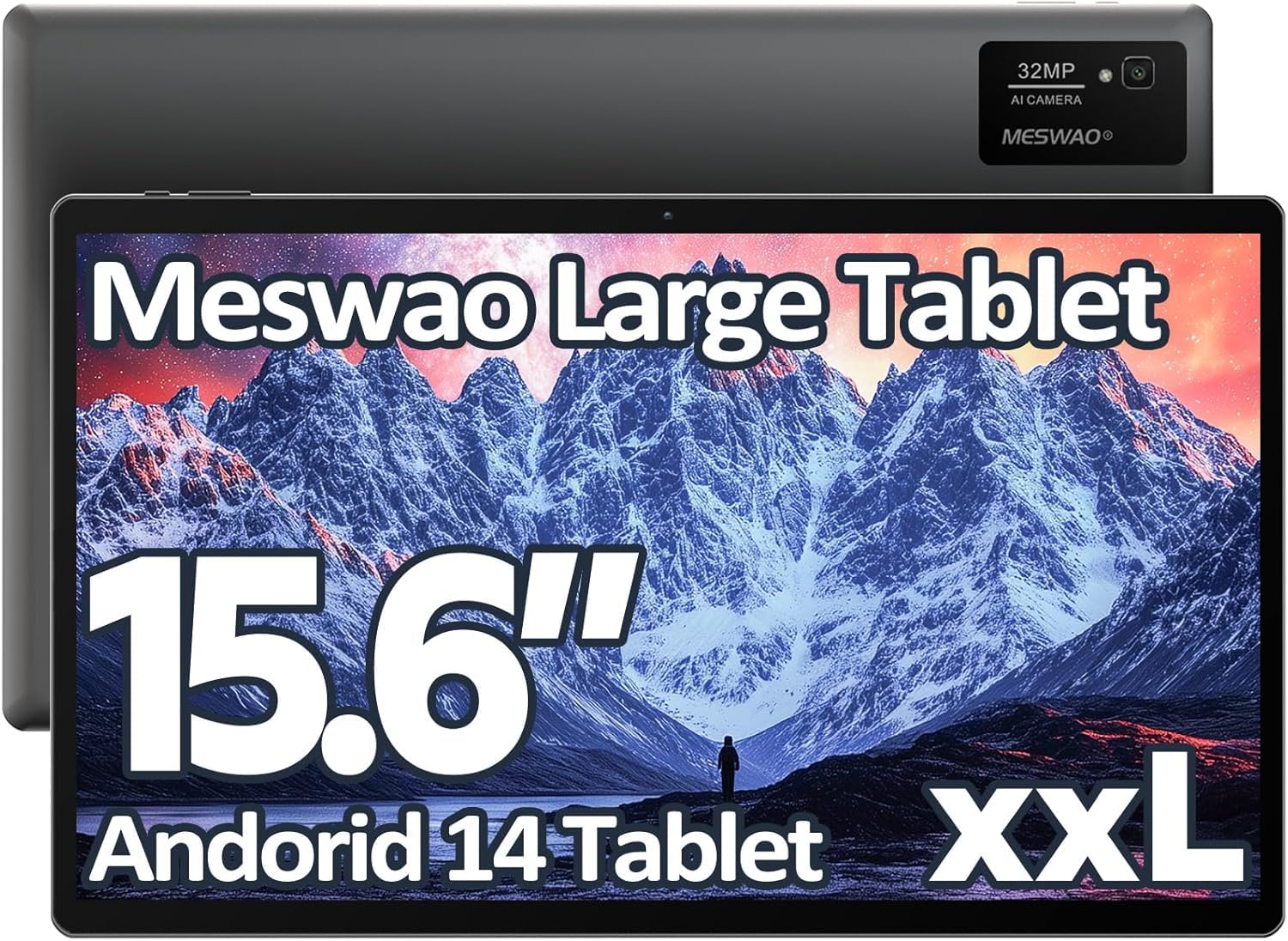
Image: The MESWAO 15.6-inch Android 14 Tablet, showcasinnjegov veliki zaslon i elegantan dizajn.
2. Postavljanje
2.1 Raspakiranje i početni pregled
Carefully remove all components from the packaging. Verify that all items listed in the package contents are present and undamaged. If any items are missing or damaged, contact customer support immediately.
2.2 Punjenje tableta
Before first use, fully charge the tablet. Connect the provided USB-C cable to the tablet's charging port and the other end to the power adapter. Plug the power adapter into a wall outlet. The charging indicator will illuminate. A full charge typically takes approximately 3 hours with the 30W fast charging capability.
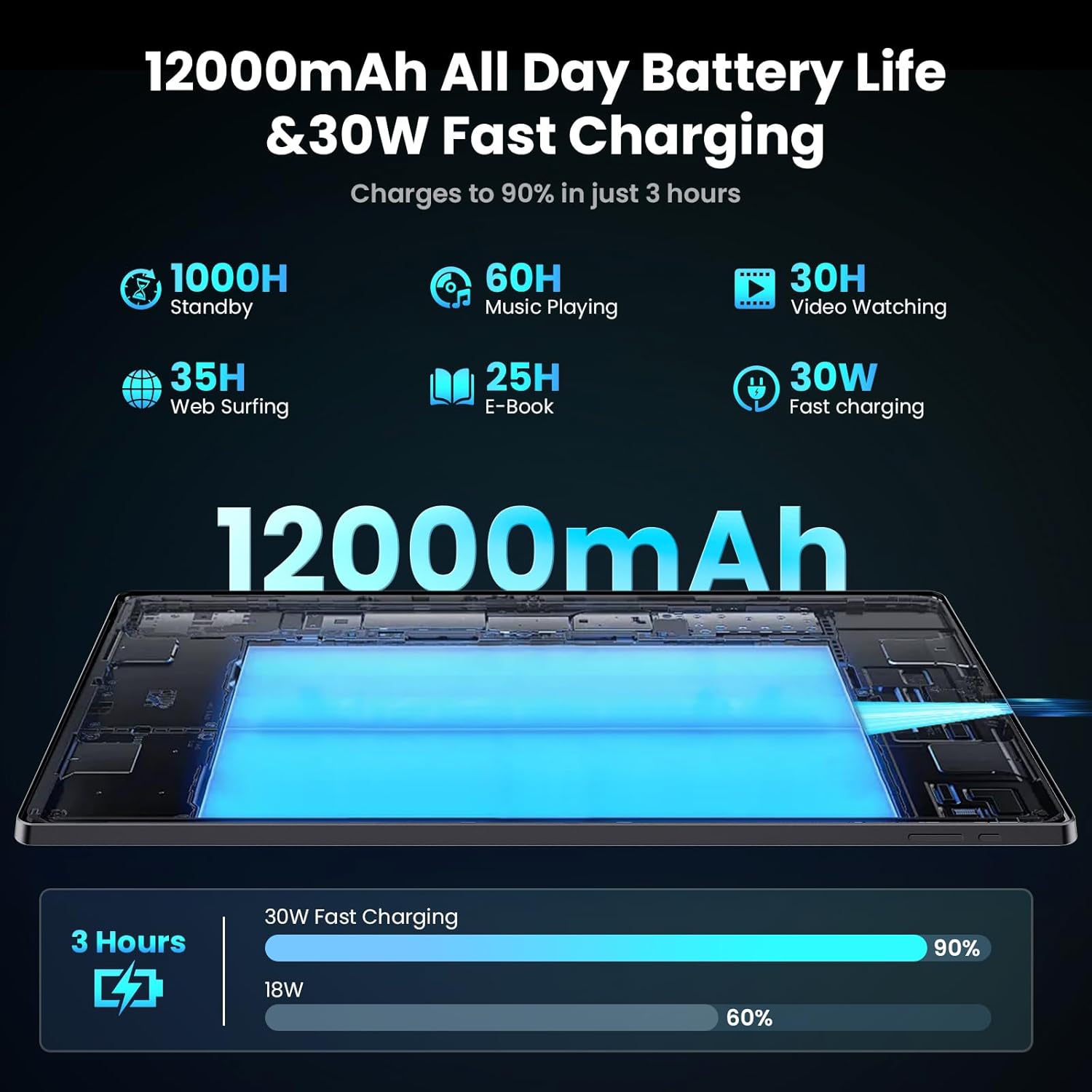
Image: Diagram illustrating the 12000mAh battery capacity and 30W fast charging feature, showing a charge to 90% in 3 hours.
2.3 Uključivanje i početna konfiguracija
- Press and hold the Power button until the MESWAO logo appears.
- Slijedite upute na zaslonu za odabir jezika, regije i povezivanje s Wi-Fi mrežom.
- Prijavite se sa svojim Google računom ili stvorite novi za pristup Trgovini Google Play i drugim uslugama.
- Complete any remaining setup steps, such as setting up a screen lock (PIN, pattern, or password) and reviewpostavke privatnosti.
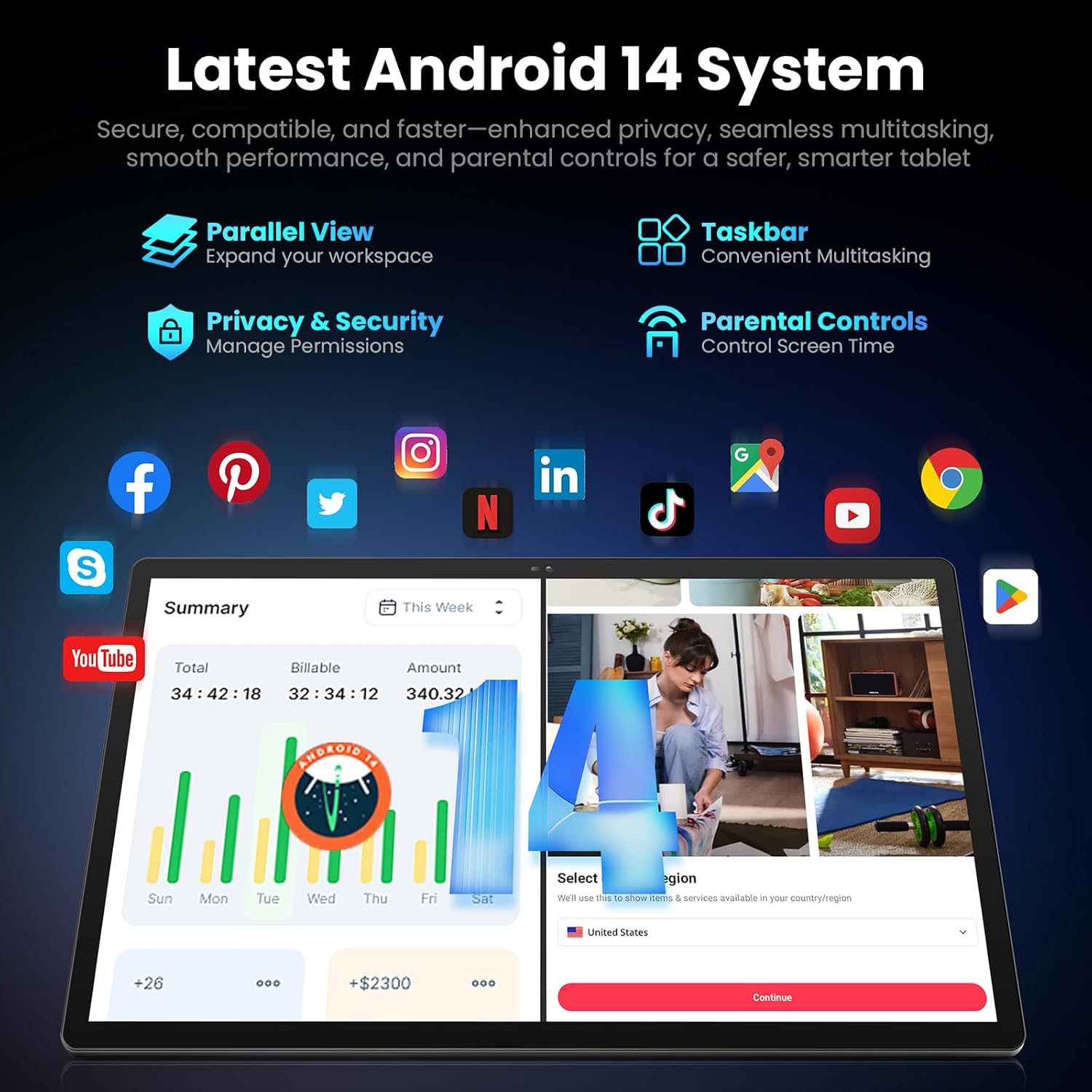
Image: Screenshot of the Android 14 system interface on the MESWAO tablet, highlighting features like Parallel View, Taskbar, Privacy & Security, and Parental Controls.
3. Upute za rad
3.1 Osnovna navigacija
- Pokreti dodirom: Dodirnite za odabir, prijeđite prstom za pomicanje, štipanjem zumirajte.
- Početni zaslon: Pristupite aplikacijama, widgetima i obavijestima.
- Ploča obavijesti: Prijeđite prstom prema dolje od vrha zaslona do view obavijesti i brze postavke.
- Ladica za aplikacije: Prijeđite prstom prema gore od dna zaslona za pristup svim instaliranim aplikacijama.
3.2 Prikaz i vizualno iskustvo
The 15.6-inch Full HD (1920x1080) IPS display offers vivid colors and wide viewing angles. Adjust brightness and display settings in the Settings menu under "Display" for optimal viewing comfort. The large screen is ideal for multitasking and immersive media consumption.

Image: The MESWAO tablet displaying a high-definition image, emphasizing the 1920x1080P Full HD IPS display with eye protection features.
3.3 Performanse i pohrana
Equipped with an Octa-Core Helio G99 processor and Android 14, the tablet provides smooth performance for various applications. It includes 8GB RAM and 256GB internal storage, expandable up to 1TB via a TF (microSD) card. To insert a TF card, locate the card slot on the side of the tablet, open the tray, and carefully place the card into the designated slot before reinserting the tray.
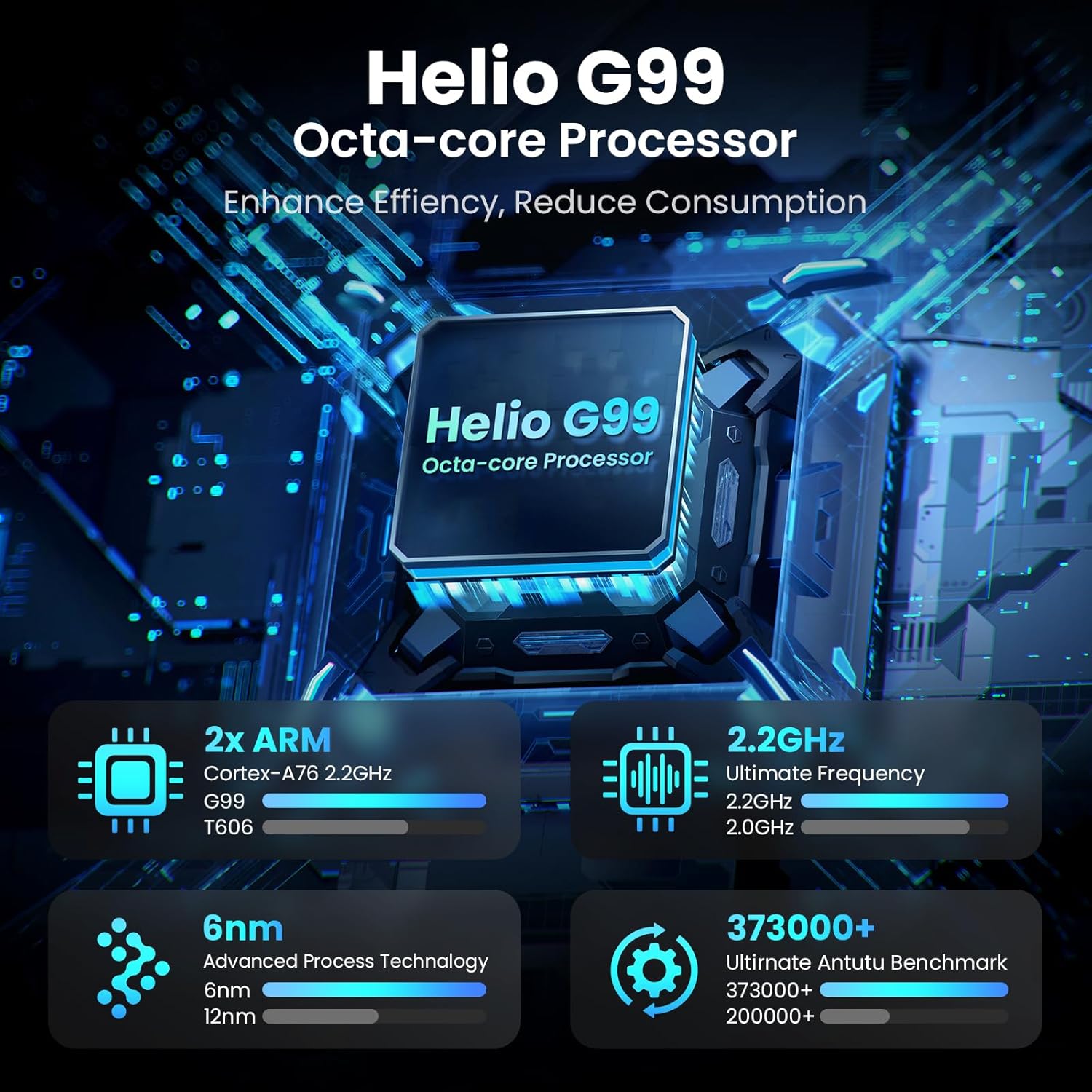
Image: Visual representation of the Helio G99 Octa-core Processor, detailing its architecture and performance metrics like 2.2GHz frequency and 6nm process technology.

Image: The MESWAO tablet screen showing multiple open applications and storage capacity details: 8GB RAM, 256GB ROM, and support for up to 1TB external storage.
3.4 Korištenje kamere
The tablet features a 32MP rear camera with flash and a 5MP front camera. Open the Camera application to capture photos, record videos, or engage in video calls. Ensure good lighting for best results.

Image: A visual demonstrating the MESWAO tablet's 5MP front camera and 32MP rear camera, showing a family photo being taken and a video call in progress.
3.5 Povezivost
The tablet supports dual-band Wi-Fi (2.4GHz & 5GHz) for stable internet connectivity. Bluetooth is also available for connecting wireless accessories. Access these settings via the Notification Panel or the main Settings app.
4. Održavanje
4.1 Čišćenje tableta
Za čišćenje zaslona i tijela tableta koristite meku krpu koja ne ostavlja dlačice. Za tvrdokorne mrlje lagano obrišiteampIsperite krpu vodom ili otopinom za čišćenje zaslona. Izbjegavajte korištenje jakih kemikalija ili abrazivnih materijala.
4.2 Ažuriranja softvera
Redovito provjeravajte i instalirajte ažuriranja sustava kako biste osigurali da vaš tablet ima najnovije značajke, sigurnosne zakrpe i poboljšanja performansi. Idite na Postavke > Sustav > Ažuriranje sustava za provjeru ažuriranja.
4.3 Njega baterija
- Izbjegavajte ekstremne temperature jer mogu smanjiti vijek trajanja baterije.
- Nemojte često dopustiti da se baterija potpuno isprazni.
- Koristite samo priloženi punjač ili certificirani kompatibilni punjač.
5. Rješavanje problema
5.1 Tablet se ne uključuje
- Ensure the tablet is sufficiently charged. Connect it to the charger for at least 30 minutes before attempting to power on again.
- Pritisnite i držite gumb za napajanje 10-15 sekundi za prisilno ponovno pokretanje.
5.2 Problemi s Wi-Fi povezivošću
- Check if Wi-Fi is enabled in the Quick Settings or Settings menu.
- Ponovno pokrenite Wi-Fi usmjerivač i tablet.
- Zaboravite mrežu u Wi-Fi postavkama i ponovno se povežite.
- Provjerite jeste li unutar dometa Wi-Fi signala.
5.3 Spore performanse
- Zatvorite nepotrebne pozadinske aplikacije.
- Obriši podatke predmemorije za često korištene aplikacije (Postavke > Aplikacije > [Naziv aplikacije] > Pohrana i predmemorija > Izbriši predmemoriju).
- Ensure sufficient free storage space. Delete unused files ili aplikacije.
- Povremeno ponovno pokrenite tablet.
5.4 Zaslon ne reagira
- Izvršite prisilno ponovno pokretanje (držite gumb za napajanje 10-15 sekundi).
- Provjerite je li zaslon čist i bez vlage ili prljavštine.
6. Specifikacije
| Značajka | Detalj |
|---|---|
| Naziv modela | MES-B3 |
| Veličina zaslona | 15.6 inča |
| Maksimalna razlučivost zaslona | 1920 x 1080 Pixels (Full HD IPS) |
| Operativni sustav | Android 14 |
| Procesor | Octa-Core Helio G99 (up to 2.2 GHz) |
| OVAN | 8 GB |
| Interna pohrana (ROM) | 256 GB |
| Proširiva pohrana | Do 1TB (TF kartica) |
| Kapacitet baterije | 12000 mAh |
| Punjenje | Brzo punjenje od 30 W |
| Stražnja kamera | 32MP s bljeskalicom |
| Prednja kamera | 5 MP |
| Povezivost | Dual-band Wi-Fi (2.4GHz & 5GHz), Bluetooth |
| Dimenzije (DxŠxV) | 14.53 x 8.78 x 0.43 inča |
| Težina artikla | 3.84 funti |
7. Jamstvo i podrška
7.1 Informacije o jamstvu
MESWAO products are covered by a limited warranty. Please refer to the warranty card included in your product packaging for specific terms and conditions. Keep your proof of purchase for warranty claims.
7.2 Korisnička podrška
For technical assistance, troubleshooting, or warranty inquiries, please contact MESWAO customer support. Contact information can typically be found on the official MESWAO webstranici ili na jamstvenom listu.
Online resources such as FAQs and support forums may also be available on the MESWAO webmjesto.