
Uvod
This user guide provides essential information for the HP OfficeJet Pro 8125e printer. It covers initial setup, connecting to networks, performing print, scan, and copy functions, routine maintenance, and troubleshooting common issues. Follow these instructions to ensure optimal performance and longevity of your device.
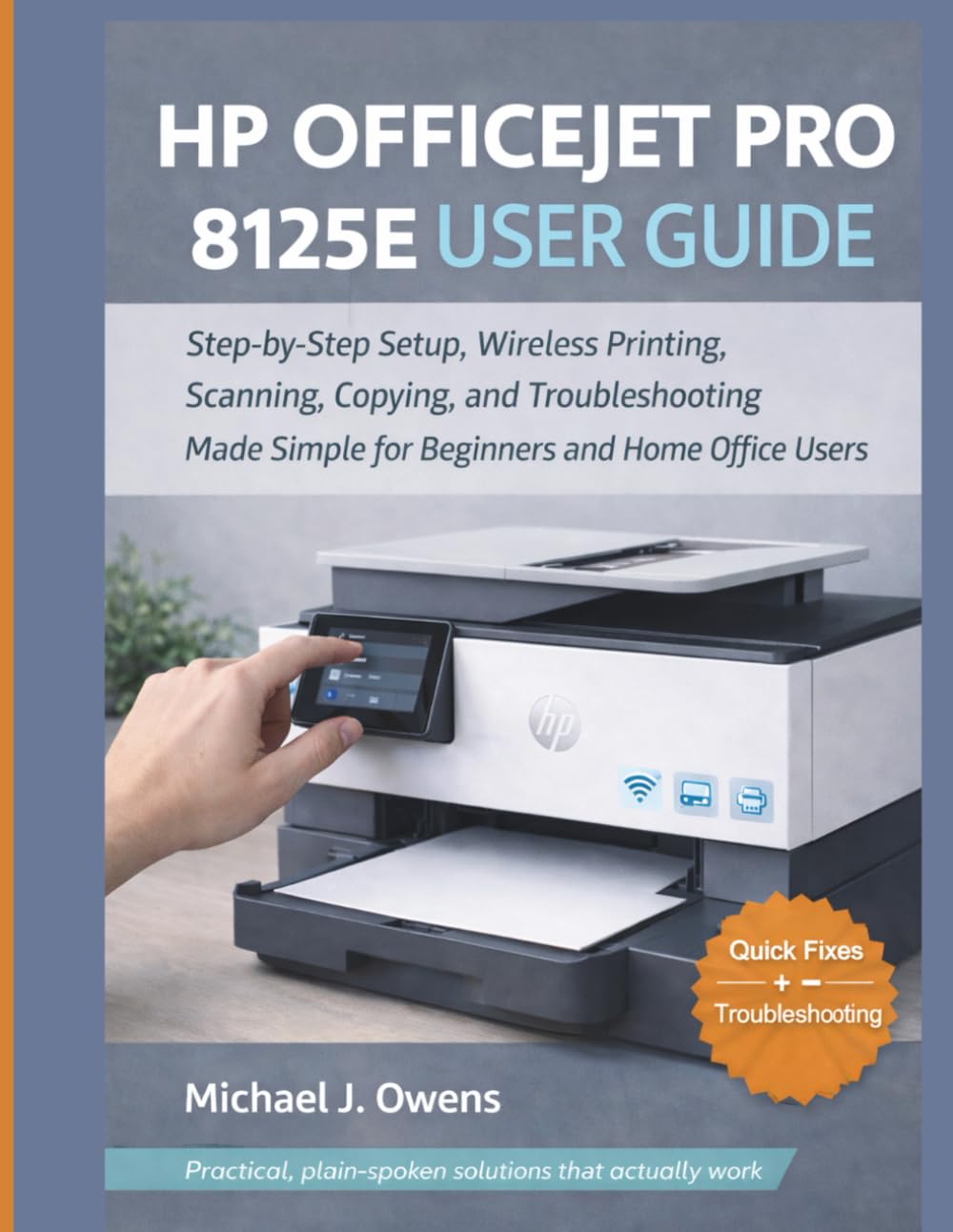
Image: Front cover of the HP OfficeJet Pro 8125e User Guide. This image represents the manual itself, designed to assist users with their printer.
1. Postavljanje
1.1 Raspakiranje i početno uključivanje
- Pažljivo izvadite pisač iz pakiranja.
- Uklonite sve zaštitne trake i materijale za pakiranje s vanjske i unutarnje strane pisača.
- Spojite kabel za napajanje na pisač, a zatim na zidnu utičnicu.
- Pritisnite gumb za uključivanje kako biste uključili pisač.
- Follow the on-screen prompts on the printer's control panel to select your language and region.
1.2 Umetanje tinte
- Otvorite vratašca za pristup spremniku s tintom.
- Pričekajte da se nosač ispisne školjke pomakne u središte.
- Raspakirajte nove spremnike s tintom.
- Umetnite svaki uložak u odgovarajući utor, pazeći da klikne na mjesto.
- Zatvorite vratašca za pristup spremniku s tintom.
1.3 Umetanje papira
- Izvucite ulaznu ladicu.
- Podesite vodilice papira na ispravnu veličinu papira.
- U ladicu umetnite snop običnog bijelog papira, stranom za ispis prema dolje.
- Gurnite ulaznu ladicu natrag u pisač.
- Potvrdite vrstu i veličinu papira na upravljačkoj ploči pisača ako se to od vas zatraži.
1.4 Povezivanje na Wi-Fi
- Na upravljačkoj ploči pisača idite na Čarobnjak za bežično postavljanje.
- Odaberite svoju Wi-Fi mrežu s popisa dostupnih mreža.
- Enter the Wi-Fi password (WPA key) when prompted.
- Confirm the connection. The wireless light on the printer should turn solid blue.
1.5 Instalacija upravljačkog programa
For Windows and Mac computers, download the latest drivers and HP Smart software from the official HP support webweb-mjesto. Slijedite upute na zaslonu tijekom instalacije.
2. Upravljanje pisačem
2.1 Ispis dokumenata
- S računala: Open the document, select "Print," choose your HP OfficeJet Pro 8125e, and adjust settings as needed before printing.
- S mobilnih uređaja (HP Smart aplikacija): Install the HP Smart app, add your printer, and use the app to print photos or documents directly from your smartphone or tablet.
- Email Print: If enabled, send documents to your printer's unique email address.
2.2 Skeniranje dokumenata
- Postavite dokument licem prema dolje na staklo skenera ili licem prema gore u automatski uvlakač dokumenata (ADF).
- On the printer's control panel or via the HP Smart app/software on your computer, select "Scan."
- Choose scan settings (e.g., color, resolution, destination).
- Pokrenite skeniranje.
2.3 Kopiranje dokumenata
- Postavite originalni dokument na staklo skenera ili u ADF.
- On the printer's control panel, select "Copy."
- Adjust settings such as number of copies, color/black & white, and size.
- Pritisnite gumb "Pokreni kopiranje".
3. Održavanje
3.1 Čišćenje glava za ispis
If print quality degrades (streaks, faded colors), perform a print head cleaning from the printer's control panel or the HP Smart software. This process uses ink, so only perform it when necessary.
3.2 Zamjena tinte
When an ink cartridge is low or empty, the printer will notify you. Follow the steps in Section 1.2 to replace cartridges. Use genuine HP ink cartridges for best results.
3.3 Opće čišćenje
Obrišite vanjski dio pisača mekom,amp, lint-free cloth. Clean the scanner glass regularly with a glass cleaner applied to a cloth (not directly to the glass) to prevent smudges from affecting scan quality.
4. Rješavanje problema
| Problem | Otopina |
|---|---|
| Poruka o izvanmrežnom radu pisača |
|
| Zastoj papira |
|
| Loša kvaliteta ispisa |
|
| HP Smart App Issues |
|
5. Specifikacije
Note: The following specifications are typical for the HP OfficeJet Pro 8125e printer. For precise details, refer to the official HP product page or documentation.
- Funkcije: Print, Copy, Scan, Fax (optional, depending on region/model)
- Tehnologija ispisa: HP-ov termički inkjet
- Brzina ispisa (crno-bijelo): Do 22 str./min (ISO)
- Brzina ispisa (u boji): Do 18 str./min (ISO)
- Print Resolution (Best): Do 4800 x 1200 optimiziranih dpi u boji
- Rezolucija skeniranja (optička): Do 1200 dpi
- Povezivost: Wi-Fi 802.11a/b/g/n, Ethernet, USB 2.0
- Rukovanje papirom: 250-sheet input tray, 60-sheet output tray, 35-sheet ADF
- Obostrani ispis: Automatski (standardni)
- Prikaz: Zaslon osjetljiv na dodir u boji
6. Jamstvo i podrška
For warranty information, please refer to the documentation included with your printer or visit the official HP support website. HP provides various support resources, including online FAQs, driver downloads, and contact options for technical assistance.
Image: Back cover of the HP OfficeJet Pro 8125e User Guide. This image provides additional information and ISBN details for the manual.