1. Uvod
The Kensington SD5200T Thunderbolt 3 Docking Station is designed to expand the connectivity and capabilities of your Thunderbolt 3-equipped laptop. This manual provides essential information for setup, operation, and maintenance to ensure optimal performance.
Što je u kutiji:
- SD5200T Thunderbolt 3 Docking Station
- Thunderbolt 3 Cable, 0.5M (1.5 ft)
- AC Power Adapter with US power cable
- Vodič s uputama
- Informacije o jamstvu
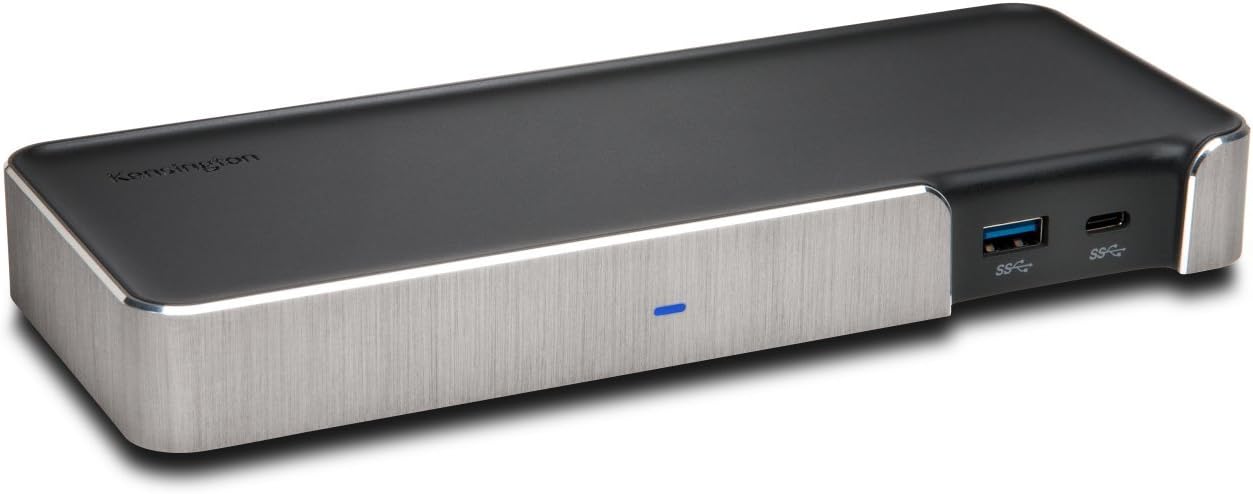
Figure 1: Kensington SD5200T Thunderbolt 3 Docking Station (Front View)
2. Postavljanje
2.1 Zahtjevi sustava
- Operativni sustav: macOS 10.14 and later, Windows 7, 8, 8.1, 10.
- Veza s hostom: Laptop with a Thunderbolt 3 port.
- Bilješka: MacBooks with the M1 chipset will only display to a single monitor due to Apple’s chipset limitations.
2.2 Driver and System Updates
Before connecting the docking station, ensure your computer's operating system and drivers are fully updated. This includes Windows updates, macOS updates, and any manufacturer-specific driver updates for your laptop's Thunderbolt controller and graphics card.
2.3 Spajanje priključne stanice
- Connect the AC Power Adapter to the DC 20V port on the rear of the docking station and then to a power outlet.
- Connect your external monitors to the DisplayPort++ 1.2 port and/or the second Thunderbolt 3 port on the rear of the dock.
- Connect any USB peripherals (keyboard, mouse, external drives) to the available USB ports on the dock.
- Connect the included Thunderbolt 3 cable from the docking station's designated Thunderbolt 3 port (with the computer icon) to a Thunderbolt 3 port on your laptop.
- The docking station is plug-and-play. Your operating system should automatically detect and configure the connected devices.

Figure 2: Rear Ports of the SD5200T Docking Station
3. Operativni
3.1 Features and Ports Overview
The SD5200T offers a comprehensive set of ports to enhance your workstation:
- Gigabitni Ethernet priključak: For a stable and fast wired network connection.
- USB 3.0 priključci: Two ports on the rear for connecting standard USB devices like hard drives and keyboards. One front-facing USB 3.0 port with 2.1A charging.
- USB-C Port (Front): A data-only USB-C port on the front for connecting USB-C devices.
- 3.5 mm audio priključci: Separate ports for microphone input and headphone output.
- Utor za Kensington Lock: For securing the docking station to a desk.
- Thunderbolt 3 priključci: Two Thunderbolt 3 (USB-C type) ports. One connects to your host laptop (with computer icon) and provides power delivery. The second can be used for daisy-chaining additional Thunderbolt devices or for display output.
- DisplayPort++ 1.2: For connecting a primary external monitor. Supports DisplayPort MST (Multi-Stream Transport) for daisy-chaining displays on Windows.

Figure 3: Front Ports of the SD5200T Docking Station

Figure 4: USB 3.0 Port with 2.1A Charging
3.2 Konfiguracija zaslona
The SD5200T supports flexible display setups:
- Jedan monitor: Up to 5K (5120 x 2880 @ 60Hz) via one Thunderbolt 3 port.
- Dva monitora: Up to 4K (4096 x 2160 @ 60 Hz) on both monitors simultaneously.
To connect dual displays:
- Connect one display to the DisplayPort++ 1.2 port using a passive DisplayPort cable.
- Connect the second display to the downstream Thunderbolt 3 port using a USB-C to DisplayPort or USB-C to HDMI cable.
Bilješka: If connecting a DisplayPort++ to an HDMI monitor, a passive adapter or cable is required. DisplayPort MST (Multi-Stream Transport) for daisy-chaining multiple displays from a single DisplayPort output is supported on Windows, but not on macOS.

Figure 5: Dual Monitor Setup
3.3 Isporuka energije
The docking station delivers up to 85W of power to charge your connected laptop. This power output adjusts based on your laptop's needs. Laptops requiring more than 85W (e.g., some 15” MacBook Pro models requiring 87W) will still charge, but potentially at a slightly slower rate. Windows laptops must be designed to support power delivery via Thunderbolt for charging functionality through the dock.

Figure 6: 85W Power Delivery to Laptop
4. Kompatibilnost
The Kensington SD5200T is designed for optimal performance with Thunderbolt 3-enabled devices.
- Thunderbolt 3: Fully compatible with laptops featuring Thunderbolt 3 ports (e.g., Lenovo, Dell, HP, Acer, Asus, MSI, Razer, and MacBooks running OS 10.14 and later).
- USB-C: The downstream Thunderbolt 3 port is backwards compatible with USB-C devices for data and video, but not all USB-C laptops will support power delivery or dual displays through the dock.
- Older Thunderbolt Versions: This dock is not compatible with Thunderbolt 1 or Thunderbolt 2 ports. Ensure your laptop has a Thunderbolt 3 port.
- OS Chrome: The SD5200T is not compatible with Chrome OS or Chromebooks.
5. Rješavanje problema
5.1 No Display on External Monitor
- Provjerite jesu li svi kabeli dobro spojeni.
- Verify your laptop's display settings. On macOS, go to System Preferences > Displays > Arrangement. On Windows, right-click the desktop and select Display settings.
- Check your monitor's settings to ensure DisplayPort 1.2 is enabled if using the DisplayPort++ port.
- If using a DisplayPort++ to HDMI adapter, ensure it is a passive adapter.
- For MacBooks with M1 chipset, only a single external monitor is supported.
5.2 Prijenosno računalo se ne puni
- Confirm your laptop supports power delivery via its Thunderbolt 3 port.
- If your laptop requires more than 85W, it may charge slower or require its original power adapter for full performance.
5.3 Thunderbolt Device Not Recognized (Windows)
On Windows, you may receive a security notification when connecting a new Thunderbolt device. Click 'OK' and then select 'Always Connect' in the Thunderbolt software to grant permission for the dock and its features to function correctly.
6. Održavanje
To ensure the longevity and optimal performance of your Kensington SD5200T Docking Station:
- Uređaj održavajte čistim i bez prašine. Za čišćenje koristite meku, suhu krpu.
- Izbjegavajte izlaganje priključne stanice ekstremnim temperaturama ili vlazi.
- Osigurajte odgovarajuću ventilaciju oko uređaja.
- Pažljivo rukujte kabelima i priključcima kako biste spriječili oštećenja.
7. Specifikacije
| Atribut | Vrijednost |
|---|---|
| Marka | Kensington |
| Broj modela | K38300NA |
| Težina artikla | 11.2 unci |
| Dimenzije proizvoda | 4.63 cm D x 4.13 cm Š x 0.63 cm V |
| Hardversko sučelje | gromovnik |
| Ukupno USB priključaka | 1 (plus 2 USB 3.0 and 1 USB-C data port) |
| Broj priključaka | 5 (excluding power and lock slot) |
| Wattage | 85 vata |
8. Jamstvo i podrška
The Kensington SD5200T Thunderbolt 3 Docking Station comes with 3-year coverage and lifetime Kensington technical support.
For additional support, including information on Kensington's DockWorks software, please visit the official Kensington webmjesto.
Video 1: Službeni proizvod je gotovview of the Kensington SD5200T Thunderbolt 3 Docking Station.


