1. Uvod
This manual provides essential instructions for setting up, operating, maintaining, and troubleshooting your HP ProDesk 600 G3 Desktop PC. This system is equipped with an Intel i5-6th Gen processor, 16GB DDR4 RAM, a 256GB SSD, and comes with a 22-inch monitor, gaming keyboard, mouse, and built-in WiFi, running Windows 11.

Image 1.1: Complete HP ProDesk 600 G3 Desktop PC setup.
2. Što je u kutiji
Molimo provjerite jesu li svi sljedeći artikli uključeni u vaš paket:
- HP ProDesk 600 G3 Desktop PC Tower
- Monitor od 22 inča
- RGB tipkovnica za igre
- RGB igraći miš
- Zvučnici
- Kabel(i) za napajanje
- Built-in WiFi Adapter (pre-installed)

Image 2.1: Included RGB Gaming Keyboard, Mouse, and Speakers.
3. Vodič za postavljanje
3.1 Identifying Ports
Before connecting, familiarize yourself with the available ports on your desktop PC.

Image 3.1: Front and Rear Port Layout.
Prednji priključci: Power Button, Universal Audio Jack, USB 2.0 Ports, USB 3.0 Ports.
Stražnji priključci: Display Port, Ethernet RJ-45 Port, USB 2.0 Ports, USB 3.0 Ports, Power Connection.
3.2 Spajanje perifernih uređaja
- Monitor: Connect the 22-inch monitor to a Display Port on the rear of the PC using a compatible cable.
- Tipkovnica i miš: Plug the USB cables of the gaming keyboard and mouse into any available USB ports (preferably USB 3.0 for better performance) on the front or rear of the PC.
- Govornici: Connect the speakers to the Universal Audio Jack on the front of the PC.
- Vlast: Connect the power cord to the power connection port on the rear of the PC, then plug the other end into a wall outlet. Connect the monitor's power cord similarly.
3.3 Početno uključivanje
Press the power button located on the front of the PC tower. The system will boot up, and Windows 11 will load. Follow any on-screen prompts for initial setup, such as language selection and user account creation.
3.4 Spajanje na WiFi
Your HP ProDesk 600 G3 has built-in WiFi. To connect to a wireless network:
- Once Windows 11 has loaded, click on the network icon (usually a globe or WiFi symbol) in the taskbar.
- Odaberite željenu WiFi mrežu s popisa dostupnih mreža.
- Unesite mrežni sigurnosni ključ (lozinku) ako se to od vas zatraži, a zatim kliknite "Poveži se".

Image 3.2: Wireless WiFi connectivity.
4. Upute za rad
4.1 Osnovni rad
The HP ProDesk 600 G3 runs on Windows 11. Familiarize yourself with the operating system's interface, Start Menu, and basic navigation. For detailed information on Windows 11, refer to Microsoft's official documentation.
4.2 Dual Monitor Support
This system supports dual monitors, allowing for an expanded workspace. To set up a second monitor:
- Connect the second monitor to an available Display Port on the rear of the PC.
- Desnom tipkom miša kliknite prazno područje radne površine i odaberite "Postavke prikaza".
- Windows 11 should automatically detect the second monitor. You can then arrange the displays, choose their orientation, and select display modes (e.g., Extend, Duplicate) within the display settings.
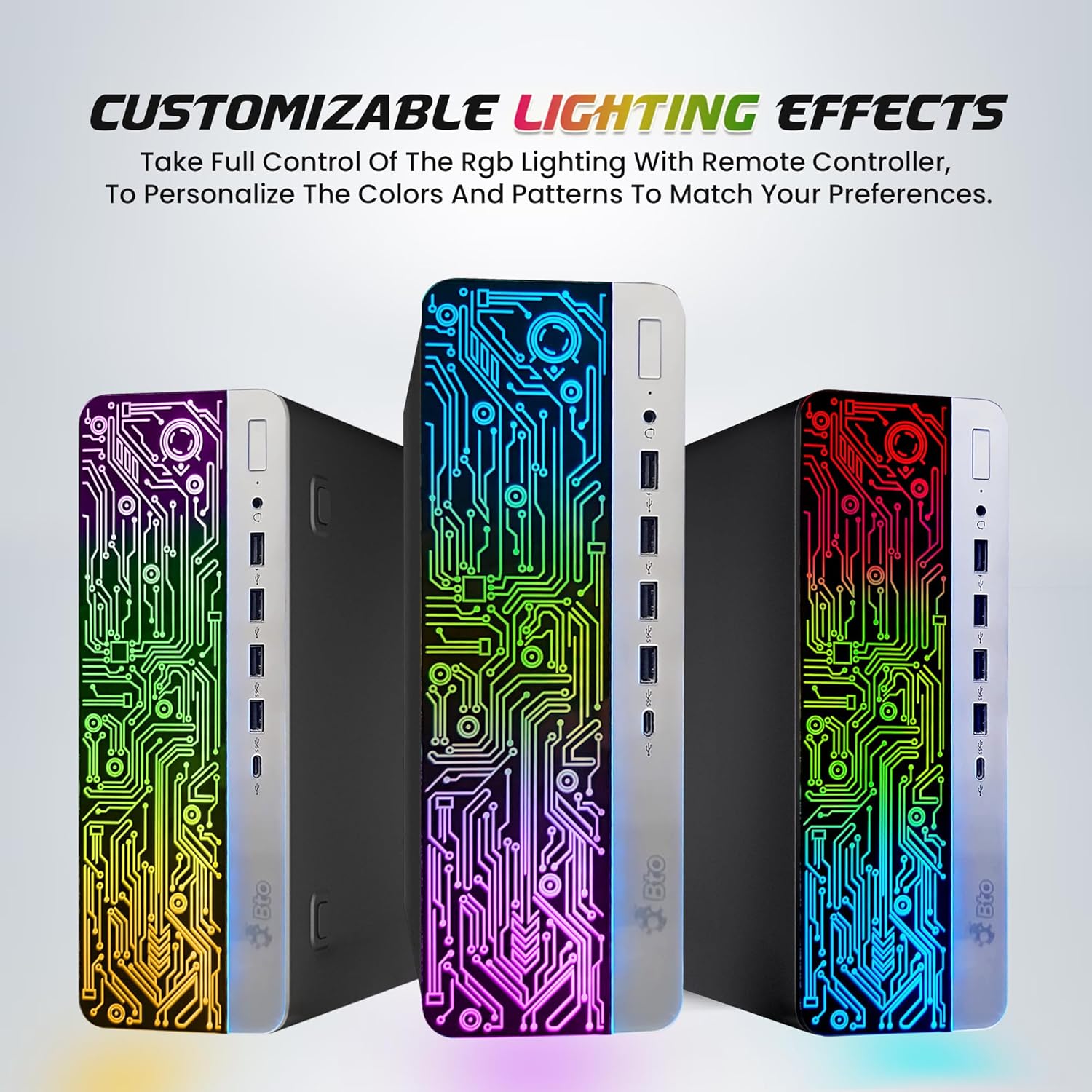
Image 4.1: Dual monitor setup for enhanced productivity.
4.3 Customizable Lighting Effects
The HP ProDesk 600 G3 features customizable RGB lighting effects on the PC tower. Use the provided remote controller to adjust colors and patterns according to your preference.

Image 4.2: Customizable RGB lighting effects on the PC tower.
5. Održavanje
5.1 Čišćenje
- Uvijek isključite računalo i iskopčajte ga iz struje prije čišćenja.
- Koristite mekanu krpu koja ne ostavlja dlačice dampened with water or a mild cleaning solution to wipe exterior surfaces. Avoid harsh chemicals.
- Use compressed air to clear dust from vents and ports periodically to ensure proper airflow and prevent overheating.
- Clean the monitor screen with a specialized screen cleaner and a microfiber cloth.
5.2 Ažuriranja softvera
Regularly update your Windows 11 operating system and drivers to ensure optimal performance, security, and compatibility. Windows Update typically handles this automatically, but you can manually check for updates via 'Settings > Windows Update'.
6. Rješavanje problema
6.1 Bez napajanja
- Ensure the power cord is securely connected to both the PC and a working electrical outlet.
- Provjerite je li utičnica ispravna tako da u nju priključite drugi uređaj.
- Verify the power button on the PC tower is fully pressed.
6.2 Nema prikaza na monitoru
- Confirm the monitor's power cord is connected and the monitor is turned on.
- Ensure the video cable (Display Port) is securely connected to both the PC and the monitor.
- Pokušajte spojiti monitor na drugi video priključak na računalu, ako je dostupan.
- If using multiple monitors, ensure the correct input source is selected on the monitor.
6.3 Nema internetske veze
- Check if your router/modem is powered on and functioning correctly.
- Verify that the WiFi is enabled in Windows settings.
- Ensure you have entered the correct WiFi password.
- Restart your PC and your router/modem.
6.4 Tipkovnica/miš ne reagira
- Ensure the USB cables for the keyboard and mouse are securely plugged into the PC.
- Pokušajte ih uključiti u različite USB portove.
- Ponovno pokrenite računalo.
7. Specifikacije
| komponenta | Specifikacija |
|---|---|
| Model | HP ProDesk 600 G3 Desktop RGB Computer |
| Procesor | Intel Core i5-6500 6th Gen (3.2 GHz base, up to 3.60 GHz turbo) |
| OVAN | 16 GB DDR4 SDRAM |
| Skladištenje | 256 GB SSD disk |
| Grafika | Intel HD grafika 530 (integrirana) |
| Operativni sustav | Windows 11 Pro |
| Monitor | 22-inch IPS Display (1920 x 1080 resolution) |
| Povezivost | Built-in WiFi (2.4G/5G), Ethernet RJ-45 |
| luke | USB 3.0, USB 2.0, Display Port, Universal Audio Jack |
| Dimenzije (DxŠxV) | 23.5 x 15.5 x 10 inča |
8. Jamstvo i podrška
This product is a renewed item. For specific warranty details and support, please refer to the documentation provided by the seller or contact the seller directly through your purchase platform. Renewed products typically come with a limited warranty from the refurbisher or seller.