1. Proizvod je gotovview
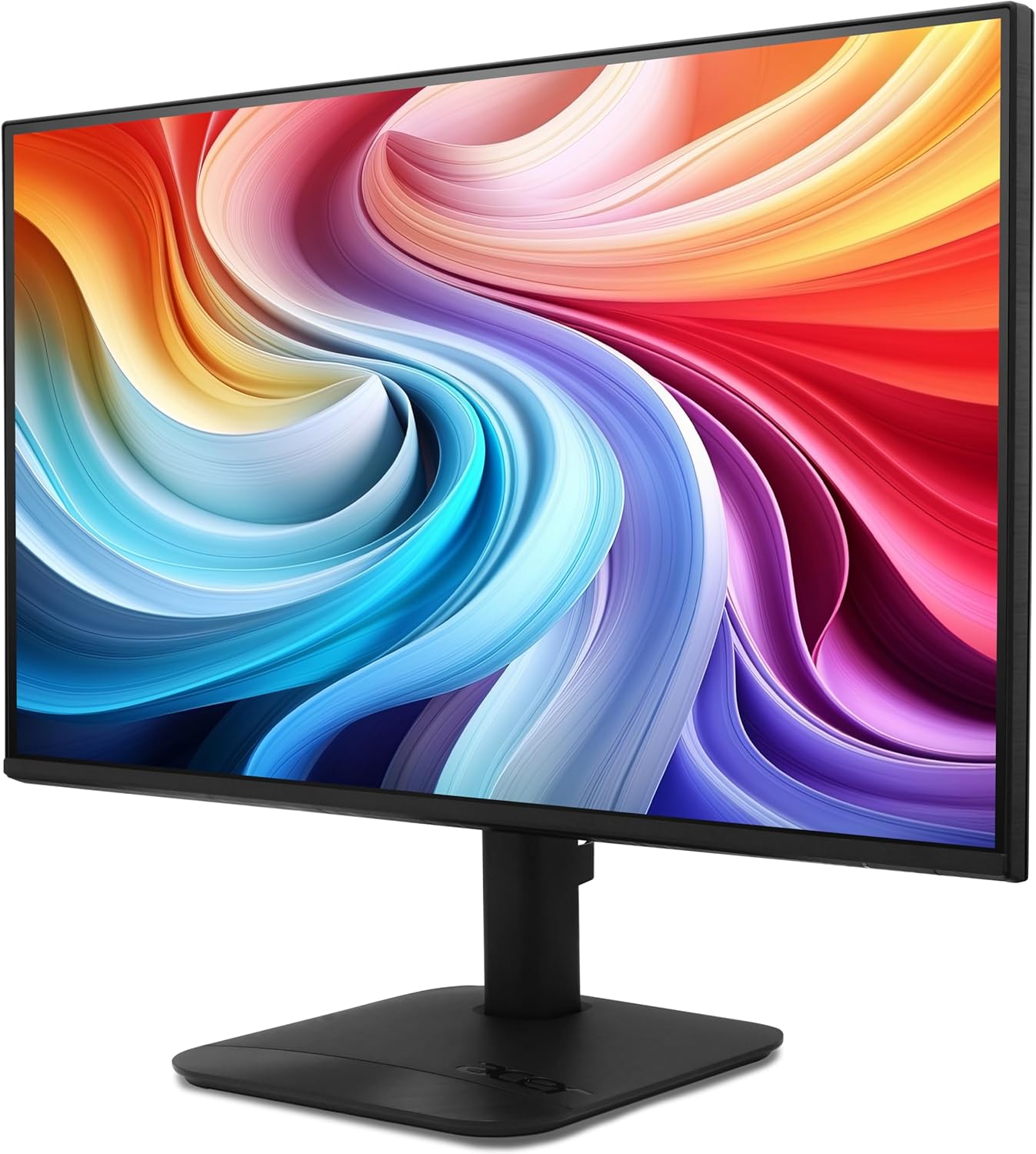
The Acer KB272 P6bi is a 27-inch IPS Full HD (1920 x 1080) monitor designed for both gaming and office use. It features a Zero-Frame design, AMD FreeSync Technology, up to a 144Hz refresh rate, and a 1ms Visual Response Boost (VRB) for smooth visuals. The IPS panel ensures accurate colors and wide viewing kutova.

Slika 1: Prednja strana view of the Acer KB272 P6bi monitor.
Ključne karakteristike:
- Vibrant Full HD Display: Experience crisp, true-to-life colors with 1920x1080 resolution and a 16:9 aspect ratio.
- Tehnologija AMD FreeSync: Eliminates screen tearing and stuttering by synchronizing the monitor's refresh rate with your graphics card's frame rate.
- Vrijeme brzog odziva: A fast 1ms (VRB) response time ensures smooth rendering of fast-moving action without smearing or ghosting.
- Visoka stopa osvježavanja: Up to 144Hz refresh rate provides ultra-smooth 2D motion scenes.
- ZeroFrame dizajn: A near bezel-less design maximizes screen real estate and allows for seamless multi-monitor setups.
- IPS tehnologija: Delivers accurate colors and consistent image quality across wide viewing angles of up to 178 degrees.
2. Što je u kutiji
Prije nego što nastavite s postavljanjem, provjerite jesu li sve komponente prisutne.
- Acer KB272 P6bi Monitor Display
- Stalak za monitor (baza i vrat)
- Kabel za napajanje
- HDMI kabel
3. Upute za postavljanje
3.1 Sastavljanje postolja monitora
- Pažljivo postavite monitor licem prema dolje na meku, čistu površinu kako biste spriječili ogrebotine.
- Attach the stand neck to the back of the monitor until it clicks into place or is secured with screws (refer to the quick start guide for specific model details).
- Attach the stand base to the stand neck, ensuring it is firmly secured.
Slika 2: Stražnji dio view of the monitor with stand attachment area.
3.2 Spajanje monitora
- Connect one end of the provided HDMI cable to the HDMI port on your computer or graphics card.
- Connect the other end of the HDMI cable to the HDMI port on the Acer KB272 P6bi monitor. Alternatively, use a VGA cable if your system requires it.
- Spojite kabel za napajanje na ulaz za napajanje monitora, a zatim na utičnicu.
- Pritisnite tipku za napajanje na monitoru da biste ga uključili.

Figure 3: Monitor connectivity ports (HDMI and VGA).
4. Rukovanje monitorom
4.1 Uključivanje/isključivanje
Press the power button, typically located on the back or bottom right of the monitor, to turn the display on or off.
4.2 Izbornik na zaslonu (OSD)
The monitor features a joystick-style button, often integrated with the power button, for navigating the OSD menu. Press the button once to bring up the options, then tilt it in one of four directions to select and adjust settings such as brightness, contrast, color temperature, and input source.
4.3 Prilagođavanje postavki zaslona
- Svjetlina/kontrast: Prilagodite ove postavke kako bi odgovarale vašim viewokruženje i preferencije.
- Postavke boja: Modify color temperature or select preset modes for optimal visual experience.
- Izvor ulaza: Manually select between HDMI and VGA inputs if auto-detection does not work.
- Stopa osvježavanja: Ensure your computer's display settings are configured to utilize the monitor's maximum refresh rate (up to 144Hz) for the smoothest experience.
- AMD FreeSync: Enable FreeSync in both the monitor's OSD menu and your graphics card's control panel for tear-free gaming.

Figure 4: Visual representation of AMD FreeSync technology.
5. Održavanje
5.1 Čišćenje monitora
- Prije čišćenja uvijek isključite monitor i iskopčajte kabel za napajanje.
- Lagano koristite meku krpu koja ne ostavlja dlačice dampvodom ili blagim, neabrazivnim sredstvom za čišćenje ekrana.
- Nježno obrišite zaslon. Izbjegavajte pretjerani pritisak.
- Ne koristite alkohol, sredstva za čišćenje na bazi amonijaka ili abrazivne materijale jer mogu oštetiti površinu zaslona.
5.2 Opća briga
- Izbjegavajte stavljanje teških predmeta na monitor ili njegove kabele.
- Držite monitor dalje od izravne sunčeve svjetlosti, izvora topline i prekomjerne vlage.
- Osigurajte odgovarajuću ventilaciju oko monitora kako biste spriječili pregrijavanje.
6. Rješavanje problema
6.1 Nema prikaza / Crni ekran
- Provjerite je li monitor uključen i svijetli li lampica indikatora napajanja.
- Ensure all video cables (HDMI/VGA) are securely connected to both the monitor and the computer.
- Provjerite je li u OSD izborniku monitora odabran ispravan ulazni izvor.
- Test the monitor with another computer or a different video cable if possible.
6.2 Image Flickering or Distortion
- Provjerite video kabel ima li oštećenja ili labavih spojeva.
- Adjust the refresh rate in your computer's display settings to match the monitor's capabilities.
- Disable AMD FreeSync in the OSD menu and graphics card settings to see if it resolves the issue.
- Provjerite jesu li upravljački programi vaše grafičke kartice ažurirani.
6.3 Colors Appear Incorrect
- Vratite postavke boja monitora na tvorničke postavke putem OSD izbornika.
- Adjust the color temperature or individual RGB values in the OSD menu.
- Calibrate your display using your operating system's color calibration tools.
7. Specifikacije
Detailed technical specifications for the Acer KB272 P6bi monitor:
| Značajka | Specifikacija |
|---|---|
| Veličina zaslona | 27 inča |
| Vrsta ploče | IPS |
| Rezolucija | 1920 x 1080 (puni HD) |
| Omjer slike | 16:9 |
| Brzina osvježavanja | Do 144Hz |
| Vrijeme odziva | 1 ms (VRB) |
| Tehnologija prilagodljive sinkronizacije | AMD FreeSync |
| Povezivost | hdmi, vga |
| Viewing kut | 178° (H/V) |
| Boja | Crna |
| Težina artikla | 8.38 funti |
| Dimenzije proizvoda | 8.26 x 27.36 x 18.29 inča |
8. Jamstvo i podrška
Za informacije o jamstvu i tehničku podršku, pogledajte dokumentaciju koja je priložena uz vaš proizvod ili posjetite službenu Acer podršku webmjesto. Čuvajte račun za jamstvene zahtjeve.


